
How to Add Text in iMovie on Mac, iPhone, and iPad
How to add text in iMovie on Mac and iPhone: add a title, change the font, size, and color, set how long text stays on screen, and fix the usual problems.


To add text in iMovie, you add a title: on Mac, click Titles above the browser and double-click a style to drop it at the playhead; on iPhone and iPad, tap a clip in the timeline, tap the Titles button, and pick a style. Then type over the placeholder text in the viewer.
iMovie has no separate "text tool" or free-floating text box. Every piece of text, from an opening title to a one-word label, is a title style. That's why searches like "how to add text in iMovie, not a title" come up empty: the title is the text tool. The rest of this guide covers both versions step by step, how to change the font and timing, and what to do when a control is greyed out.
Disclosure: We make BlitzCut, a video editor for Mac, iPhone, and iPad. Steps below follow Apple's current iMovie guides (iMovie 10.4.4 for Mac and iMovie 3.0.6 for iPhone and iPad), checked in November 2026.
How to add text in iMovie on Mac
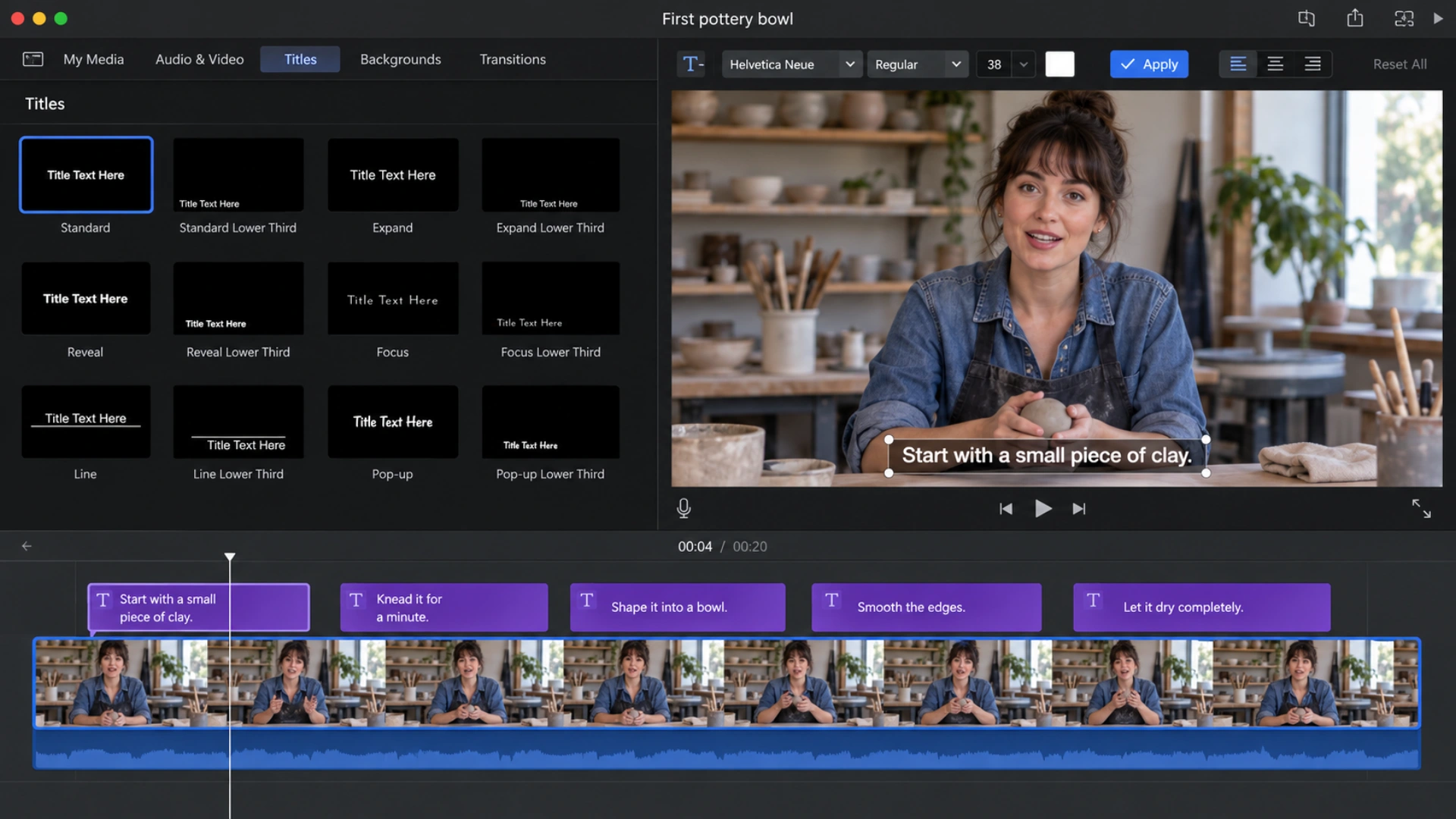
On Mac, a title is its own purple clip that sits above your video in the timeline, so you can start and stop it anywhere. From Apple's "Add titles" guide:
- Open your movie in the timeline.
- Click Titles above the browser. Title styles appear in the browser. If your project uses a theme, theme titles appear at the top.
- Skim a thumbnail to preview how the style animates, or use the search field to find one.
- Add the title in one of three ways:
- At the playhead: move the playhead to where the text should start, then double-click the style.
- Above a clip: drag the style into the timeline above a clip. With View > Snapping turned on, the title's edges snap to clip and transition edges.
- Onto a clip: drag the style directly onto a clip. Drop it in the first or last third and the title only covers that third; drop it in the middle and it spans the whole clip.
- Select the title in the timeline (or move the playhead over it), then double-click the placeholder text in the viewer and type your text.
- Use the font controls above the viewer to change the font, size, color, alignment, and bold, italic, or outline.
- Click Apply above the viewer.
To delete a title, select its bar in the timeline so it gets a yellow border, then press Delete or choose Edit > Delete.
Change how long text stays on screen (Mac)
From Apple's "Modify titles" guide:
- Drag either edge of the title bar in the timeline to make it shorter or longer.
- Type an exact length: select the title, click the Clip Information button in the adjustments bar, and enter a value in the Duration field.
- Move it: drag the title bar to a new spot in the timeline.
Change the font, size, and color (Mac)
Double-click the title in the timeline, then:
- Click the Font pop-up menu to pick a font. For every font installed on your Mac, choose Show Fonts at the bottom of that menu.
- Use the Size pop-up menu for size.
- Click B, I, or O for bold, italic, or outline.
- Click the color well and pick a color from the Colors window.
- Click Apply to save.
If a title has more than one line of text, press Tab to move to the next field.
Swap one title style for another (Mac)
Put the playhead on the title, click Titles, and double-click a different style. The new style replaces the old one and keeps the same duration, so you don't have to re-time anything.
Put text on a plain background (Mac)
For a title card with no video behind it, add a background first, then a title on top:
- Move the playhead to where the card should go.
- Click Backgrounds above the browser and double-click a solid color, gradient, or graphic. It's added at the playhead (Apple: add maps and backgrounds).
- To change a solid color, select the background, click the Generator button above the viewer, and pick a color from the color well.
- Add a title above or onto the background clip as in the steps above.
How to add text in iMovie on iPhone
On iPhone, a title belongs to a clip rather than sitting on its own track. From Apple's iPhone guide to titles:
- Open your movie project.
- Tap the clip or photo you want text on. The inspector opens at the bottom of the screen.
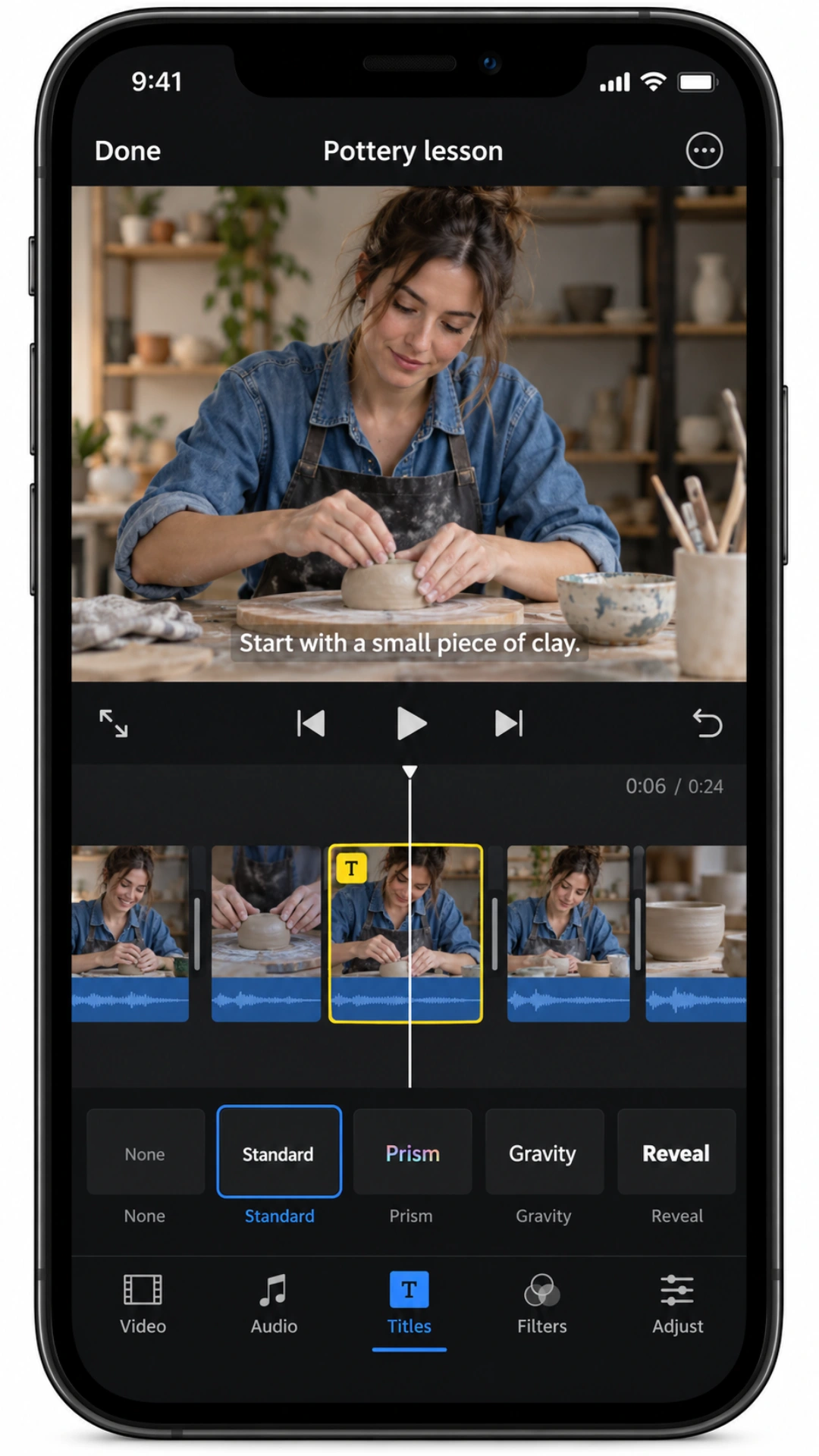
- Tap the Titles button (the T), then tap a style. A T icon appears in the clip's upper-left corner in the timeline.
- Tap the sample text in the viewer, tap Edit, type your text, and tap Done on the keyboard.
- Drag the text in the viewer to move it, or pinch it to make it bigger or smaller.
- Tap the Font button to pick a font, and the Color button to pick a color.
- Tap the More button for extra options: Text Shadow, Uppercase, and Full Clip Duration.
- Tap the Close button when you're done.
To remove the text, tap the clip, tap Titles, and tap None.
Put text at the bottom of the frame (iPhone)
Tap Style, choose Lower Third, then tap Options. Lower Third places the text near the bottom of the viewer, which is where captions and name labels usually go. Default puts it back.
Make text show for only part of a clip (iPhone)
Because a title is attached to a clip, the only way to show text for part of a clip is to split the clip first:
- Move the playhead to where the text should start.
- Tap the clip, tap the Actions button (scissors), and tap Split. You can also swipe down over the playhead on a selected clip.
- Split again where the text should end.
- Add the title to the middle piece only.
If you want the text over the whole clip instead, turn on Full Clip Duration under More. See how to trim and split video in iMovie for more on splitting.
How to add text in iMovie on iPad
iMovie on iPad uses the same project types and the same title controls as the iPhone app, with more room on screen. Tap a clip, tap Titles, choose a style, then tap the text in the viewer to edit it. Everything in the iPhone section above applies.
iMovie for Mac vs iPhone: text controls compared
| What you want | iMovie for Mac | iMovie for iPhone and iPad |
|---|---|---|
| Add text | Titles above the browser, then double-click or drag a style | Tap a clip, tap Titles, pick a style |
| Where text lives | Its own purple clip above the video | Attached to one clip (T icon on the clip) |
| Set exact timing | Drag the title's edges, or type a Duration | Split the clip, or turn on Full Clip Duration |
| Pick any font | Font menu > Show Fonts lists every installed font | A built-in font list |
| Move text in the frame | Choose a style with the position you want | Drag the text in the viewer |
| Resize text | Size menu | Pinch the text in the viewer |
| Bold, italic, outline | B, I, and O buttons | Text Shadow and Uppercase under More |
| Two titles on screen at once | No, titles can't overlap | No, one title per clip |
| Text on a plain color | Backgrounds, then add a title on top | Add a background, then add a title to it |
Common problems when adding text in iMovie
The font menu is greyed out. Some theme titles and animated titles don't let you change the font, which Apple notes in its guide. Pick a different style, such as Standard or Standard Lower Third on Mac.
I can't drag the text around on Mac. Titles on Mac use fixed layouts. To move text to the top, center, or bottom, swap to a style with that layout (for example a Lower Third style for the bottom of the frame).
The text disappears too early on iPhone. A title only lasts as long as its clip. Turn on Full Clip Duration under More, or make the clip longer.
The text covers a face. On Mac, switch to a Lower Third style. On iPhone, drag the text lower in the viewer or choose Lower Third under Style.
The text is hard to read. Use a plain bold font, white or yellow text, and turn on outline (Mac) or Text Shadow (iPhone). Avoid thin script fonts over busy backgrounds.
The text gets cut off on TikTok or Reels. iMovie movie projects are widescreen, so text near the edges of a vertical crop gets lost, and the app's buttons cover the bottom of the screen. See iMovie vertical video and safe zones for Shorts, Reels, and TikTok.
What iMovie can't do with text
- No animated word-by-word captions. You can add titles, but iMovie won't highlight words as they're spoken.
- No speech-to-text. Every word is typed by hand. For subtitles, see how to add subtitles in iMovie.
- No free placement on Mac. Text position comes from the title style you choose.
- No custom animations. You get the built-in title animations and nothing else.
- Only one title at a time. Two titles can't play over the same frames. Put both lines in one title, or export the video, import it again, and add the second title on top.
- No reusable text presets. On Mac, the closest thing is copying a styled title (Command-C) and pasting it (Command-V) at a new playhead position.
A faster way to add captions and text for talking videos
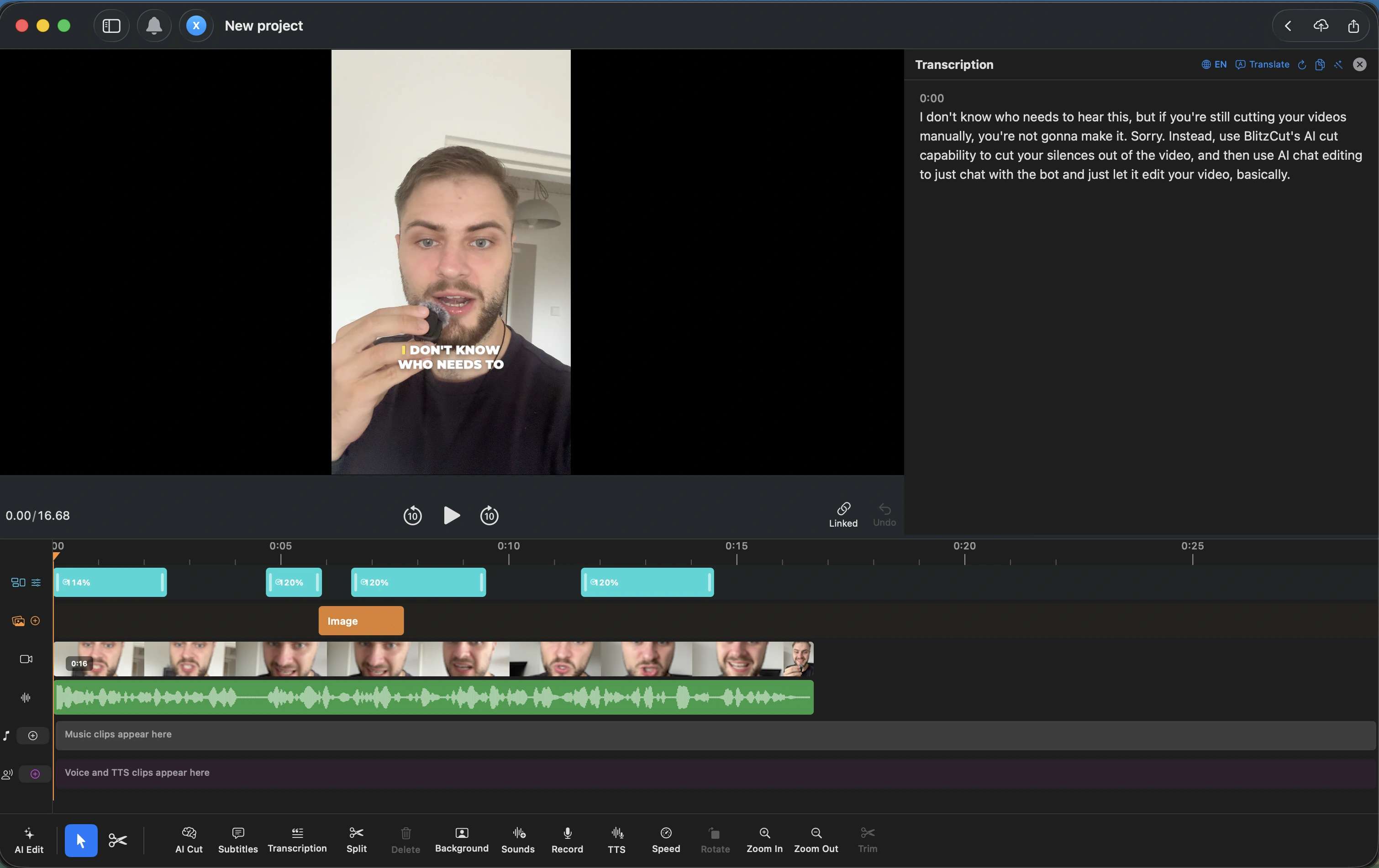
If your text is mostly captions for someone talking, typing every line as a title is the slow part. BlitzCut transcribes the speech and adds word-by-word animated captions automatically, with control over styles, fonts, colors, outlines, and shadows. For labels, callouts, and lower thirds, its text overlays let you set exactly when each one appears and disappears, with entrance and exit animations.
BlitzCut runs on Mac, iPhone, and iPad (BlitzCut for iOS), and has a free 3-day trial. For a side-by-side, see BlitzCut vs iMovie.
Frequently Asked Questions
How do you add text to iMovie?
Add a title. On Mac, click Titles above the browser, double-click a style to add it at the playhead, then double-click the placeholder text in the viewer and type. On iPhone and iPad, tap a clip, tap the Titles button, choose a style, then tap the text in the viewer and tap Edit.
How do I add text in iMovie on iPhone?
Open your project, tap the clip, tap the Titles button (the T), and pick a style. Tap the sample text in the viewer, tap Edit, type, and tap Done. Drag the text to move it and pinch to resize it.
How do I add a text box in iMovie?
iMovie doesn't have a separate text box. Text is always a title. On iPhone you can drag the title anywhere in the frame, which works like a text box. On Mac, pick a title style whose layout puts the text where you want it.
Can I add text in iMovie without a title?
No. In iMovie, titles are the only way to put text on a video. A simple style such as Standard on Mac or Standard on iPhone, with no animation, looks like plain text.
How do I add multiple text lines at the same time in iMovie?
iMovie shows one title at a time, on both Mac and iPhone. The simplest fix is to type both lines into the same title, pressing Return between them (on Mac, many styles also have a second text field you reach with Tab). If you need two separately styled titles at once, export the video with the first title, import that file back into iMovie, and add the second title on top.
How do I change the text color in iMovie?
On Mac, double-click the title, click the color well above the viewer, pick a color, and click Apply. On iPhone, tap the clip, tap Titles, tap the text, then tap the Color button.
Can you add text to a photo in iMovie?
Yes. Photos work like video clips. On Mac, add a title above or onto the photo in the timeline. On iPhone, tap the photo, tap Titles, and pick a style.
Related: How to Add Subtitles in iMovie · How to Trim Video in iMovie · iMovie Vertical Video · How to Add Music to iMovie · How to Export iMovie to MP4
Editing a talking-head video?
BlitzCut is available on Android, iPhone, iPad, and Mac. It is designed for recorded UGC-style videos, founder-led ads, tutorials, and testimonials and other talking-head content.
Try it for freeRelated Articles
Keep Reading

How to Add Captions to Instagram Reels (Automatically)
How to add captions to Instagram Reels: use the Captions sticker for free auto captions, or burn in styled word-by-word captions with Edits, CapCut, or BlitzCut. Steps for each.

How to Add Captions to a Podcast Video on Mac
How to add captions to a podcast video on Mac: burned-in captions for TikTok, Reels, and Shorts clips, and SRT subtitles for full YouTube episodes. Steps for BlitzCut, Descript, and Final Cut Pro.

How to Add Subtitles to a Video on Mac (Automatically)
How to add subtitles to a video on Mac automatically with Final Cut Pro, Premiere Pro, CapCut, or BlitzCut, plus a free method using MacWhisper and HandBrake. iMovie can't do it.