
How to Make a Video Out of Photos: iPhone and Mac
Learn how to make a video out of photos in iMovie on iPhone or Mac, with deliberate timing, Ken Burns framing, audio, permissions, and export checks.


Here's how to make a video out of photos: create a Movie project in iMovie, arrange your pictures, set their screen time and framing, add optional audio, and export a video file.
The result plays on a fixed timeline: viewers watch the pictures change at the moments you choose. That differs from a swipeable photo carousel and from placing an image over an existing recording. This guide starts with still images as the main sequence.
How to make a video out of photos on iPhone
Use iMovie's Movie project for manual control. Apple's project creation guide documents the route:
- Open iMovie and tap Start New Project → Movie. Return to Projects first if needed.
- Select the photos you want. Use Media to browse your photos and albums.
- Tap Create Movie.
- Review the timeline from beginning to end before adding music.
Choose a small, purposeful collection. For a workshop recap, begin with the room, show the activity, then finish with the completed work. Remove near-duplicates unless the change between them explains something useful.
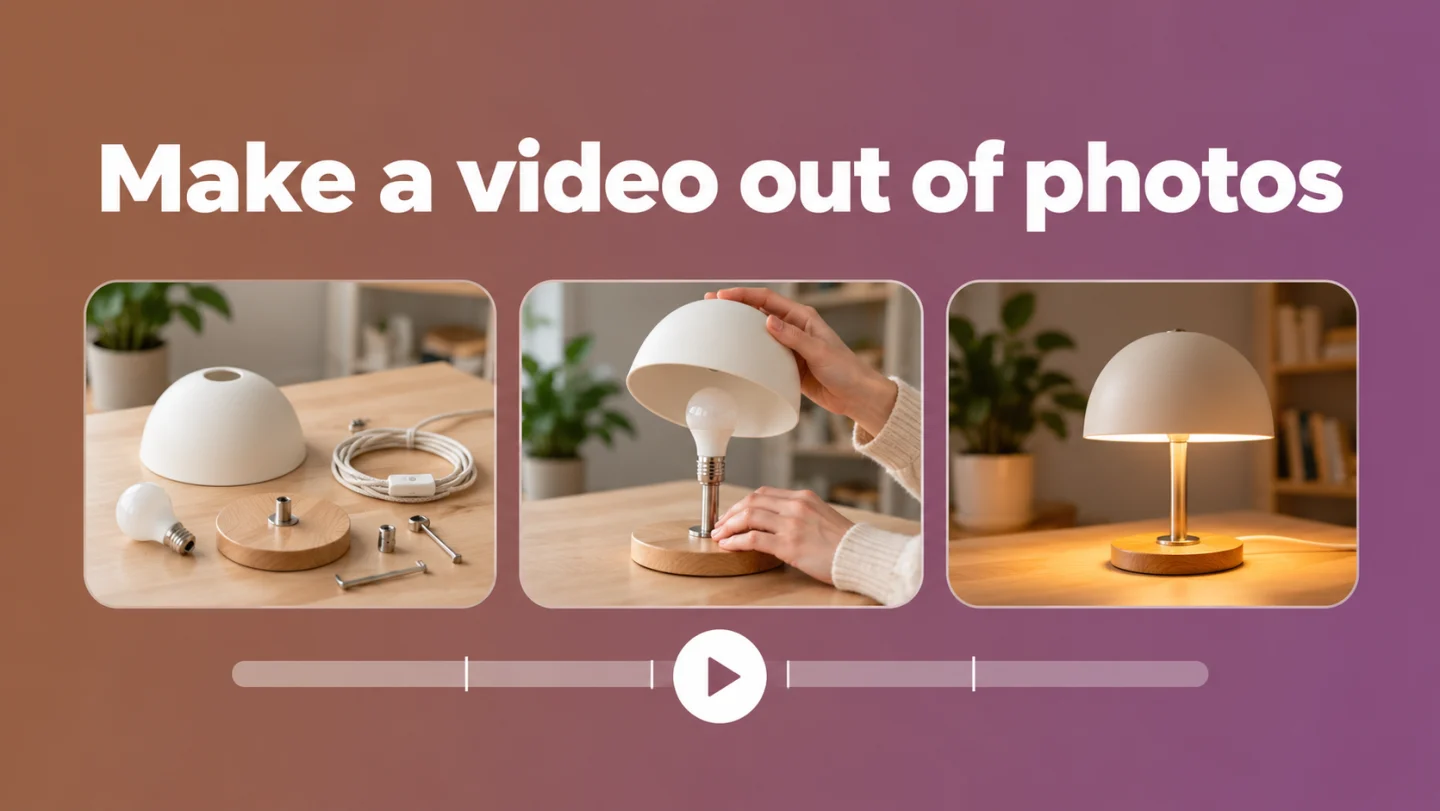
Conceptual cover illustration of a photo video, not an actual iMovie or BlitzCut screenshot.
Set the order and duration before decorating
Touch and hold a photo in the timeline, then drag it to reorder. Select a photo and drag its yellow trim handles to change how long it stays onscreen. Apple's arrangement guide confirms these controls; trimming a still changes duration rather than removing photographed content.
As an editorial starting point, try three seconds for a simple scene and longer for a labeled image. Twelve photos at three seconds each make a 36-second sequence before transition adjustments. Preview the actual runtime after changing transitions.
A useful test is to describe each picture aloud. If the image changes before you finish its explanation, extend it or shorten the explanation. Avoid giving every picture identical timing when some require closer inspection.
Example: 12 seconds with straight cuts
Room
0–3 s
Activity
3–8 s
Finished work
8–12 s
One continuous narration track: 0–12 s
Editorial timing diagram built with HTML, not app UI. The unequal holds give the activity more explanation time.
Control Ken Burns motion and preserve important details
iMovie adds Ken Burns movement to photos. Select a picture, use Start and End, and pinch or drag to frame each endpoint. Tap Ken Burns Enabled to disable movement. Apple documents this in its zoom controls guide.
Ken Burns moves the visible crop across a still image. It does not generate new action, animate a person's body, or reconstruct anything outside the photograph. A gentle move can guide attention; it cannot turn a static event into newly filmed footage.
Inspect both endpoints. A face visible at the beginning can disappear at the end. For certificates, screenshots, and diagrams, a stationary view often makes reading easier. Leave transitions simple until the timing works without them.
Make the same photo video on Mac
In iMovie on Mac, choose Create New → Movie and access your photo library in the sidebar, following Apple's getting started guide. For image files in Finder, use the media import route, then add the imported pictures to the timeline in order.
Before adding a large batch, open iMovie → Settings. Set Photo Duration in seconds and choose Photo Placement: Fit preserves the image within the movie frame, Crop to Fill fills it with a crop, and Ken Burns adds movement. These are documented Mac photo defaults.
For an individual moving image, select it and open Cropping → Ken Burns. Adjust the Start and End rectangles, then apply. See Apple's Mac Ken Burns instructions. Review portrait photographs individually rather than assuming one setting suits every source.
Add audio that serves the sequence
For music on iPhone, choose Add Media → Audio → Soundtracks, preview a track, and add it. You can also import suitable audio. Apple's music guide notes that protected music cannot be used in iMovie. Access to a song does not establish permission to publish it.
If narration explains the photos, make speech understandable before raising music. Follow the voice-over guide for recording and placement.
For a different starting point—a supplied talking-head lesson, UGC explanation, founder video, or testimonial—BlitzCut can edit the recording through its transcript, adjust silence removal, and time image overlays, audio, and captions on the timeline. Its installed iPhone, iPad, and Mac app is a free download with paid features; see the App Store listing. Use the image overlay guide for that workflow.
BlitzCut is available for iPhone, iPad, Mac, and Android. Check Android features and purchase terms separately; Apple workflows and App Store prices in this article apply to the Apple apps.
Resolve access and export the finished video
For missing iPhone photos, review Settings → Privacy & Security → Photos and the app's access, following Apple's permissions guidance. On Mac, check System Settings → Privacy & Security → Photos using Apple's Mac instructions. Download cloud-only originals before editing. Use your own pictures or permissioned material.
On iPhone, finish editing, return to the project browser, then choose Share → Share Video → Options. Pick an available resolution, then Save Video or Save to Files. Apple's sharing guide explains that frame-rate and HDR choices depend on the media. Do not expect a photo-only project to unlock 60 fps automatically.
On Mac, use File → Share → File, choose video and audio, then resolution, quality, and compression. Follow Apple's file export guide. Watch the saved file for cropped faces, abrupt audio, and unreadable text. Keep the project and original photos for revisions.
Frequently Asked Questions
Does this create a real video or a swipeable slideshow?
A video file with fixed timing. For individual swipeable images, follow the separate TikTok slideshow guide.
Why are my photos moving?
Ken Burns adds pan and zoom. Disable it on a selected photo for a stationary image.
How long should each picture stay onscreen?
Use enough time to understand its content and accompanying speech. Three seconds is a starting experiment, not a requirement.
Will a 4K export fix a blurry photo?
No. Start with the original image and avoid excessive enlargement. A larger export cannot recover missing detail.
Editing a talking-head video?
BlitzCut is available on Android, iPhone, iPad, and Mac. It is designed for recorded UGC-style videos, founder-led ads, tutorials, and testimonials and other talking-head content.
Try it for freeRelated Articles
Keep Reading

How to Make a Boomerang Video: Bounce and Loop
Learn how to make a boomerang video with Live Photo Bounce or a forward-and-reverse Mac edit, then fix endpoint pauses, audio, and sharing problems.

How to Make a Slideshow on TikTok: Photos or Video
Learn how to make a slideshow on TikTok as a swipeable photo post or timed video, with photo selection, music, layout, and publishing checks.

How to Make a Time Lapse Video on iPhone or Mac
Learn how to make a time lapse video with iPhone Camera or existing footage, calculate its length, and use the result in a narrated demo.