
How to Make a Slideshow on TikTok: Photos or Video
Learn how to make a slideshow on TikTok as a swipeable photo post or timed video, with photo selection, music, layout, and publishing checks.


Here's how to make a slideshow on TikTok: tap Add post, choose Photo, upload your pictures, review the sequence and sound, then complete the post details and publish.
First choose the result you want. A swipeable photo post and a video made from photographs are different formats. That decision determines whether you should keep working with individual images or create a finished video file.
How to make a slideshow on TikTok as a photo post
TikTok's Making a post instructions document this mobile route and allow up to 35 photos:
- Open TikTok and tap Add post (+).
- Tap Photo, then Upload to choose photos from your device.
- Select the pictures you want and tap Next.
- Swipe between photos to inspect them. Add the sound, text, filters, stickers, or crops you need.
- Tap Next again to review the cover, description, and privacy settings.
- Tap Post to publish, or Drafts to continue later.
Use the regular post route when you want a photo post in the feed; Your Story is a different destination. Before publishing, check that the preview contains your intended individual photos and that you can move between them.

Conceptual cover illustration of choosing photos for a slideshow, not a screenshot of TikTok or its photo picker.
Choose swipeable photos or a timed video
TikTok describes Photo Mode as a carousel of still images that can advance automatically and that viewers can swipe through at their own pace. Music can accompany the set. See its official Photo Mode explanation.
Automatic movement alone therefore does not tell you whether something is a video. The useful distinction is whether the viewer can navigate the individual pictures.
| Choose this format | When it fits | What you prepare |
|---|---|---|
| Swipeable photo post | Instructions, reference images, a portfolio, or a before-and-after sequence | Individual image files uploaded through Photo |
| Timed photo video | Narration, deliberate pauses, or images synchronized to a spoken explanation | A finished video with each picture's timing set in the edit |
An exported MP4 does not become a swipeable carousel when uploaded. If you need both formats, retain the original pictures and make two separate versions.
Select and order photos around one clear idea
Prepare a small set before opening the uploader. For a desk-assembly tutorial, a useful sequence might be the finished stand, the parts, the first connection, the final adjustment, and a close-up of the completed joint. That is an editorial example, not a required slide count.
Choose a first picture that explains the subject without the description. Give each following image a distinct job. Remove near-duplicates unless the difference is the point you are teaching.
Select the files in your intended reading order, then inspect the actual preview from first to last. If the order is wrong and your picker does not offer an obvious rearrangement control, return to selection and choose them again. Avoid relying on filenames or album order alone.
The 35-photo allowance is a ceiling, not a target. Split a large collection into separate topics when one post would require too much context. Keep the original files outside TikTok so later revisions remain straightforward.
Check crops and readable text on every slide
Use consistent framing where it helps comparison. For before-and-after pictures, preserve the same viewpoint and scale; an aggressive crop can make the change difficult to judge. For a document or diagram, enlarge the relevant detail instead of shrinking an entire page.
A 9:16 canvas is a practical design choice for a portrait phone presentation, rather than a claim that organic photo posts require that shape. Use the aspect ratio calculator to plan dimensions and our aspect-ratio guide when preparing crops.
Keep essential text away from the edges and the areas occupied by platform controls. The video safe zone checker can help plan a vertical composition, but verify photo placement in TikTok itself: a video overlay guide does not certify a photo-post layout.
Read every slide at phone size. If understanding a picture requires several dense paragraphs, simplify the image or divide the explanation across more pictures.
Add music that fits the post's purpose
TikTok's photo-post workflow supports adding sound. Listen to the selected soundtrack in the preview and check that it suits the complete sequence. Do not build a swipeable lesson around a word or beat that must coincide with one picture; viewers can move through the images themselves.
For content promoting a brand, product, or service, TikTok recommends music from its Commercial Music Library because it is cleared for commercial use. Music outside that library requires the appropriate rights. Follow TikTok's commercial music guidance rather than assuming a trending sound is suitable for a business post.
When a narrated photo video is the better next edit
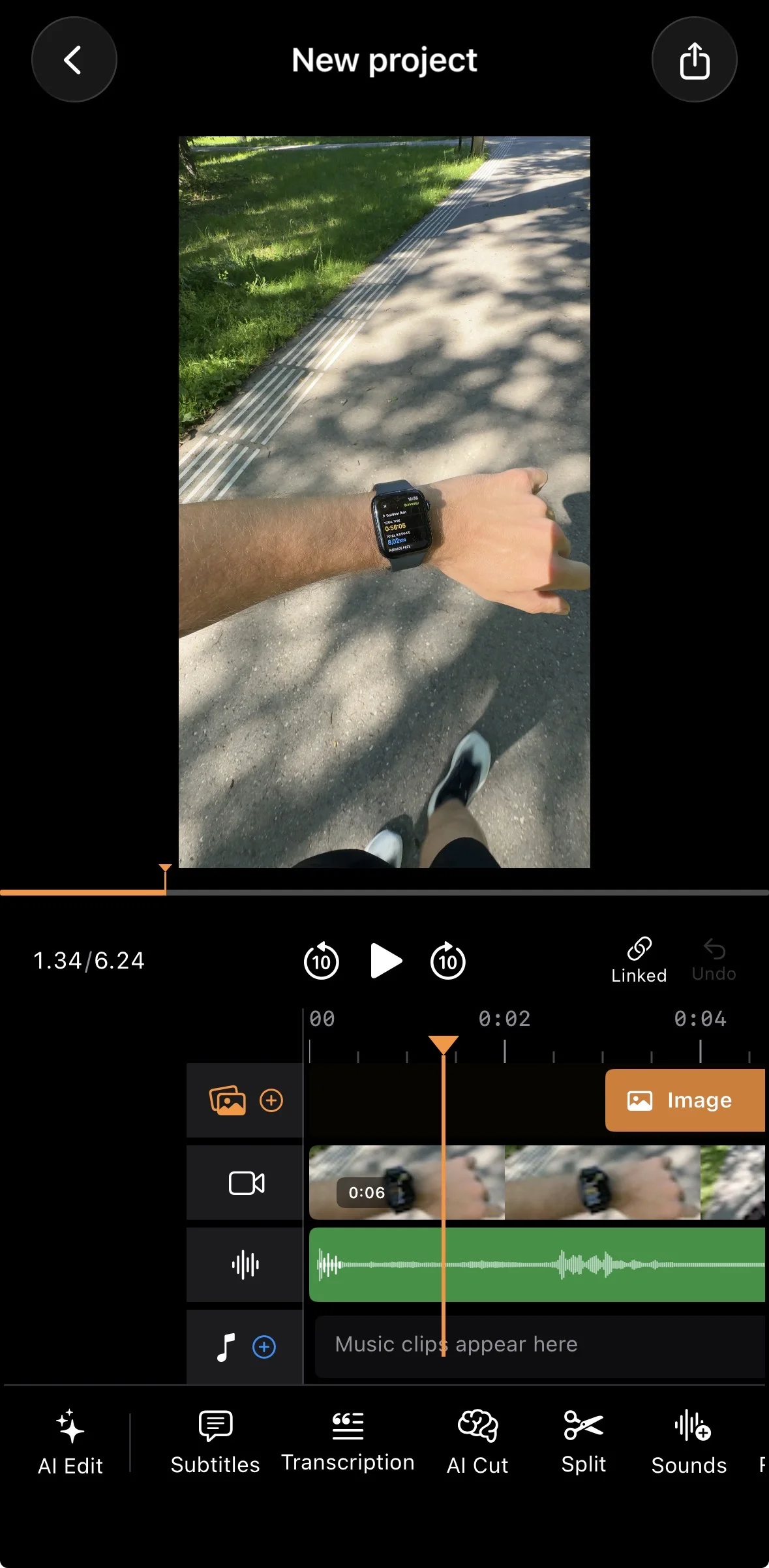
Choose video when a voice needs to explain the pictures in a fixed order. For that workflow, follow how to add pictures to a video. Our montage guide helps when the sequence combines photos and footage.
BlitzCut is optional here. Its installed iPhone, iPad, and Mac app is free to download with paid features. For a supplied tutorial, UGC recording, founder explanation, or testimonial, it supports transcript editing, adjustable silence removal, timeline editing, image overlays, imported audio, and captions. See its App Store listing and release history.
BlitzCut is available for iPhone, iPad, Mac, and Android. Check Android features and purchase terms separately; Apple workflows and App Store prices in this article apply to the Apple apps.
Keep pauses needed to inspect a demonstration. Time each supporting image against the explanation, preview captions, export, and upload that saved file as a TikTok video.
Frequently Asked Questions
How many photos can I put in a TikTok slideshow?
TikTok's photo-post support guidance allows up to 35. Use only the images needed to explain the subject.
Why did my slideshow become a video?
Check whether you uploaded a rendered video or used a video-making workflow. Start from Photo with the original images when you want separate swipeable pictures.
Can a photo carousel also advance automatically?
Yes. TikTok's Photo Mode explanation describes automatic advancement alongside viewer-controlled swiping. Autoplay does not by itself mean the post is a rendered video.
Can BlitzCut export a swipeable TikTok carousel?
Use TikTok's native photo-post workflow for that result. BlitzCut's relevant role here is editing a video with supporting images; its video export does not preserve swipeable slides.
Editing a talking-head video?
BlitzCut is available on Android, iPhone, iPad, and Mac. It is designed for recorded UGC-style videos, founder-led ads, tutorials, and testimonials and other talking-head content.
Try it for freeRelated Articles
Keep Reading

How to Make a Boomerang Video: Bounce and Loop
Learn how to make a boomerang video with Live Photo Bounce or a forward-and-reverse Mac edit, then fix endpoint pauses, audio, and sharing problems.

How to Make a Time Lapse Video on iPhone or Mac
Learn how to make a time lapse video with iPhone Camera or existing footage, calculate its length, and use the result in a narrated demo.

How to Make a Video Out of Photos: iPhone and Mac
Learn how to make a video out of photos in iMovie on iPhone or Mac, with deliberate timing, Ken Burns framing, audio, permissions, and export checks.