
How to Add Pictures to a Video: Clips, Cutaways, and Overlays
Learn how to add pictures to a video as clips, cutaways, or overlays in iMovie and BlitzCut, while keeping narration and image timing clear.


How to add pictures to a video: insert each photo as a clip for a full-frame image, or add it as an overlay to keep the presenter visible underneath.
There is also a useful middle option: a full-frame cutaway overlay that shows the picture while the original video and its audio continue underneath. Choosing the right arrangement prevents the common problem of inserting a photo and accidentally interrupting the explanation.
How to add pictures to a video: choose the right placement
Starting entirely with still photographs? Follow how to make a video out of photos for a timed photo sequence rather than an image overlay on existing footage.
| What viewers should see | Arrangement | Typical use |
|---|---|---|
| A photo between two video shots | Photo clip in the main sequence | An opening card, slideshow section, or closing image |
| A photo filling the screen during narration | Cutaway overlay above the video | A chart, document, or product close-up |
| A picture and presenter together | Smaller image overlay or picture in picture | A logo, reference photo, or supporting example |
For example, a presenter saying “compare these two camera positions” needs the reference picture at that sentence. A vacation montage can place photos between video clips instead.
Insert a full-frame photo clip in iMovie on iPhone
Open a Movie project containing your video, then:
- Move the playhead to the intended insertion point.
- Tap Add Media → Photos or Albums.
- Choose the picture. Download it if an iCloud download control appears.
- Tap Add to Project.
- Select the photo in the timeline and adjust its trim handles to set the duration.
When the playhead is over a video clip, iMovie inserts the photo before or after that clip, depending on which boundary is closer. It does not automatically turn the photo into an overlay. Apple explains this behavior in its photo insertion instructions.
Check the sequence afterward. A photo clip occupies its own time in the main edit; if your explanation needs to continue uninterrupted, use the overlay approach below instead.
Put a picture over an existing video in iMovie
- Position the playhead where the image should appear.
- Tap Add Media → Photos or Albums, then select the picture.
- Tap More, then choose Picture in Picture or Cutaway.
- Select the overlay clip in the timeline to adjust it.
- For Picture in Picture, use the position control, drag to move the image, and pinch to resize it.
- Play through its beginning and ending to check the timing.
Picture in Picture leaves the main video visible around a smaller image. Cutaway displays the added picture instead of the main picture while the main clip's audio continues. Apple's overlay guide documents both options.
Use a smaller overlay when the presenter's expression matters. Use a full-frame cutaway when the image contains details viewers need to inspect. A dense chart squeezed beside a face is usually less helpful than a simpler graphic or a brief full-screen view.
Stop unwanted zooming and cropping
iMovie applies a Ken Burns movement to photos added to a project. For a still chart or screenshot, select the photo and tap Ken Burns Enabled to turn the motion off. To keep movement, adjust the Start and End framing instead. These controls are covered in Apple's photo zoom guide.
Before editing, prepare the image for its role. A landscape photograph inside a vertical video may need a deliberate crop. A document screenshot may need the relevant paragraph enlarged. Keep an uncropped original so you can change the framing later.
Preview at approximately the size viewers will watch. If a label is hard to read on your phone, leaving the image onscreen longer may not solve the problem. Enlarge the useful detail or remove unnecessary information.
Add supporting images to a BlitzCut talking-head edit
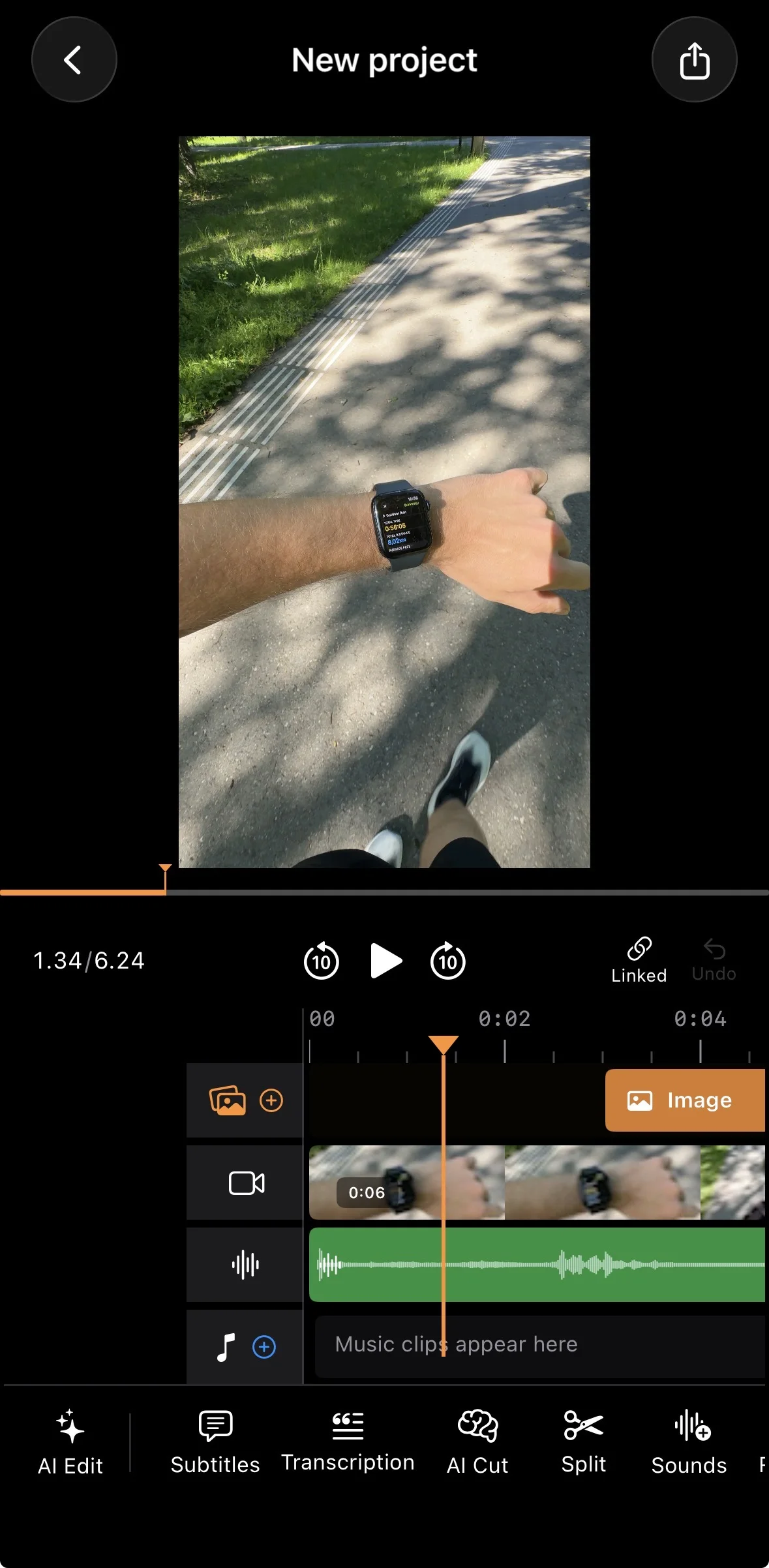
BlitzCut is useful when pictures support a spoken explanation: product photos during a review, a diagram during a lesson, or a logo during an introduction. Its image overlay feature supports positioning images and setting when they appear and disappear.
The actual iPhone screenshot below shows an orange Image clip above the video and its green audio lane. This arrangement helps you time a picture against the words it supports.
Start by finishing the spoken edit. Use transcript editing and silence removal to review the pacing, then add the images at the relevant sentences. Keep a demonstration pause when viewers need time to inspect the picture. Add captions with enough room that the image and text do not compete.
BlitzCut's App Store version history also documents image overlays and a dedicated overlay timeline. Use an overlay to illustrate an existing sentence without inserting extra time into the sequence.
Check the exported picture, not only the preview
Look at the image's entrance, exit, crop, and sharpness in the saved video. In BlitzCut, the export screen exposes resolution and quality settings along with an estimated file size.
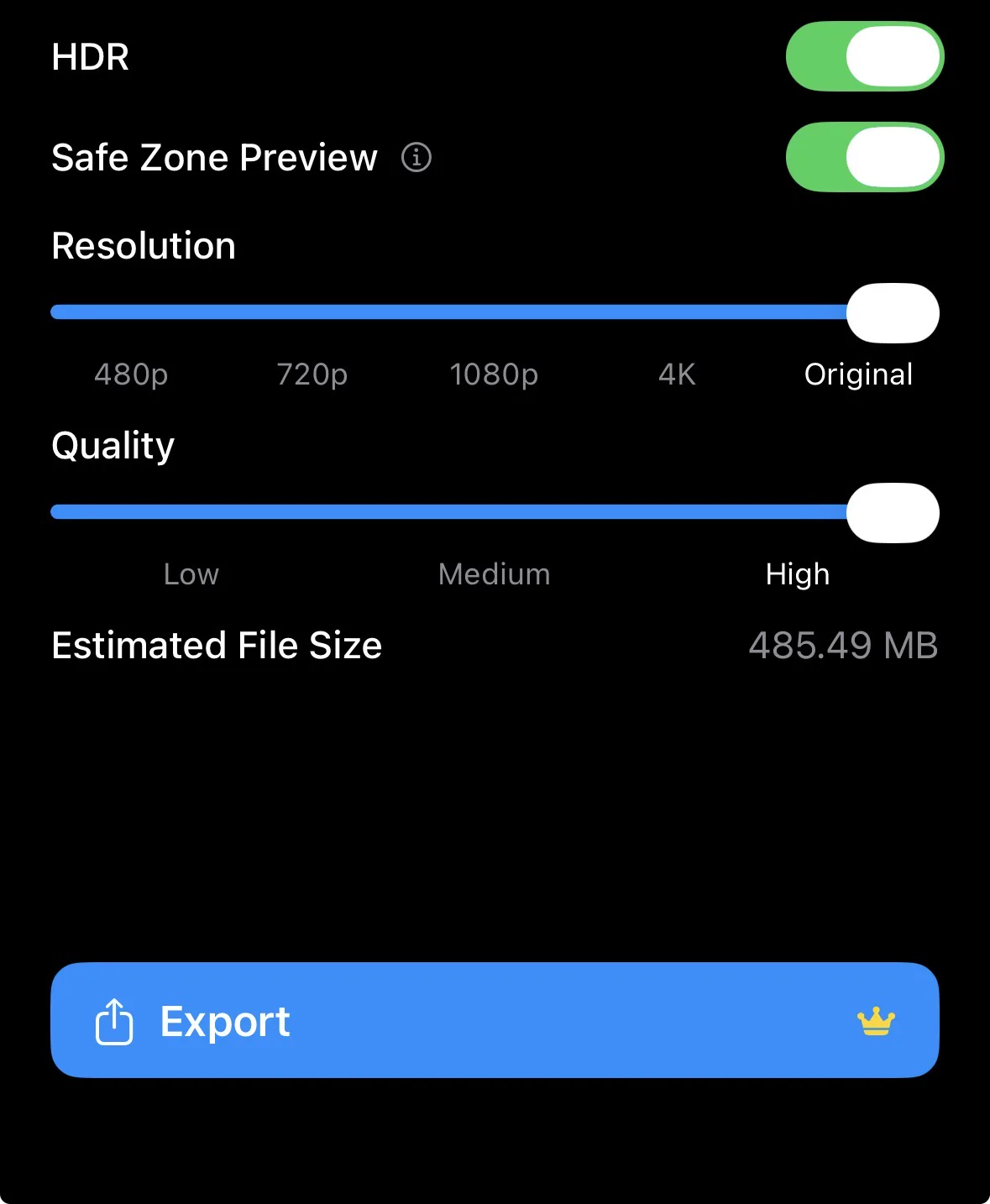
Higher output resolution cannot restore detail missing from a small source image. Use the original photo or screenshot where possible, and avoid enlarging a tiny logo to fill the screen.
Troubleshooting photos in a video
The photo interrupts the speaker. Check whether it was inserted as a main-sequence clip. For continuous speech underneath, use a cutaway overlay or a smaller overlay instead.
The image hides captions or a face. Change its placement or simplify the composition. If both elements need the same area, show them at different moments.
The picture appears at the wrong sentence. Recheck its timing after trimming the speaking video. Add supporting visuals once the underlying edit is stable.
The image looks blurry. Return to the original source rather than a compressed copy. Crop around the relevant detail and check the exported file at viewing size.
A photo will not load. Check whether the original is still in iCloud and download it before retrying the import.
Frequently Asked Questions
Can I show a picture while the original voice keeps playing?
Yes. Use a cutaway overlay for a full-frame picture or Picture in Picture for a smaller image. Keep the underlying spoken video in place.
What is the difference between a photo clip and an overlay?
A photo clip occupies time in the main sequence. An overlay appears above footage that continues underneath, allowing the picture to support an existing moment.
Why does iMovie zoom in on my photo?
Its Ken Burns effect adds movement. Select the photo and turn the effect off for a fixed image, or adjust its start and end framing.
How long should a picture stay on screen?
Long enough to understand the detail you are discussing. A simple product photo needs less inspection than a labeled diagram. Read the accompanying sentence aloud and preview the image at phone size.
Related Guides
Editing a talking-head video?
BlitzCut is available on Windows, Android, iPhone, iPad, and Mac. It is designed for recorded UGC-style videos, founder-led ads, tutorials, and testimonials and other talking-head content.
Download BlitzCutRelated Articles
Keep Reading

Black Friday 2026 Video Editing Software Deals: CapCut, DaVinci, Final Cut, Descript and More
Every Black Friday 2026 video editing software deal we could verify: DaVinci Resolve, CapCut, Final Cut Pro, Adobe, Descript, Filmora, BlitzCut, plus what each did last year.

BlitzCut vs Kapwing: App and Browser Editing Compared
Compare BlitzCut and Kapwing for talking-head ads, tutorials, and team content, including Smart Cut, transcript editing, captions, and usage limits.

BlitzCut AI vs KineMaster: Captions and Editing (2026)
Compare KineMaster’s free on-device captions and layered editing with BlitzCut’s recorded talking-head workflow, including export and pricing checks.