
What Is B-Roll? Meaning, Examples, and How to Film It on iPhone
What is B-roll? The meaning of B-roll footage, A-roll vs B-roll, 8 types of B-roll shots with examples, and how to film and edit B-roll on iPhone for Reels and TikTok.


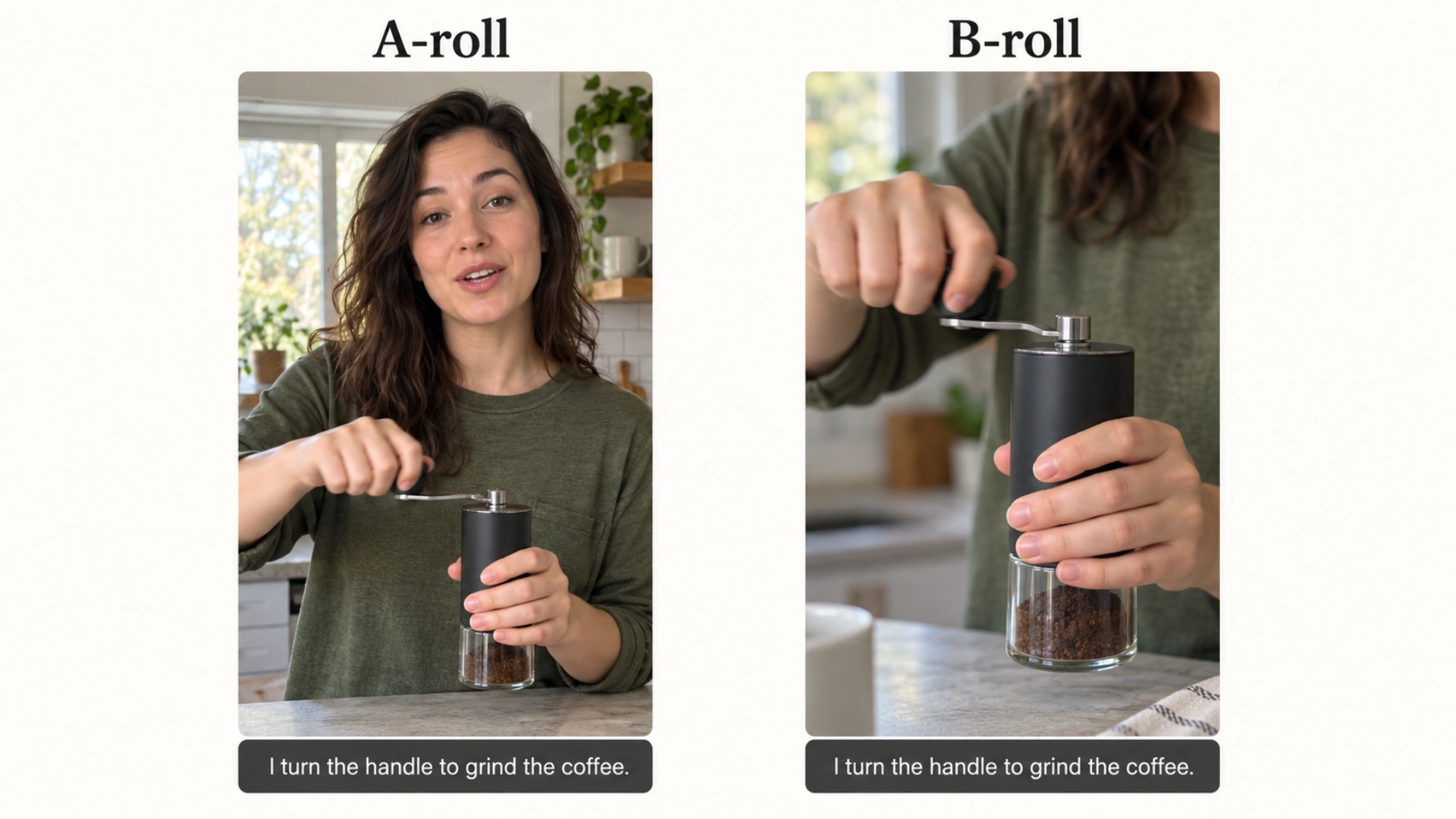
What is B-roll? B-roll is the supporting footage you cut over your main video to show what you're talking about: the hands chopping vegetables in a cooking video, a screen recording of the app in a tutorial, or a close-up of the product while the voice keeps going underneath. The main footage, usually you talking to the camera, is the A-roll. B-roll exists to break up a static shot, hide cuts, and show instead of tell.
What is B-roll? The meaning and where the name comes from
The name comes from film and early TV editing, when editors worked with two physical reels of film. The "A" reel held the main footage, like the interview, and the "B" reel held the cutaways that could be laid over it. The film is gone, but the meaning stuck: A-roll carries the story, B-roll illustrates it.
In practice, B-roll footage almost never has its own audio in the final edit. You hear the A-roll (your voice) while you see the B-roll.
A-roll vs B-roll
| A-roll | B-roll | |
|---|---|---|
| What it is | The main footage: the speaker, interview, or narrator | Supporting footage: cutaways, details, context |
| Audio | Carries the voice you hear | Usually muted, or just ambient sound |
| Examples | Talking head, podcast camera, interview subject | Screen recordings, product close-ups, hands at work, locations |
| Job | Delivers the message | Illustrates it, hides cuts, adds visual variety |
Why B-roll matters in short-form video
The most common reason viewers drop off a talking-head video is that nothing changes on screen. B-roll fixes that without stopping your sentence. When you say "open the app", cutting to the app on screen is clearer and more convincing than your face saying it.
B-roll helps most when:
- The video runs longer than about 30 seconds.
- You're teaching something (showing beats describing).
- You mention a product, a place, or a result.
- You're listing steps, where each step is a natural place for a cutaway.
It also hides edits. If you cut a pause or a retake out of your A-roll, the jump in your face position is obvious. Lay three seconds of B-roll over the cut and nobody sees it.
B-roll examples: 8 types of B-roll shots
- Screen recordings. Your phone or computer while you explain something. The default B-roll for apps, finance, and social media advice.
- Close-ups and details. Hands, products, textures, ingredients. Move closer than feels natural.
- Process shots. Something being made, fixed, or used, start to finish.
- Establishing shots. The room, the street, the view: where this is happening.
- POV shots. Filmed from your eye line, like the running watch in the screenshot below.
- Reaction and cutaway shots. A listener nodding, a pet, a coffee cup, anything that gives the eye a break.
- Text and graphics. A stat, a quote, or a chart on screen. Not filmed, but it does the same job in the edit.
- Stock footage. For things you can't film, like a historical event or a city you haven't been to. Free libraries include Pexels and Pixabay; check each clip's license before commercial use.
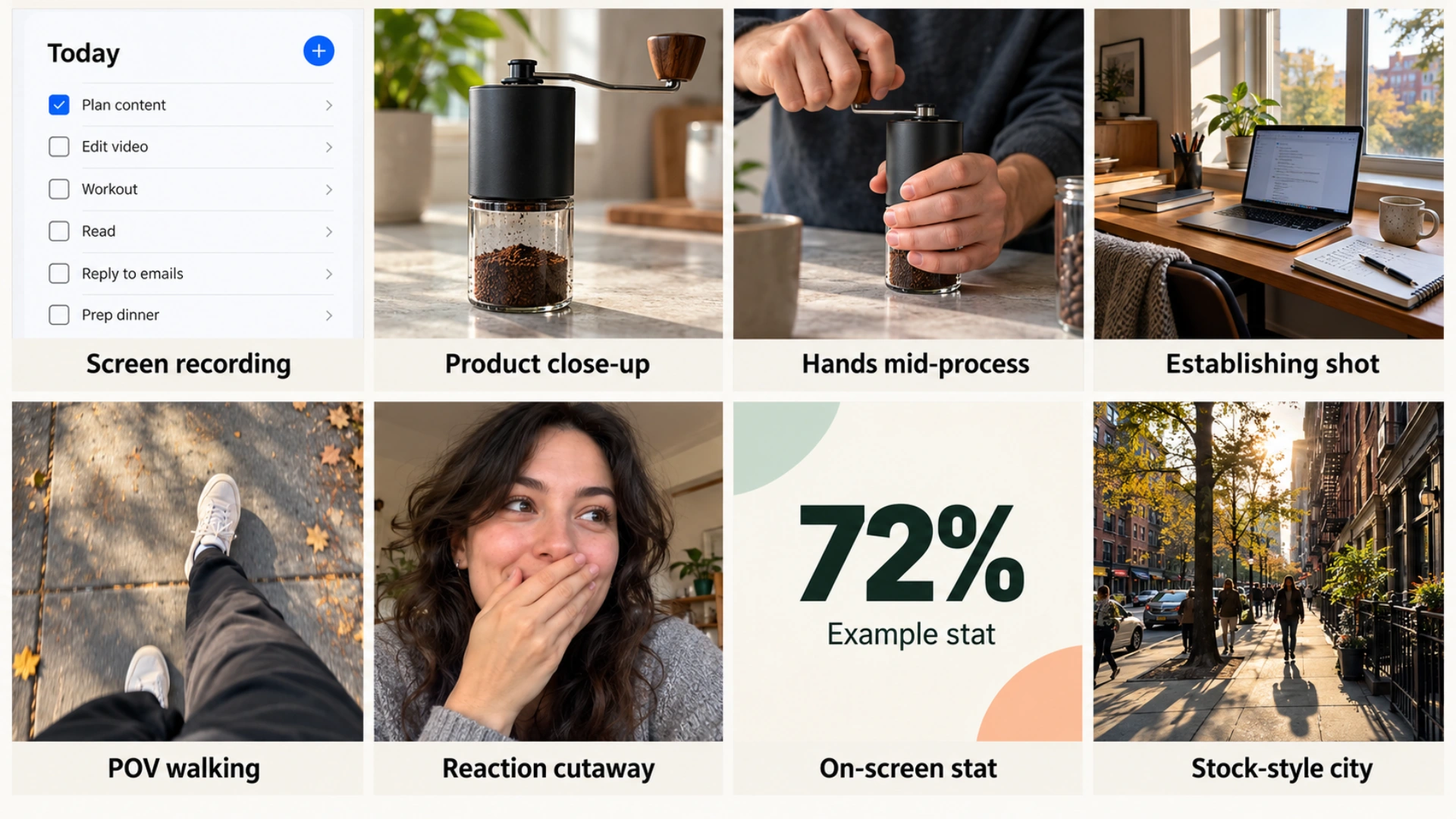
Illustrative examples of footage, screen recordings, and graphics that can serve as B-roll. The statistic is a placeholder.
How to film B-roll on iPhone
You don't need extra gear. These habits matter more than the camera:
Shoot more than you need. Aim for two or three B-roll shots for every point you make, each five to ten seconds long. Most won't make the edit, and that's the point: you want options.
Hold it steady and keep moves slow. A five-second still shot beats a twenty-second shaky pan. Use a tripod, or brace your elbows against your body or a table. If you're walking, turn on Action mode (iPhone 14 and later) for smoother handheld footage.
Move closer instead of zooming. Tap the 0.5×, 1×, 2× or telephoto buttons to switch lenses, but avoid pinch-zooming between them, which crops the image digitally and softens it.
Lock focus and exposure. Press and hold on your subject until you see "AE/AF Lock", so brightness doesn't pump when your hand moves through the frame.
Use the light you have. Put your subject facing a window. Matching light between A-roll and B-roll makes cuts feel seamless.
Match your output format. For Reels, TikTok, and Shorts, shoot vertically. If you also need a horizontal version, shoot in 4K horizontal and crop, which leaves enough resolution for a vertical frame.
Use slow motion and time-lapse sparingly. Slo-mo makes a pour or a splash look good; time-lapse compresses a long process. One or two per video is plenty.
Ask before filming people. If someone recognizable is in your B-roll, get their permission.
The easiest moment to film B-roll is right after your A-roll, while you're set up. Five extra minutes of close-ups covers most edits.
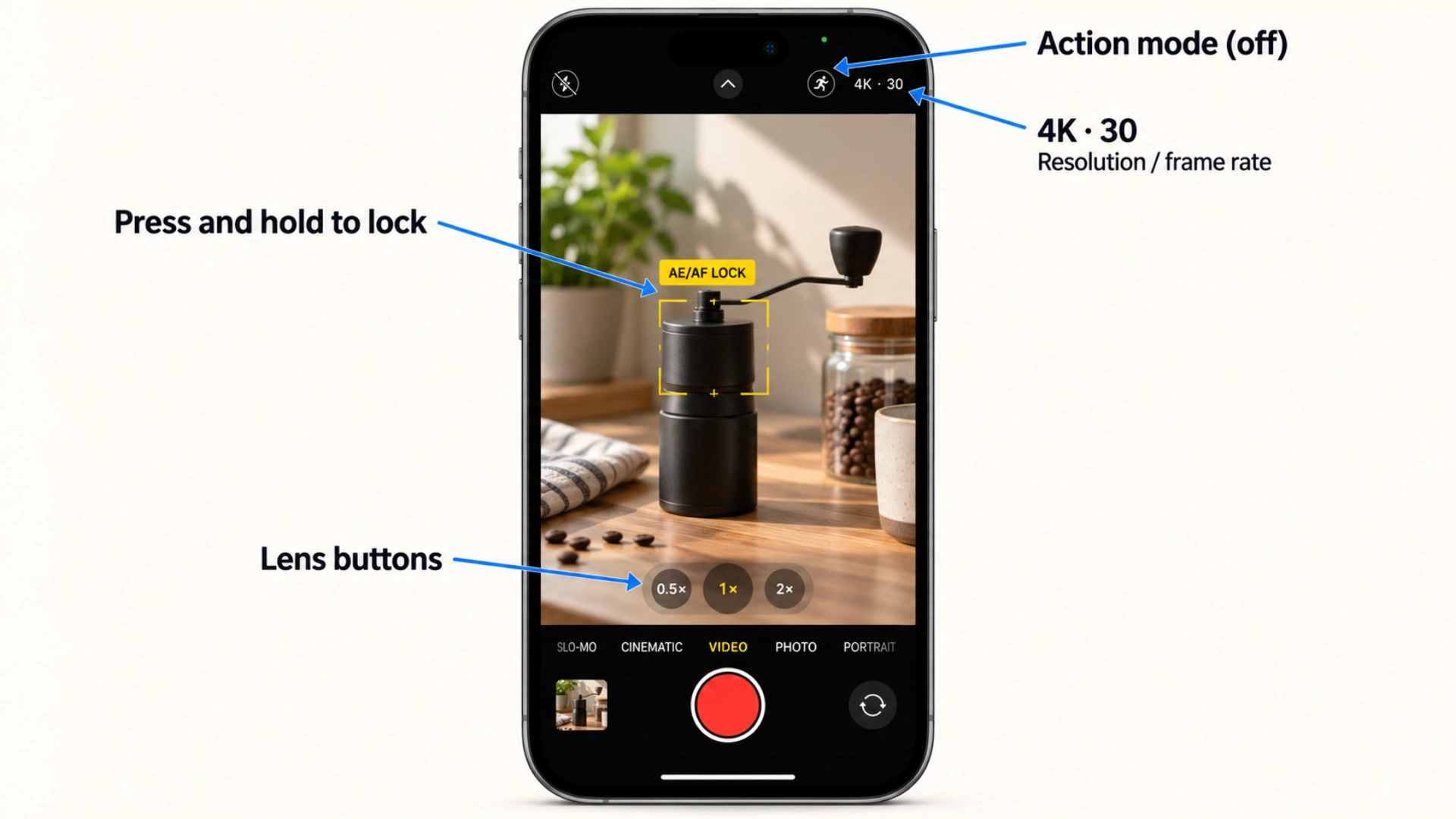
Illustrative Camera interface; available controls and their positions vary by iPhone model and iOS version.
How to edit B-roll into a talking-head video
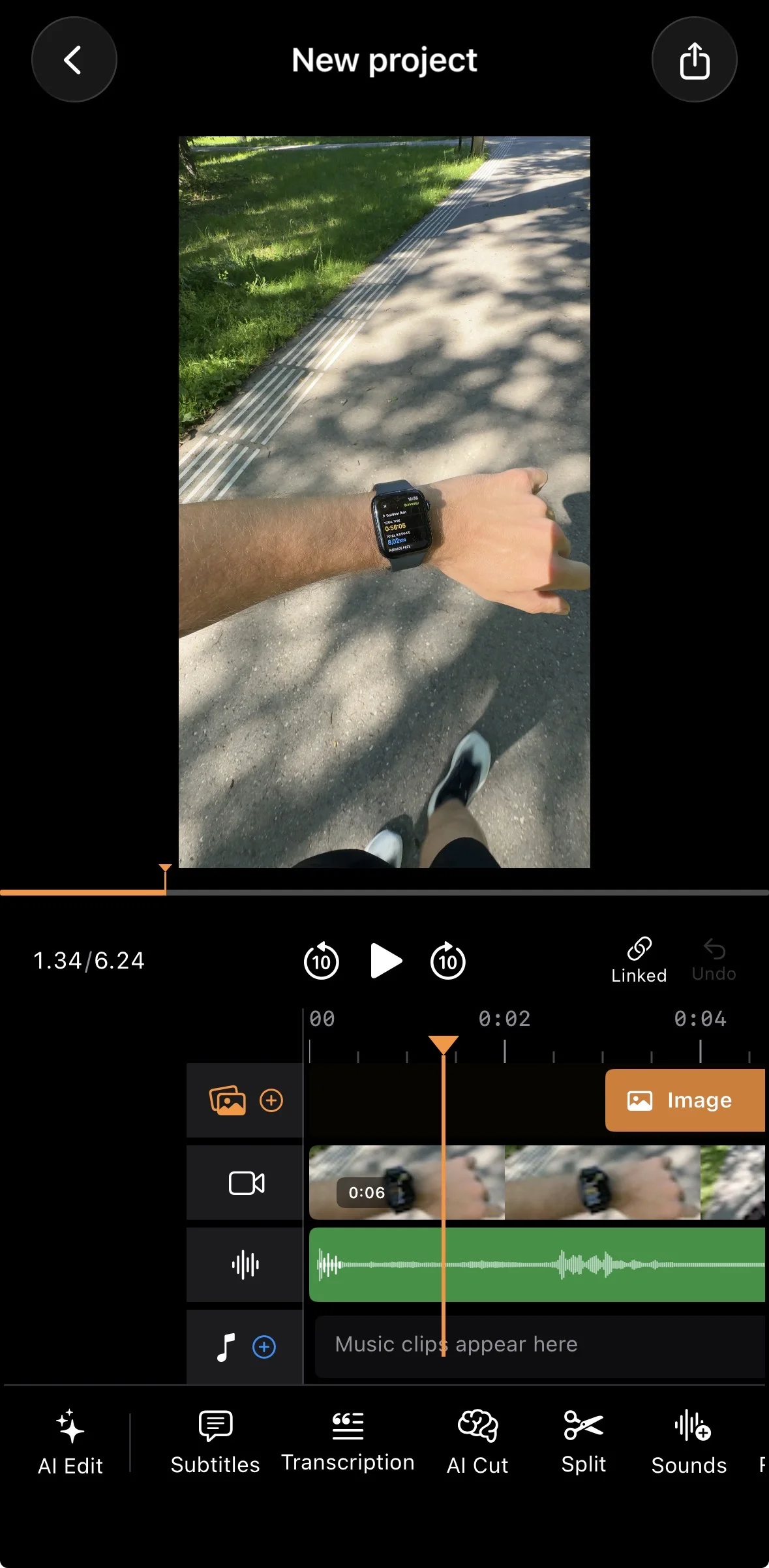
- Put your A-roll (you talking) on the main video track and cut the pauses first.
- Find the moments where you mention something you can show.
- Add the B-roll on the track above, at those moments.
- Mute the B-roll's audio so your voice keeps playing.
- Trim each B-roll clip to the length of the sentence it illustrates.
Timing tip: start the B-roll a few frames before you say the word it illustrates and let it run slightly past. Cutting exactly on the word feels late.
If your video is mostly you talking, cut the pauses and add captions first, then decide where B-roll is worth adding. BlitzCut removes silence and captions the video automatically, and its overlay track takes B-roll clips and images on iPhone, iPad, Mac, and Android.
Do you need B-roll for TikTok and Reels?
No. Plenty of high-performing TikToks are pure talking head; the creator's face and delivery carry them.
Use B-roll when you're showing something (a tutorial, a product, a demonstration), the video runs past 45 seconds, you need to hide a cut, or the topic is abstract and a visual makes it concrete.
Skip it when the video is under 30 seconds, your delivery is strong enough on its own, or filming B-roll would take longer than the video is worth.
B-roll vs jump cuts
| Situation | Jump cut | B-roll |
|---|---|---|
| Removing a pause between sentences | ✅ | |
| Hiding a big edit mid-sentence | ✅ | |
| Showing the product you mention | ✅ | |
| Removing a filler word | ✅ | |
| Breaking up a long talking section | Either | ✅ (more variety) |
Jump cuts keep the pace up; B-roll adds something new to look at. Most good short-form edits use both. For more on capture and continuity, see screen recording on iPad, making a time-lapse, and match on action.
B-roll ideas for common niches
- Tutorials: screen recordings, the finished result, the before state.
- Fitness: form close-ups, the watch or tracker, the gym or route.
- Food: ingredients, sizzle shots, the plated dish.
- Business and finance: dashboards, notes, the desk, the city.
- Beauty: texture swatches, application close-ups, product shelf.
- Travel: establishing shots, walking POV, local details.
Frequently asked questions
What is B-roll in simple terms?
B-roll is extra footage shown over the main video to illustrate what's being said. You hear the speaker while you see the B-roll.
What does A-roll and B-roll mean?
A-roll is the main footage that carries the story, usually a person talking. B-roll is the supporting footage laid over it. The names come from editing with two reels of film.
What are examples of B-roll?
Screen recordings, product close-ups, hands at work, establishing shots of a location, POV shots, reaction shots, on-screen text, and stock footage.
How do I film B-roll on iPhone?
Shoot short, steady clips of five to ten seconds, move closer instead of pinch-zooming, lock focus and exposure with a long press, and film two or three shots for every point you make.
Can I use stock footage as B-roll?
Yes, as long as the license allows your use. Free libraries like Pexels and Pixabay cover most social media use, but check the terms for each clip before using it in an ad.
Edit talking-head videos faster: BlitzCut removes silence and adds captions automatically, then lets you drop B-roll on the overlay track.
Related: Talking Head vs B-Roll: Which Gets More Views? · Jump Cuts vs Cross Dissolves · Wide shot · Automatic Jump Cuts
Editing a talking-head video?
BlitzCut is available on Android, iPhone, iPad, and Mac. It is designed for recorded UGC-style videos, founder-led ads, tutorials, and testimonials and other talking-head content.
Try it for freeRelated Articles
Keep Reading

Best AI Clipping Tools (2026): Klap, OpusClip, Vizard and More Compared
Find the right AI clipping tool for podcasts, streams, and webinars. Klap, OpusClip, Vizard, Quso, and BlitzReels compared on price per clip, credits, and editing.

Best AI Video Editor for iPhone (2026): 8 Apps Compared
The best AI video editor for iPhone depends on your footage. BlitzCut, CapCut, Edits, Captions, Premiere, OpusClip, VN, and InShot compared on AI features and price.

Best AI Video Editor for Mac (2026): 6 Apps Compared
The best AI video editor for Mac: BlitzCut, Descript, CapCut, Final Cut Pro, Premiere Pro, and DaVinci Resolve compared on AI features, what runs on your Mac, and price.