
Wide Shot: Framing for Lessons, Product Demos, and UGC
Learn what a wide shot shows, how it differs from an establishing shot, and how to frame and edit useful context for lessons, product demos, and UGC.


A wide shot shows a subject together with enough surrounding space to make the setting and action understandable.
For a standing presenter, that often means seeing the whole person and part of the room. Columbia University's long-shot definition describes this combination of a complete figure and surrounding environment. In a lesson or founder video, the practical question is simple: what does the viewer need to see around you?
What a wide shot shows
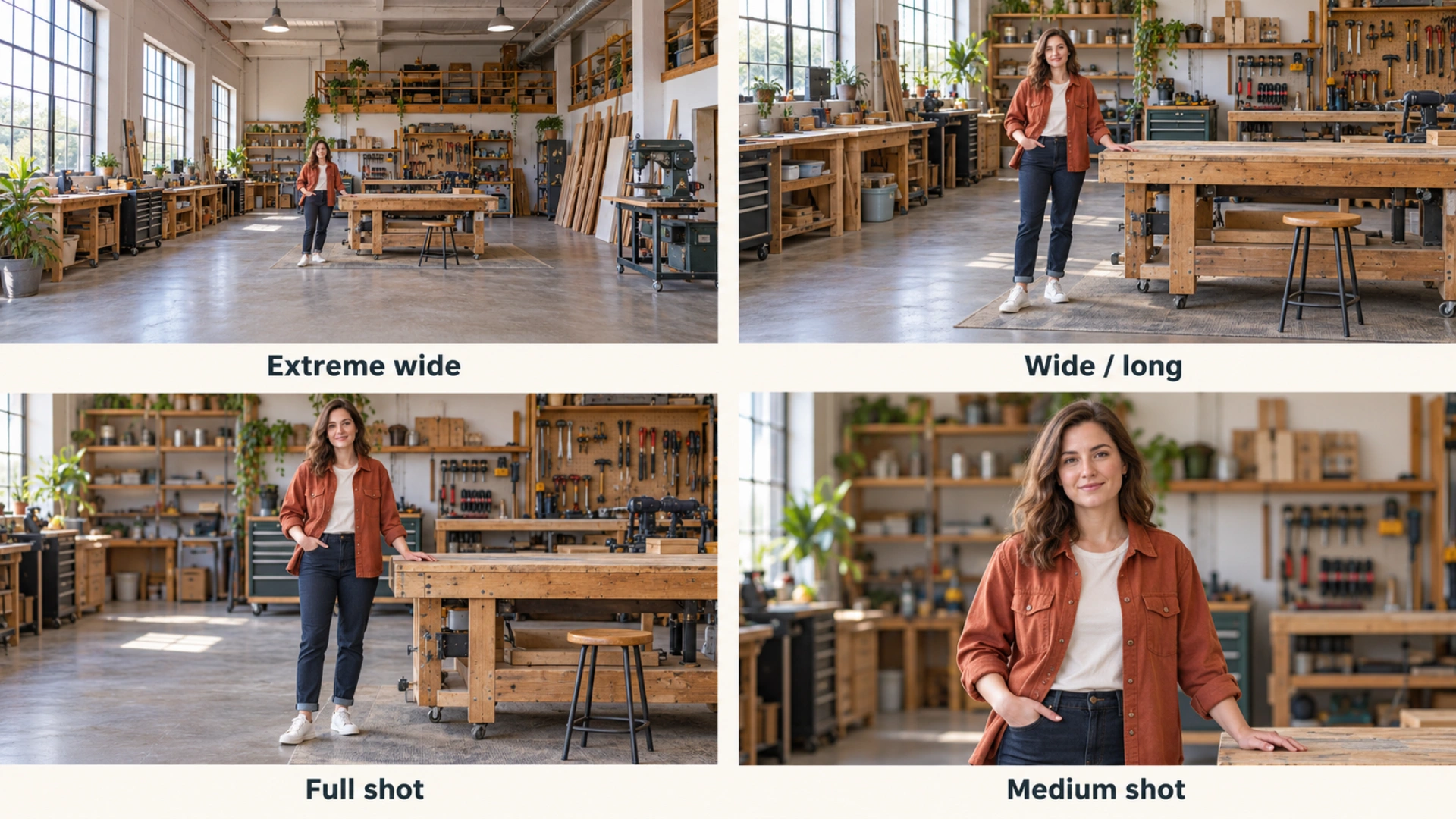
Shot names describe different aspects of a video, so some overlap. Adobe's camera-shot guide distinguishes framing, subjects, and the purpose a shot serves.
| Term | What to look for |
|---|---|
| Wide or long shot | The subject's relationship to the surrounding space |
| Extreme wide shot | The environment dominates; the subject occupies less of the frame |
| Full shot | The entire person, from head to feet |
| Medium shot | A closer view, commonly around the waist upward |
| Establishing shot | A view that introduces where a scene takes place |
A full-body view can also be wide, and a wide view can establish a scene. However, an establishing shot describes a job within the sequence. A wide shot remains wide when it appears halfway through a demonstration.
Choose context that earns its place
Start with the information the wider view adds. Consider these possible uses:
- A movement lesson needs the instructor's feet, hands, and working space visible throughout the demonstration.
- A founder demonstrating a desk organizer needs enough of the desk to show where the product fits and what it holds.
- A workshop testimonial might briefly show the speaker beside the workbench before moving closer for their answer.
These are planning examples, not requirements for every video. A room full of unrelated objects can compete with the explanation. Remove distractions, then check whether the remaining background helps communicate location, scale, or movement.
For a product, a useful wider view answers a question such as “Where would I use this?” A closer view can then answer “How does this part work?” Plan both in your shot list.
Frame for the final video shape
Wide framing does not require a horizontal video. Aspect ratio describes the frame's width relative to its height, as Columbia's aspect-ratio glossary explains. Shot size describes what you include within that frame.
For a vertical lesson, check the full movement in portrait orientation. A presenter can fit while their outstretched hands still leave the sides. For a horizontal tabletop demo, verify that the workspace remains understandable if you also plan a vertical version.
Try the action before recording:
- Place the camera and mark where the presenter stands or sits.
- Perform the largest gesture or movement in the lesson.
- Check the top, bottom, and sides for accidental cropping.
- Leave usable space for captions without covering the important action.
- Record a sample and review it at the intended viewing size.
Use the video safe zone checker when planning text placement for a social version. It cannot replace checking whether the actual movement stays visible.
Choose the view before choosing the lens
A wide shot and a wide-angle lens are related choices, but the terms answer different questions. The shot describes the composition; the lens helps determine the view available from a camera position. Adobe's framing guidance discusses both camera distance and focal length.
Begin by positioning the camera so the necessary space fits. Then compare the available lens options. Inspect faces, hands near the camera, and straight edges around the frame. Choose the result that communicates the demonstration clearly.
Avoid making the presenter so small that their gestures become unreadable. If the room is the subject, that scale may work. If the lesson depends on a grip or button, plan a closer insert instead of expecting the wide view to explain everything.
Record coverage that connects
Capture the complete action in the wider framing, including its starting and ending positions. Then film details that deserve closer attention. This gives you an overview and the evidence needed to explain individual steps.
For the organizer example, record the desk and presenter, then the hand placing an item in a compartment. Reset the object and hand positions between takes. If you cut during the placement, use match on action to make the movement continue believably.
Keep a reference frame before moving the camera. It helps you check the product's orientation, the presenter's position, and which objects were already on the desk.
Edit the explanation and review the action
BlitzCut supports transcript editing, silence removal, and captions, documented in its App Store listing and version history. For a recorded talking-head lesson or founder introduction, use those tools to tighten the spoken explanation.
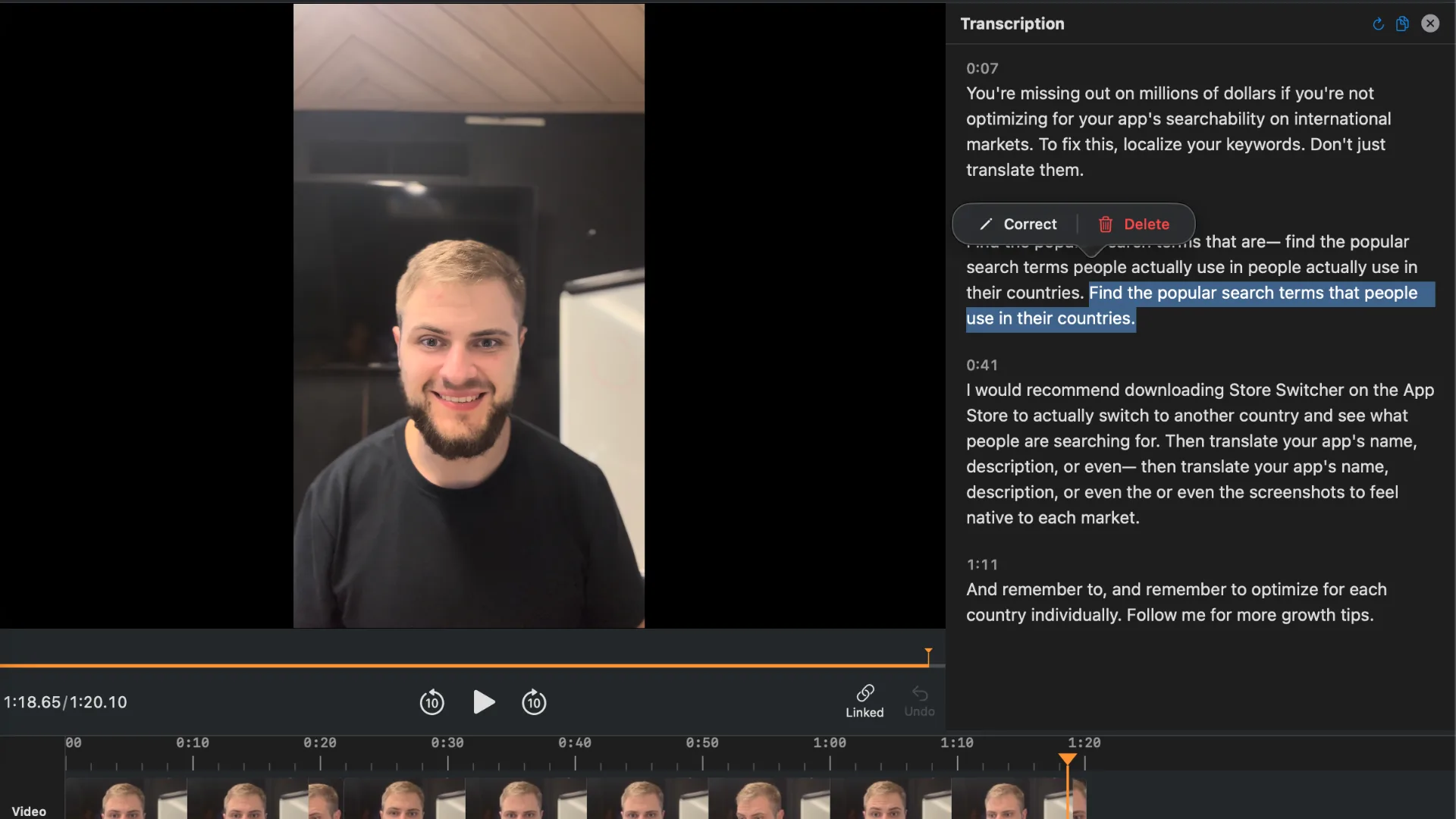
Keep quiet moments that show an important movement or give the viewer time to inspect the setup. Review silence cuts visually, then watch the sequence with captions. A shorter edit is useful only if the lesson remains understandable.
Frequently Asked Questions
Is a wide shot the same as a long shot?
The terms commonly overlap. Describe the intended framing in your plan, such as “whole presenter, feet and work area visible,” so the name does not carry all the instructions.
Is every wide shot an establishing shot?
No. An establishing shot introduces a setting. A wide view can also show movement, relationships, or a completed result later in the video.
Can a vertical video contain a wide shot?
Yes. Include the subject and relevant surroundings within the vertical frame. Rehearse gestures because portrait framing provides less room across the image.
How long should I hold the shot?
Hold it long enough to communicate its information or complete the necessary action. There is no universal duration; preview the sequence at normal speed and check what viewers can actually understand.
Related Guides
Editing a talking-head video?
BlitzCut is available on Windows, Android, iPhone, iPad, and Mac. It is designed for recorded UGC-style videos, founder-led ads, tutorials, and testimonials and other talking-head content.
Download BlitzCutRelated Articles
Keep Reading

Black Friday 2026 Video Editing Software Deals: CapCut, DaVinci, Final Cut, Descript and More
Every Black Friday 2026 video editing software deal we could verify: DaVinci Resolve, CapCut, Final Cut Pro, Adobe, Descript, Filmora, BlitzCut, plus what each did last year.

BlitzCut vs Kapwing: App and Browser Editing Compared
Compare BlitzCut and Kapwing for talking-head ads, tutorials, and team content, including Smart Cut, transcript editing, captions, and usage limits.

BlitzCut AI vs KineMaster: Captions and Editing (2026)
Compare KineMaster’s free on-device captions and layered editing with BlitzCut’s recorded talking-head workflow, including export and pricing checks.