
How to Screen Record on iPad With Microphone Audio
Learn how to screen record on iPad with Control Center, add microphone narration, find the recording in Photos, and troubleshoot missing audio or controls.


Here's how to screen record on iPad: open Control Center, tap Screen Recording, wait for the countdown, perform your demonstration, and stop the capture to save it in Photos.
For a narrated lesson or product walkthrough, turn on the microphone before starting. Your voice and the app's own audio are separate considerations: enabling the microphone does not guarantee that an app will allow its sound or video to be captured.
How to Screen Record on iPad Using Control Center
- Open the app or page you want to demonstrate.
- Swipe down from the top-right corner to open Control Center.
- Tap Screen Recording, the circle-within-a-circle control.
- Wait for the three-second countdown, then dismiss Control Center and perform your demonstration.
- To finish, tap the red recording indicator at the top and confirm Stop. Alternatively, reopen Control Center and tap its red recording control.
- Open Photos and play the saved clip.
These are Apple's native screen-recording steps. Record a short sample before a long explanation, checking that both the demonstration and the intended sound appear in the saved file.
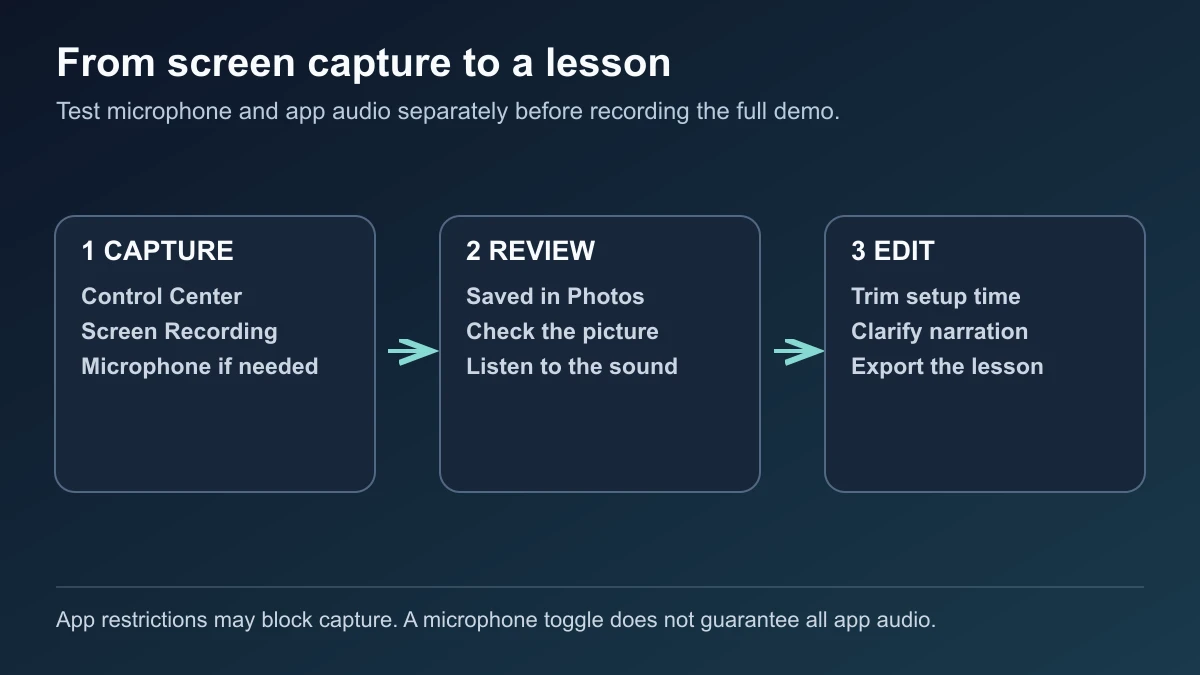
Capture in Control Center, review the saved video in Photos, then edit the narration. The microphone records your voice; app audio depends on what the app permits.
Add the Screen Recording Control if It Is Missing
Open Control Center and tap + at the top left to edit its controls. Tap Add a Control, find Screen Recording, and add it. You only need to add the control once. Apple's Control Center customization guide documents the controls gallery.
Control Center can have multiple groups of controls. Check the other groups if you remember adding Screen Recording but cannot see it on the first page. Button placement can differ with your layout and iPadOS version, so use the control's name rather than copying the position from someone else's screenshot.
Include Your Voice With the Microphone Toggle
Instead of immediately tapping the recording control:
- Touch and hold Screen Recording in Control Center.
- Tap Microphone to turn it on.
- Tap Start Recording and wait for the countdown.
- Dismiss Control Center and begin speaking.
Apple's iPad recording guide describes this microphone option. Check the toggle before every narrated session, especially when your previous capture needed no commentary.
For a demonstration with app sound only, leave the microphone off to avoid adding room noise. App sound can still be unavailable if the app restricts capture. Raising the speaker volume is not a substitute for checking what the saved recording actually contains.
For a lesson, say what you are about to tap, perform the action, then let the result remain visible. That gives viewers a clear connection between the narration and the screen. Avoid explaining the next step while the current result is still loading.
Prepare the Screen Before a Longer Capture
Choose a readable text size and keep your iPad in the intended orientation throughout the demonstration. Open the correct document or account before starting so viewers do not have to watch you search for it.
To reduce interruptions, open Control Center → Focus → Do Not Disturb. Review your allowed notifications first: Focus can have exceptions, so it should not be your only preparation for a clean demonstration. Apple explains turning on a Focus.
For a longer session, check Settings → General → iPad Storage. Apple shows where to review available device storage. There is no useful universal minutes-to-megabytes estimate for every recording; leave room for the capture and any edited copy.
Find and Trim the Saved Recording
Recordings save automatically to your Photos library. You can also find them under Collections → Media Types → Screen Recordings, as documented in Apple's iPad screen-recording guide.
Open the clip and use Edit to trim unwanted time at the beginning and end. Preview the retained portion, then tap Done and choose the available save option. Apple's iPad trimming instructions cover trimming and saving. Keep the moment just before the first action so the opening is understandable.
Troubleshoot Missing Audio or Blocked Recording
My voice is missing. Hold the recording control and check Microphone before making a new sample. A recording captured without your narration cannot supply words that were never recorded; record the explanation again or add a voiceover afterward.
The app shows a blank picture or omits its audio. Apple warns that some apps prevent audio or video recording. A successful Home Screen sample followed by a failed capture in one app is a reason to check that app's restrictions.
I am also mirroring the display. Stop screen mirroring before recording. Apple states that screen recording and screen mirroring cannot be used simultaneously.
Recording is unavailable on a school or work iPad. Ask the administrator whether screen capture is restricted. Apple's device management documentation includes a restriction that prevents screenshots and screen recordings from being saved.
Edit a Narrated Lesson After Capture
Once the file is saved, BlitzCut can help edit a spoken walkthrough with transcript editing, silence removal, captions, or a separately recorded voiceover. These capabilities are documented in its App Store listing and version history.
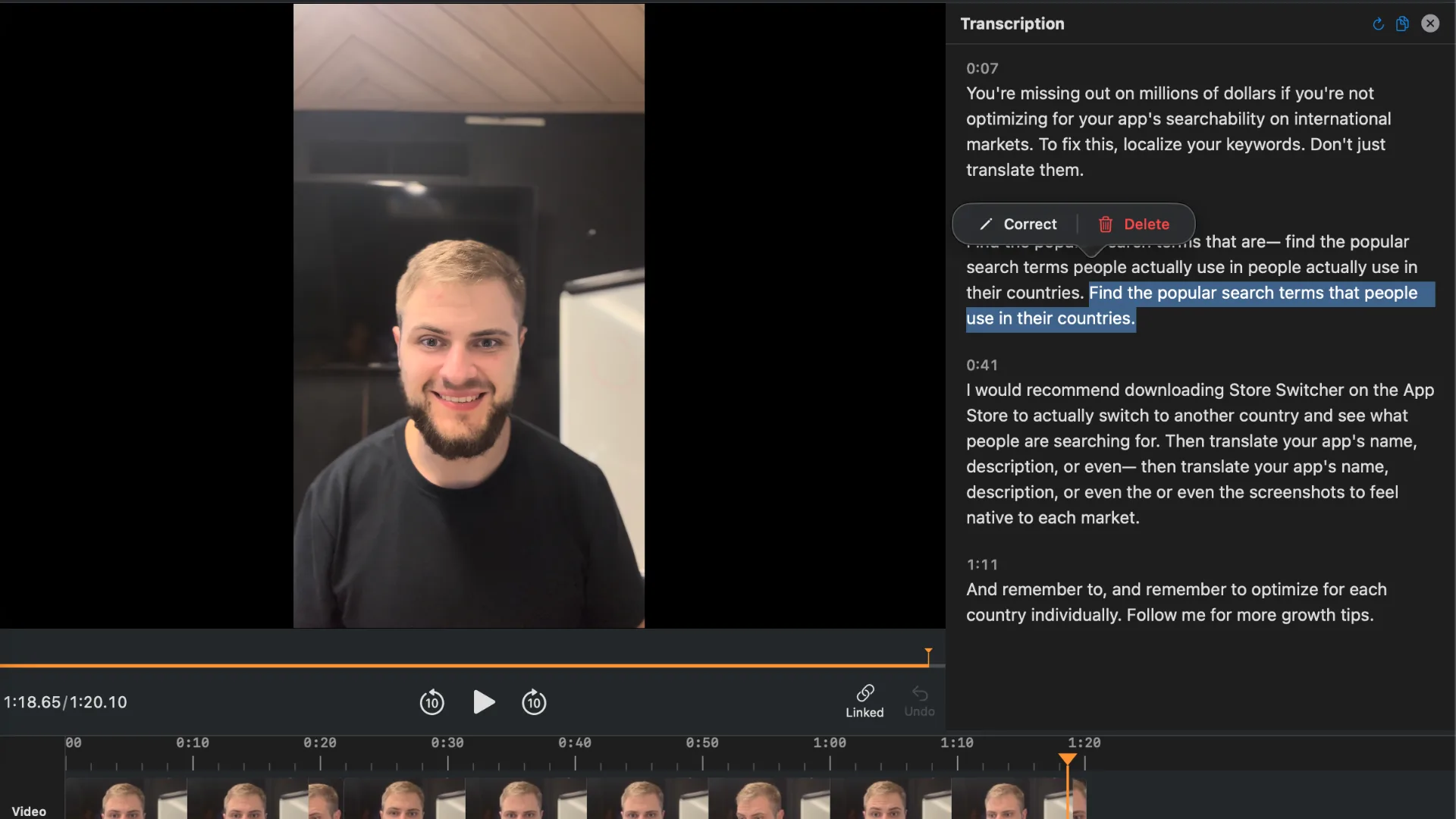
Actual BlitzCut screenshot on Mac showing transcript editing. After native iPad capture, use the spoken words to locate passages that need review.
Keep pauses that show a menu opening, a calculation completing, or a result appearing. A silent moment can carry an essential visual instruction. Review the screen action after each cut and position captions where they do not cover the controls being demonstrated.
Frequently Asked Questions
Does iPad have a built-in screen recorder?
Yes. Add Screen Recording to Control Center, then start and stop captures there.
How do I record the screen with my voice?
Touch and hold Screen Recording, turn Microphone on, then tap Start Recording. Check a short saved sample before continuing.
Where does the recording go?
It saves in Photos. Look in your library or the Screen Recordings collection under Media Types.
Can every app's sound be recorded?
No. Some apps restrict audio or video capture. Turning on the microphone does not remove those restrictions.
Related Guides
Editing a talking-head video?
BlitzCut is available on Android, iPhone, iPad, and Mac. It is designed for recorded UGC-style videos, founder-led ads, tutorials, and testimonials and other talking-head content.
Try it for freeRelated Articles
Keep Reading

How to Rotate Video on iPhone: Fix a Sideways Recording
Learn how to rotate video on iPhone in Photos, undo a rotation, and share the upright result without accidentally cropping or mirroring the recording.

How to Send a Long Video on iPhone Without Cutting It
Learn how to send a long video on iPhone using AirDrop, iCloud sharing, or Mail Drop, keeping the original before compressing for a specific upload limit.

Word-by-Word Captions vs Full-Sentence Captions in 2026
Word-by-word captions vs full-sentence captions: compare isolated words, karaoke highlights, and stable phrases for clear short-form videos.