
How to Rotate Video on iPhone: Fix a Sideways Recording
Learn how to rotate video on iPhone in Photos, undo a rotation, and share the upright result without accidentally cropping or mirroring the recording.


Here's how to rotate video on iPhone: open the recording in Photos, tap Edit, choose Crop, tap Rotate until the picture is upright, then tap Done.
This fixes a recording in which a person, room, or horizon appears sideways or upside down. Start by watching the clip with your phone held still. If the picture itself needs a quarter-turn, rotation is the appropriate correction. If everyone is already upright and you want a different frame shape, that is a separate framing decision.
How to Rotate Video on iPhone in Photos
- Open Photos and select the video.
- Tap Edit, which may appear as a sliders icon.
- Select Crop to reveal the geometry controls.
- Tap Rotate. Each tap turns the image 90 degrees; repeat until the subject is upright.
- Check the frame without dragging its corners or choosing another aspect ratio.
- Tap Done, then play the saved video.
Apple documents these controls in its Photos crop, rotate, and flip guide. The Crop section contains the rotation tool even when you do not need to crop anything.
Use an obvious visual reference: a doorframe, a person's posture, or lettering on a sign. If one tap leaves the recording upside down, continue tapping until the reference is correct. Watch a moving section afterward so you judge the recording rather than just its thumbnail.
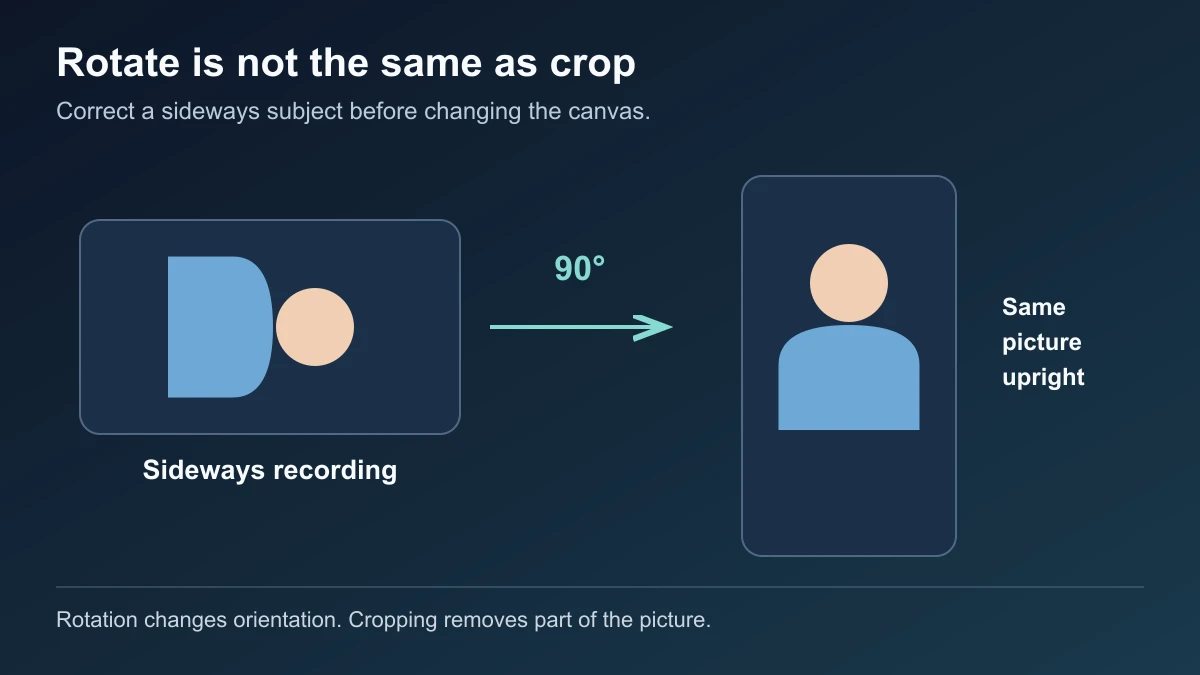
Rotation turns the recorded picture upright. Cropping and reframing change which part of the picture appears inside the frame.
Keep a Separate Original if You Want Both Versions
Before editing, open the video, tap More → Duplicate, and rotate the duplicate. Apple explains that this creates a separate library copy while preserving the original.
This is useful when handing footage to another editor or comparing two versions. Identify the duplicate before you start: similar thumbnails can make it easy to rotate one copy and later share the other. After saving, open the version you intend to send and play it from the beginning.
You do not need a duplicate merely to make an edit reversible. Photos also supports reverting saved changes, as explained below. A separate copy is for keeping both library items available at the same time.
Choose Rotation, Flip, or Straighten Deliberately
These controls solve different problems:
| What looks wrong | Appropriate control |
|---|---|
| A person or room is sideways | Rotate in 90-degree steps |
| The entire picture is upside down | Rotate twice |
| Lettering is mirrored left to right | Check whether a horizontal flip is needed |
| The horizon is only slightly tilted | Straighten |
Apple's geometry instructions distinguish these operations. Check lettering after a correction: turning a sideways sign upright should not reverse its text.
An upright landscape shot does not become a useful portrait composition merely by turning it sideways. For example, a presenter standing normally in a wide frame already has the correct orientation. Leave that orientation alone and make any delivery-format decision separately; see vertical versus horizontal video.
Undo a Rotation Without Losing Track of Other Edits
While editing, use Undo to step back through changes. If you have saved the edit and want the original back, open the video and choose More → Revert to Original. Some versions also expose Revert from the Edit screen. Apple describes undoing changes and reverting a saved photo or video.
Reverting restores the original, so consider any trimming or color changes you also want to keep. If only the orientation is wrong, reopening Crop and applying another quarter-turn may be more appropriate than reverting the whole edit.
With iCloud Photos, edits sync across your devices. Do not assume the same library item on your Mac remains an untouched version; use a duplicate when you need two versions.
Troubleshoot Playback and Sharing
The display turns when I move my phone. Check Control Center's orientation lock. It controls whether the screen changes orientation as you hold the phone; editing a saved video happens separately in Photos. Apple's screen rotation guide explains that display setting.
The picture is upright in Photos but wrong elsewhere. Share the saved, edited item again and open the received file in the destination app. Confirm you did not select the unedited duplicate or an older attachment. A previous export is a separate file, so check that file itself.
The recipient needs the untouched recording. Photos' Share → Options → All Photos Data can include the original, edit history, and metadata when using AirDrop. Apple documents this in its sharing options. Tell the recipient whether you want them to use the edited appearance or work from the source.
Continue Editing a Spoken Video After Correcting Orientation
For a founder update, lesson, or testimonial, correct the source orientation first and check it when importing into your editor. Then make the spoken edit and review captions. BlitzCut's App Store listing and version history document silence removal, transcript editing, and captions on iPhone, iPad, and Mac. Those tools help with the next stage when the recording needs more than a quarter-turn.
Frequently Asked Questions
Can I fix a sideways video without installing another app?
Yes. Use the Rotate control inside Photos' Crop section and save with Done.
How do I fix an upside-down recording?
Apply two 90-degree rotations, then preview the result before saving.
Will rotating make a horizontal video suitable for a vertical post?
Only if the picture was recorded sideways. An already upright horizontal composition needs a separate framing decision, or the subject will become sideways.
Can I reverse the change later?
Yes. Reopen the saved Photos item and use Revert to Original. Keep a duplicate if you want the original and corrected version available separately.
Related Guides
Editing a talking-head video?
BlitzCut is available on Android, iPhone, iPad, and Mac. It is designed for recorded UGC-style videos, founder-led ads, tutorials, and testimonials and other talking-head content.
Try it for freeRelated Articles
Keep Reading

How to Screen Record on iPad With Microphone Audio
Learn how to screen record on iPad with Control Center, add microphone narration, find the recording in Photos, and troubleshoot missing audio or controls.

How to Send a Long Video on iPhone Without Cutting It
Learn how to send a long video on iPhone using AirDrop, iCloud sharing, or Mail Drop, keeping the original before compressing for a specific upload limit.

Word-by-Word Captions vs Full-Sentence Captions in 2026
Word-by-word captions vs full-sentence captions: compare isolated words, karaoke highlights, and stable phrases for clear short-form videos.