
How to Trim a Video on iPhone: Ends and Middle Cuts
Learn how to trim a video on iPhone in Photos, keep the original, and remove a middle section with iMovie or transcript editing.


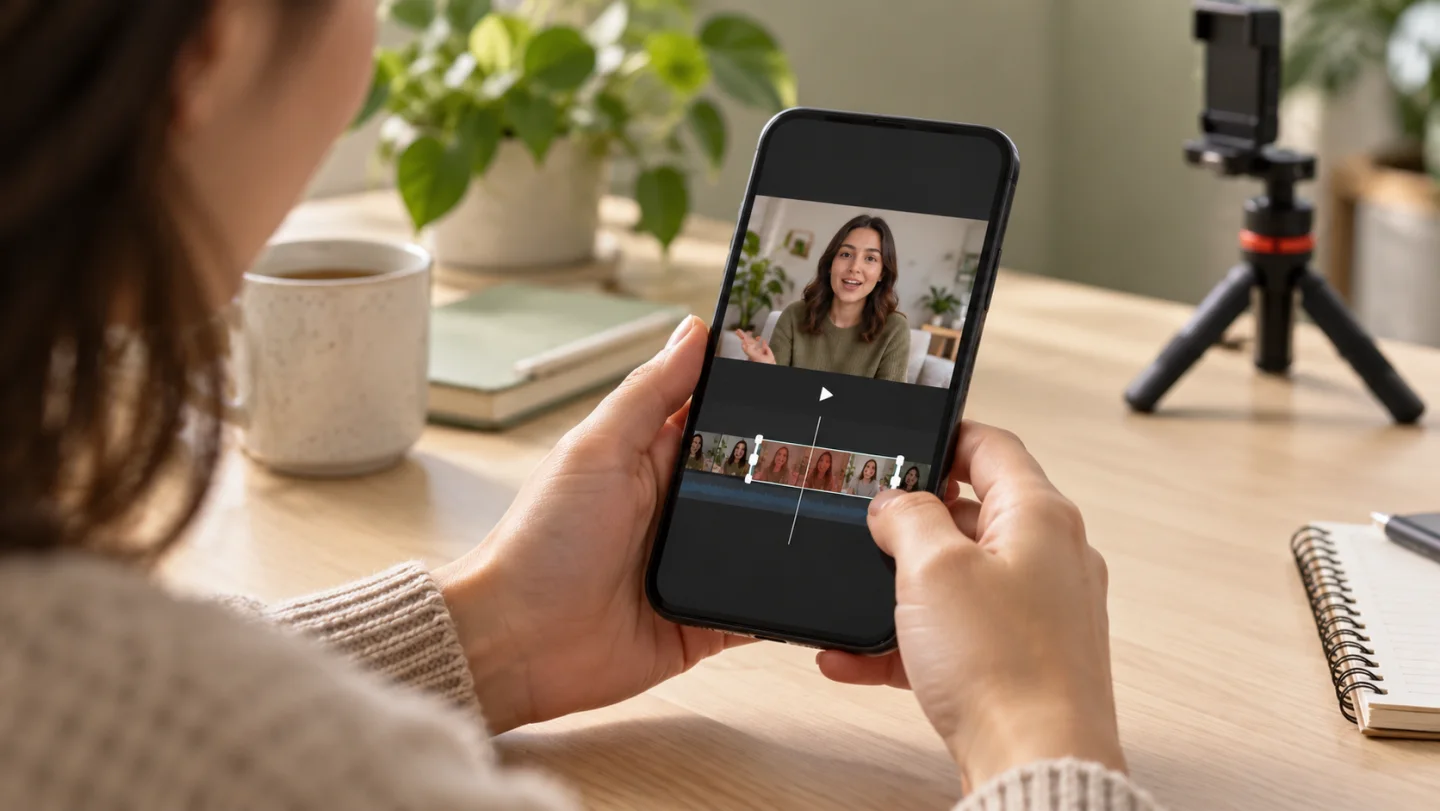
How to trim a video on iPhone: open the recording in Photos, tap Edit, drag the timeline's end handles to choose what stays, then save the shortened video.
That works for removing the moment before you start speaking or the reach toward the stop button. To remove a mistake halfway through while keeping both sides, use a timeline editor and split around the unwanted passage.
Decide which problem you have before moving any handles:
| What you want to remove | Appropriate edit |
|---|---|
| Waiting at the beginning or end | Trim the outer edges in Photos |
| One mistake in the middle | Split twice and delete the middle piece in iMovie |
| Several repeated sentences | Review the wording in a transcript editor |
| Long pauses throughout a talking video | Review a silence-removal pass |
| Megabytes without changing the content | Adjust export settings; see iPhone video compression |
How to Trim a Video on iPhone in Photos
- Open Photos and select the video.
- Tap Edit. Find the strip of video frames beneath the preview.
- Move the left boundary inward to set the new beginning. Move the right boundary inward to set the ending.
- Play the selected portion. Adjust again if the first word or final action is incomplete.
- Tap Done, then choose Save Video or Save Video as New Clip.
Apple documents Photos trimming as changing the start and stop points; the selected frames appear inside a yellow outline. Apple's iPhone trimming instructions.
For spoken content, place the start just before the first complete word. At the end, let the final syllable and expression finish. A fraction of a second of breathing room can sound more deliberate than a cut pressed tightly against speech.
Which save option should you choose?
Save Video as New Clip keeps the original and adds the trimmed version. It is useful when making a short excerpt from a longer recording.
Save Video updates the existing library item. To undo that trim, open the edited video, tap Edit, then Revert and Revert to Original. A separately saved new clip does not contain the removed duration: find the original recording if you need those frames. Apple explains saving and undoing trims.
Name or organize the two versions so you can tell them apart before uploading. Watch the chosen file from its beginning, rather than trusting a similar thumbnail.
Remove a Section From the Middle With iMovie
Suppose your recording contains a useful opening, an incorrect instruction, and a corrected explanation. Moving Photos' end handles cannot join the opening directly to the correction. Use two splits to isolate the mistake.
- In iMovie, start a Movie project, select your recording, and tap Create Movie.
- Move the timeline until the playhead reaches the beginning of the unwanted section.
- Select the clip, open Actions, and tap Split.
- Move to the end of that passage. Select the remaining clip and split again.
- Select the isolated middle piece and tap Delete.
- Play across the join. Adjust the neighboring clip edges if necessary.
Apple's clip arrangement guide documents splitting, deleting, and yellow trim handles. Its Movie workflow starts with a straight cut between newly split clips, which suits a simple spoken correction.
Make the cut between complete ideas. Removing only the word “not,” for example, can reverse an instruction. When the corrected take starts with “actually,” decide whether that word still makes sense after the earlier mistake disappears.
After reviewing, tap Done, then use Share → Share Video and save to Photos or Files. Sharing the video creates a watchable result; exporting the project serves a different purpose. Apple's video-sharing steps.
Trim a Talking Video by Following the Words
For a single clean take, Photos is usually enough. For a coach's explanation, founder update, or recorded lesson with several restarts, the challenge becomes finding every passage to remove.
BlitzCut is a native iPhone, iPad, and Mac editor with transcript editing. Read the recording, select an unwanted passage, remove it, and listen to the resulting join. Choose the take yourself: similar wording can contain different details or qualifications.
BlitzCut is available for iPhone, iPad, Mac, and Android. Check Android features and purchase terms separately; Apple workflows and App Store prices in this article apply to the Apple apps.
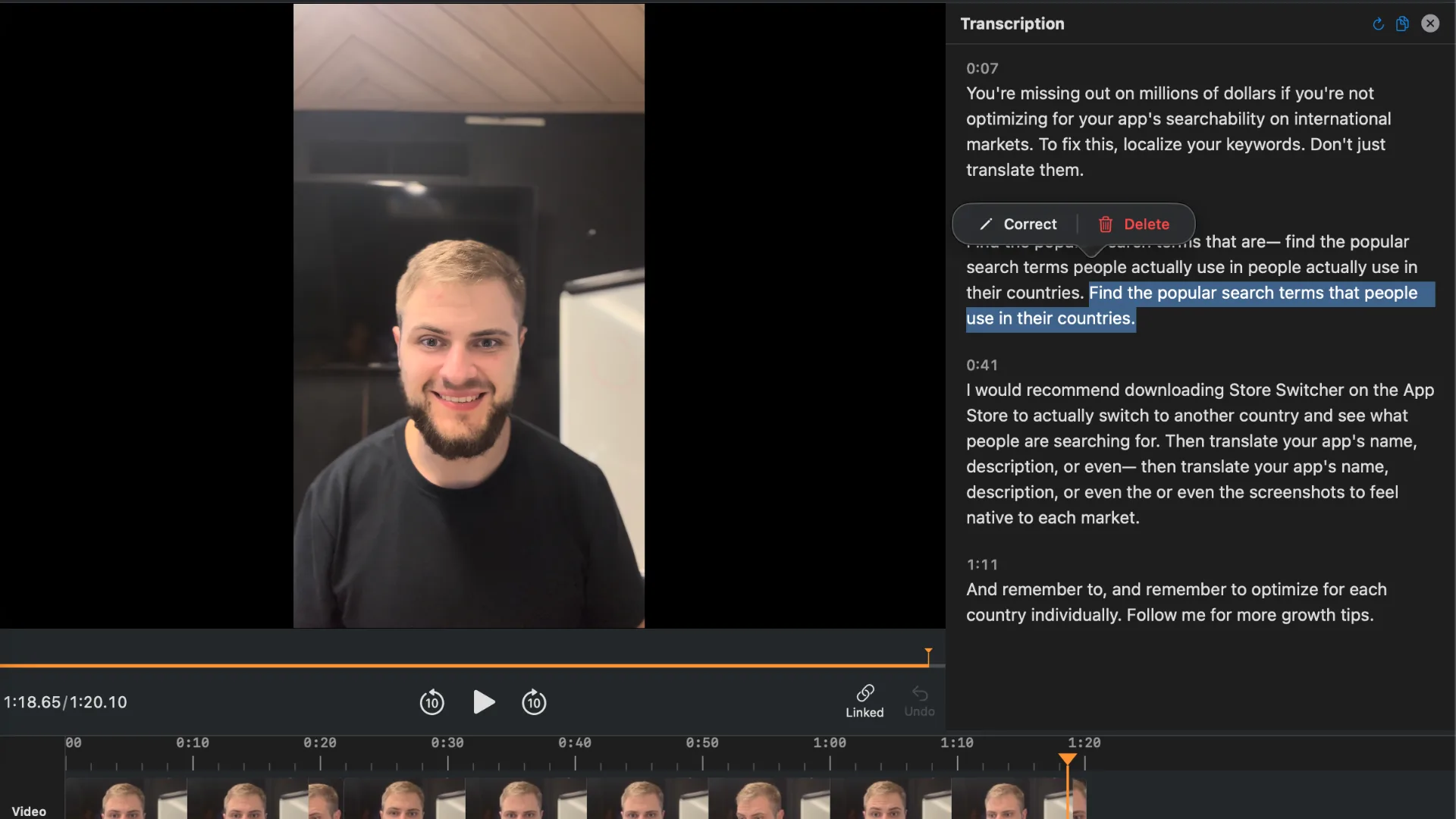
Use on-device silence removal for unwanted gaps, keeping pauses that let viewers absorb an instruction. Once the cuts are settled, add captions and review spelling and timing. This sequence is particularly useful when the finished video depends on the spoken explanation.
Troubleshooting Your Trim
The first word sounds clipped
Move the start slightly earlier and listen again. Looking at the first visible mouth movement is less reliable than hearing the full word. Check with headphones if background noise makes the boundary hard to judge.
The wrong part of the video changes
Check which control you are moving. The outer frame boundaries choose the retained duration. Slow-motion controls change where slow playback happens, and cropping changes the picture's framing. These are separate adjustments.
You cannot extend a clip any farther
Check whether you are editing the original or an already exported excerpt. A saved excerpt cannot supply frames it never included. Reopen the original source and select a longer passage there.
The cut looks abrupt
Listen first: does the sentence still flow? Then check posture, eye direction, and hand position across the join. A relevant image overlay can support the explanation, but it cannot repair missing meaning. Reconsider the cut if a necessary phrase disappeared.
Frequently Asked Questions
Can I trim a video on iPhone without another app?
Yes. Photos handles start and end trims. Use its Edit controls to select the portion you want to keep, preview it, and save.
Can Photos remove a section from the middle?
Its trimming controls select one continuous section. To keep material on both sides of an unwanted middle passage, split and delete that passage in a timeline editor such as iMovie.
Can I get the trimmed footage back?
You can revert an edit made to the original Photos item. If you saved a new clip, open the separate original recording to recover footage outside the excerpt.
Does trimming change playback speed?
Trimming changes which frames remain. Keep speed controls unchanged if you want the retained footage to play normally.
Related Guides
Editing a talking-head video?
BlitzCut is available on Windows, Android, iPhone, iPad, and Mac. It is designed for recorded UGC-style videos, founder-led ads, tutorials, and testimonials and other talking-head content.
Download BlitzCutRelated Articles
Keep Reading

Black Friday 2026 Video Editing Software Deals: CapCut, DaVinci, Final Cut, Descript and More
Every Black Friday 2026 video editing software deal we could verify: DaVinci Resolve, CapCut, Final Cut Pro, Adobe, Descript, Filmora, BlitzCut, plus what each did last year.

BlitzCut vs Kapwing: App and Browser Editing Compared
Compare BlitzCut and Kapwing for talking-head ads, tutorials, and team content, including Smart Cut, transcript editing, captions, and usage limits.

BlitzCut AI vs KineMaster: Captions and Editing (2026)
Compare KineMaster’s free on-device captions and layered editing with BlitzCut’s recorded talking-head workflow, including export and pricing checks.