
How to Compress Video on iPhone: Size and Quality
Learn how to compress video on iPhone with iMovie or BlitzCut export settings, check the saved file size, and balance resolution with picture quality.


How to compress video on iPhone: import the recording into iMovie, export a copy at a lower resolution, and check its saved file size and picture quality before sharing.
Compression addresses a limit measured in megabytes. It does not, by itself, turn a three-minute recording into a one-minute video. If your limit is measured in seconds, trim the recording or edit its content instead.
Keep the original as your source for later edits while comparing smaller delivery copies.
Working on a Mac instead? See how to shrink a video for QuickTime export choices and HandBrake average-bitrate planning around a size budget.
How to Compress Video on iPhone With iMovie
Apple's documented method is to import a video and export it at a lower resolution. Its current instructions use iPhone 12 or later with iOS 26 or later, while noting that earlier devices and versions can also compress video with different options. Apple's iPhone compression guide.
- Open iMovie, tap Start New Project, and choose Movie.
- Browse Media → Video, select the recording, and tap Create Movie.
- If the content is already correct, leave the timeline as it is and tap Done.
- Tap Share, then Save or Share Video. Open Options.
- Choose a lower resolution. For a 4K source, try 1080p before dropping further; for 1080p, try 720p.
- Confirm the options and choose Save Video for Photos or Save to Files for a named folder.
Open the saved result and check the size. In Photos, select the video and tap the information button. In Files, locate the saved copy and inspect the size shown beside its name or thumbnail.
Available labels and resolutions depend on your version and media.
Choose the Smallest Copy That Still Does the Job
Resolution describes how much picture detail the frame can hold. Lowering it can make text harder to read even when a face still looks acceptable. Compression quality also matters: two files with the same dimensions can look different.
| Intended use | Sensible first experiment | What to inspect |
|---|---|---|
| A talking-head clip watched on a phone | Export 1080p, then compare 720p if needed | Eyes, hair, and caption edges |
| A screen tutorial | Keep enough resolution for the smallest important label | Menus, numbers, and cursor movements |
| A quick personal preview | Try 720p before a lower setting | Faces and the main action |
| A file with a strict size cap | Reduce one setting, save, and measure again | Final bytes and essential detail |
Apple recommends 1080p for most social sharing and describes 720p as a smaller-file option. Apple's sharing recommendations.
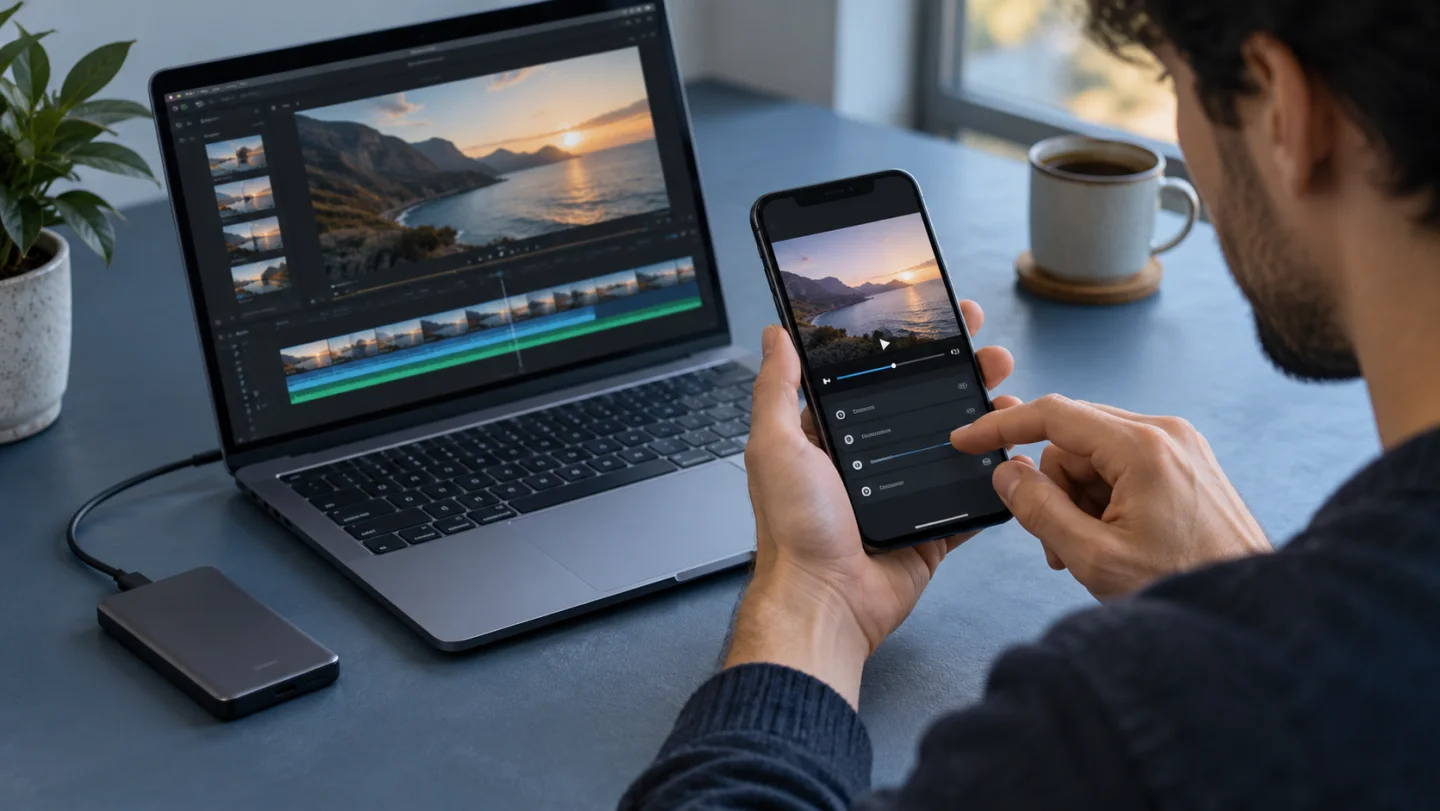
Review motion as well as paused frames. An export may look clean when paused but break into blocks around moving hands, foliage, or a busy background. For a tutorial, ask someone to read the smallest essential text at the intended viewing size.
Understand File Size Before Chasing a Number
Sharing in a Discord channel? The video compressor for Discord guide covers current upload limits and a measured export workflow instead of assuming one resolution always fits.
Use the video file size calculator to estimate size from bitrate and duration, or work backward from a target MB budget. It plans settings; it does not compress or upload your video.
Approximate file size follows this relationship:
File size in MB ≈ total bitrate in Mbps × duration in seconds ÷ 8.
For example, 60 seconds at a total bitrate of 4 Mbps is approximately 30 MB, plus container overhead. This is arithmetic, not an export test or a promised iMovie result.
For a hypothetical 20 MB limit over 60 seconds, the total bitrate budget is about 2.67 Mbps before overhead. An editor that offers a target bitrate can use that budget; an editor with presets requires exporting and checking the result. Leave headroom below the upload cap.
File size alone says little about runtime or quality. A detailed ten-second clip can occupy more storage than a quiet minute at a lower bitrate. Changing .mov to .mp4 also does not shrink the underlying video data.
Prepare a Smaller Talking-Head Export in BlitzCut
For a recorded explanation that still needs editing, finish the content before making a small delivery copy. In BlitzCut, use transcript editing to find repeated passages, review silence removal for dead air, and add captions after the wording is settled.
Then open export settings. Choose a resolution appropriate for the viewer, adjust quality, and watch the estimated file size. Change one control at a time so you can see its effect, then export and measure the actual file.
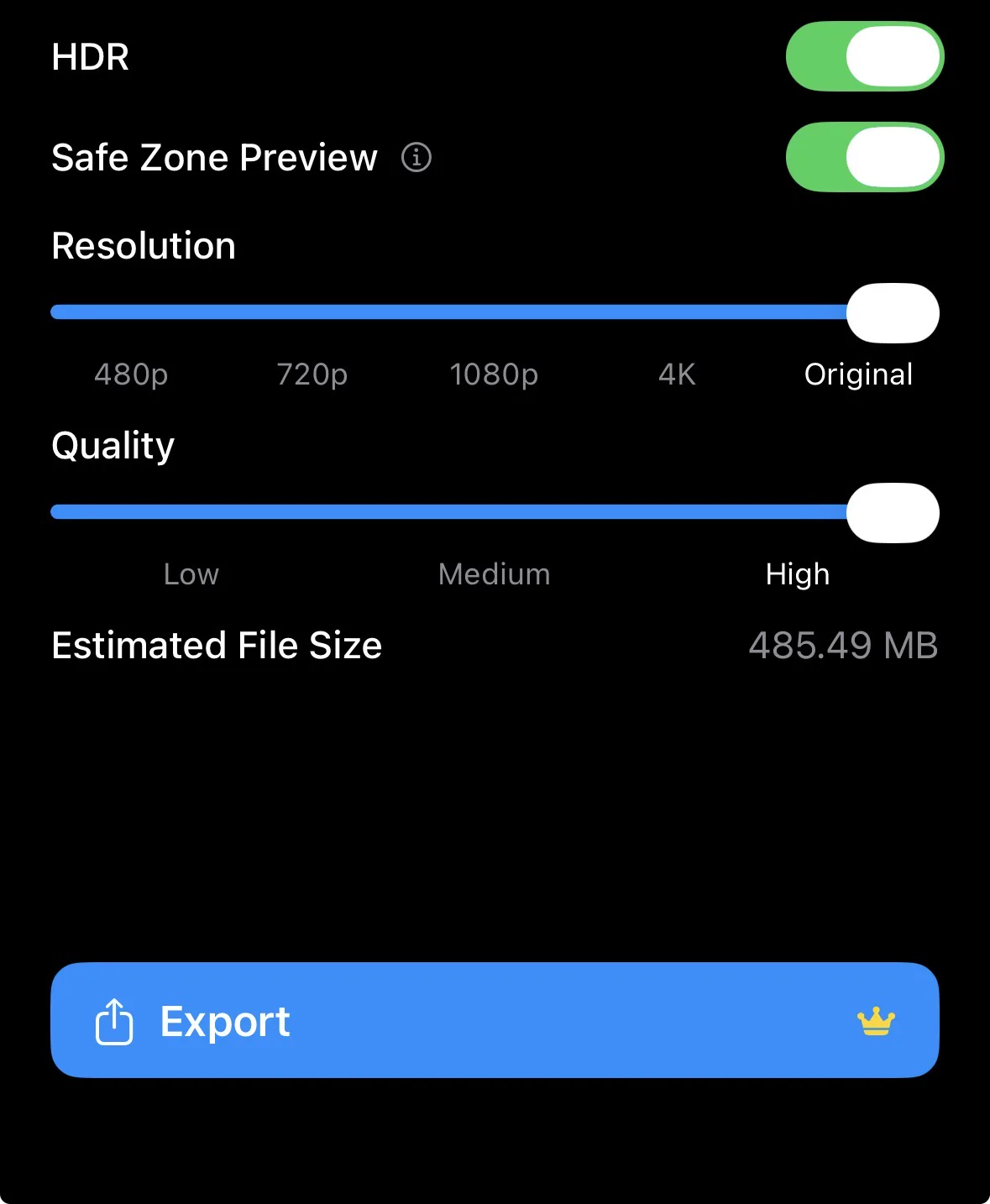
Removing an unnecessary sentence saves duration as well as data. Lowering export quality saves data while keeping the sentence. Make that distinction deliberately: a complete explanation matters more than reaching the smallest possible file.
Fix Common Compression Problems
The file is still too large
Confirm that you selected the newly exported copy. If it is still over the cap, return to the original project and try the next lower setting. Avoid repeatedly compressing yesterday's compressed export; each new lossy encode can discard more detail.
Captions or screen text look soft
Return to a higher resolution, or use less aggressive quality reduction where available. Larger caption text can help, but essential screen labels may require preserving more detail. Check the exported file rather than only the editor preview.
The smaller file will not play for the recipient
Check format compatibility as well as size. HEVC is more storage-efficient than H.264, but support depends on the receiving device and software. Apple documents both formats and their compatibility considerations. Apple's HEVC guide.
Your phone's storage has not decreased
Saving a smaller copy while keeping the original creates another file. Compression for delivery is different from a storage-cleanup decision. Verify a backup and the finished copy before removing source material; see mobile editing storage tips.
Record With Future File Sizes in Mind
For supported iPhones, Settings → Camera → Formats → High Efficiency selects space-saving capture formats. Most Compatible uses H.264 for new videos. This changes future recordings, not clips already in your library.
Choose capture settings for the work you expect to do. Extra resolution can be useful for reframing later, so reducing it at capture is a creative tradeoff as well as a storage choice.
Frequently Asked Questions
Can I compress iPhone video without losing quality?
Do not assume a smaller re-encoded file is lossless. You may find a visually acceptable setting, but lower resolution removes detail and stronger lossy compression can create visible artifacts.
Does compression make a video shorter?
It normally changes the amount of data, not the runtime. Trim or remove content if you need fewer seconds.
Does an MP4 file always use less space than MOV?
No. Codec, bitrate, audio, and duration determine the data size. The filename extension alone does not tell you how large the video will be.
Why is there no exact MB setting in iMovie on iPhone?
Apple's documented mobile workflow offers export choices such as resolution rather than a fixed final-size field. Export a copy, inspect it, and adjust again if needed.
Related Guides
Editing a talking-head video?
BlitzCut is available on Windows, Android, iPhone, iPad, and Mac. It is designed for recorded UGC-style videos, founder-led ads, tutorials, and testimonials and other talking-head content.
Download BlitzCutRelated Articles
Keep Reading

Black Friday 2026 Video Editing Software Deals: CapCut, DaVinci, Final Cut, Descript and More
Every Black Friday 2026 video editing software deal we could verify: DaVinci Resolve, CapCut, Final Cut Pro, Adobe, Descript, Filmora, BlitzCut, plus what each did last year.

BlitzCut vs Kapwing: App and Browser Editing Compared
Compare BlitzCut and Kapwing for talking-head ads, tutorials, and team content, including Smart Cut, transcript editing, captions, and usage limits.

BlitzCut AI vs KineMaster: Captions and Editing (2026)
Compare KineMaster’s free on-device captions and layered editing with BlitzCut’s recorded talking-head workflow, including export and pricing checks.