
How to Shrink a Video on Mac: Size and Quality
Learn how to shrink a video on Mac with QuickTime exports or HandBrake bitrate planning, then measure the saved file and check quality and compatibility.


Here's how to shrink a video on Mac: export a delivery copy in QuickTime Player at an appropriate resolution, or use HandBrake when you need to plan an average bitrate around a size budget.
Keep the original and measure the saved result. A preset is a starting point, not a promise that your file will fit a particular number of megabytes.
Shrinking file size and shortening runtime are different tasks. Compression can keep every sentence while reducing data; cutting an unnecessary section reduces duration too. If your limit is measured in minutes, use the shorten a video guide first.
How to shrink a video with QuickTime Player
For a straightforward Mac export, follow Apple's QuickTime instructions:
- Open the source file in QuickTime Player.
- Choose File → Export As.
- Try 1080p for a 4K source, or 720p for a 1080p source, if that preserves the detail you need.
- For 4K or 1080p exports, use Smaller File Size for HEVC or Greater Compatibility for H.264 when those options appear.
- Give the copy a distinct name and destination, then click Save.
QuickTime exports video as MOV, using H.264 or HEVC. It does not export MP4 video. Its exact output dimensions and data rate depend on the original, so neither 720p nor 1080p specifies a fixed file size. Available options depend on your source and software version.

Record the starting size and inspect the copy
Before exporting, select the original in Finder and choose File → Get Info. Note its size. Repeat for the new file after export finishes, checking the filename so you do not accidentally measure the source twice.
Open the result in QuickTime and choose Window → Show Movie Inspector. Apple's Movie Inspector guide documents the resolution, compression format, data size, and related information it can display.
Play a difficult section: moving hands, detailed hair, screen text, or an animated chart. Check sound and the beginning and ending too. If a lesson's labels become unreadable, the smaller file is not a successful delivery copy.
Saving a second file does not itself free storage. Keep the source until the copy and any backup meet your needs.
Understand codec, container, and resolution
MOV and MP4 are containers: they package video, audio, and other information. H.264 and HEVC are video compression formats. Renaming a filename's extension does not re-encode the picture or make its data smaller.
For a recipient who explicitly requires MP4, use an exporter that produces it. HandBrake's official General presets use MP4 and include H.264/AAC options intended for broad compatibility. Our MOV to MP4 guide covers that separate format task.
Resolution describes frame dimensions. Lowering it may reduce the bitrate needed for acceptable quality, but two videos at the same resolution can have very different sizes. Duration, encoding settings, soundtracks, and the complexity of the picture all matter.
Plan a size budget before using HandBrake
Use the video file size calculator to estimate size from duration and bitrate, or work backward from a target. It plans settings; it does not compress your file.
For decimal units, the approximate relationship is:
Size in MB ≈ total bitrate in Mbps × duration in seconds ÷ 8.
For example, a hypothetical two-minute video with a 50 MB budget has about 3.33 Mbps total available before overhead: 50 × 8 ÷ 120. If one audio track uses 128 kbps, choosing 3,000 kbps video leaves a little room. The planned payload is approximately 46.9 MB, plus container overhead.
That is arithmetic, not a measured export or guaranteed result. Extra tracks and actual encoding behavior affect the saved size. Leave headroom below a hard limit, and distinguish decimal MB from binary MiB when comparing tools.
If that bitrate makes a detailed screen recording unreadable, reconsider the duration, delivery method, or resolution rather than accepting unusable text.
Use average bitrate only when the size target matters
HandBrake recommends constant quality for general encoding. It lets quality determine the needed bitrate, so the resulting size varies. Average bitrate provides a size-planning approach with variable visual quality; its encoding-mode documentation recommends multiple passes for better bitrate distribution.
- Open the original in HandBrake and choose a General preset appropriate to the source.
- Confirm MP4 in Summary if required. For this example, select H.264 (x264) in Video.
- Choose Average Bitrate and enter the video budget in kbps, excluding audio.
- Enable the available Multi-Pass option for this encoder. Labels can vary by version.
- Check Audio so the included tracks and their bitrates match your calculation.
- Choose a new destination and start encoding, following HandBrake's encoding workflow.
Without a strict size target, start with the preset's constant-quality setting and make small adjustments. Follow the selected encoder's controls: HandBrake's quality guide explains that RF scales and hardware encoder quality scales can run in different directions.
Edit spoken material before the final compression pass
For a supplied talking-head lesson, UGC recording, founder explanation, or testimonial with repeated passages, a content edit can help before compression. BlitzCut is an installed iPhone, iPad, and Mac editor, available as a free download with paid features. Its App Store listing describes captions, timeline editing, silence removal, and imported audio.
BlitzCut is available for iPhone, iPad, Mac, and Android. Check Android features and purchase terms separately; Apple workflows and App Store prices in this article apply to the Apple apps.
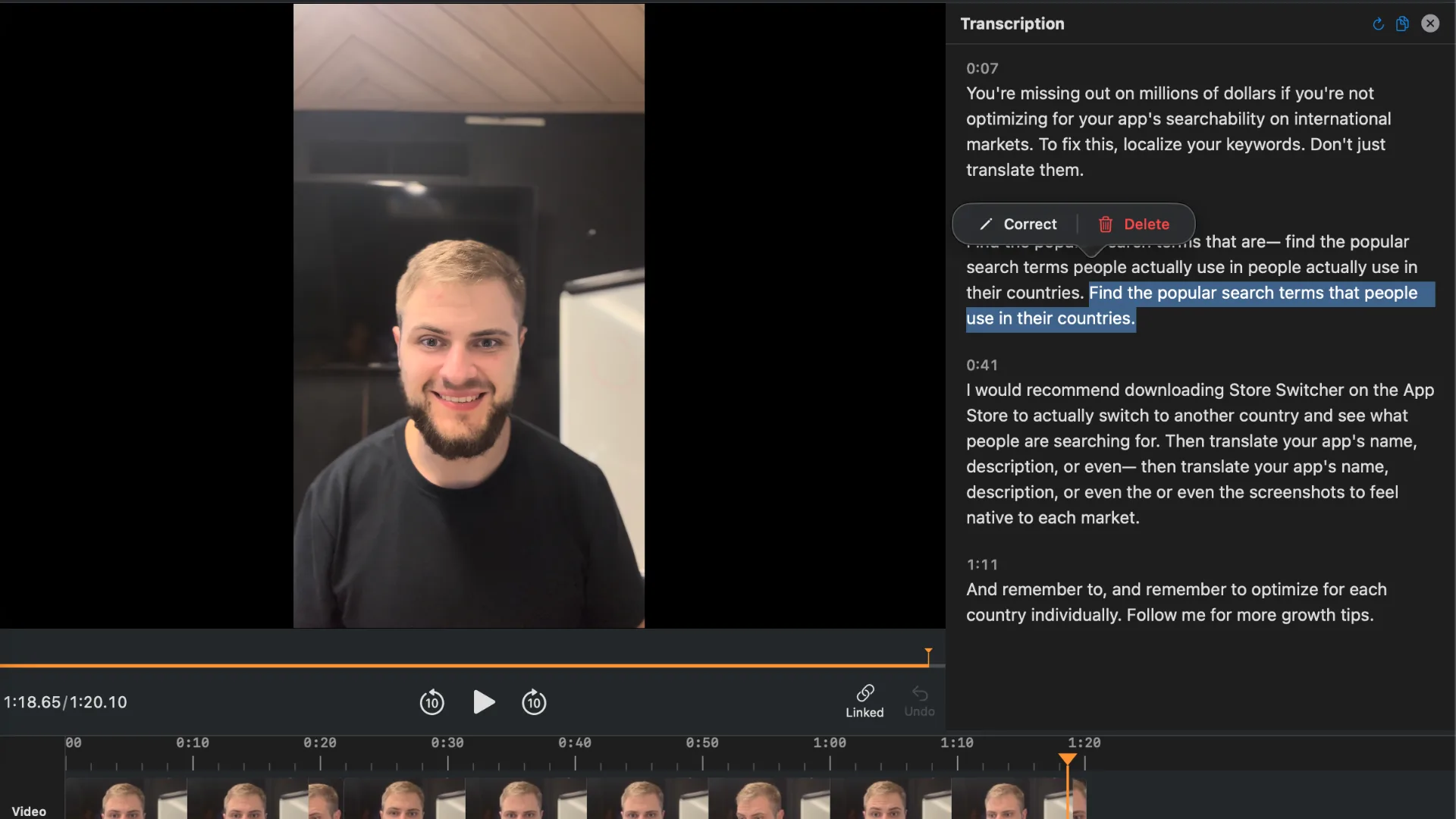
Use transcript editing to remove an unnecessary sentence, review adjustable silence removal, and finish captions or supporting images/audio before the delivery export. This reduces runtime only where the explanation benefits from a cut.
If another attempt is needed, return to the original or finished editing project. Repeatedly compressing the previous delivery copy can compound visible damage.
Frequently Asked Questions
Can QuickTime make a video exactly 50 MB?
It offers export choices, not an exact megabyte target. Measure the saved copy; use bitrate planning when a specific budget matters.
Does converting MOV to MP4 automatically shrink it?
No. Container choice alone does not determine size. The encoded streams, bitrate, and duration account for most of the data.
Why is my new file larger than the original?
Your settings may preserve more data than the source used. Compare bitrate and quality settings, then retry from the original with a suitable delivery preset.
How do I know whether the smaller copy is good enough?
Check its measured size, essential detail, audio, and playback in the receiving app. Keep the version that satisfies all four requirements.
Editing a talking-head video?
BlitzCut is available on Android, iPhone, iPad, and Mac. It is designed for recorded UGC-style videos, founder-led ads, tutorials, and testimonials and other talking-head content.
Try it for freeRelated Articles
Keep Reading

Best TikTok Caption Fonts: What Top Creators Use (2026)
The best TikTok caption fonts are Montserrat Bold, Poppins, and Bebas Neue. See 9 fonts top creators use, with exact sizes, colors, and animations.

Best Auto Caption App for iPhone (2026): 8 Apps Compared
The best auto caption app for iPhone: BlitzCut, CapCut, Captions, Edits, InShot, VN, KineMaster, and Premiere compared on caption styles, editing, SRT export, and price.

Best CapCut Alternatives (2026): 10 Apps Like CapCut for iPhone, Android and PC
The best CapCut alternatives for iPhone, Android, Mac, and PC: free and paid apps like CapCut, compared on silence removal, captions, templates, watermarks, and price.