
Convert MOV to MP4: Remux or Re-encode?
Learn how to convert MOV to MP4 by checking codecs, copying compatible streams, or re-encoding for delivery, while keeping your original recording.


To convert MOV to MP4, inspect the recording's codecs, remux compatible streams into an MP4 container, or re-encode when the receiving app needs different codecs or settings.
MOV and MP4 describe containers: files that organize video, audio, and other tracks. H.264, HEVC, and ProRes describe video codecs. Changing the container does not necessarily change the encoded picture. That distinction determines whether you need a new wrapper or a new encode. HandBrake explains containers and their supported streams.
How to convert MOV to MP4: choose the right operation
| What you need | Appropriate operation |
|---|---|
| The current video and audio already meet the destination's requirements | Remux: copy those streams into MP4 |
| The video is accepted but the audio needs another codec | Copy video and encode audio |
| A different video codec, smaller dimensions, or different quality | Re-encode the video |
Only a filename ending in .mp4 | Check the actual media requirements before changing anything |
For example, putting HEVC video into MP4 leaves it as HEVC. If a client specifically requests H.264, a container change alone cannot satisfy that request.
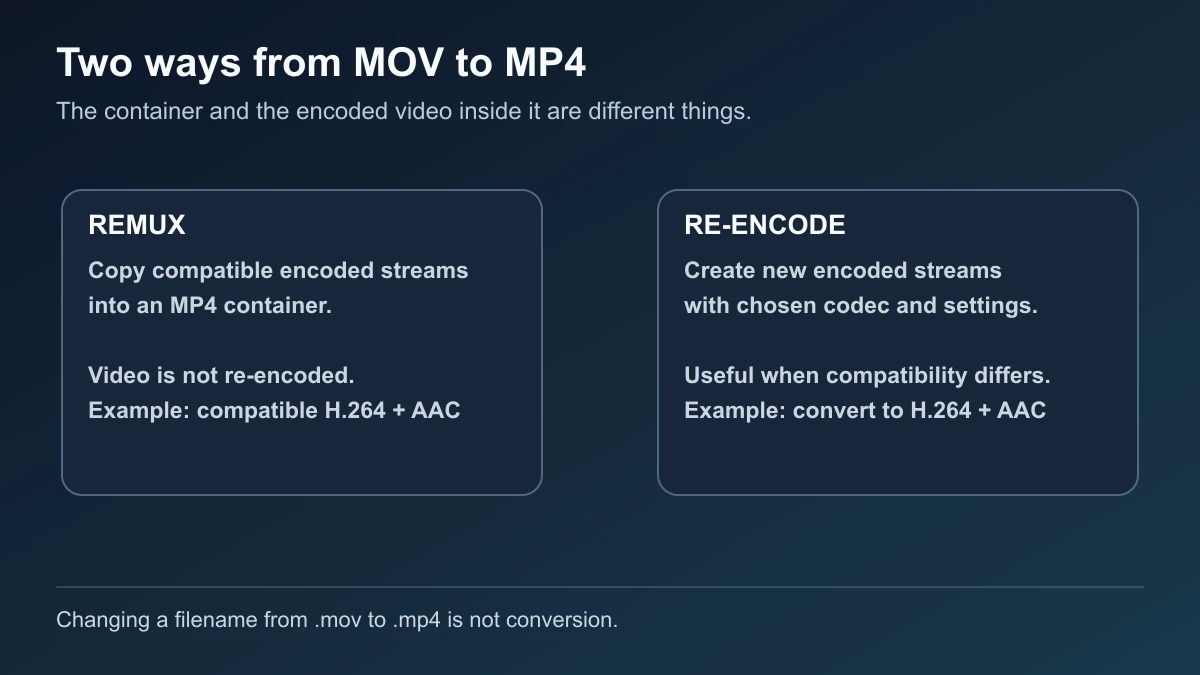
Remuxing keeps compatible encoded streams. Re-encoding changes the codec or encoding settings. Renaming changes the filename; it does not perform either media operation.
Inspect the original before converting
Keep the original MOV and write the result to a different filename. Note the destination's required video codec, audio codec, dimensions, and file-size limit.
On Mac, open the recording in QuickTime Player and choose Window → Show Movie Inspector. Check its compression format, resolution, and frame rate. Apple documents Movie Inspector.
For a command-line inspection, install FFmpeg and ffprobe using a build linked from the official FFmpeg download page, then run this in the folder containing your recording:
ffprobe -v error \
  -show_streams \
  -of json "input.mov"
Replace input.mov with your filename. Look for video and audio entries under codec_type, then read their codec_name values. The ffprobe documentation explains stream inspection and JSON output.
Remux compatible streams with FFmpeg
If the destination accepts the existing video and audio, run:
ffmpeg -n -i "input.mov" \
  -map 0:v:0 -map "0:a:0?" \
  -c copy -movflags +faststart \
  "output.mp4"
This selects the first video stream and, if present, the first audio stream. -c copy copies their encoded packets without re-encoding. -n prevents overwriting an existing output. Additional audio tracks, subtitles, and data streams are not selected by these mappings. See FFmpeg's stream-copy and mapping documentation.
+faststart moves the MP4 index toward the beginning for progressive playback; it is not a quality or compression setting. FFmpeg documents this MP4 option.
If the command reports an unsupported codec, read which stream caused it. For an acceptable video stream with audio that needs AAC, use:
ffmpeg -n -i "input.mov" \
  -map 0:v:0 -map "0:a:0?" \
  -c:v copy -c:a aac \
  -b:a 192k -movflags +faststart \
  "output-aac.mp4"
Here, only the audio is re-encoded; 192 kb/s is an example audio setting. FFmpeg supports separate codec choices for video and audio.
Re-encode in HandBrake when the video must change
HandBrake provides a graphical route on Mac, Windows, and Linux. It always converts video rather than passing it through unchanged, so choose it when you actually need a video encode. HandBrake's documented scope.
For an SDR recording intended for H.264 MP4 delivery:
- Open HandBrake and choose Open Source, then select the MOV.
- Choose a preset matching the intended output. Fast 1080p30 is one documented H.264/AAC MP4 preset, suitable when a maximum of 1080p and 30 fps meets your brief.
- Confirm MP4 under the format controls and check the video encoder and audio track selections.
- Review dimensions and cropping so you do not accidentally remove picture content.
- Check the frame-rate settings, particularly for a source recorded above 30 fps.
- Set a separate destination filename and select Start on the toolbar.
The opening and destination steps follow HandBrake's quick start. Its official preset documentation specifies the codecs and explains how presets can limit resolution and frame rate. A preset is a starting point, not a promise to retain every source property.
For HDR or Dolby Vision footage, choose an intentional HDR-preserving or SDR delivery workflow before encoding. Supported encoders, bit depth, and metadata matter; the generic example above is not an HDR-preservation recipe. Consult HandBrake's HDR documentation.
Verify the saved MP4
Inspect the output's codecs again, then play the beginning, middle, and ending. Check speech, lip sync, rotation, color, and any captions or fine text. Confirm the duration and try the file in the actual receiving app.
A successful remux confirms that the selected streams could be written to MP4. It does not establish that every device or upload service supports those codecs.
If you are preparing a spoken lesson or founder-led ad, finish conversion first when it is required for import. You can then use BlitzCut for transcript edits, silence removal, and captions on iPhone, iPad, or Mac; those features are documented in its App Store listing. Keep the source recording for future revisions.
Frequently Asked Questions
Can I just rename .mov to .mp4?
Apple documents that shortcut for some H.264 MOV files. Renaming does not rewrite encoded media or create a new container structure, and Apple recommends conversion if the upload still fails. Apple's limited renaming procedure.
Will remuxing reduce picture quality?
Stream copying does not re-encode the selected video, so it introduces no new video compression loss. Check that you selected the intended streams.
Does an MP4 have to contain H.264?
No. MP4 can contain other codecs, including HEVC. Check the recipient's requirements for both the container and the codecs.
Why is the MP4 still large?
Copying the same encoded video does not meaningfully compress it. To reduce size, make a delivery encode with suitable resolution and quality settings, then inspect the result.
Related Guides
Editing a talking-head video?
BlitzCut is available on Android, iPhone, iPad, and Mac. It is designed for recorded UGC-style videos, founder-led ads, tutorials, and testimonials and other talking-head content.
Try it for freeRelated Articles
Keep Reading

Best Auto Caption App for iPhone (2026): 8 Apps Compared
The best auto caption app for iPhone: BlitzCut, CapCut, Captions, Edits, InShot, VN, KineMaster, and Premiere compared on caption styles, editing, SRT export, and price.

Best CapCut Alternatives (2026): 10 Apps Like CapCut for iPhone, Android and PC
The best CapCut alternatives for iPhone, Android, Mac, and PC: free and paid apps like CapCut, compared on silence removal, captions, templates, watermarks, and price.

Best Free Video Editing App for iPhone (2026): 8 Apps, Most With No Watermark
The best free video editing app for iPhone: iMovie, Premiere mobile, Edits, VN, YouTube Create, CapCut, InShot, and KineMaster compared on watermarks, captions, 4K export, and what's actually free.