
Variable Frame Rate: Check Your Footage and Fix Timing Problems
Understand variable frame rate, check your recording for timing problems, and convert to constant frame rate in HandBrake when the editing workflow needs it.


Variable frame rate (VFR) means a video's frame timing changes during playback instead of maintaining one constant frame rate throughout the file.
A VFR label alone does not mean your recording is damaged or that its audio will drift. The practical question is whether your editor handles that particular file correctly. If the original, timeline, and exported video all remain synchronized, converting it adds work without solving an observed problem.
Variable frame rate vs. constant frame rate
Constant frame rate, or CFR, uses a regular frame cadence: at 30 fps, each frame occupies roughly 33.3 milliseconds. VFR allows that cadence to vary. A displayed average near 30 fps does not tell you whether the individual intervals stay regular.
Accurate timestamp handling lets software keep audio and pictures aligned even when frame intervals vary.
| Term | What it describes | What it does not prove |
|---|---|---|
| VFR | Frame cadence can change | That audio is out of sync |
| CFR | One regular frame rate throughout | That the recording has no other timing problem |
| Peak frame rate | A maximum permitted rate | That lower-rate sections become constant |
| Variable bitrate | Changing data used per second | That frame timing changes |
HandBrake distinguishes these frame-rate modes explicitly: Same as Source + VFR preserves source timing, CFR creates a constant rate, and PFR limits the peak. HandBrake frame-rate documentation.
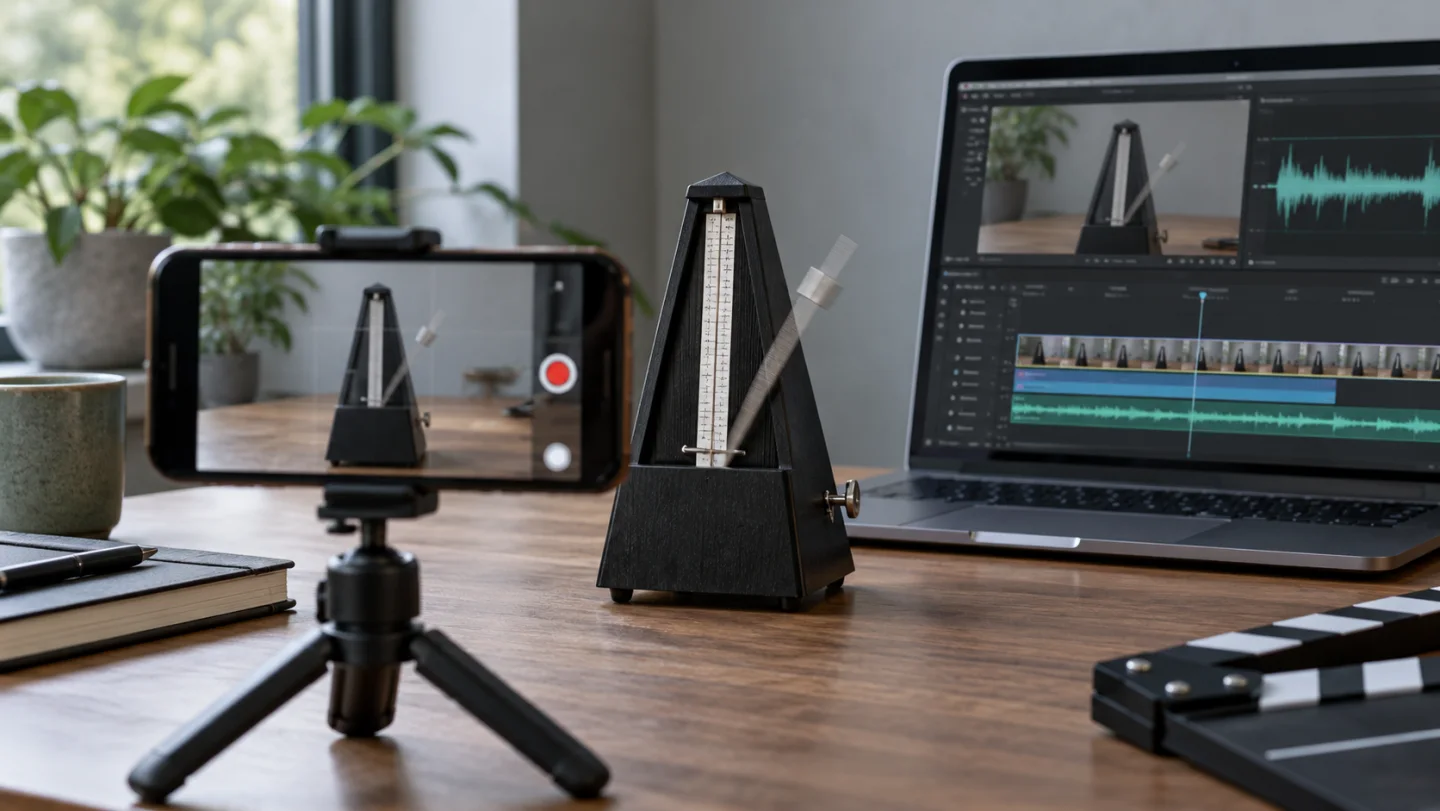
Container, codec, and frame rate are separate
An MP4 file is a container holding media streams. H.264 is a video codec describing how pictures are compressed. Frame rate describes their timing. You can encounter an H.264 video in an MP4 container with variable timing or constant timing.
HandBrake's container reference explicitly lists MP4 support for both multiple codecs and VFR video. Exporting “an MP4” therefore does not by itself establish CFR. Renaming a file extension does not rewrite frame timing either. HandBrake container documentation.
Increasing resolution or bitrate does not establish a particular frame cadence either.
Check the file before converting it
- Open the original recording in a metadata inspector such as MediaInfo.
- Examine the video stream's Frame rate mode, then its reported frame rate and minimum or maximum values where available.
- Record the duration, dimensions, codec, and audio information so you can compare the converted file later.
- Play a clear mouth movement or clap near the beginning and again near the end.
MediaInfo documents frame-rate mode, nominal, minimum, and maximum fields separately. Some files do not expose every field; a single rounded “30 fps” value is insufficient evidence of constant timing. MediaInfo field reference.
Repeat the playback check inside the editor and in a short export containing the troublesome passage. A slow preview can look wrong while the export is fine. Also check a later passage: a short opening sample cannot reveal a mismatch that grows across a long recording.
Match the symptom to the next check
- Sound has the same offset throughout: inspect track placement or recording delay first. A fixed offset alone does not demonstrate a frame-rate problem.
- The mismatch grows over time: investigate timing interpretation, accidental speed changes, and separate recording clocks. VFR is one possible contributor.
- Only captions drift: compare subtitle timing with the final edit. Captions made before cuts may need regeneration; see subtitle sync troubleshooting.
- The preview stutters but the export is synchronized: investigate playback performance before changing the source.
Convert to constant frame rate in HandBrake when needed
Make a separate converted copy if the receiving workflow requires CFR or a repeatable timing problem points to the source. Keep the original recording.
- Open the source in HandBrake.
- Choose a preset suited to your required dimensions and editing software. Inspect its settings: presets can limit resolution and frame rate or alter audio. HandBrake's official preset reference.
- Open the Video tab. Under Framerate (FPS), select the intended delivery or editing rate, then select Constant Framerate.
- Match the intended capture rate when possible. For example, use 29.97 for footage intended as 29.97, rather than rounding it casually to 30. If the recording mixes rates substantially, choose the output rate deliberately for your project.
- Check dimensions, cropping, and audio before encoding. Save to a new filename, such as
interview-cfr, and start the encode. - Inspect the result and compare the beginning, middle, and end. Confirm the duration is approximately unchanged and important words still line up with the speaker's mouth.
Selecting an FPS value alone is insufficient if Peak Framerate remains enabled. Likewise, Same as Source + Variable Framerate preserves variable timing.
Conversion re-encodes the pictures and can duplicate or drop frames to fit the chosen cadence. It cannot recover motion that was never captured. Check moving hands and screen scrolling as well as speech before committing to the converted copy.
Avoid changing playback speed as a repair
Premiere's Modify → Interpret Footage → Assume this frame rate changes how a clip is interpreted. Adobe documents that changing this rate proportionally changes duration and also affects audio. That serves deliberate speed changes; it is different from making a CFR copy that preserves the intended running time. Adobe's frame-rate instructions.
For dialogue, a faster voice or shorter duration is a sign to stop and reconsider the operation. Do the timing check before building a detailed edit around that version.
Continue the talking-head edit after checking sync
Once you have a synchronized working file, BlitzCut's native iPhone, iPad, and Mac workflow can help with the editorial work: remove unwanted pauses on-device, delete unnecessary spoken passages through the transcript, and add captions or image overlays.
BlitzCut is available for iPhone, iPad, Mac, and Android. Check Android features and purchase terms separately; Apple workflows and App Store prices in this article apply to the Apple apps.
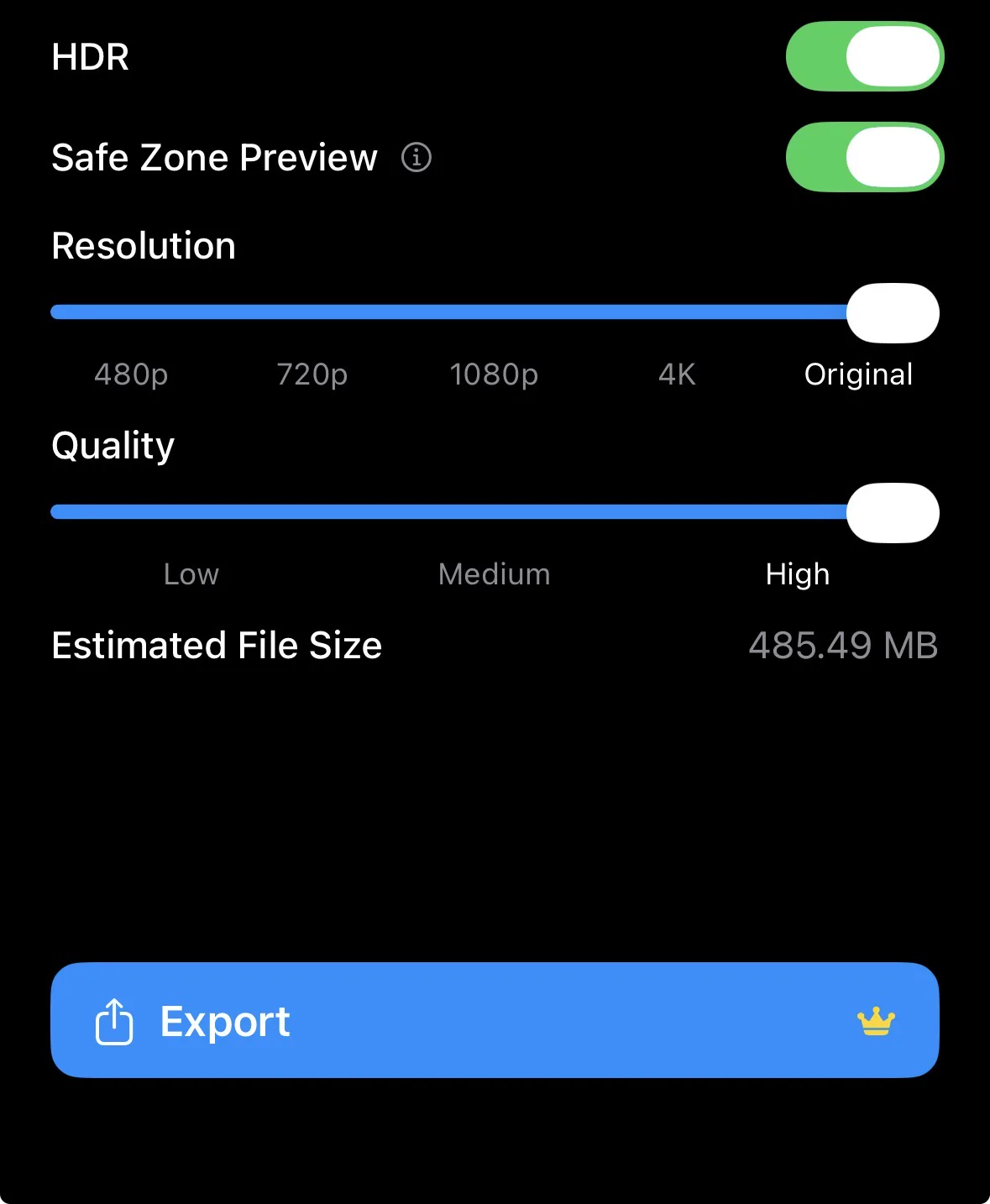
Generate captions from the version you actually edit. If you replace a source or change timing later, review captions again. Keep your CFR conversion step in HandBrake; BlitzCut's resolution and quality controls serve the final export.
Frequently Asked Questions
Does variable frame rate always cause audio drift?
No. Correct timestamp handling can keep a VFR recording synchronized. Check the actual source, timeline, and export before deciding it needs conversion.
Is 29.97 fps a variable frame rate?
No. 29.97 can be constant. A fractional frame rate describes the rate; VFR describes variation in frame timing across the file.
Does exporting MP4 convert VFR to CFR?
Not by itself. MP4 can hold VFR video. The encoder's frame-timing settings determine whether the new file is constant.
Should I convert every phone recording before editing?
No. Try the original and verify an export first. Conversion is useful when required by the workflow or when it resolves a diagnosed timing problem, rather than as an automatic extra step.
Related Guides
Editing a talking-head video?
BlitzCut is available on Windows, Android, iPhone, iPad, and Mac. It is designed for recorded UGC-style videos, founder-led ads, tutorials, and testimonials and other talking-head content.
Download BlitzCutRelated Articles
Keep Reading

Black Friday 2026 Video Editing Software Deals: CapCut, DaVinci, Final Cut, Descript and More
Every Black Friday 2026 video editing software deal we could verify: DaVinci Resolve, CapCut, Final Cut Pro, Adobe, Descript, Filmora, BlitzCut, plus what each did last year.

BlitzCut vs Kapwing: App and Browser Editing Compared
Compare BlitzCut and Kapwing for talking-head ads, tutorials, and team content, including Smart Cut, transcript editing, captions, and usage limits.

BlitzCut AI vs KineMaster: Captions and Editing (2026)
Compare KineMaster’s free on-device captions and layered editing with BlitzCut’s recorded talking-head workflow, including export and pricing checks.