
How to Add Music to iMovie (Mac, iPhone, iPad)
How to add music to iMovie on Mac, iPhone, and iPad: built-in soundtracks, songs from your Music library, audio files, fades, volume, and why some songs won't import.


To add music to iMovie on Mac, click Audio & Video above the browser, choose Music or Sound Effects in the sidebar, and drag a song into the background music well under the timeline. On iPhone and iPad, tap Add Media, then Audio, then Soundtracks or My Music, and tap Add Audio next to the song.
You can also drag any MP3, AAC, WAV, or AIFF file into iMovie. Songs streamed from Apple Music can't be used, because they're copy-protected.
How to add music to iMovie on Mac
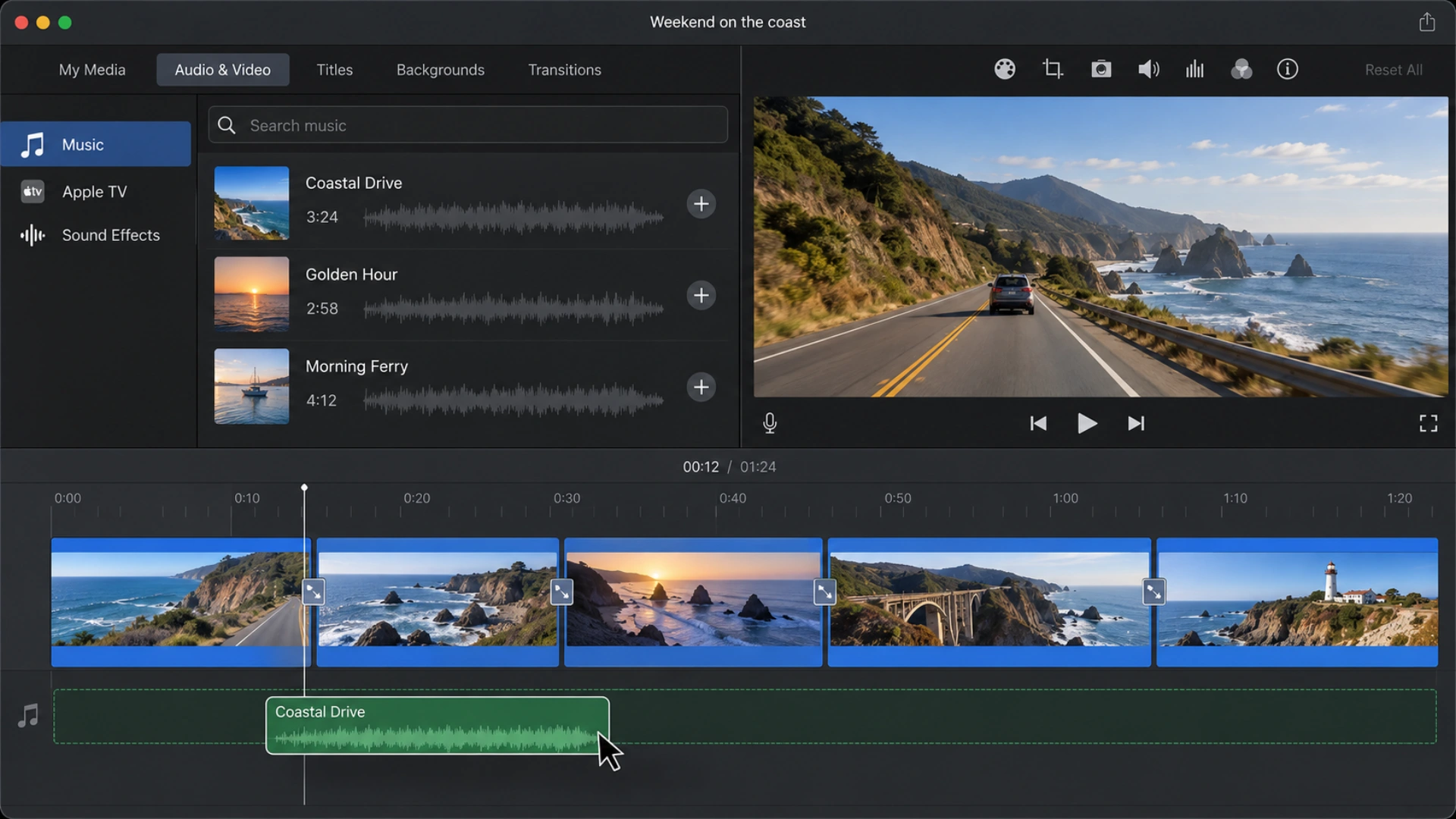
On Mac, music can go in two places: the background music well, where it plays under the whole movie and isn't affected when you move clips, or under a specific clip, where it moves with that clip. From Apple's iMovie guide:
- Open your project in the timeline.
- Click Audio & Video above the browser. If you don't see it, click the Media Browser button first.
- In the sidebar, choose Music to see songs from the Music app, or Sound Effects for iMovie's built-in sounds and jingles.
- Hover over a song and click the play button to preview it.
- Drag the song to the timeline:
- For background music, drag it to the background music well, the area with the music note icon below your clips.
- To attach it to one clip, drag it under that clip until a connecting bar appears.
Use your own audio file: drag an MP3, AAC, WAV, or AIFF file from Finder straight into the timeline or the background music well.
If Trim background music is turned on in your project settings, iMovie automatically cuts the music to end with your movie.
How to add music to iMovie on iPhone and iPad
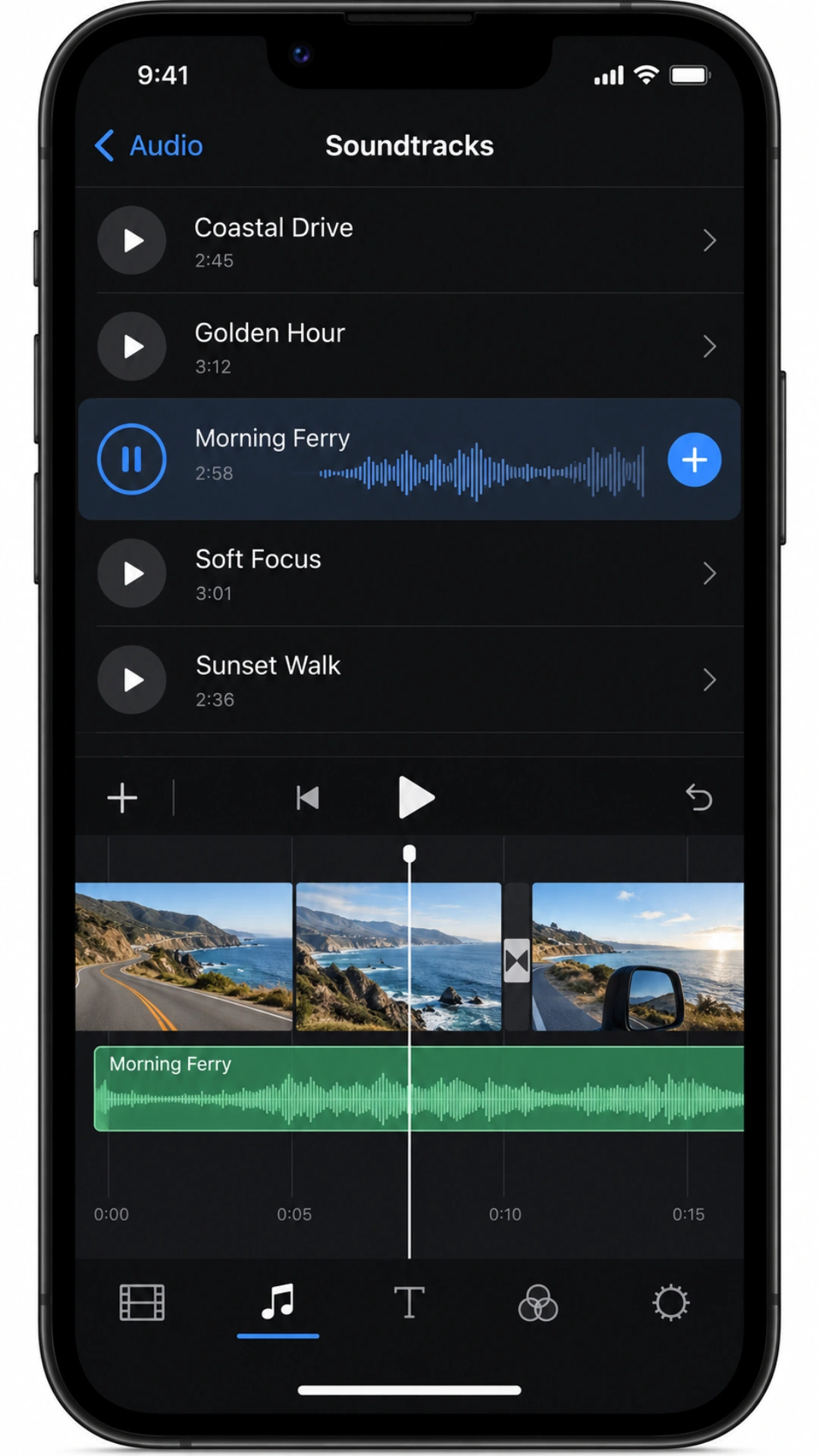
From Apple's soundtrack guide:
- Open your project in the timeline.
- Tap Add Media (the plus button), then tap Audio.
- Choose where the music comes from:
- Soundtracks: iMovie's free built-in music. Tap a dimmed track to download it, then tap it again to preview.
- My Music: songs downloaded to your iPhone or iPad in the Music app.
- Tap Add Audio (the plus) next to the song.
For an audio file saved in the Files app or iCloud Drive, tap Add Media → Files instead and choose the file.
A soundtrack starts at the beginning of the project and is fitted to the project's length. Background music shows as a green clip in the timeline. A song shorter than one minute is treated like a sound effect: it shows in blue and attaches to the clip above it.
How to add sound effects in iMovie
Sound effects attach to a clip, so they stay in sync if you move it.
- On Mac: click Audio & Video, choose Sound Effects, then drag an effect under the clip you want until a connecting bar appears.
- On iPhone and iPad: move the playhead to where you want the sound, tap Add Media → Audio → Sound Effects, and tap Add Audio next to the effect.
Adjust the music volume and fade it in or out
Music that's as loud as your voice makes a video hard to follow. Turn it down under speech.
On Mac:
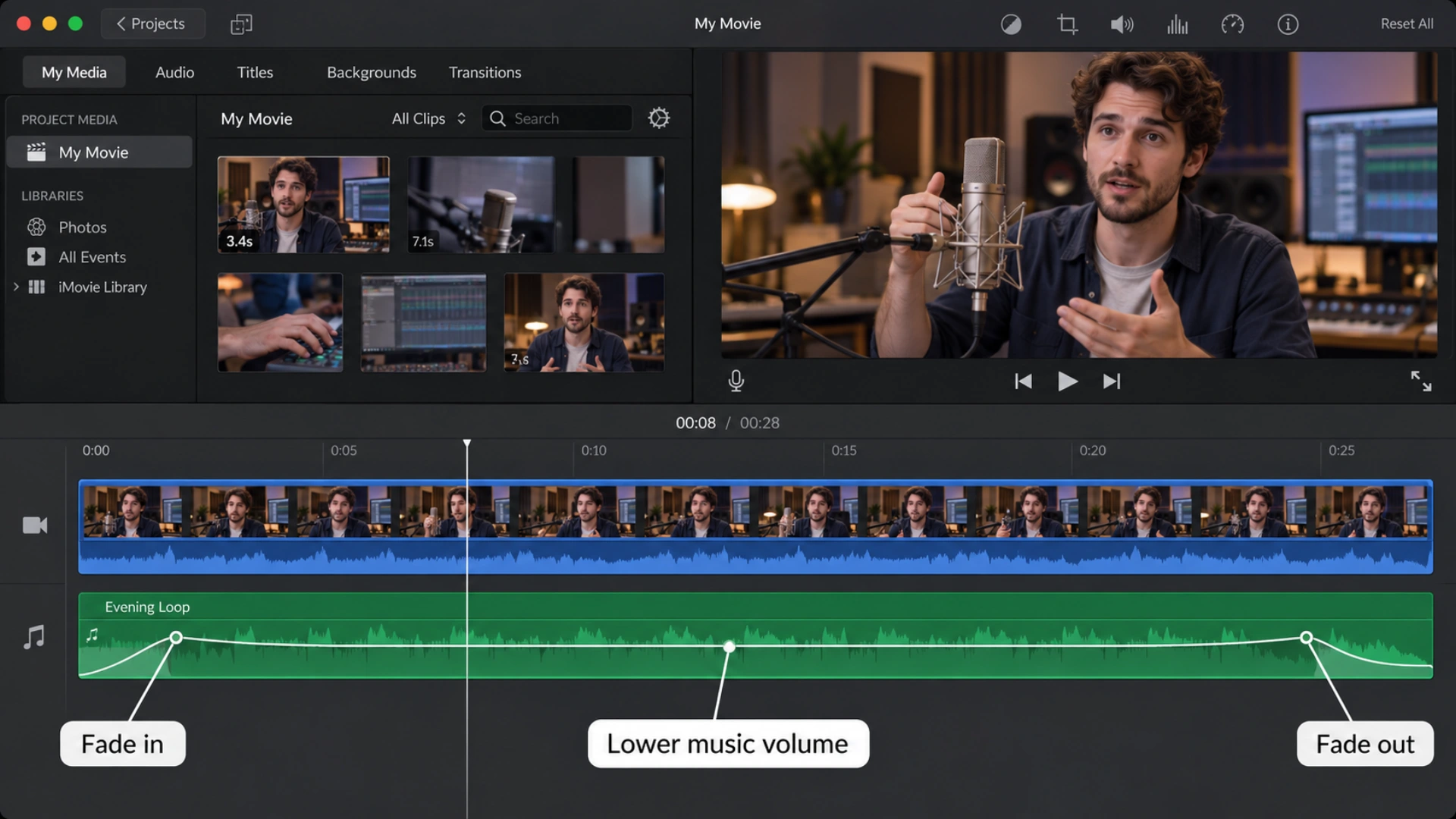
- Drag the horizontal volume line on the music clip down to lower it.
- Hover over the start or end of the music clip and drag the small fade handle to fade in or out.
- To lower the music only while someone speaks, select the talking clip, click the Volume button above the viewer, and turn on Reduce volume of other clips (ducking).
On iPhone and iPad:
- Tap the music clip, tap Volume, and drag the slider down.
- Tap Fade and drag the fade handles at each end of the clip.
As a starting point, keep music well below your voice: you should be able to hear every word without trying.
How to trim or cut music in iMovie
- On Mac: drag either end of the music clip to shorten it. To cut a piece out of the middle, move the playhead to the spot, select the music, and choose Modify → Split Clip (Command-B). Delete the part you don't want.
- On iPhone and iPad: tap the music clip and drag its yellow handles, or tap Actions → Split and delete the piece you don't need.
Why can't I add a song to iMovie?
The usual reasons:
- It's streamed from Apple Music. Apple Music songs are copy-protected, even when downloaded for offline listening, so iMovie can't use them.
- It isn't downloaded. Songs in your iCloud library need to be downloaded to your device or Mac first.
- It's an old protected purchase. Some very old iTunes purchases still have copy protection. Newer iTunes Store purchases are unprotected, but Apple notes you need the copyright holder's permission to use them in a project.
- The file format isn't supported. Convert it to MP3, AAC, WAV, or AIFF and try again.
Can you use iMovie music on YouTube or TikTok?
iMovie's built-in soundtracks and sound effects are included for use in your projects. Commercial songs are different: if you add a chart song and upload the video, YouTube can claim it, mute it, or block it. A YouTube Short longer than one minute with an active copyright claim is blocked everywhere.
For music you're sure you can use, try iMovie's soundtracks, the free YouTube Audio Library, or the music libraries built into TikTok, Instagram, and YouTube Shorts, added in their apps when you post.
Adding music to a talking-head video
If your video is mostly you talking, music is the last step. Cut the pauses and retakes first, then add a quiet track under the speech. BlitzCut does the talking-head part automatically on iPhone, iPad, and Mac: it removes the silences, adds captions, and has a music track on the timeline, so you can finish the whole video without switching apps.
Frequently Asked Questions
How do I add music to iMovie on Mac?
Click Audio & Video above the browser, choose Music in the sidebar, and drag a song into the background music well below the timeline. You can also drag an MP3, AAC, WAV, or AIFF file from Finder into the timeline.
How do I add music to iMovie on iPhone?
Open your project, tap Add Media, then Audio. Choose Soundtracks for iMovie's free music or My Music for songs downloaded to your iPhone, and tap Add Audio next to the song. For an audio file, tap Add Media, then Files.
Can I add Apple Music songs to iMovie?
No. Songs streamed or downloaded from Apple Music are copy-protected, so iMovie can't use them. Use iMovie's soundtracks, unprotected audio files, or songs you have permission to use.
Is iMovie music copyright free?
iMovie's built-in soundtracks and sound effects are included for use in your projects. Songs from your own library are not covered: you need permission from the copyright holder, and platforms like YouTube may claim or block videos that use them.
How do I make the music quieter in iMovie?
On Mac, drag the volume line on the music clip down, or turn on ducking to lower it under speech. On iPhone and iPad, tap the music clip, tap Volume, and drag the slider down.
How do I fade out music in iMovie?
On Mac, hover over the end of the music clip and drag the fade handle to the left. On iPhone and iPad, tap the music clip, tap Fade, and drag the handle at the end of the clip.
Related: How to Add Subtitles in iMovie · How to Add Music to a Video on iPhone · How to Export iMovie to MP4 · BlitzCut vs iMovie
Editing a talking-head video?
BlitzCut is available on Android, iPhone, iPad, and Mac. It is designed for recorded UGC-style videos, founder-led ads, tutorials, and testimonials and other talking-head content.
Try it for freeRelated Articles
Keep Reading

Best TikTok Caption Fonts: What Top Creators Use (2026)
The best TikTok caption fonts are Montserrat Bold, Poppins, and Bebas Neue. See 9 fonts top creators use, with exact sizes, colors, and animations.

Best Auto Caption App for iPhone (2026): 8 Apps Compared
The best auto caption app for iPhone: BlitzCut, CapCut, Captions, Edits, InShot, VN, KineMaster, and Premiere compared on caption styles, editing, SRT export, and price.

Best CapCut Alternatives (2026): 10 Apps Like CapCut for iPhone, Android and PC
The best CapCut alternatives for iPhone, Android, Mac, and PC: free and paid apps like CapCut, compared on silence removal, captions, templates, watermarks, and price.