
How to Add Subtitles in iMovie (Mac, iPhone, iPad)
How to add subtitles in iMovie on Mac, iPhone, and iPad with titles, why iMovie has no auto captions or SRT import, and the faster way to caption a video.


To add subtitles in iMovie, add a title for each line of dialogue, type the words, and line each title up with when it's spoken. On Mac, click Titles above the browser and drag a style onto your clip. On iPhone and iPad, tap a clip, tap the Titles button, and pick a style.
iMovie doesn't generate subtitles from speech and can't import SRT files, so every line is typed by hand. For a video longer than a minute or two, it's faster to generate captions automatically and finish in iMovie.
How to add subtitles in iMovie on Mac
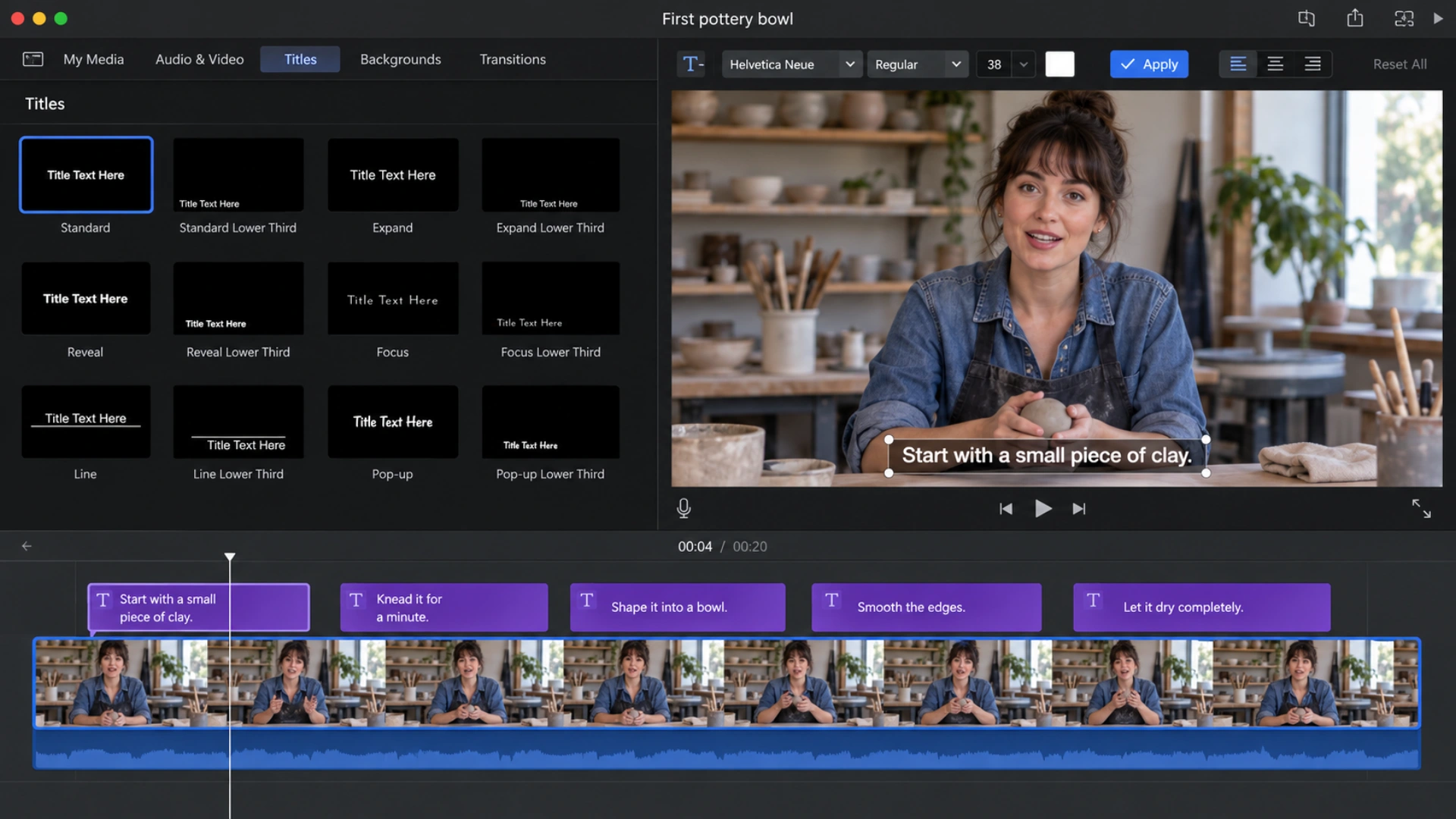
On Mac, titles attach to a point in the timeline, so you can time each subtitle line exactly. From Apple's iMovie guide:
- Open your project and move the playhead to where the first line of dialogue starts.
- Click Titles above the browser.
- Pick a simple style that sits at the bottom of the frame, such as a lower-third title. Skim the thumbnails to see how each one animates; a style with little or no animation reads best as a subtitle.
- Double-click the style to add it at the playhead. It appears as a purple clip above your video.
- Double-click the placeholder text in the viewer and type the line. Use the font controls above the viewer to set the font, size, and color, then click Apply.
- Drag the edges of the title clip in the timeline so it starts and ends with the spoken line.
- Move the playhead to the next line and repeat.
Speed it up: once the first title looks right, select it, press Command-C, move the playhead to the next line, and press Command-V. The copy keeps your font and size, so you only change the words and the length.
Some theme titles and animated titles don't let you change the font. If the font controls are greyed out, pick a different style.
How to add subtitles in iMovie on iPhone and iPad
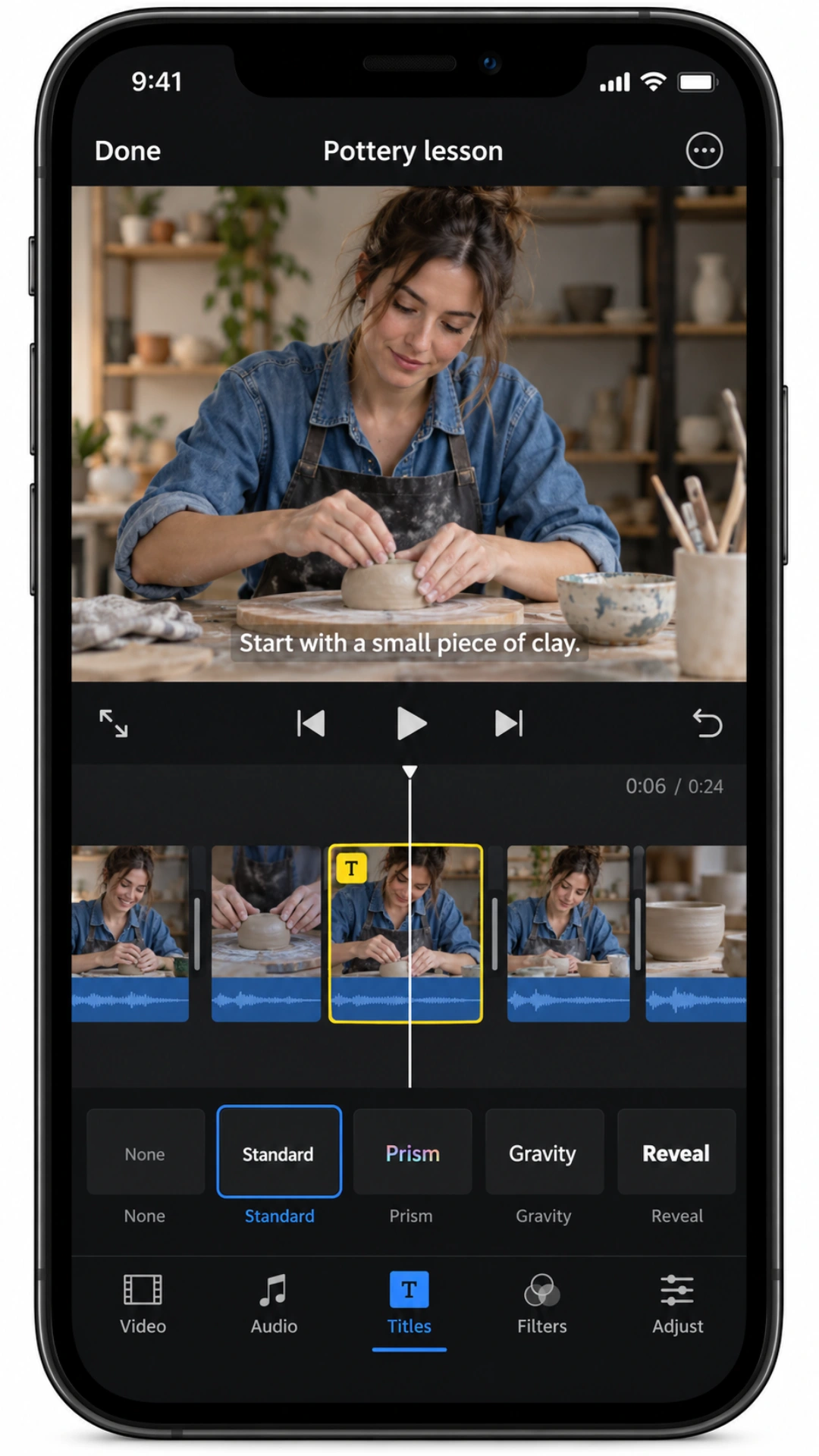
On iPhone and iPad, a title covers a whole clip. To show different lines at different times, split the clip at each line first. From Apple's iMovie text guide:
- Open your project and scroll the timeline so the playhead sits where the second line of dialogue starts.
- Tap the clip, then tap Actions (the scissors) and Split. Repeat at the start of every line, so each line of dialogue has its own clip.
- Tap the first clip, tap the Titles button (the T) in the inspector, and choose a style.
- Tap the text in the viewer, tap Edit, type the line, and tap Done.
- Drag the text to move it, or pinch to resize it. Use the Font and Color buttons to change how it looks.
- Repeat for each clip.
Splitting doesn't cut anything out of your video. Playback stays continuous, as long as you don't add transitions between the pieces. If iMovie adds transitions automatically, tap each one and set it to None.
How to add captions in iMovie
Captions and subtitles are added the same way in iMovie: as titles. Whatever you add is burned into the video, so viewers always see it. These are open captions.
iMovie can't make closed captions, the kind viewers switch on and off. For those, upload a separate caption file to YouTube or Vimeo. See how to create an SRT file on Mac, or how to burn subtitles into a video on Mac if you want them permanently on screen.
Does iMovie have automatic subtitles?
No. As of October 2026, iMovie on Mac, iPhone, and iPad has no speech-to-text captions, and it can't import SRT or other subtitle files. Every subtitle is a title you type and time by hand.
That's fine for a 20-second clip with three lines. For a talking-head video with dozens of lines, typing and timing each one can take longer than the rest of the edit.
Faster way: automatic subtitles for iMovie videos
You can keep editing in iMovie and let another app write and time the subtitles:
- Finish your edit in iMovie and export it. See how to export iMovie to MP4.
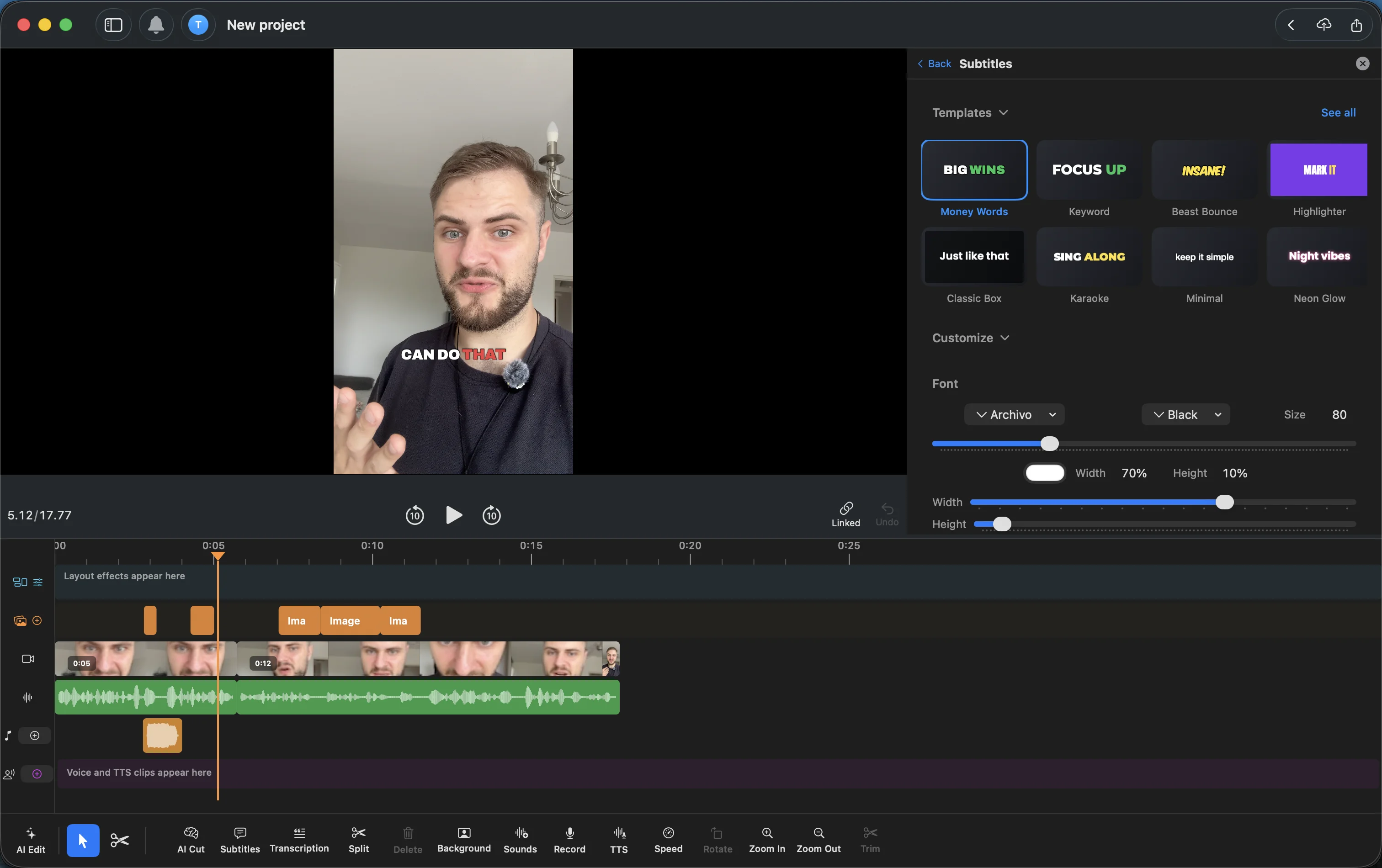
- Open the video in BlitzCut on Mac, iPhone, or iPad. It transcribes the speech and creates timed captions automatically.
- Read through the transcript and fix any names or words it got wrong.
- Pick a caption style, then export the video with the captions burned in, or export an SRT file for closed captions on YouTube.
BlitzCut can also remove the silences and cut retakes from the transcript, so for talking-head videos you can skip iMovie entirely. See BlitzCut vs iMovie for how the two compare.
Tips for subtitles that are easy to read
- Keep each subtitle to one or two short lines. Break lines where people naturally pause.
- Leave each line up long enough to read. If you can't read it aloud comfortably while it's on screen, make it longer or split the sentence.
- Use a plain, bold font and white or yellow text with a dark outline or shadow, so it reads on any background.
- Stay out of the edges. On TikTok, Reels, and Shorts, the bottom of the frame is covered by buttons and the caption. See safe zones for short-form video.
- Match the words exactly to what's said, apart from cutting "um"s and false starts.
iMovie projects are widescreen by default. If you're making a vertical video, see how to export vertical video on Mac before you add subtitles, so they sit in the right place.
Frequently Asked Questions
How do I add subtitles in iMovie?
Add a title for each line of dialogue. On Mac, click Titles above the browser, drag a style above your clip, type the line, and drag the title's edges to match when it's spoken. On iPhone and iPad, split the clip at each line, then tap each piece, tap the Titles button, and type the line.
Can iMovie automatically generate subtitles?
No. iMovie has no automatic captions on Mac, iPhone, or iPad. You type each subtitle as a title, or caption the exported video in an app that transcribes speech, such as BlitzCut.
Can I import an SRT file into iMovie?
No. iMovie can't open SRT, VTT, or other subtitle files. To use an SRT file, upload it alongside your video on YouTube or Vimeo, or burn it in with another app.
How do I add captions in iMovie on iPhone?
Split the clip wherever a new line starts, tap a piece, tap the Titles button (the T), choose a style, then tap the text in the viewer and tap Edit to type the caption. Repeat for each piece.
How do I make subtitles stay on screen longer in iMovie?
On Mac, drag either edge of the title clip in the timeline. On iPhone and iPad, a title lasts as long as its clip, so move the split point to make that piece longer.
Are iMovie subtitles burned in?
Yes. Titles become part of the picture when you export, so viewers can't turn them off.
Related: How to Add Music to iMovie · How to Export iMovie to MP4 · BlitzCut vs iMovie · Add Subtitles to a Video on Mac Automatically · How to Create an SRT File on Mac
Editing a talking-head video?
BlitzCut is available on Windows, Android, iPhone, iPad, and Mac. It is designed for recorded UGC-style videos, founder-led ads, tutorials, and testimonials and other talking-head content.
Download BlitzCutRelated Articles
Keep Reading

Black Friday 2026 Video Editing Software Deals: CapCut, DaVinci, Final Cut, Descript and More
Every Black Friday 2026 video editing software deal we could verify: DaVinci Resolve, CapCut, Final Cut Pro, Adobe, Descript, Filmora, BlitzCut, plus what each did last year.

BlitzCut vs Kapwing: App and Browser Editing Compared
Compare BlitzCut and Kapwing for talking-head ads, tutorials, and team content, including Smart Cut, transcript editing, captions, and usage limits.

BlitzCut AI vs KineMaster: Captions and Editing (2026)
Compare KineMaster’s free on-device captions and layered editing with BlitzCut’s recorded talking-head workflow, including export and pricing checks.