
How to reverse a video on iPhone: A Practical Guide
Learn how to reverse a video on iPhone with CapCut, understand Photos and iMovie limitations, check audio separately, and export the right section.


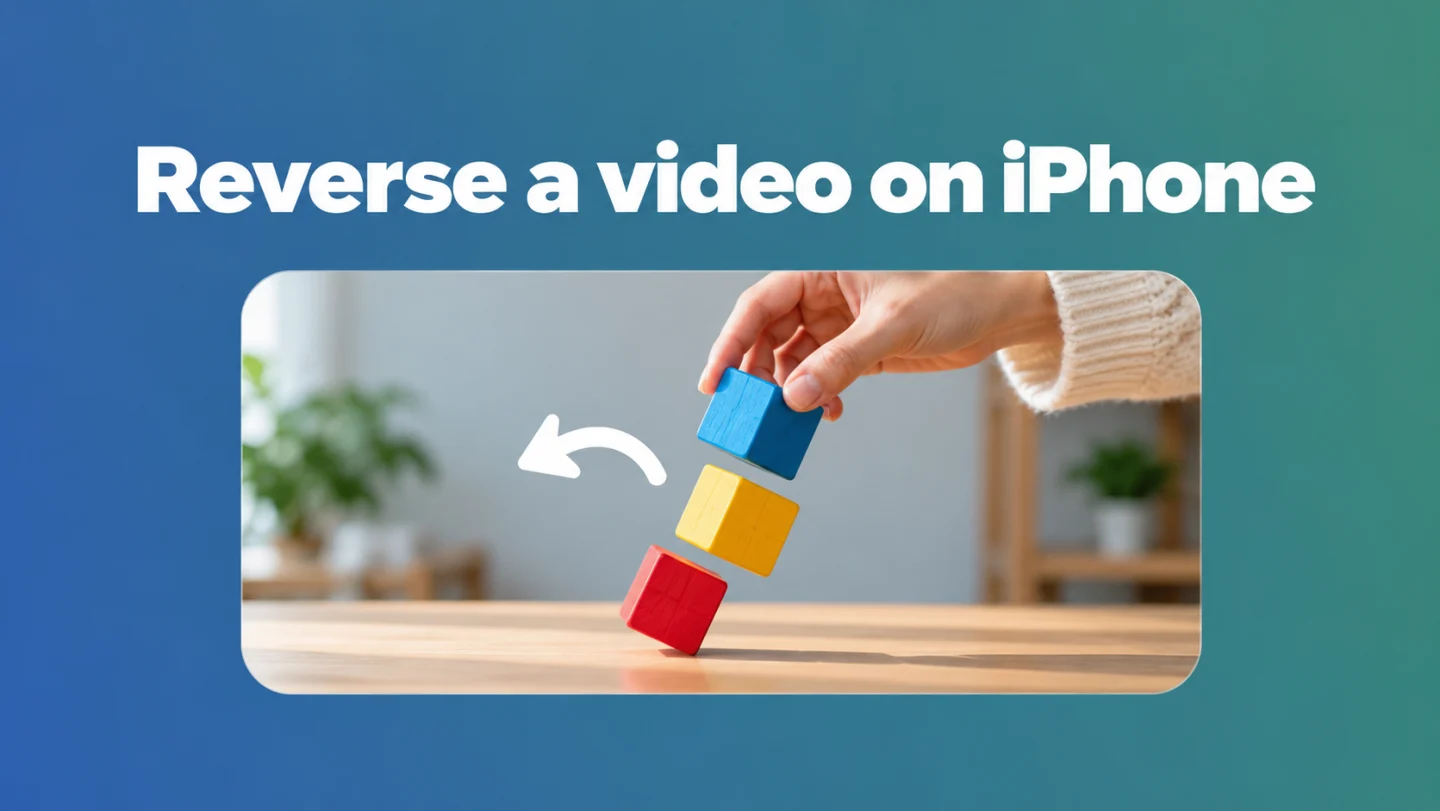
Here is how to reverse a video on iPhone: import it into CapCut, select the video clip in the timeline, apply Reverse, preview the result, and export a new file.
Keep your source recording. Decide which action should run backward before reversing an entire project, and listen to the exported audio separately. A useful rewind effect usually needs a deliberate beginning and ending.
How to reverse a video on iPhone with CapCut
For an action that runs forward and then backward, see how to make a boomerang video. Reversal alone creates only the backward half of that effect.
CapCut's official mobile instructions describe this sequence:
- Open the mobile app and tap New project.
- Select your recorded video and add it to the timeline.
- Tap the video clip to reveal its editing tools.
- Find Reverse and apply it. Allow processing to finish.
- Play the clip and confirm that the action now runs backward.
- Use the export icon at the upper right, choose the settings offered, and save the result to your device.
These are documented mobile steps, not a hands-on test of every iPhone release. Tool placement, availability, and export choices can vary by app version and region. Check the current app and any displayed purchase requirements before building a larger edit around it.
Can Photos or iMovie on iPhone reverse a normal video?
Neither offers a reverse command in the iPhone editing workflows Apple documents. Photos covers trimming, playback speed, slow-motion ranges, and audio editing. The iMovie for iPhone speed guide covers speed ranges and freeze frames, without a reverse control.
The platform distinction matters: Apple explicitly documents a Reverse checkbox in iMovie for Mac. Those desktop instructions do not describe the iPhone interface. Slowing a clip down also leaves its action moving forward.
Photos does offer Bounce for a Live Photo, producing forward-and-backward motion. That is a Live Photo effect, not a reverse command for an ordinary video recording.
Select the action before reversing
For a first attempt, choose one clear movement: an object dropping into a hand, a page turning, or a completed arrangement being taken apart. Avoid starting with a whole interview or lesson.
Watch the original and identify the complete action. Leave enough room at each end to understand what changed. If a hand exits the frame before the source ends, decide whether that pause should become the opening of the reversed version.
An easy way to isolate the section is to trim it in Photos first. Apple documents Save Video as New Clip for keeping both versions. Import that excerpt into the reversal project.
Reversing a clip changes the order of its frames. Moving several clips into a different timeline order changes the sequence of scenes; it does not make the action inside each clip run backward.
Treat sound as a separate decision
The steps above verify picture reversal. They do not establish whether your installed version reverses, retains, or removes the original audio. Listen to the preview and the saved file rather than assuming the Reverse button handles both identically.
CapCut's reverse-video guidance warns that reversal can also reverse sound. Decide whether you want silence, normal narration, music, or a deliberate rewind sound. A spoken explanation that becomes unintelligible usually needs a different audio plan.
For a demonstration, keep explanatory speech in normal time and use the reversed action as a brief visual example. Follow the audio-removal guide if the original sound is unwanted, or the iPhone music guide for a replacement track you have permission to use.
If Reverse is missing or the result looks wrong
Confirm that you selected the video clip itself. CapCut's documented workflow exposes editing options after clip selection. A project-level toolbar or selected text element is a different context.
Compare your installed mobile version with the linked instructions. If Reverse remains unavailable, check CapCut's current help rather than following desktop-only button positions. Keep the original and try a short ordinary recording to determine whether the issue affects one file or every clip.
If the result appears unchanged, choose a visible action and compare its endpoints. A nearly static talking-head shot can be hard to judge. A hand entering the frame should become a hand leaving it; a page turning over should turn back.
Inspect the exported video outside the editor
Open the saved file in Photos and play it from beginning to end. Confirm that you exported the reversed copy rather than the original source or an earlier draft.
Check the framing and movement at both boundaries. Look for an unwanted pause at the beginning, an abrupt ending, or a missing part of the action. Listen with sound enabled even if you intend to publish a silent version, so an unexpected soundtrack does not slip through.
Use settings appropriate to the source and destination. Raising an export's resolution does not recreate missing detail. Retain the original project and recording until the uploaded version has passed a playback check.
Finish spoken material only when it needs another edit
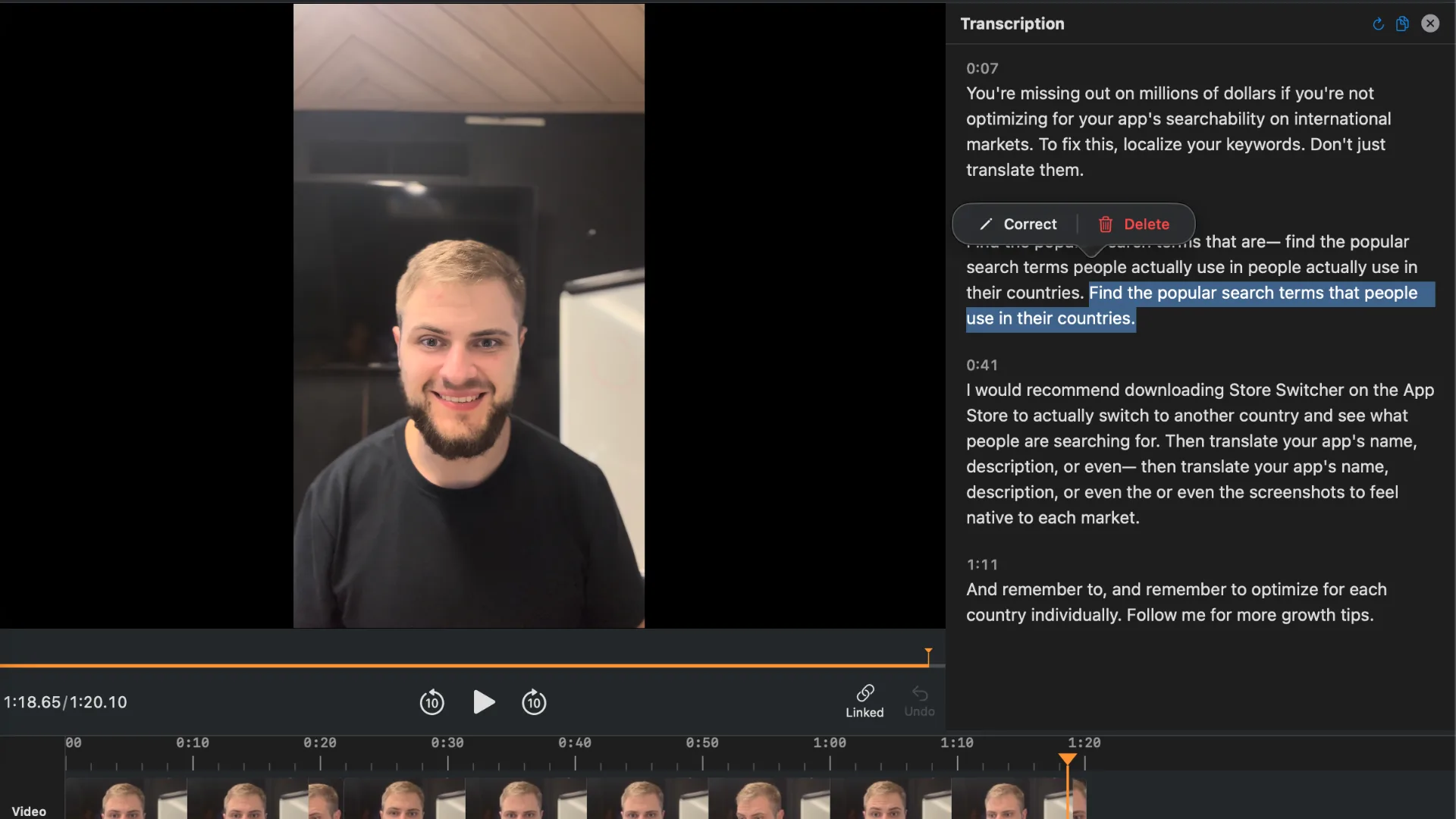
A standalone reversed action can be finished in the reversal editor. If a finished file also includes normal spoken explanation, BlitzCut offers captions, timeline editing, silence removal, and imported audio, as documented in its App Store listing.
Use it only when that speech needs refinement. Review cuts around the reversed demonstration so a quiet but necessary action stays intact. This workflow completes reversal in CapCut before any optional speech edit.
Frequently Asked Questions
Can I reverse a video directly in iPhone Photos?
Apple's documented Photos video tools do not include a reverse command. Bounce applies to Live Photos and creates back-and-forth motion instead.
Can iMovie on iPhone reverse a clip like the Mac app?
The iPhone guide does not provide that control. The Reverse checkbox documented for Mac belongs to a different interface; use a documented mobile reversal tool for this workflow.
Does reversing video automatically reverse the audio?
Do not assume so. Check the result in your app version and again after export. Choose whether to retain, mute, or replace the sound deliberately.
How do I reverse only one part of a recording?
Save the desired excerpt as a new clip, keep the source, and reverse that excerpt. Review the start and end before using it in a larger sequence.
Related Guides
Editing a talking-head video?
BlitzCut is available on Android, iPhone, iPad, and Mac. It is designed for recorded UGC-style videos, founder-led ads, tutorials, and testimonials and other talking-head content.
Try it for freeRelated Articles
Keep Reading

How to Rotate Video on iPhone: Fix a Sideways Recording
Learn how to rotate video on iPhone in Photos, undo a rotation, and share the upright result without accidentally cropping or mirroring the recording.

How to Screen Record on iPad With Microphone Audio
Learn how to screen record on iPad with Control Center, add microphone narration, find the recording in Photos, and troubleshoot missing audio or controls.

How to Send a Long Video on iPhone Without Cutting It
Learn how to send a long video on iPhone using AirDrop, iCloud sharing, or Mail Drop, keeping the original before compressing for a specific upload limit.