
How to Send a Long Video on iPhone Without Cutting It
Learn how to send a long video on iPhone using AirDrop, iCloud sharing, or Mail Drop, keeping the original before compressing for a specific upload limit.


Here's how to send a long video on iPhone: use AirDrop for a nearby Apple device, or share an iCloud file link or Mail Drop attachment with someone farther away.
Start with the complete recording. You do not need to shorten a lesson, interview, or family video just because it will not fit in one message. Apple recommends AirDrop and Mail Drop for large recordings; iCloud Drive also lets you share the video as a downloadable file.
How to Send a Long Video on iPhone: Choose the Route
| Recipient or destination | Start here | What to check |
|---|---|---|
| Nearby iPhone, iPad, or Mac | AirDrop | Receiving settings and the correct device |
| Someone elsewhere | iCloud file sharing | Upload completion and download access |
| Someone expecting email | Mail Drop | Message size and the download deadline |
| An upload form with a fixed size limit | A smaller delivery copy | The destination's actual limit |
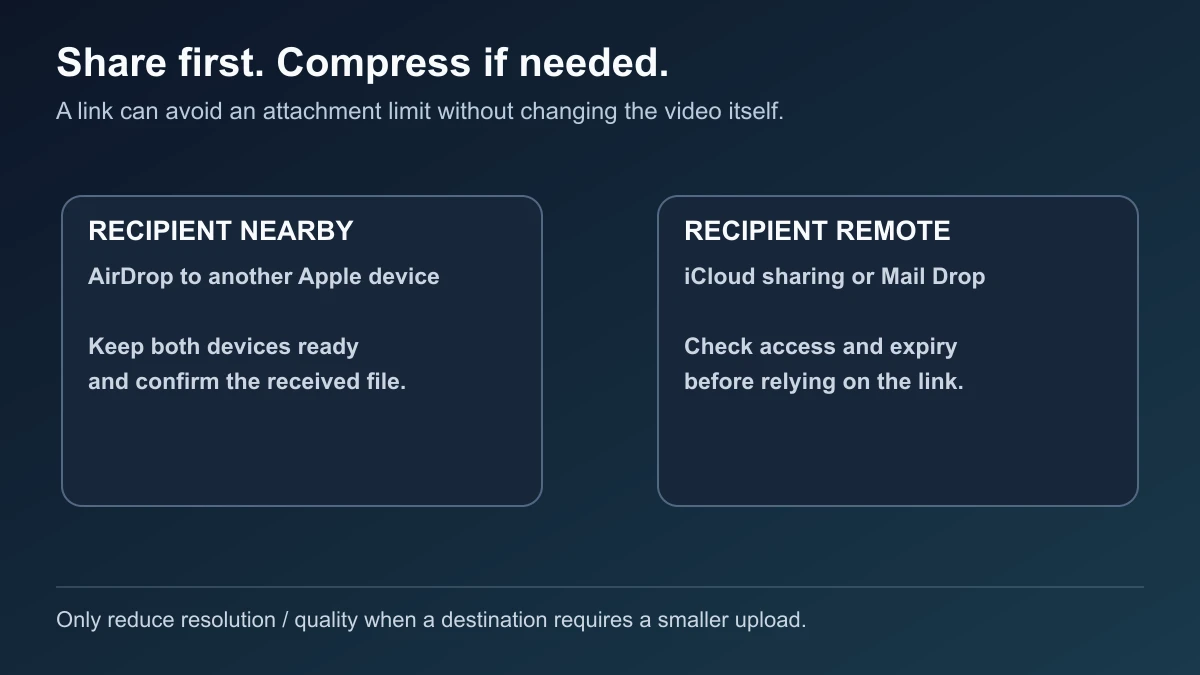
Nearby: AirDrop. Remote: iCloud sharing or Mail Drop. Create a compressed copy when a required upload has a file-size limit.
Send to a Nearby Apple Device With AirDrop
- Keep both devices nearby with Wi-Fi and Bluetooth on. Disconnect Personal Hotspot if either device is using it.
- Have the recipient check Settings → General → AirDrop. If needed, they can temporarily choose Everyone for 10 Minutes.
- Open your video in Photos and tap Share.
- For an editor who needs the source, open Options and turn on All Photos Data.
- Tap AirDrop, select the intended recipient, and follow any acceptance or code prompts.
- Wait for the transfer to finish and ask the recipient to open the received recording.
Apple's AirDrop instructions cover discovery, acceptance, and code prompts for recipients outside your contacts on supported versions. Its long-video guide explains All Photos Data, which includes the original format, metadata, location, and edit history.
Use that source-data option deliberately. An editor may need the untouched recording; a relative may simply want the current edited version. Photos also offers Current under format options to prevent format conversion, as described in Apple's sharing settings.
Share an Original Through iCloud Drive
This route gives the recipient a link instead of putting the video inside a message. Check that iCloud Drive is enabled under Settings → your name → iCloud → Drive → Sync this iPhone. It needs enough available iCloud storage for the file. See Apple's iCloud Drive setup guide.
For a camera original:
- In Photos, select the video and tap Share → Export Unmodified Originals.
- Choose an iCloud Drive folder in Files and tap Save. This exports the original rather than baking in your Photos edits.
- Allow the upload to finish. Open Files → Browse → iCloud Drive and locate the video.
- Touch and hold the file, tap Share, then open the menu beneath its name and choose Share a Link. On older versions, the equivalent option is labeled Collaborate.
- Set access to the people you choose, or Anyone with the link, and choose View and Download Only or the equivalent View only permission.
- Send the link through Messages or Mail and confirm the recipient can download it.
Apple documents exporting unmodified originals and iCloud Drive file-sharing permissions. If the recipient needs your edited result, save that version to Files instead of choosing an unmodified original.
Avoid moving the shared file afterward: Apple notes that moving it to another location breaks the link. An “Anyone” link can also be forwarded, so choose access appropriate to the recording.
What about Copy iCloud Link in Photos?
If your version offers Copy iCloud Link in Photos' share options, you can use it for a video in iCloud Photos and paste the link into a message. Apple's iOS 26 long-video guide documents this route and a 30-day download window. The option varies by software version; use iCloud Drive if it is absent. Do not apply that Photos-link deadline to every iCloud Drive share.
Send the Recording by Email With Mail Drop
- Open the recording in Photos, tap Share → Mail, and enter the recipient.
- Add a subject and a note explaining what you are sending.
- Tap Send. If Mail offers Mail Drop because the attachment exceeds the provider's normal limit, choose it.
- Let the upload complete and ask the recipient to download the attachment.
For an exported original already in Files, open its share menu, choose Send a Copy, and select Mail.
Apple's Mail Drop limits allow attachments up to 5 GB, with the entire message and attachments subject to that ceiling. Recipients have 30 days to download them. Mail Drop attachments do not count against your iCloud storage, but provider restrictions and other service limits can still prevent delivery. A larger recording needs another route, such as iCloud Drive, rather than repeated attempts at the same attachment.
Compress Only for a Required Upload Limit
If the recipient needs the original for editing, send it through a suitable file-transfer route first. If a submission form requires a smaller file, preserve the source and export a separate delivery copy. Check the resulting file size and preview small text, movement, and speech before uploading.
For an edited lesson or spoken testimonial, BlitzCut's iPhone export screen exposes resolution, quality, and an estimated size. Its App Store listing documents video editing and export; use this stage when you also need an edited deliverable.
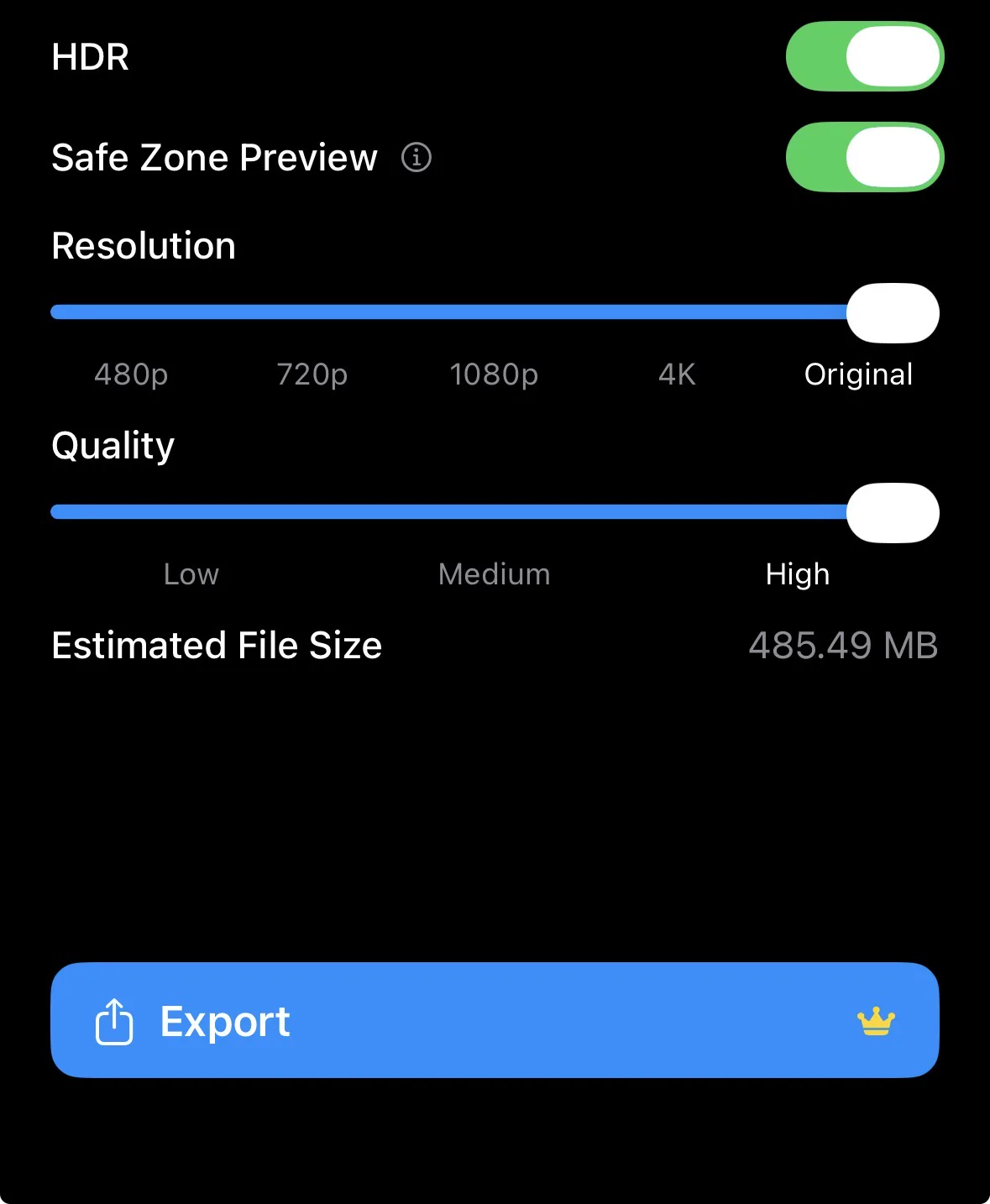
Actual BlitzCut iPhone screenshot: resolution, quality, and estimated file size help prepare a delivery copy for a destination with an upload limit.
An estimate is not confirmation that the saved file fits the limit. Check the exported file before submitting; see how to compress video on iPhone.
Frequently Asked Questions
Do I have to cut a long video into shorter clips?
No. Choose a transfer method that accommodates the complete file. Cut it only when the recipient actually needs excerpts.
Can I send it to Android or Windows?
Use a downloadable cloud link or Mail Drop email. AirDrop is for compatible Apple devices. Confirm the recipient can open both the link and the downloaded video format.
Why is AirDrop not showing the other device?
Check proximity, Wi-Fi, Bluetooth, and the recipient's AirDrop receiving setting. Disconnect Personal Hotspot, then try again.
How long does the recipient have to download it?
Mail Drop and the documented Photos iCloud Link route allow 30 days. iCloud Drive file sharing uses its own access controls; keep the file shared until the recipient confirms the download.
Related Guides
Editing a talking-head video?
BlitzCut is available on Windows, Android, iPhone, iPad, and Mac. It is designed for recorded UGC-style videos, founder-led ads, tutorials, and testimonials and other talking-head content.
Download BlitzCutRelated Articles
Keep Reading

Black Friday 2026 Video Editing Software Deals: CapCut, DaVinci, Final Cut, Descript and More
Every Black Friday 2026 video editing software deal we could verify: DaVinci Resolve, CapCut, Final Cut Pro, Adobe, Descript, Filmora, BlitzCut, plus what each did last year.

BlitzCut vs Kapwing: App and Browser Editing Compared
Compare BlitzCut and Kapwing for talking-head ads, tutorials, and team content, including Smart Cut, transcript editing, captions, and usage limits.

BlitzCut AI vs KineMaster: Captions and Editing (2026)
Compare KineMaster’s free on-device captions and layered editing with BlitzCut’s recorded talking-head workflow, including export and pricing checks.