
How to turn a live photo into a video on iPhone
Learn how to turn a live photo into a video in Photos, preserve the original, distinguish Loop and Bounce, and share a file that keeps its motion.


Here is how to turn a live photo into a video on iPhone: open the Live Photo in Photos, tap the More (…) button, and choose Save as Video.
That creates a separate video you can review and share. Loop and Bounce are different choices: they change how the Live Photo's action plays. Choose the result you need before sending anything to another app.
How to turn a live photo into a video in Photos
Start with one Live Photo so you can easily compare the result with its source:
- Open Photos and find the picture. In layouts with Collections, look under Media Types → Live Photos.
- Open the Live Photo and confirm that it contains the movement you want.
- Tap More (…) in the upper-right corner.
- Choose Save as Video.
- Open the new video and play it before sharing.
Apple's conversion instructions confirm that the original remains in Live Photos and identify Recently Saved as the destination for the new video. Photos layouts vary between iOS versions; use the album names shown on your phone rather than expecting every screen to match an older tutorial.
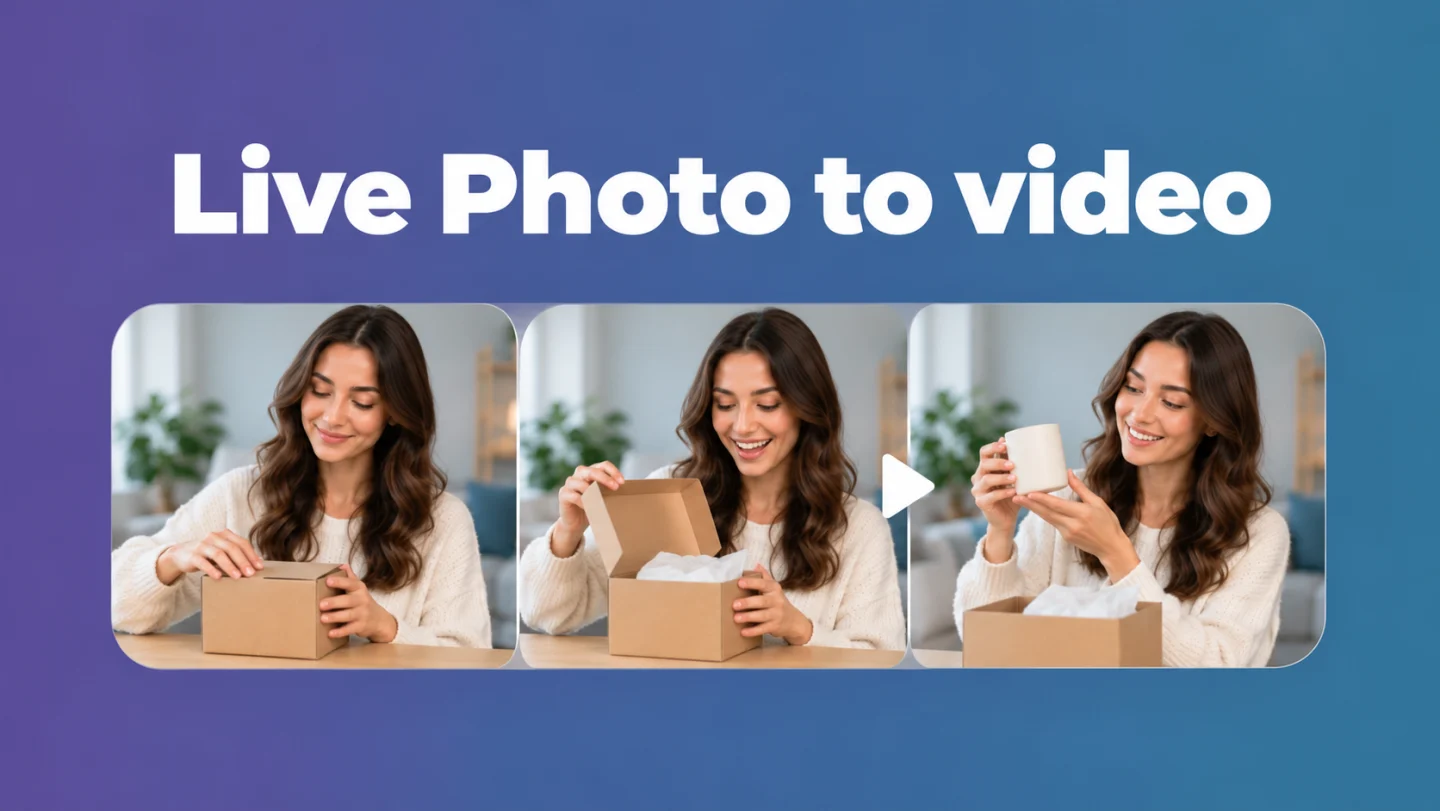
Choose Save as Video, Loop, or Bounce
These options solve different problems:
| Choice | What it does | When it fits |
|---|---|---|
| Save as Video | Creates a separate short video | You need a video attachment or an editor-ready clip |
| Loop | Repeats the action continuously | You want a repeating motion effect |
| Bounce | Plays the action forward and backward | You want a back-and-forth effect |
| Long Exposure | Blends moving detail into a long-exposure effect | You want a still-image treatment of motion |
Apple documents these effects in its Live Photo editing guide. Choose them through the Live menu when viewing a Live Photo. Applying an effect is a separate decision from creating an ordinary video file.
For a product being set on a table, normal playback preserves the action. Bounce might make it appear to lift itself back up. Decide whether that altered action serves your purpose.
If Save as Video is missing
First check the item itself. A still image received from someone else may look identical to the key frame of a Live Photo without containing any motion. Press and hold to test playback, and check whether the item appears among Live Photos.
Next, check its effect. If Loop or Bounce is selected, switch back to Live, then reopen More and look for Save as Video. This returns you to the ordinary Live Photo state used in Apple's conversion workflow; it is a troubleshooting check, not a guarantee for every imported or edited file.
If you still cannot convert it, return to the original in your library rather than repeatedly exporting a shared copy. Apple warns that editing in a third-party app can lose applied Live Photo effects. When your screen differs, use the version selector in Apple's guide to match your installed iOS release.
Review the short clip before editing
A Live Photo captures the moments around the shutter press. Apple specifies 1.5 seconds before and after the picture. Conversion cannot recover an earlier action or the end of a sentence that was never recorded.
Check the opening and ending carefully. A hand may enter before the intended action, or the phone may move immediately afterward. Listen too: decide whether the captured sound is useful, distracting, or too incomplete to retain.
If you only need tighter boundaries, follow the iPhone trimming guide. Keep the source while choosing the excerpt. For an instruction that needs several complete sentences, record a normal video instead of stretching this brief moment into a lesson.
Share the video copy and check file compatibility
Select the newly created video when attaching it to a message, uploading it, or importing it into an editor. Selecting the original Live Photo again can give the recipient a different result. Apple says unsupported devices or services receive a still photo; its Live Photo guide also specifies that Mail sends a Live Photo as a still image.
Sharing format matters too. Under Share → Options, Apple documents Automatic, Current, and Most Compatible. Current prevents format conversion; Most Compatible may convert files to JPEG or MOV. These are sharing options, not a promise that Save as Video always creates an MP4.
Check the receiving service's requirements. If it specifically needs MP4, use the MOV-to-MP4 guide after inspecting the saved file. Renaming an extension does not convert the video.
Finally, play the received attachment or upload preview. Confirm motion, sound, framing, and the intended ending rather than judging only its thumbnail.
Consider a further edit only when speech needs it
For a silent moment or a clip that already works, sharing the converted video may finish the job. There is little reason to add another editing stage.
If the converted file contains a useful spoken phrase, or becomes part of a supplied talking-head lesson or testimonial, BlitzCut can help refine speech and captions. Its App Store listing documents captions, silence removal, timeline editing, and imported audio. Complete conversion in Photos first.
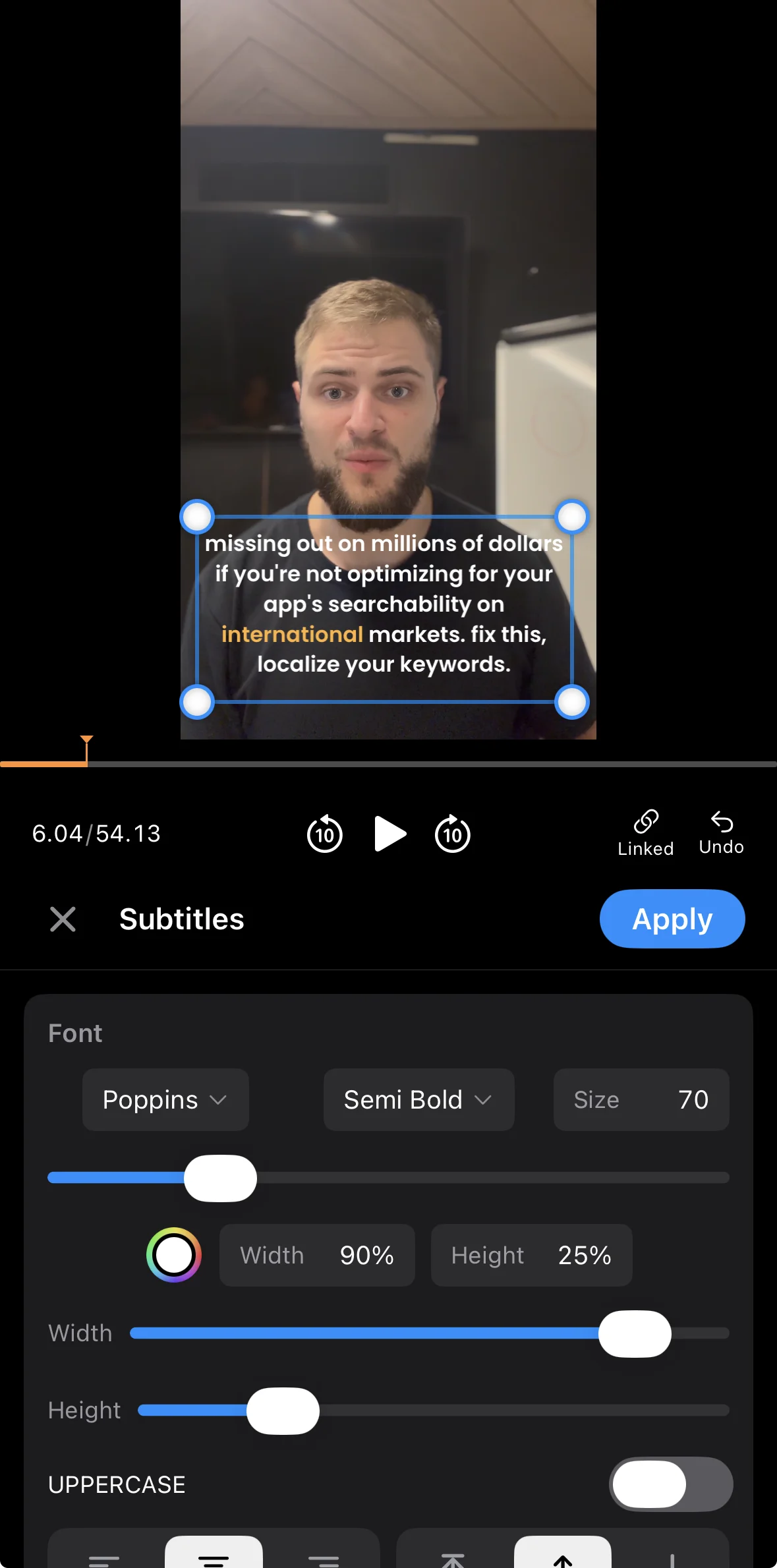
Proofread the words and retain any quiet moment needed to understand the action. The captioning guide covers that next step.
Frequently Asked Questions
Does Save as Video delete the original Live Photo?
No. Apple confirms that the Live Photo remains accessible separately. Keep it while checking the new video so you can return to the source.
Is Bounce the same as converting a Live Photo to video?
No. Bounce changes playback into a forward-and-backward effect. Save as Video creates a separate video. Choose normal Live playback first if you want the ordinary action.
Why did my Live Photo arrive as a still picture?
The sharing route or destination may not support Live Photos. Save a video first, attach that copy, and check playback after delivery.
Can I turn an ordinary still photo into its original moving scene?
No. This workflow needs an existing Live Photo with captured motion. An ordinary still does not contain those surrounding moments; a pan or animation is a different effect.
Related Guides
Editing a talking-head video?
BlitzCut is available on Android, iPhone, iPad, and Mac. It is designed for recorded UGC-style videos, founder-led ads, tutorials, and testimonials and other talking-head content.
Try it for freeRelated Articles
Keep Reading

Best TikTok Caption Fonts: What Top Creators Use (2026)
The best TikTok caption fonts are Montserrat Bold, Poppins, and Bebas Neue. See 9 fonts top creators use, with exact sizes, colors, and animations.

Best Auto Caption App for iPhone (2026): 8 Apps Compared
The best auto caption app for iPhone: BlitzCut, CapCut, Captions, Edits, InShot, VN, KineMaster, and Premiere compared on caption styles, editing, SRT export, and price.

Best CapCut Alternatives (2026): 10 Apps Like CapCut for iPhone, Android and PC
The best CapCut alternatives for iPhone, Android, Mac, and PC: free and paid apps like CapCut, compared on silence removal, captions, templates, watermarks, and price.