
How to Add Subtitles to a Video on Mac Automatically
Add accurate auto-subtitles to any video on Mac — no upload, no SRT editing required. BlitzCut generates captions in seconds without uploading your video.


Adding subtitles to video used to mean one of two things: pay for a transcription service and manually sync an SRT file, or sit at a timeline and type every word yourself. Either way, a 10-minute video meant 30–60 minutes of subtitle work before you'd exported anything.
Automatic subtitle generation on Mac in 2026 is a different experience. The right tool transcribes your video, times every word to the millisecond, and gives you styled, ready-to-export captions in under two minutes — with no SRT file, no manual timing, and no upload required.
This guide walks through how to do it in BlitzCut for Mac, what caption styles are available, and what your other options look like.
Why Manual Subtitles Don't Scale
If you're posting video consistently — even two or three times a week — manual subtitles are a genuine bottleneck. The typical manual process:
- Watch the video through to note what was said and when
- Open a subtitle editor or the timeline in your NLE
- Type each line, set the in and out points, adjust for reading speed
- Export an SRT or burn the subtitles into the video
- Repeat for every format (YouTube, TikTok, Reels)
For a 10-minute video, this easily takes 45–90 minutes. Professional captioning services charge $1.00–$1.50 per minute for human-transcribed SRT files — a 30-minute recording costs $30–$45 before you've styled or exported anything.
Automatic subtitle generation cuts all of that out. You get the same result in under two minutes, with no file to manage.
How to Add Subtitles to a Video on Mac Automatically
The Fastest Method: BlitzCut for Mac
BlitzCut for Mac is a native macOS video editor that generates AI subtitles automatically as part of the editing workflow. No upload to a web service. No third-party transcription. No SRT file management.
Here's the complete process:
Step 1: Import Your Video
Open BlitzCut for Mac and import your video file. Drag it from Finder directly into the app, or use Command+O to open the file picker. BlitzCut accepts MP4, MOV, and other standard video formats from any recording source — camera, iPhone, screen recorder, Zoom, Riverside, or anything else.
Time: under 30 seconds.
[SCREENSHOT: BlitzCut for Mac import window with a video file being dragged in]
Step 2: Silence Is Removed Automatically
Before subtitles are generated, BlitzCut removes silence from your video using on-device AI. This happens automatically as soon as you import — no button to press, no upload, no waiting for a server. The AI analyzes your audio locally and removes dead air, gaps between sentences, and long pauses.
For a 10-minute video, silence removal typically completes in 60–90 seconds. For longer recordings, it runs in the background while you review the file.
Why this matters for subtitles: silence removal tightens your video before captions are applied. The result is cleaner subtitle timing — every subtitle line corresponds to actual speech with no long gaps where nothing is being said.
Time: 1–2 minutes, running unattended.
Step 3: BlitzCut Transcribes the Video
Once silence is removed, BlitzCut transcribes your video automatically. The full spoken content appears as editable text in the transcript panel alongside the video preview. This transcription is what drives the subtitle generation — every caption line and timing is derived from the transcript.
At this point you can review the transcript and make edits before generating captions. Delete a sentence you want to cut, remove a stumbled take, trim the intro. Any edit in the transcript removes the corresponding footage from the video. For most talking-head content, a few deletions is all it takes.
Time: transcript appears within seconds of silence removal completing.
[SCREENSHOT: BlitzCut transcript panel showing the full spoken content as editable text, with the video preview alongside it]
Step 4: Generate Captions in One Tap
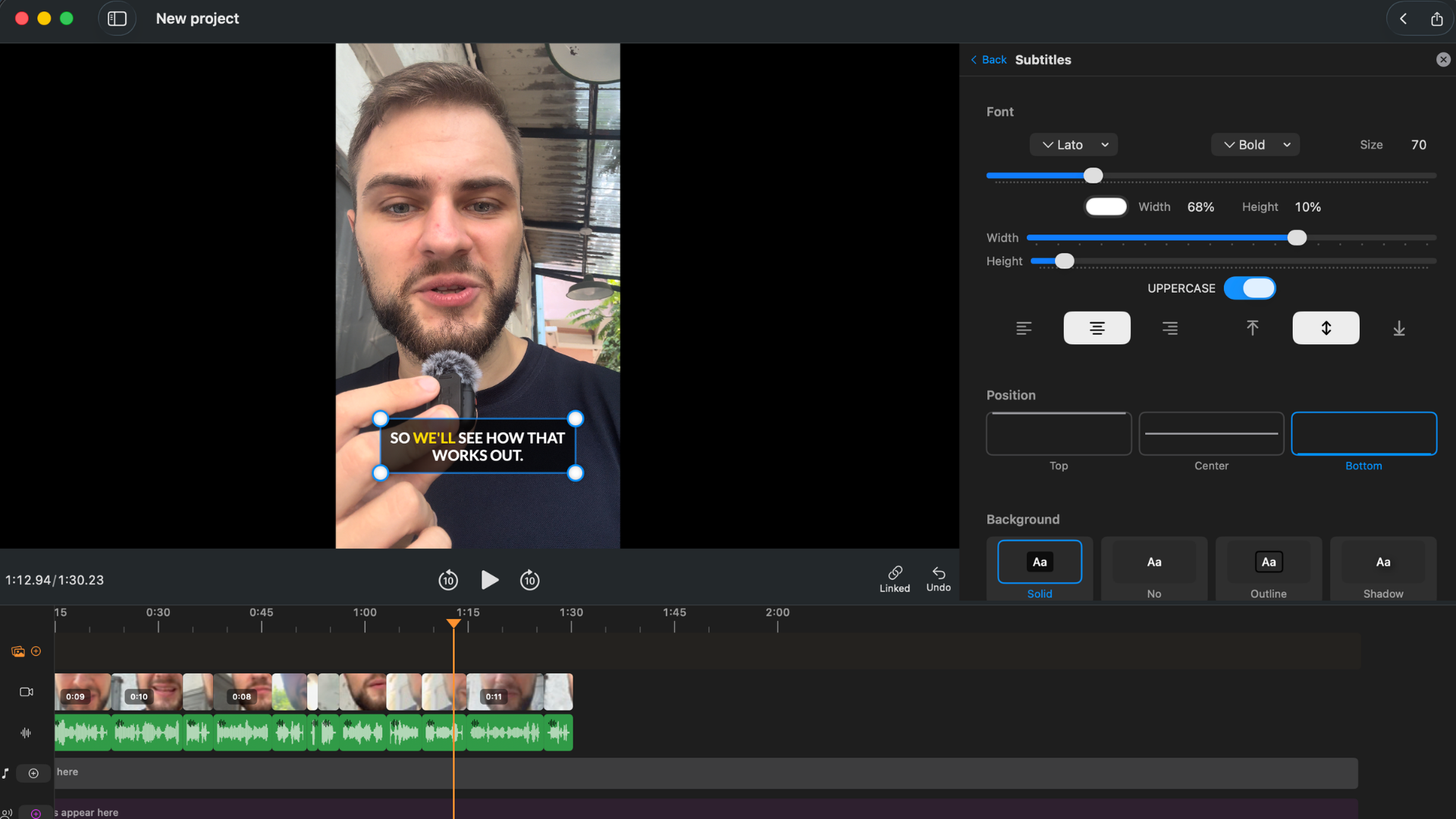
With the transcript ready, generating captions takes one tap. BlitzCut offers three caption styles:
Standard subtitles. Clean, readable text positioned at the bottom of the frame. Works for YouTube long-form, course videos, and any content where the viewer is likely watching with sound and the captions are for accessibility or language support.
Bold center captions. Large, high-contrast text centered in the frame. Designed for short-form social where the video is typically watched muted in a feed and the caption is the primary way viewers understand what's being said.
Word-by-word karaoke captions. Each word highlights as it's spoken — the word turns a different color or weight at the moment it's said. This is the style that performs best on TikTok and Reels in 2026. Viewers can follow along even in a noisy environment, completion rates are higher, and the dynamic movement makes the caption more visually engaging than a static block of text.
After choosing a style, you can customize font, size, color, and position. What you see in the BlitzCut preview is exactly what you'll get in the exported video.
Time: 1–3 minutes to choose a style and adjust any settings.
Step 5: Export
Choose your aspect ratio and resolution:
- 9:16 for TikTok, Instagram Reels, YouTube Shorts
- 16:9 for YouTube long-form
- 1:1 for LinkedIn, Twitter/X
Export at up to 4K. No watermark. The subtitles are burned into the video at export — you get a single file ready to upload to any platform.
Time: 1 minute active, 2–5 minutes encoding in the background.
Total Time: Under 10 Minutes for a 10-Minute Video
| Step | Active time | Wait time |
|---|---|---|
| Import | 30 sec | — |
| Silence removal | 0 | 1–2 min |
| Transcript review | 2–5 min | — |
| Caption generation | 1–3 min | — |
| Export | 1 min | 2–5 min |
For a 10-minute recording with minimal structural editing, the complete workflow — from raw file to captioned, exported video — takes 8–12 minutes of active work, with silence removal and export running in the background.
Compare that to 45–90 minutes of manual subtitle work for the same video.
Caption Accuracy on Mac
BlitzCut's transcription accuracy is high for clean recordings with a single speaker. For English-language talking-head content recorded with a decent microphone in a quiet environment, you can expect accuracy comparable to professional transcription services — well above 95% for most recordings.
Where accuracy drops:
- Multiple speakers talking over each other
- Heavy accents combined with noisy audio
- Technical terminology or proper nouns that are uncommon in the training data
- Very low-quality microphone audio with significant background noise
In all cases, the transcript is editable before captions are generated. If a word is wrong, fix it in the transcript and the correction carries through to the caption.
Do the Subtitles Upload My Video to the Cloud?
No. Caption generation in BlitzCut does not require uploading your raw video to an external server. The transcription and caption timing uses AI processing, but your video file stays on your Mac throughout.
What does require internet: caption generation and transcription (AI processing). What doesn't require internet: silence removal (fully on-device).
This is meaningfully different from web-based subtitle tools (Veed, Kapwing, Submagic) and from Descript, all of which require uploading your full video file before any processing can happen.
Other Ways to Add Auto-Subtitles on Mac
Descript
Descript transcribes your video and generates captions as part of its editing workflow. Accuracy is good. The caption output can be styled and exported. The friction: Descript requires uploading your full video file before doing anything — for a 10-minute 1080p clip (~800MB), that's typically 3–8 minutes of upload before you've typed a single word. It's also an Electron app, not a native Mac application, which means higher RAM usage and slower performance on longer recordings. Creator plan is $24/month ($288/year).
CapCut for Mac
CapCut's desktop Mac app includes auto-subtitle generation. Accuracy is reasonable for clear speech. Style options are more limited than BlitzCut. The free tier includes watermarks on exports. CapCut's availability in the US has been uncertain in 2026 due to regulatory pressure — worth factoring in if you're choosing a primary tool.
Adobe Premiere Pro
Premiere's Transcript panel (available on the current CC subscription) auto-generates captions with decent accuracy. The caption workflow is integrated into the timeline. At $55/month, it's significantly more expensive than standalone tools and adds complexity that most creators don't need for subtitle generation alone.
Web-based tools (Veed, Kapwing, Submagic)
These are browser-based subtitle generators. They work from any Mac without installing anything. The tradeoff: every video uploads to their servers before processing begins, which takes time and means your raw footage is on their cloud. Free tiers typically include watermarks. Paid plans range from $12–$30/month. Fine for occasional use; adds friction for regular production workflows.
Final Cut Pro
No automatic subtitle generation built in. You can add manual text overlays as a workaround, but there's no auto-transcription or caption timing. For auto-subtitles with Final Cut Pro, you'd use a separate tool to generate an SRT file and import it.
Frequently Asked Questions
How do I add subtitles to a video on Mac without uploading? BlitzCut for Mac generates captions on your device without uploading your raw video to a cloud server. Import the video, let silence removal run, review the transcript, and generate captions in one tap.
Can Mac generate subtitles automatically? macOS itself doesn't have a built-in auto-subtitle feature for video files. You need a video editor or dedicated captioning app. BlitzCut for Mac is the fastest native option on macOS in 2026.
What's the best free auto-subtitle tool for Mac? BlitzCut's 3-day free trial includes full subtitle generation with no watermark — enough time to test the accuracy and style on real content. After the trial, plans start at $69.99/year. Web tools like Veed offer free plans with watermarks for occasional use.
Can I export subtitles as an SRT file from BlitzCut? BlitzCut exports the final video with captions burned in, optimized for direct upload to social platforms. If you need a separate SRT file for platform-side captions, web tools like Veed or Rev caption service can generate SRT files.
How accurate are auto-subtitles on Mac? BlitzCut's accuracy is high for clear, single-speaker English recordings — typically 95%+ on clean audio. The transcript is fully editable before captions are applied, so any errors can be corrected before export.
Do auto-subtitles work without Wi-Fi on Mac? Silence removal in BlitzCut works fully offline. Caption generation and transcription require an internet connection, but don't require uploading your raw video file.
Related: BlitzCut for Mac: Everything You Need to Know · Best Subtitle Generator for Mac 2026 · Word-by-Word Karaoke Captions on Mac · Translate Video Subtitles
Editing a talking-head video?
BlitzCut is available on Android, iPhone, iPad, and Mac. It is designed for recorded UGC-style videos, founder-led ads, tutorials, and testimonials and other talking-head content.
Try it for freeRelated Articles
Keep Reading

Best Auto Caption App for iPhone (2026): 8 Apps Compared
The best auto caption app for iPhone: BlitzCut, CapCut, Captions, Edits, InShot, VN, KineMaster, and Premiere compared on caption styles, editing, SRT export, and price.

Best CapCut Alternatives (2026): 10 Apps Like CapCut for iPhone, Android and PC
The best CapCut alternatives for iPhone, Android, Mac, and PC: free and paid apps like CapCut, compared on silence removal, captions, templates, watermarks, and price.

Best Free Video Editing App for iPhone (2026): 8 Apps, Most With No Watermark
The best free video editing app for iPhone: iMovie, Premiere mobile, Edits, VN, YouTube Create, CapCut, InShot, and KineMaster compared on watermarks, captions, 4K export, and what's actually free.