
How to Add Captions to a Podcast Video on Mac
Auto-caption your podcast video on Mac in seconds. BlitzCut generates accurate captions with no video upload, no watermark — silence removal runs on-device.


85% of social media video is watched without sound. For podcast video clips — which live or die on Reels, TikTok, and YouTube Shorts — that number means captions are not optional. They are the difference between a viewer stopping to watch and a viewer scrolling past in the first two seconds.
Adding captions to a podcast video on Mac used to mean one of three things: pay a transcription service, type everything manually, or route the video through a web upload tool and wait. In 2026, the fastest workflow generates captions from the transcript automatically, inside a Mac app, with no video upload required.
This guide covers how to add captions to a podcast video on Mac using BlitzCut, which caption style works best for each platform, and what accuracy looks like for typical podcast recordings.
Why Podcast Videos Specifically Need Captions
Most podcast content is talk-heavy — two people talking, one person talking, interview format. This content type has a specific challenge for social distribution: without captions, a viewer watching silently in a feed has no idea what the conversation is about. They see two people moving their mouths. They scroll.
With captions:
- The viewer immediately understands the topic from the first few words
- They can follow the conversation in a loud environment (commute, gym, waiting room)
- Muted autoplay becomes a viable way to hook the viewer before they decide to unmute
The second reason captions matter for podcast clips specifically: clips work best when they carry a single, punchy moment — a strong opinion, a surprising stat, a memorable line. Captions make that moment readable at a glance, which drives shares. A well-captioned clip of a provocative statement is shareable in a way that the same clip without captions is not.
The third reason: accessibility. Captions make your content available to deaf and hard-of-hearing viewers, viewers who don't speak the recording language natively, and viewers who are in environments where playing audio isn't possible.
The Fastest Way to Caption Podcast Video on Mac
BlitzCut for Mac generates captions from a podcast recording in under 10 minutes, including silence removal, transcript review, and export. Here's the complete workflow.
Step 1: Import the Recording
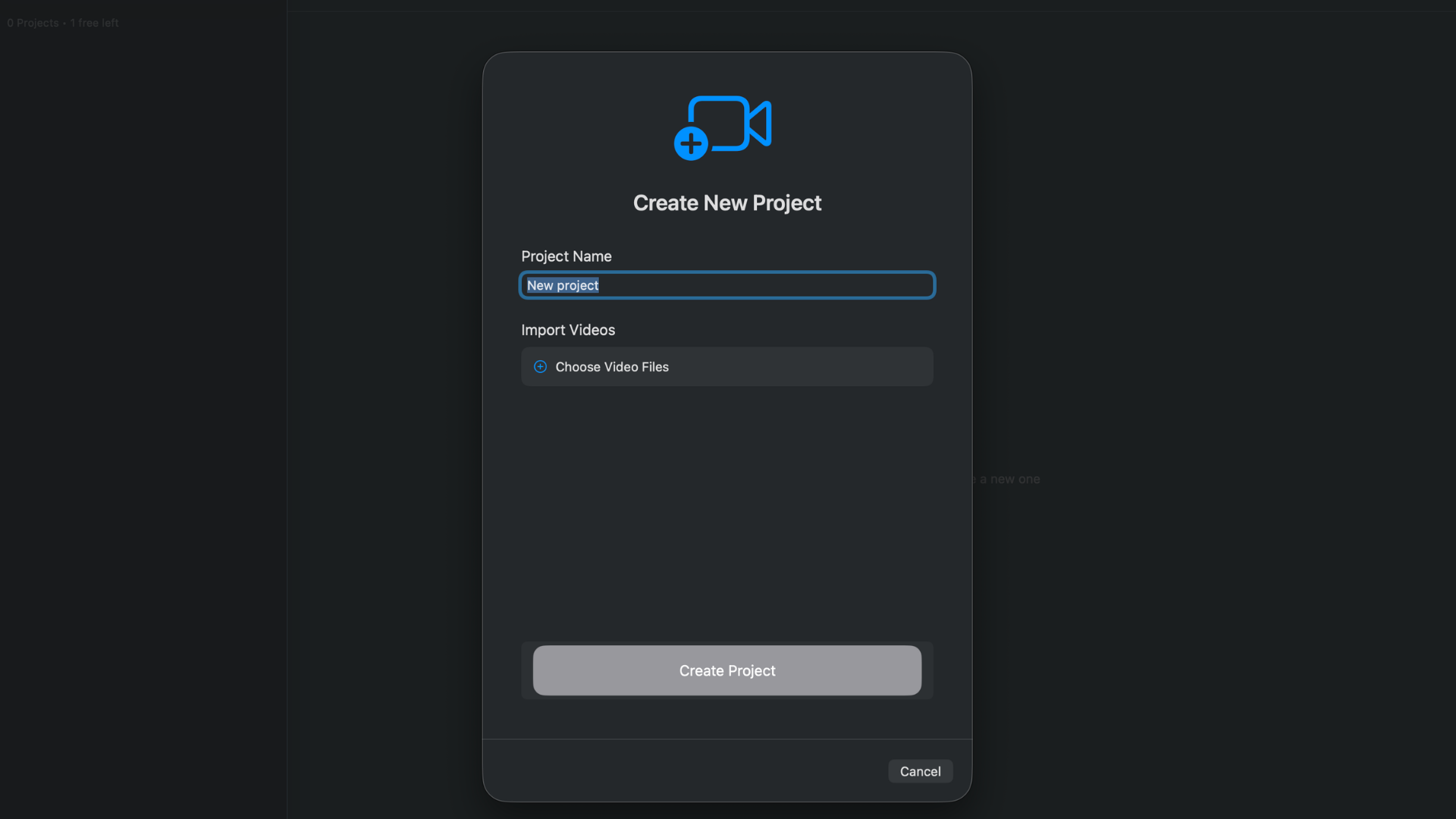
Open BlitzCut for Mac. Drag your podcast recording from Finder into the app, or use Command+O. BlitzCut accepts MP4, MOV, and other standard video formats — output from Riverside, SquadCast, Zoom, Ecamm, or a local screen/camera recording setup all work.
The file stays on your Mac. Nothing uploads.
Time: under 30 seconds.
Step 2: Silence Removal Runs Automatically
BlitzCut removes silence from the podcast recording on-device as soon as you import. The AI analyzes your audio locally and marks all the gaps, dead air, and long pauses for removal. For podcast content, this step alone can cut 10–20% of the raw recording length.
Processing speed:
- 10-minute clip: ~90 seconds
- 30-minute recording: ~3–5 minutes
- 60-minute episode: ~6–8 minutes
This runs in the background. You don't need to watch it. Go make coffee, come back to a tighter, more paced recording.
Why this matters for captions: Silence removal tightens the audio before the transcript is generated. Fewer long pauses means cleaner caption lines — each line of text corresponds to actual speech, and the timing between lines is natural rather than padded with empty space.
Step 3: Review the Transcript
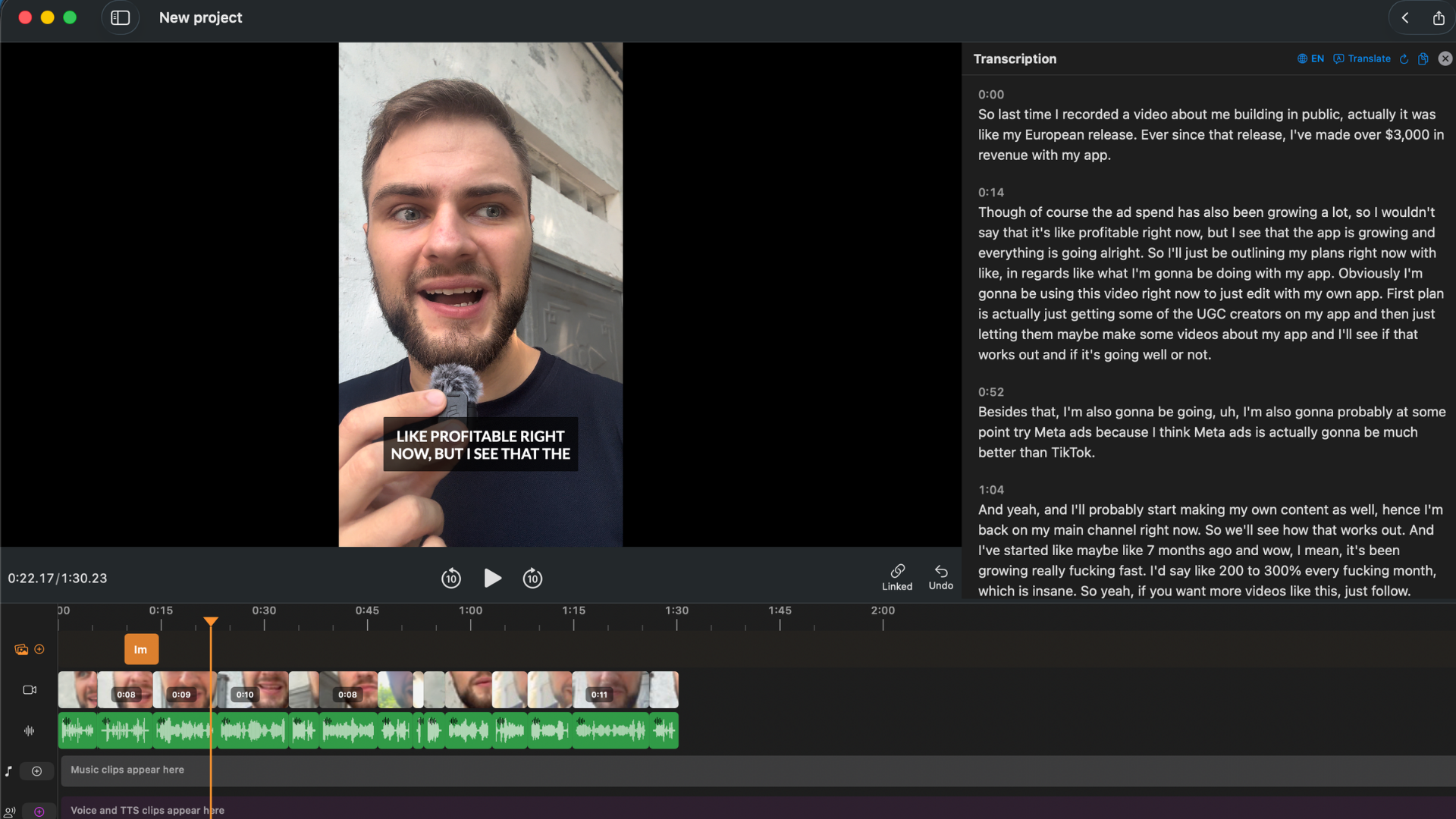
Once silence is removed, BlitzCut transcribes the podcast automatically. The full spoken content appears as editable text in the transcript panel alongside the video preview.
For podcast clips, the transcript review step is where most of the editing happens:
- Find the moment you want to clip. Scan the transcript for the strong line, the interesting stat, the quotable opinion. It's much faster to read a transcript than to scrub a video timeline.
- Cut everything outside the clip. Select the sections before and after your key moment and delete them from the transcript. The footage cuts with them automatically.
- Remove stumbled takes or restarts. If the speaker said the same thing twice, pick the better version in the transcript and delete the other.
- Clean the edges. Remove "uh," "um," filler phrases, or dead-end sentences that reduce the impact of the clip.
For a 30-minute podcast episode where you're extracting a 90-second clip, this step typically takes 5–10 minutes — faster than scrubbing a timeline to find the same moments.
Step 4: Generate Captions
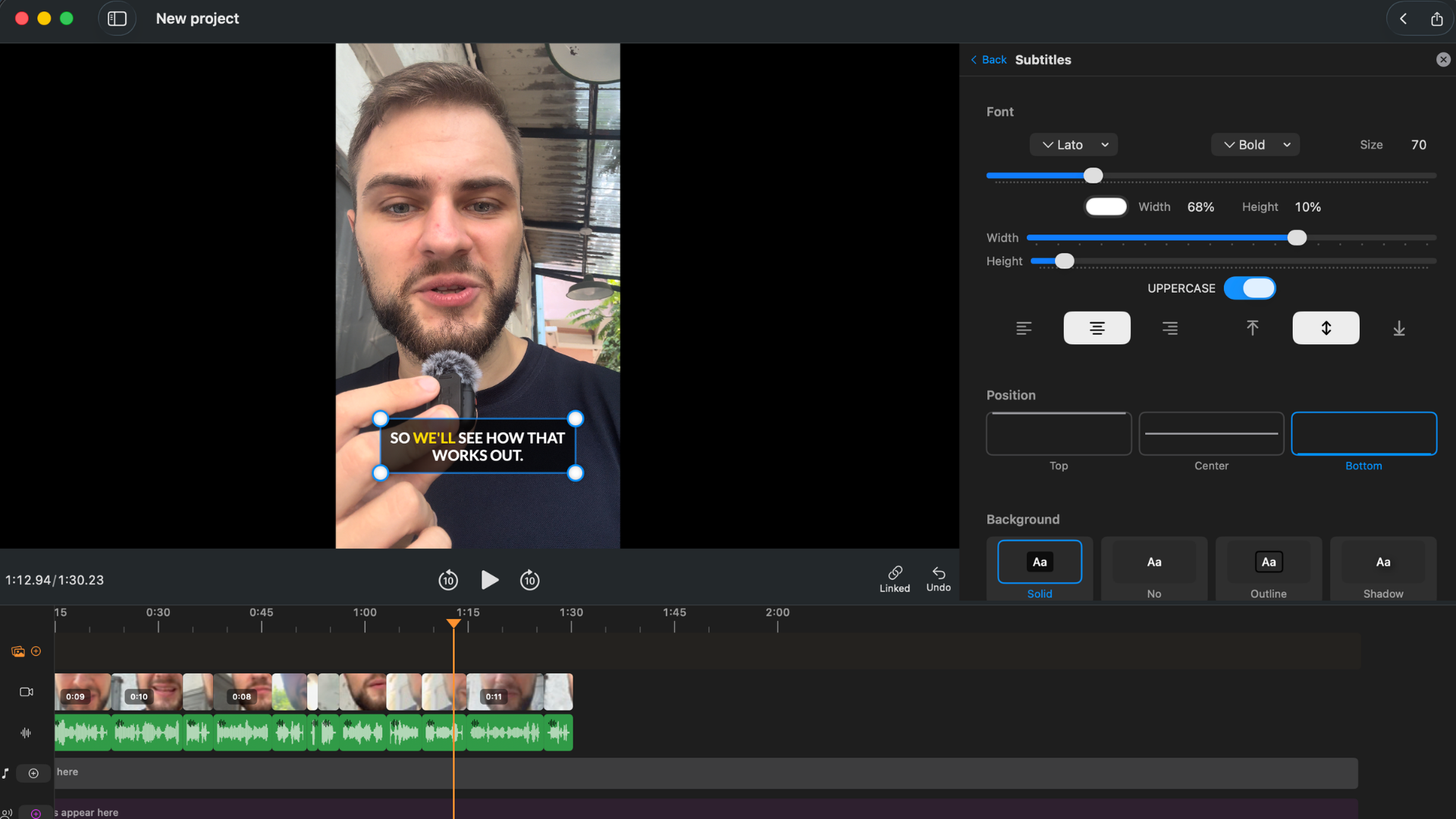
With the transcript edited and the clip isolated, generating captions takes one tap. BlitzCut offers three styles:
Standard subtitles. Text positioned at the bottom of the frame in the traditional subtitle style. Best for YouTube long-form content, course videos, and formats where the viewer is likely watching with sound and captions are supplementary.
Bold center captions. Large, high-contrast text centered in the frame. Best for short-form social content where the viewer is likely watching without sound and the caption is the primary communication channel.
Word-by-word karaoke. Each word highlights as it's spoken. Best for TikTok, Reels, and Shorts — the style consistently drives higher completion rates and engagement than static captions on short-form social. BlitzCut times the word-level highlighting automatically from the transcript timestamps.
Which style to use for podcast clips:
| Platform | Recommended style |
|---|---|
| TikTok | Karaoke (word-by-word) |
| Instagram Reels | Karaoke or bold center |
| YouTube Shorts | Karaoke or bold center |
| YouTube long-form | Standard |
| Bold center or standard | |
| Twitter/X | Bold center |
After selecting a style, you can adjust font, size, color, and positioning. Preview updates in real time.
Step 5: Export
Choose your aspect ratio:
- 9:16 for TikTok, Reels, Shorts
- 16:9 for YouTube long-form
- 1:1 for LinkedIn, Twitter/X
Export at up to 4K. No watermark. The captioned video is written to your chosen location via the native macOS save dialog.
Total active time: 8–15 minutes for a 30-minute recording. Silence removal and export both run in the background — the active work is import, transcript review, and caption selection.
Caption Accuracy for Podcast Recordings
BlitzCut's transcription accuracy for podcast content is high for:
- Single-speaker or alternating-speaker recordings
- Clear audio from a dedicated microphone (USB, XLR, or lapel)
- Standard English speech at a normal pace
- Recordings made in a quiet environment
Accuracy is lower for:
- Two speakers talking simultaneously or interrupting each other frequently
- Heavy accents combined with low-quality microphone audio
- Technical jargon, product names, or proper nouns that are uncommon in the AI training data
- High background noise (coffee shop ambient, outdoor recording, HVAC noise)
For multi-speaker podcast recordings where two hosts are on separate microphone tracks (the professional setup), BlitzCut handles the mixed-down stereo file well. If your recording has separate tracks per speaker that need individual processing, Descript handles that specific workflow better.
For anything less than perfect audio quality, the transcript is fully editable before captions are generated. Find the error, correct it in the transcript, and the fix carries through to the caption automatically.
Captioning a Full Episode vs. Short Clips
There are two different use cases for podcast video captions:
Clip captions for social media. The most common workflow in 2026. You take a 60–90 second highlight from a podcast episode and distribute it across TikTok, Reels, and Shorts with karaoke captions to drive listeners to the full episode. BlitzCut is built for this — silence removal, transcript editing for clip isolation, and karaoke caption generation in one session.
Full episode captions for YouTube. Captions on a 45-minute podcast episode serve different purposes: accessibility, SEO (YouTube uses caption text for search indexing), and viewer accommodation. For this use case, burned-in karaoke captions on a 45-minute YouTube video can feel visually heavy — standard subtitles or platform-side SRT captions are more appropriate. BlitzCut handles the full episode workflow on Mac, though the transcript editing step is more substantial for a full episode versus a clip.
Alternatives for Captioning Podcast Video on Mac
Descript: Cloud-based transcript editing with caption generation. Good accuracy. Mandatory video upload before any processing (5–15 minutes for a typical podcast file). Electron app, not native Mac. SRT export available. $288/year Creator plan.
CapCut for Mac: Auto-caption generation available. Free tier includes watermarks. Limited style customization. US regulatory uncertainty in 2026.
Adobe Premiere Pro: Transcript panel with auto-caption generation. SRT export. $660/year. Overkill for most podcast clip workflows.
Web-based tools (Veed, Submagic, Captions.ai): Browser-based, no Mac installation required. All require video upload. Free tiers with watermarks. Paid plans $12–$40/month.
Frequently Asked Questions
How do I add captions to a podcast video on Mac without uploading it? BlitzCut for Mac generates captions from your podcast recording without uploading the raw video to an external server. Import the file, let silence removal and transcription run, then generate captions in one tap.
What caption style works best for podcast clips on TikTok? Word-by-word karaoke captions. Each word highlights as it's spoken, making the clip followable when muted. BlitzCut generates karaoke captions automatically from the transcript timing — no manual adjustment required.
How long does it take to caption a 30-minute podcast episode? With BlitzCut, active work is approximately 10–15 minutes for a 30-minute recording. Silence removal runs unattended in 3–5 minutes. Transcript editing is the main variable depending on how much content you need to cut.
Does BlitzCut caption multi-speaker podcast recordings? Yes, for mixed-down stereo recordings (both speakers in one audio file). If your podcast is recorded with separate microphone tracks per speaker that need individual processing, Descript handles that specific workflow better. Most podcast recording setups produce a mixed stereo output that BlitzCut handles cleanly.
What's the cheapest way to add captions to podcast videos on Mac? BlitzCut's annual plan at $69.99/year includes captions (including karaoke style), silence removal, transcript editing, and 4K multi-format export with no watermark. The lifetime plan at $129.99 is cheaper over any multi-year comparison. Both are significantly less than Descript's $288/year Creator plan.
Can I add captions to a podcast video on Mac without an internet connection? Silence removal works fully offline. Caption generation and transcription require an internet connection for AI processing. With BlitzCut, your raw video file is not uploaded — only AI inference is performed over the connection.
Related: How to Edit Podcasts on Mac Fast (Without Descript) · Word-by-Word Karaoke Captions on Mac · BlitzCut for Mac: Everything You Need to Know
Editing a talking-head video?
BlitzCut is available on Android, iPhone, iPad, and Mac. It is designed for recorded UGC-style videos, founder-led ads, tutorials, and testimonials and other talking-head content.
Try it for freeRelated Articles
Keep Reading

Best Auto Caption App for iPhone (2026): 8 Apps Compared
The best auto caption app for iPhone: BlitzCut, CapCut, Captions, Edits, InShot, VN, KineMaster, and Premiere compared on caption styles, editing, SRT export, and price.

Best CapCut Alternatives (2026): 10 Apps Like CapCut for iPhone, Android and PC
The best CapCut alternatives for iPhone, Android, Mac, and PC: free and paid apps like CapCut, compared on silence removal, captions, templates, watermarks, and price.

Best Free Video Editing App for iPhone (2026): 8 Apps, Most With No Watermark
The best free video editing app for iPhone: iMovie, Premiere mobile, Edits, VN, YouTube Create, CapCut, InShot, and KineMaster compared on watermarks, captions, 4K export, and what's actually free.