
Auto Caption Generator for Mac 2026: Best Options
Compare auto caption generators for Mac, including editing workflows, word highlighting, subtitle exports, local models, and platform-specific plan limits.


An auto caption generator for Mac in 2026 should give you editable words, usable timing, and the output your audience needs. BlitzCut, Descript, CapCut, Submagic, VEED, Premiere, Final Cut Pro, and MacWhisper offer different ways to get there; none is established here as the fastest or most accurate.
Disclosure: We make BlitzCut. This guide is based on official documentation reviewed October 14, 2026, not a timed comparison or recognition benchmark. Vendor accuracy slogans are not adopted as test results.
Auto caption generator for Mac: choose the workflow
| Your starting point | Candidates | What to check |
|---|---|---|
| A recorded ad, tutorial, or testimonial that still needs editing | BlitzCut, Descript, CapCut | Transcript corrections versus actual cuts |
| A finished short clip needing a visual caption treatment | Submagic, VEED, CapCut | Styles, length limits, and final export |
| An existing professional editing project | Premiere, Final Cut Pro | Caption language, format, and supported version |
| A local file needing an SRT/VTT companion | MacWhisper in local mode | Model choice and subtitle timing |
| An existing Captions account used across devices | Captions | Mac/web access and entitlements separately from iOS pricing |
Start by deciding whether the final words should be rendered onto the picture or delivered as a separate subtitle file. Some tools do both; these are not mutually exclusive categories.
BlitzCut: edit recorded speech and caption the approved take
BlitzCut's caption tools sit alongside silence removal and text-based editing. This fits recorded UGC-style ads, founder-led ads, tutorials, and testimonials, where a real speaker carries the message.
A useful order is to choose the take, tighten unwanted pauses, remove repeated lines, then correct and style captions. For a product explanation, supporting screen footage or images should illustrate the speaker without covering the words viewers need.
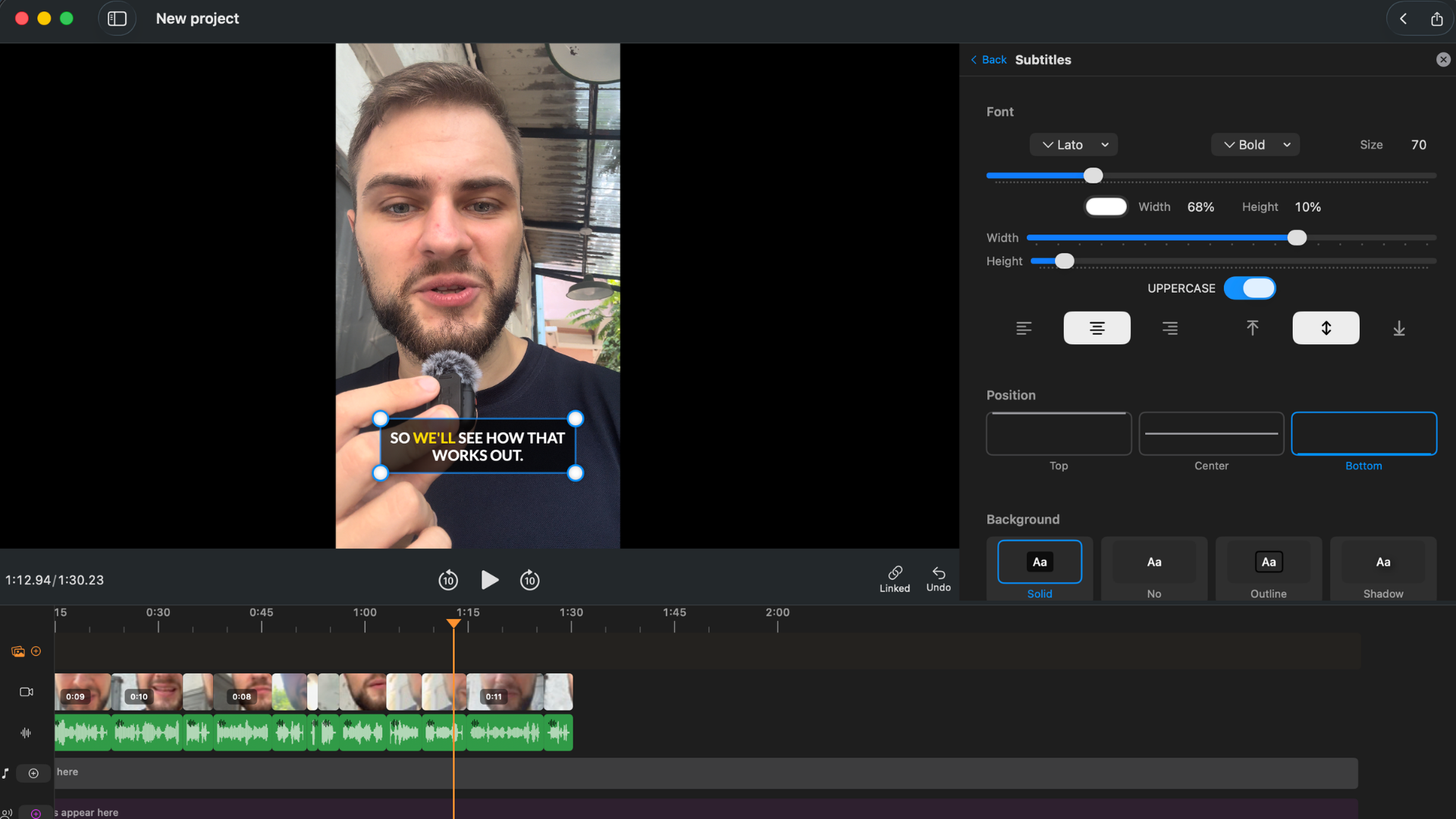
BlitzCut's transcription documentation lists SRT and plain-text exports. Transcription sends audio to a cloud service while the video stays on the device; local silence removal does not make captions offline. See the app privacy policy.
Check App Store compatibility and purchase options. A native app is not proof of lower memory use or higher caption accuracy, and this comparison does not claim either.
Descript: caption the same conversation you edit
Descript documents word-level caption animation and highlighting.
It is worth evaluating when the transcript also drives interview edits and team review. Check current plan allowances for media hours, AI usage, exports, and language-related tools.
Correcting a transcription error is not the same as regenerating the speaker's voice. Descript's speech-generation tools should not be described as human caption review or as an accuracy guarantee.
CapCut: automatic captions with version-specific access
CapCut's caption documentation covers text correction, fonts, color, effects, and motion. Its transcript editor also supports speech-gap and filler removal.
Consider it if the rest of your social edit already lives in CapCut. Verify the exact Mac version and account rather than assuming an online demonstration proves a desktop feature is free. Official pricing guidance explains why regional and device offers vary.
We have not verified a fully offline Mac caption pipeline for every CapCut mode. A desktop installation by itself does not establish where recognition happens.
Submagic and VEED: two browser routes
Submagic's plans include auto captions and text-based trimming, with additional silence/bad-take cleanup on applicable tiers. This goes beyond a caption-only finishing service. Check the maximum video duration, monthly credits, and export resolution for your intended batch.
VEED's subtitle workflow covers automatic text, styling, translation, and subtitle downloads. Its pricing page is the place to check current allowances; old Lite/Pro prices should not be treated as universal offers.
Both deserve consideration when a browser workflow and their visual controls suit the project. There is no evidence here that browser processing inherently produces worse transcripts.
Captions: do not apply an iOS price to a Mac workflow
Captions' public pricing page explicitly says its displayed prices and features reflect iOS plans. It lists captions alongside editing and generation tools, so it should not be described as only a subtitle service.
If you already use Captions, check the currently offered web/Mac access, editing workflow, and billing inside that product before assuming that the iPhone plan carries over. This review does not establish full feature parity between those surfaces, so we do not repeat the old $9.99–$29.99 range as a Mac price.
Premiere and Final Cut: use the caption tools you already have
Adobe documents automatic transcripts and captions, with selectable language and speaker-label settings. Its Speech to Text product page confirms offline use with installed language packs in Premiere 22.2 and later. That is separate from Adobe's connected generative features.
Apple documents automatic closed-caption generation in Final Cut Pro, requiring Apple silicon and supporting U.S. English in the reviewed guide. The model downloads on first use. Check your version's command name: older releases use Transcribe to Captions; current documentation uses Generate Captions.
For a project already in either editor, try its native caption workflow before adding a file round trip. We do not establish that a separate caption app is always cheaper or more convenient.
MacWhisper: a local subtitle-file workflow
MacWhisper documents SRT/VTT exports and both local and cloud models. Select a local model if recognition must remain on your Mac, and separately review any connected AI or export integrations.
This fits a finished video that needs a subtitle file. Applying a branded animated treatment may then be a separate editor step. That tradeoff can be worthwhile when local transcription matters more than an integrated social-video workflow.
A repeatable caption-quality check
Use a short sample with a proper noun, a number, a negation such as “not,” and one fast sentence. Generate captions in the candidate app, then:
- Compare the words with the audio before choosing a style.
- Correct names and domain-specific terms consistently.
- Break long captions into readable phrases.
- Check timing at sentence starts, pauses, and cuts.
- View at phone size with the intended platform's interface areas in mind.
- Watch once muted to assess readability and once with audio to check synchronization.
- Export, reopen, and inspect the actual delivery file.
These checks matter even when the first transcript looks convincing. Word animation is a design choice; it does not by itself establish higher retention or ad performance.
Frequently asked questions
Can one app produce burned-in captions and SRT?
Yes. BlitzCut documents both; other editing and subtitle tools also offer multiple delivery paths. Verify the format and plan rather than choosing based on an either/or table.
Do auto captions work offline on Mac?
Documented local paths include MacWhisper with a local model, Premiere Speech to Text after language-pack installation, and Final Cut's supported caption generation after its model download. BlitzCut's transcription needs cloud processing of audio.
Which is the cheapest caption generator?
Compare the cost of the required output, not just the download. A free plan may limit source minutes, export, or styles. An editor you already own may cover the job; a trial is not permanent free access.
Is word-by-word highlighting always preferable?
No. It can suit a short talking-head clip, but a dense tutorial may read better with restrained phrase-level text. Check legibility and whether motion competes with the speaker or demonstration.
Related: Add Subtitles to a Video on Mac · Best Subtitle Generator for Mac · Word-by-Word Karaoke Captions on Mac
Editing a talking-head video?
BlitzCut is available on Android, iPhone, iPad, and Mac. It is designed for recorded UGC-style videos, founder-led ads, tutorials, and testimonials and other talking-head content.
Try it for freeRelated Articles
Keep Reading

Best Auto Caption App for iPhone (2026): 8 Apps Compared
The best auto caption app for iPhone: BlitzCut, CapCut, Captions, Edits, InShot, VN, KineMaster, and Premiere compared on caption styles, editing, SRT export, and price.

Best CapCut Alternatives (2026): 10 Apps Like CapCut for iPhone, Android and PC
The best CapCut alternatives for iPhone, Android, Mac, and PC: free and paid apps like CapCut, compared on silence removal, captions, templates, watermarks, and price.

Best Free Video Editing App for iPhone (2026): 8 Apps, Most With No Watermark
The best free video editing app for iPhone: iMovie, Premiere mobile, Edits, VN, YouTube Create, CapCut, InShot, and KineMaster compared on watermarks, captions, 4K export, and what's actually free.