
Best Subtitle Generator for Mac 2026
Tested: best apps to auto-generate subtitles on Mac in 2026. Ranked by accuracy, style options, SRT export, and whether they need internet.


Subtitle generation on Mac in 2026 covers a wide range of tools and approaches — native apps, Electron editors, browser-based services, SRT file workflows, and burned-in social captions. They don't all work the same way, they don't all produce the same output, and the one that's right for you depends on what you're actually trying to do with the subtitles.
This guide covers every meaningful option, ranked by what matters: accuracy, style flexibility, whether the video has to upload, and what format the subtitles come out in.
Quick Rankings
| App | Auto-generate | On-device | Karaoke style | SRT export | Price |
|---|---|---|---|---|---|
| BlitzCut | Yes | No upload | Yes | No (burned in) | $69.99/yr · $129.99 lifetime |
| Descript | Yes | Upload needed | No | Yes | $288/yr Creator |
| CapCut for Mac | Yes | Local | Limited | No | Free / $9.99/mo |
| Premiere Pro | Yes | Local | No | Yes | $660/yr |
| Veed.io | Yes | Upload needed | Limited | Yes | $12–$29/mo |
| Submagic | Yes | Upload needed | Yes | No | $20–$40/mo |
| Rev | Human/AI | Upload needed | No | Yes (SRT/VTT) | $1.50/min or $29.99/mo |
| Final Cut Pro | No | — | No | No | $299 one-time |
1. BlitzCut for Mac — Best for Social Content Creators
Price: $16.99/month · $69.99/year · $6.99/week · $129.99 lifetime (limited time)* · 3-day free trial
Auto-generate: Yes, from AI transcription
Upload required: No (no raw video upload)
Styles: Standard, bold center, word-by-word karaoke
SRT export: No — burned into video on export
App type: Native macOS
*US prices. BlitzCut pricing varies by region; see the price in your country.
BlitzCut for Mac generates subtitles automatically from AI transcription. The workflow is integrated — you don't generate captions as a separate step after editing, you generate them as part of a complete session that starts with silence removal and ends with a captioned, exported video.
The process: import your video → silence removal runs on-device → BlitzCut transcribes → you review and edit the transcript → generate captions from the transcript → export.
No raw video upload. Caption generation and transcription use AI processing but don't require uploading your video to an external server. Your footage stays on your Mac. This is a meaningful difference from web-based subtitle tools and from Descript.
Three caption styles, including karaoke. BlitzCut is one of the few native Mac apps that generates word-by-word karaoke captions — where each word highlights as it's spoken. This style consistently outperforms static subtitles on TikTok and Reels in engagement and completion rate, and BlitzCut generates the timing automatically from the transcript. No manual timing adjustment required.
Transcript editing before caption generation. The transcript is editable before you apply captions. Correct a transcription error, delete a section, remove a stumbled sentence — the correction carries through to the caption automatically. This means the caption review step is minimal.
Output format: Burned-in captions on the exported video file. BlitzCut doesn't export standalone SRT or VTT files — the output is a captioned MP4 or MOV ready for direct upload to any platform. If you specifically need a separate SRT file for platform-side captions (for accessibility compliance, for example), you'd use a different tool or export the transcript separately.
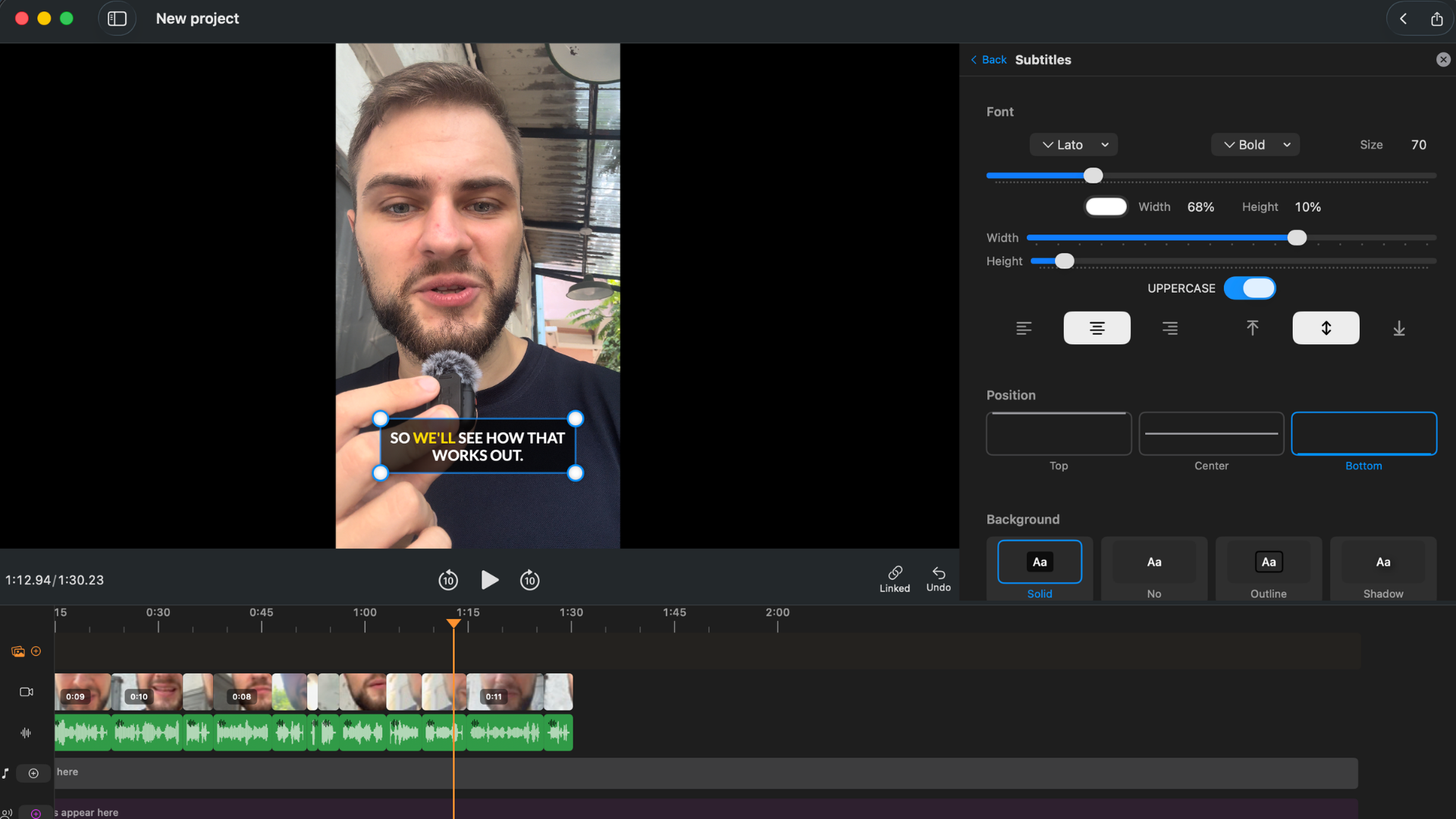
BlitzCut is best for: Creators posting to TikTok, Reels, YouTube Shorts, or LinkedIn who want captions generated and styled automatically as part of a complete editing session. Not the right fit if you specifically need SRT file output.
Try BlitzCut free for 3 days →
2. Descript — Best Subtitle Accuracy for Professional Use
Price: $24/month Creator · $16/month Hobbyist (billed annually)
Auto-generate: Yes, from cloud transcription
Upload required: Yes — full video uploads before any processing
Styles: Standard only (no karaoke)
SRT export: Yes
App type: Electron (not native macOS)
Descript's subtitle generation is transcript-driven. Once your video uploads and transcribes, you see the spoken content as text, and captions are generated from that transcript. The accuracy is strong for English-language content — Descript has invested significantly in transcription quality across its platform history.
SRT export. Descript can export captions as SRT or VTT files, which you can then upload to YouTube, Vimeo, or any platform that accepts external caption files. This is a workflow advantage if you need platform-side captions (for SEO or accessibility) rather than burned-in captions.
61-language caption translation. Descript can generate captions in languages other than English. For creators producing content for international audiences, this is a genuine capability that BlitzCut doesn't currently offer.
No karaoke captions. Descript generates standard subtitles only — no word-by-word highlighting. If you want the animated karaoke style for social content, you'd need to export to a separate tool.
The friction points: Upload is mandatory. For a 20-minute 1080p recording (~1.5GB), the upload typically takes 5–12 minutes before you can make a single edit. The app is also Electron — not a native Mac application — which means higher memory usage and UI lag on longer recordings. At $288/year, it's significantly more expensive than BlitzCut for features most solo creators don't use.
Descript is best for: Professional productions where SRT export, multi-language captions, or Descript's team collaboration features are required. Harder to justify for solo creators who only need captions burned in for social.
3. CapCut for Mac — Free, Basic Subtitle Generation
Price: Free / $9.99/month Pro
Auto-generate: Yes
Upload required: No (local processing)
Styles: Basic (limited word-highlight options)
SRT export: Limited
App type: Desktop app (not native macOS)
CapCut's Mac desktop app generates auto-subtitles using AI. Accuracy is reasonable for clear speech. The interface is similar to the mobile version. The free tier includes watermarks on exported videos — to remove them, you need the Pro subscription.
The 2026 caveat: CapCut's regulatory status in the US has been uncertain due to its ownership by ByteDance, the same company that owns TikTok. Creators who've built workflows around CapCut risk the app becoming restricted or unavailable. For a primary subtitle generation tool, this is a real concern.
CapCut is best for: Creators already in the CapCut ecosystem who want consistent tooling between mobile and desktop, and who are comfortable with the platform uncertainty.
4. Adobe Premiere Pro — Good Captions, Wrong Price for Most Creators
Price: $55/month ($660/year)
Auto-generate: Yes, via Transcript panel
Upload required: No
Styles: Standard; limited style customization
SRT export: Yes (SRT, SCC, and other formats)
App type: Desktop (not native macOS)
Premiere Pro's Transcript panel auto-generates captions with good accuracy, and the output can be customized in the Essential Graphics panel. Premiere exports SRT, SCC, and multiple other subtitle file formats — the strongest export flexibility of any tool on this list.
For professional editors already on Creative Cloud, Premiere's subtitle generation is a legitimate built-in option. For anyone choosing a tool specifically for subtitle generation, $660/year is difficult to justify when BlitzCut at $69.99/year handles the social content workflow better.
Premiere is best for: Professional editors already on Creative Cloud who want to consolidate and use Premiere's caption export variety.
5. Veed.io — Web-Based, No Installation Required
Price: Free (watermark) / $12–$29/month
Auto-generate: Yes, cloud-based
Upload required: Yes
Styles: Multiple, including some animated options
SRT export: Yes
App type: Browser-based
Veed is a web-based video editor with auto-subtitle generation. You upload your video, Veed transcribes it, and you can style and position the captions in the browser. Export as burned-in captions or as an SRT file.
The workflow works from any Mac in a browser — no installation. The tradeoff: every video uploads to Veed's servers (bandwidth and privacy consideration), the free tier adds watermarks, and the paid plans ($12–$29/month) are in the same range as other tools while offering less capability for professional use.
Veed is best for: Occasional subtitle generation where installing an app is a barrier, or for teams that need a shared browser-based workflow.
6. Submagic — Social-First, Web-Based
Price: $20–$40/month
Auto-generate: Yes, cloud-based
Upload required: Yes
Styles: Animated, karaoke-style, social-optimized
SRT export: No
App type: Browser-based
Submagic is built specifically for social media content creation. It generates animated, karaoke-style captions optimized for TikTok and Reels, with preset styles designed to perform well in feeds. The output quality is high for social content.
The limitations: every video uploads to their servers, the plans are expensive ($20–$40/month) for a tool that only does captions, and there's no desktop Mac app. For a creator already using BlitzCut for editing, adding Submagic is redundant — BlitzCut generates the same karaoke captions natively with no upload.
Submagic is best for: Creators who have an existing editing workflow and just need a dedicated social caption generator, and are comfortable with the upload and cost.
7. Rev — Human Accuracy When AI Isn't Enough
Price: $1.50/minute (human captions) or $0.25/minute (AI captions) · $29.99/month unlimited AI
Auto-generate: AI option available; human option for accuracy
Upload required: Yes
Styles: SRT/VTT file only — no styling
SRT export: Yes
App type: Web service
Rev is a professional captioning service, not a video editor. You upload a video, they return an SRT or VTT file — either AI-generated (fast, cheaper) or human-transcribed (slower, more accurate, more expensive).
Rev is the right choice when accuracy is non-negotiable and you specifically need an SRT file — legal transcripts, court recordings, medical content, accessibility compliance requirements. The $1.50/minute rate for human captions on a 30-minute video is $45, which is significant but appropriate for contexts where errors are unacceptable.
Rev is best for: Professional or compliance use cases where human accuracy is required and an SRT file is the specific deliverable.
8. Final Cut Pro — No Auto-Subtitles
Price: $299 one-time
Auto-generate: No
Notes: No built-in transcription or auto-caption feature
Final Cut Pro has no automatic subtitle generation. Adding subtitles in Final Cut means using manual text overlays and timing them yourself, or importing an SRT file from a separate service. For creators who use Final Cut as their primary editor, the workflow for subtitles is: generate captions in BlitzCut or export an SRT from Rev/Descript, then bring the file into Final Cut.
Burned-In Captions vs SRT Files: Which Do You Need?
This is the key decision most creators should make before choosing a tool:
Burned-in captions (also called hardcoded or open captions) are embedded directly into the video pixels. They show on every platform automatically, don't require platform-side caption support, and are the only option for platforms that don't support external caption files. TikTok, Instagram Reels, and most social platforms display burned-in captions correctly everywhere.
SRT files (softcoded/closed captions) are separate text files that platforms like YouTube and Vimeo read alongside the video. They can be toggled on or off by the viewer, they're indexable by search engines (YouTube uses caption text for search ranking), and they allow the viewer to choose their language if multiple translations are provided.
For most social content creators in 2026: burned-in captions are the standard. For YouTube long-form content with accessibility requirements or SEO intent: SRT files are worth having.
BlitzCut outputs burned-in captions. Descript, Premiere, and Rev output SRT/VTT files. If you need both, use BlitzCut for social and export an SRT from Descript or Rev for YouTube.
Pricing Over Two Years
| Tool | Year 1 | Year 2 | 2-Year Total |
|---|---|---|---|
| BlitzCut Annual | $69.99 | $69.99 | $139.98 |
| BlitzCut Lifetime | $129.99 | $0 | $129.99 |
| Descript Creator | $288 | $288 | $576 |
| CapCut Pro | $119.88 | $119.88 | $239.76 |
| Premiere Pro | $660 | $660 | $1,320 |
| Veed Pro | $348 | $348 | $696 |
| Submagic | $240–$480 | $240–$480 | $480–$960 |
For a creator who primarily needs subtitles for social content, BlitzCut at $69.99/year is the most cost-effective paid option by a significant margin — and it includes silence removal, transcript editing, TTS, and 4K multi-format export alongside the subtitle generation.
Frequently Asked Questions
What is the best subtitle generator for Mac in 2026? BlitzCut is the best option for creators producing social content — accurate AI transcription, multiple caption styles including karaoke, no video upload required, native Mac app. Descript is better for professional use cases that require SRT export or multi-language captions.
Can Mac automatically generate subtitles? macOS doesn't have built-in automatic subtitle generation for video files. You need a dedicated app. BlitzCut for Mac is the fastest native option in 2026.
Do I need to upload my video to add subtitles automatically? With BlitzCut, no. Caption generation uses AI processing but doesn't require uploading your raw video to an external server. Web-based tools like Veed and Submagic do require upload. Descript also requires cloud upload before any processing.
Which subtitle generator works offline on Mac? BlitzCut's silence removal works fully offline. Caption generation requires an internet connection for AI processing, but doesn't require uploading your video file. Recut, Timebolt, and Audacity process locally but don't generate captions.
Can I get an SRT file from BlitzCut? BlitzCut outputs burned-in captions in the exported video, not standalone SRT files. For SRT output, Descript, Premiere Pro, Veed, or Rev are the options.
Related: How to Add Subtitles to a Video on Mac Automatically · Word-by-Word Karaoke Captions on Mac · BlitzCut for Mac: Everything You Need to Know
Editing a talking-head video?
BlitzCut is available on Android, iPhone, iPad, and Mac. It is designed for recorded UGC-style videos, founder-led ads, tutorials, and testimonials and other talking-head content.
Try it for freeRelated Articles
Keep Reading

Best Auto Caption App for iPhone (2026): 8 Apps Compared
The best auto caption app for iPhone: BlitzCut, CapCut, Captions, Edits, InShot, VN, KineMaster, and Premiere compared on caption styles, editing, SRT export, and price.

Best CapCut Alternatives (2026): 10 Apps Like CapCut for iPhone, Android and PC
The best CapCut alternatives for iPhone, Android, Mac, and PC: free and paid apps like CapCut, compared on silence removal, captions, templates, watermarks, and price.

Best Free Video Editing App for iPhone (2026): 8 Apps, Most With No Watermark
The best free video editing app for iPhone: iMovie, Premiere mobile, Edits, VN, YouTube Create, CapCut, InShot, and KineMaster compared on watermarks, captions, 4K export, and what's actually free.