
Word-by-Word Karaoke Captions on Mac: Full Guide
Make karaoke-style, word-by-word animated captions on Mac. BlitzCut does it natively — how to style, customize, and export them for any format.


Karaoke captions — where each word highlights or changes color as it's spoken — are the dominant caption style for short-form video in 2026. They outperform static subtitles on nearly every metric that matters for social content: average completion rate, engagement rate, and share rate.
The reason is straightforward. In a feed where most videos autoplay silently, karaoke captions give the viewer a visual tracking mechanism. Instead of reading ahead and waiting for the audio to catch up (or losing track entirely), the viewer's eye follows the word highlight in real time. The result is higher retention — and higher retention is what drives algorithm performance on TikTok, Reels, and Shorts.
This guide covers what karaoke captions are, how to make them natively on Mac in BlitzCut, how to style and customize them, and what your other options look like.
What Karaoke Captions Are
The term "karaoke" refers to the way the words are highlighted in sync with speech — just like the bouncing ball on a karaoke screen. In video captions, this typically means:
- Each word appears (or changes color or weight) at the exact moment it's spoken
- The rest of the text in the same line is visible but in a different state — lighter, smaller, or a different color
- As the speaker moves through the sentence, the highlight tracks word by word
There are variations in execution:
- Color switch: the current word is white or yellow, the remaining words are grey
- Bold switch: the current word is bold or larger, the rest are lighter
- Pop-in: each word appears only when spoken, disappearing or fading after
- Full line + highlight: the full caption line is visible, and only the current word is colored
BlitzCut uses a color + weight highlight approach that performs well on most backgrounds and is readable on phones without the viewer having to pause.
Why Karaoke Captions Outperform Static Captions
Multiple creators and marketing analysts have documented the engagement gap between karaoke and static captions on short-form video. The pattern is consistent:
Higher completion rate. Karaoke captions create a micro-engagement loop — the viewer tracks the next word highlight. This reduces the impulse to swipe because the caption provides a constant visual signal that something is happening.
More accessible for muted playback. Static captions require the viewer to read ahead and estimate timing. Karaoke captions don't — the highlight tells you exactly where in the sentence you are. This reduces cognitive effort, which reduces drop-off.
Stronger on small screens. On a phone screen, a full paragraph of static subtitle text is small and hard to parse at a glance. A single highlighted word is immediately clear.
For talking-head content — podcasts, YouTube videos, course content, commentary — karaoke captions are effectively the standard for clips distributed on Reels, TikTok, or Shorts in 2026.
How to Make Karaoke Captions on Mac with BlitzCut
BlitzCut for Mac generates word-by-word karaoke captions automatically from your video's transcript. The timing is derived from the transcription — every word is timestamped to the millisecond, so the highlight tracking is accurate without any manual adjustment.
Here's the full workflow:
Step 1: Import Your Video
Open BlitzCut for Mac and import your video file. Drag it from Finder into BlitzCut, or use Command+O. BlitzCut accepts MP4, MOV, and other standard formats from any recording source.
Step 2: Silence Removal (Automatic)
BlitzCut removes silence from your video automatically as soon as you import. The on-device AI analyzes your audio locally — no upload — and cuts the gaps, pauses, and dead air. For a 10-minute recording this typically takes 60–90 seconds, running in the background.
Silence removal is the foundation for good karaoke caption timing. By the time the transcript is generated, the audio is already tight — every caption line corresponds to actual speech, with no long silent gaps that would break the visual flow of the word highlight.
Step 3: Transcription and Transcript Review
BlitzCut transcribes your video after silence removal. The spoken content appears as editable text in the transcript panel. Review it — correct any transcription errors, delete sections you want to cut. Every edit in the transcript removes the corresponding video footage automatically.
This is the step that most tools skip: because BlitzCut generates captions from the transcript you've already edited, the captions reflect the final state of your video. You're not generating captions on the raw recording and then trying to cut around them.
[SCREENSHOT: BlitzCut transcript panel with the spoken content visible as editable text, ready for caption generation]
Step 4: Generate Karaoke Captions
Once the transcript is ready, tap to generate captions and select the karaoke style.
BlitzCut gives you three base styles:
- Standard — static subtitle positioning
- Bold center — large centered text
- Karaoke — word-by-word highlight, the style covered in this guide
Select karaoke. BlitzCut generates the word-by-word timing automatically from the transcript timestamps.
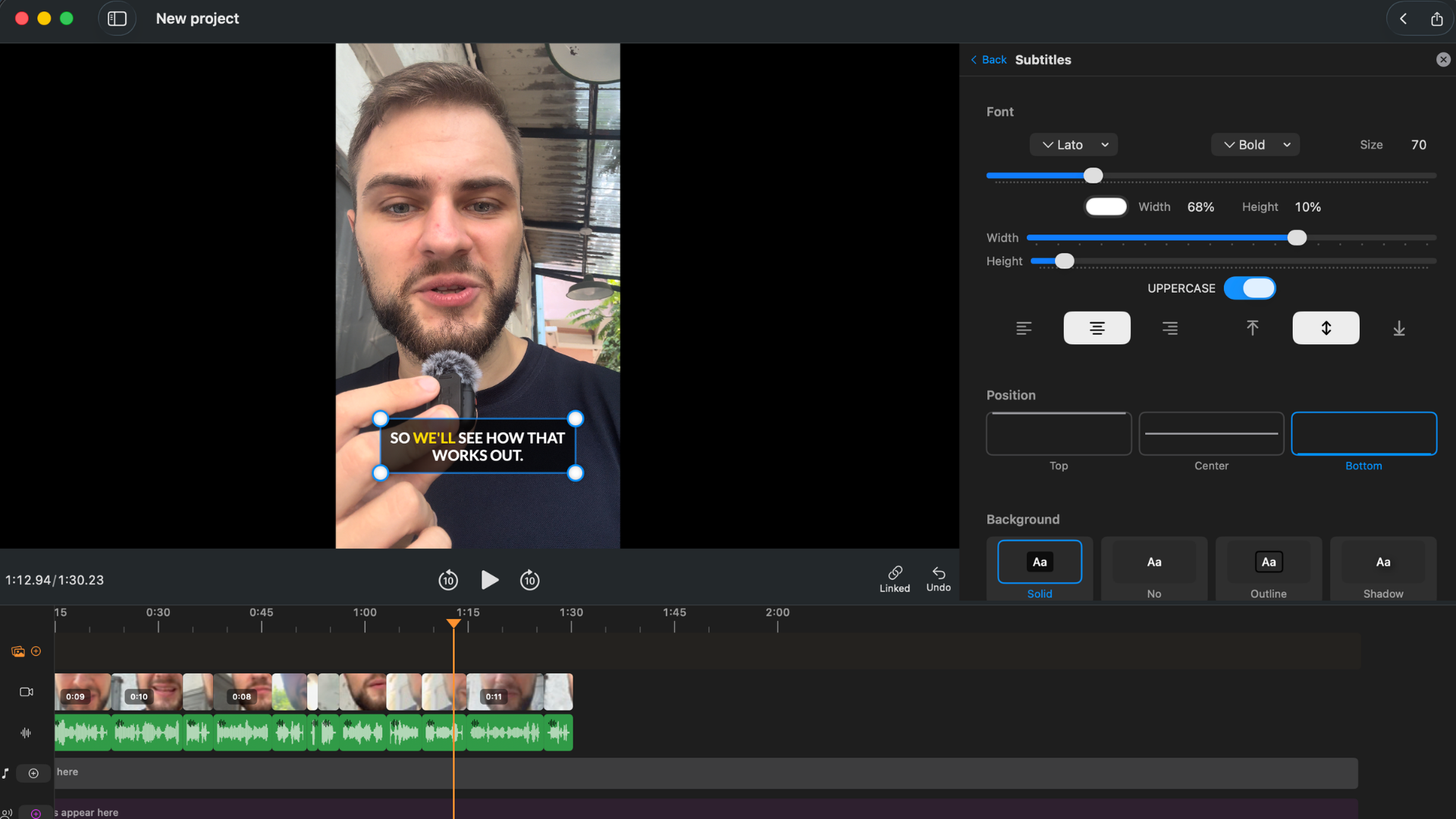
Step 5: Customize Style
After selecting karaoke, you can adjust:
Font. BlitzCut includes multiple font options. For social content, bold sans-serif fonts (thick strokes, no decorative serifs) are the most readable on a phone screen. Thin or script fonts tend to disappear on small displays.
Color scheme. The highlight color and the base text color. High contrast combinations — white highlight on dark background, or yellow highlight with white base — read clearly in both light and dark environments. Avoid low-contrast pairs (light grey highlight on white text) which become invisible outdoors.
Text size. Larger text fills more of the screen and is readable without zooming. For 9:16 content, a text size that takes up roughly 10–15% of frame height is a good baseline. Smaller text is appropriate for 16:9 long-form content where the viewer is typically closer to a larger screen.
Positioning. Lower third (traditional subtitle position), center frame (most common for social talking-head content), or upper third. Center-frame positioning performs well on Reels and TikTok because it occupies the visual center of attention, which is where most viewers are already looking on a vertical phone display.
Background. None (text only), subtle drop shadow (improves readability on complex backgrounds without adding a visual box), or a background color pill (makes text readable on any background but adds visual weight).
What you see in the BlitzCut preview is exactly what you'll get in the exported video.
Step 6: Export
Choose your aspect ratio:
- 9:16 for TikTok, Instagram Reels, YouTube Shorts
- 16:9 for YouTube long-form or landscape video
- 1:1 for LinkedIn, Twitter/X
Export at up to 4K. No watermark. The karaoke captions are burned into the exported video — the output file is ready to upload directly to any platform.
Karaoke Caption Styling Tips for Different Platforms
TikTok
- Center frame positioning
- Bold sans-serif font, large size
- High contrast highlight color (yellow or white)
- No background box (clean look performs better)
- 9:16 aspect ratio
Instagram Reels
- Center or lower-third positioning
- Bold font, large size — text needs to be readable with the Reels UI overlay at the bottom
- Avoid positioning text in the bottom 20% of the frame (covered by UI)
- 9:16 aspect ratio
YouTube Shorts
- Similar to Reels — center frame, large bold text
- 9:16 aspect ratio
YouTube Long-Form
- Lower third positioning (standard subtitle placement)
- Smaller text size — viewers are on a larger screen
- Standard or karaoke style both work, though static is more conventional for long-form
- 16:9 aspect ratio
- Center or lower third
- Slightly more formal styling — less aggressive highlight color
- 1:1 or 16:9 aspect ratio
Other Tools That Make Karaoke Captions on Mac
Submagic (Web-Based)
Submagic is a browser-based tool built specifically for social media captions, including karaoke-style animated captions. The output quality is high and the styles are optimized for social performance. The downsides: $20–$40/month, every video uploads to their servers, and it's a separate tool from your editing workflow — you'd edit in one app and add captions in another. If you're already using BlitzCut, Submagic adds cost and friction for the same output.
CapCut for Mac
CapCut's desktop app has word-highlight caption options. The range of styles is more limited than BlitzCut, and the free tier includes watermarks. The US regulatory uncertainty around CapCut (ByteDance ownership) is a relevant factor for any creator building a long-term workflow.
Descript
Descript does not generate karaoke-style word-by-word captions. It generates standard subtitles from the transcript. If you need karaoke captions, Descript's output is static text — you'd need to export and reprocess in a separate tool.
Final Cut Pro
No built-in karaoke caption generation. You can achieve a similar effect manually using text animations on a timeline, but this requires significant time per word. Not practical for regular content production.
Web Tools (Veed, Captions.ai, Kapwing)
Several web-based tools offer karaoke-style captions. They work from any browser on Mac. Every video uploads to their servers. Free tiers typically have watermarks. Paid plans range from $12–$30/month for basic access. For occasional use this works; for regular production the upload friction adds up.
Frequently Asked Questions
What are karaoke captions called on TikTok and Reels? The official name varies by platform. TikTok refers to them as "word-by-word" or "animated" captions. Instagram Reels doesn't have a specific name for the style. Creators and marketers commonly call them "karaoke captions," "word highlight captions," or "pop-up captions."
Do karaoke captions actually improve video performance? Consistently, yes. The mechanism is straightforward: they reduce the cognitive effort required to follow muted-playback video, which reduces early drop-off. Creators who switch from static to karaoke captions on the same content type typically see a 10–30% improvement in average completion rate, which feeds directly into algorithmic distribution.
Can I make karaoke captions on Mac without uploading my video? Yes. BlitzCut for Mac generates karaoke captions without requiring you to upload your raw video to a cloud server. Caption generation uses AI processing but your video file stays on your Mac.
Does BlitzCut export karaoke captions as an SRT file? No. BlitzCut burns captions into the exported video file. The output is a finished MP4 or MOV with captions embedded. If you need an SRT file for platform-side captions (for YouTube accessibility compliance, for example), use a different tool for that specific deliverable.
How accurate is the word-level timing in BlitzCut's karaoke captions? The timing is derived from AI transcription timestamps, which are accurate at the word level for clear speech. For most talking-head content recorded with a decent microphone, the word highlight tracks correctly without manual adjustment. The transcript is editable before captions are generated, so any transcription errors can be corrected first.
Can I customize the karaoke highlight color in BlitzCut? Yes. Font, size, highlight color, base text color, positioning, and background are all customizable after selecting the karaoke style. What you set in BlitzCut's preview is what appears in the exported video.
Related: How to Add Subtitles to a Video on Mac Automatically · Best Subtitle Generator for Mac 2026 · BlitzCut for Mac: Everything You Need to Know
Editing a talking-head video?
BlitzCut is available on Android, iPhone, iPad, and Mac. It is designed for recorded UGC-style videos, founder-led ads, tutorials, and testimonials and other talking-head content.
Try it for freeRelated Articles
Keep Reading

Best Auto Caption App for iPhone (2026): 8 Apps Compared
The best auto caption app for iPhone: BlitzCut, CapCut, Captions, Edits, InShot, VN, KineMaster, and Premiere compared on caption styles, editing, SRT export, and price.

Best CapCut Alternatives (2026): 10 Apps Like CapCut for iPhone, Android and PC
The best CapCut alternatives for iPhone, Android, Mac, and PC: free and paid apps like CapCut, compared on silence removal, captions, templates, watermarks, and price.

Best Free Video Editing App for iPhone (2026): 8 Apps, Most With No Watermark
The best free video editing app for iPhone: iMovie, Premiere mobile, Edits, VN, YouTube Create, CapCut, InShot, and KineMaster compared on watermarks, captions, 4K export, and what's actually free.