
Edit Video by Editing Text: Beginner's Guide for Mac
New to text-based video editing? This Mac guide explains how it works, why it can be 3x faster, and how to start in BlitzCut today with no editing experience.


Editing video by editing text sounds strange until you try it.
The idea is simple: your video gets transcribed, the transcript appears beside the preview, and you edit the video by changing the transcript. Delete a sentence from the text, and that sentence disappears from the video.
For beginners, this is often easier than learning a traditional timeline. You do not need to understand ripple edits, blade tools, linked clips, or waveform reading before making your first useful cut.
This guide explains how text-based video editing works on Mac and how to start in BlitzCut.
What Is Text-Based Video Editing?
Text-based video editing is a way to edit spoken video from a transcript.
The app listens to your video, turns the speech into text, and links each word to the moment it appears in the video. Then you can use the transcript as your editing surface.
For example:
| You Do This | The Video Does This |
|---|---|
| Delete "um, let me restart" | Removes that spoken section |
| Delete a repeated sentence | Cuts the duplicate take |
| Delete the first paragraph | Removes the intro chatter |
| Search for a phrase | Jumps to that moment |
| Select a section | Targets that part of the video |
It feels like editing a document, but the document is connected to your video.
Why Beginners Learn It Faster
Traditional video editing asks you to think visually and technically at the same time. You need to learn:
- Timeline navigation
- Clip selection
- Trimming
- Cutting
- Audio waveforms
- Ripple deletes
- Export settings
Text-based editing starts from something you already understand: words.
If the mistake is visible in the transcript, you can remove it. If the useful part starts with a specific sentence, you can search for it. If the ending rambles, you can delete the paragraph.
That makes the first edit much less intimidating.
Why It Can Be 3x Faster
Text-based editing is faster because reading is faster than scrubbing.
Imagine a 30-minute recording. In a timeline editor, you might listen through large parts of it to find mistakes. In a transcript editor, you can scan the entire structure quickly:
- Intro
- Main point
- Example
- Tangent
- Better second take
- Outro
If a traditional rough cut takes 45 minutes, a transcript rough cut might take 10-15 minutes for the same talking-head video. The exact speed depends on how messy the recording is, but the advantage is clear: you find spoken sections by reading, not by guessing on a waveform.
What Kinds of Videos Work Best?
Text-based editing is best for videos where speech is the main content.
Good fits:
- Talking-head videos
- YouTube explainers
- Podcast clips
- Interviews
- Course lessons
- Coaching videos
- Product demos
- Webinars
- UGC scripts
Poor fits:
- Music videos
- Travel montages
- Silent B-roll edits
- Highly visual cinematic edits
- Videos where timing is based on movement, not speech
If your video is mostly someone talking, text-based editing is probably a good fit.
How to Start in BlitzCut for Mac
Step 1: Import a Real Recording
Do not start with a perfect clip. Use a normal messy recording with pauses, restarts, and a few mistakes.
That gives you a real sense of how much time text-based editing can save.
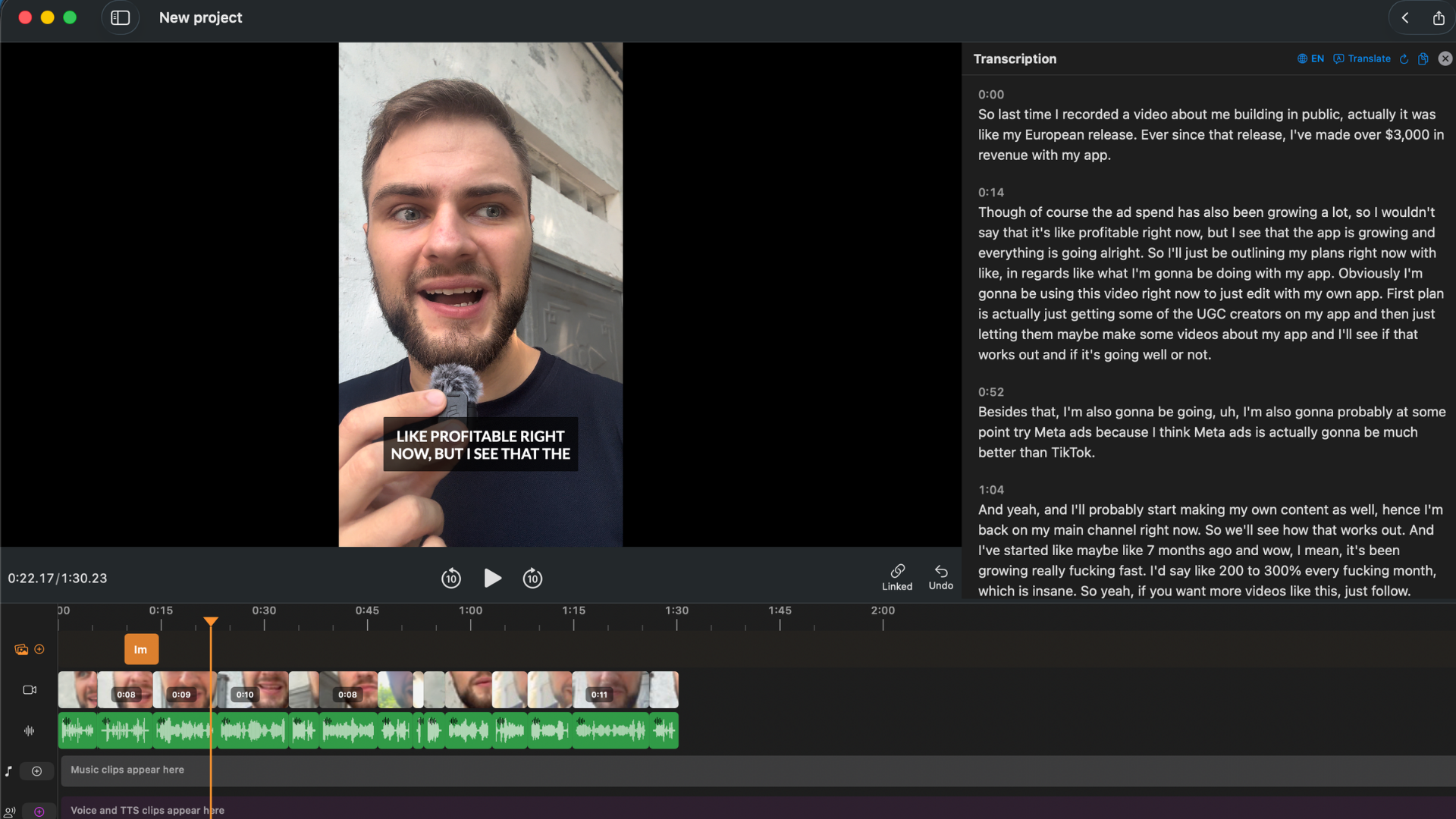
BlitzCut shows the video, transcript, and waveform together so beginners can see what they are editing.
Step 2: Let Silence Removal Run
BlitzCut removes dead air first. That makes the video feel tighter before you even begin detailed editing.
For beginners, this is helpful because you do not have to hunt through long silent gaps manually.
Step 3: Read the Transcript
Read the transcript like a rough draft. Look for:
- Setup chatter
- False starts
- Repeated takes
- Long tangents
- Weak endings
- Better second versions of the same point
You are not trying to make perfect cuts yet. You are finding the obvious material that should go.
Step 4: Delete the Bad Parts
Select the text you do not want and delete it. BlitzCut cuts the matching video.
Start with large obvious sections first. Beginners often make the mistake of trying to perfect tiny cuts immediately. It is faster to remove the big problems, then review.
Step 5: Watch the Cut Points
After deleting a section, play a few seconds before and after the cut.
Ask:
- Does the sentence still make sense?
- Does the speaker sound natural?
- Did the cut remove too much?
- Is there a breath or pause that should stay?
If it sounds right, move on.
Step 6: Add Captions
Once the edit is clean, add captions. BlitzCut can create standard captions for YouTube-style content or word-by-word karaoke captions for short-form social clips.
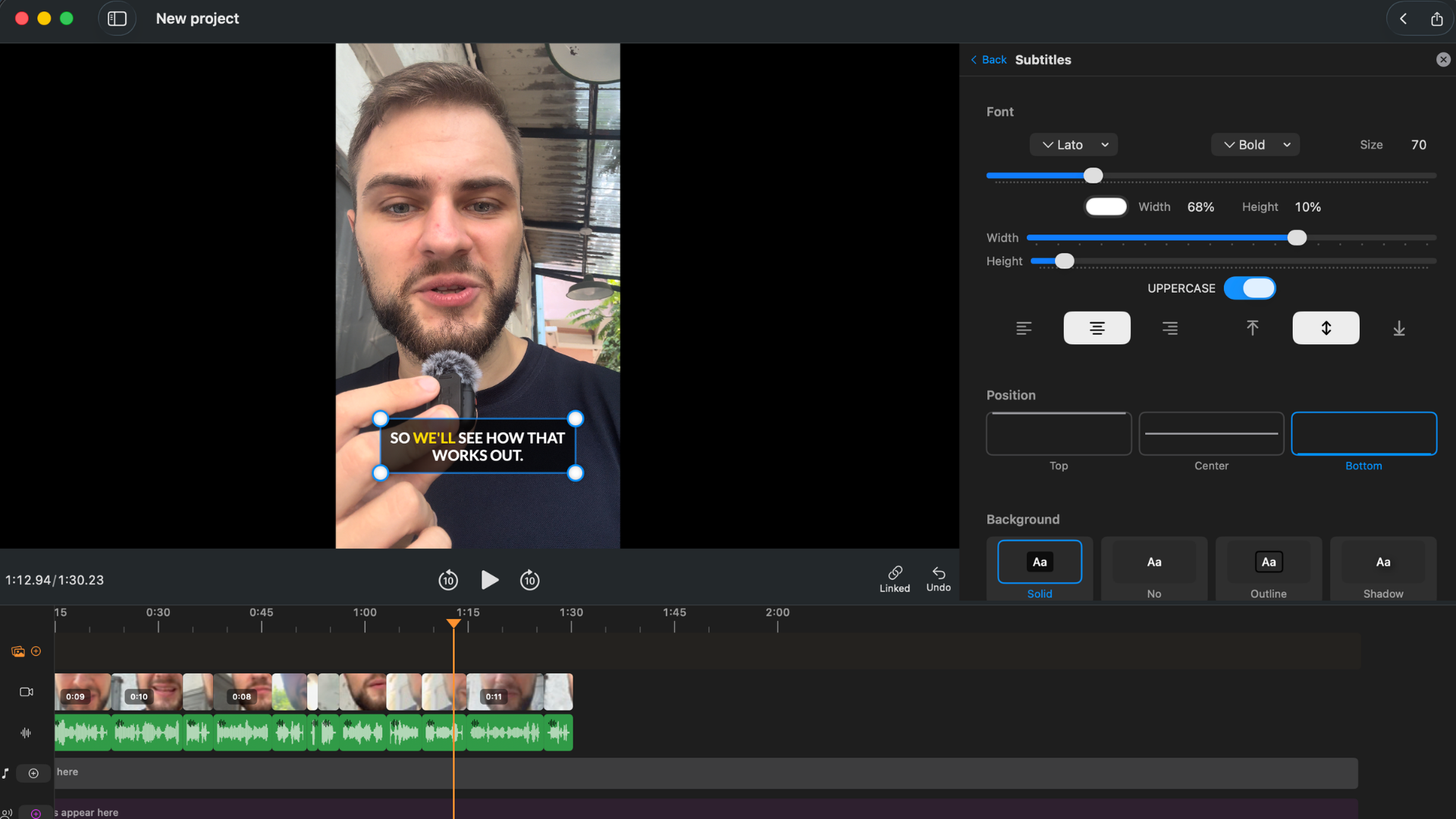
Captions come from the transcript, so you do not have to time them manually.
Step 7: Export for the Right Platform
Choose the aspect ratio based on where the video will go:
- 9:16 for TikTok, Instagram Reels, and YouTube Shorts
- 16:9 for YouTube and courses
- 1:1 for feed posts and LinkedIn
Then export the final file.
Beginner Mistakes to Avoid
Deleting too much at once. If you delete a huge transcript section, review the cut immediately. Big deletions are useful, but they can remove context.
Editing captions before the cut is final. Cut the video first. Style captions after the structure is locked.
Trying to remove every breath. Some breath and silence is natural. Removing all of it can make the video feel robotic.
Using text-based editing for the wrong video. If the video is driven by visuals, use a timeline. If it is driven by speech, use the transcript.
Skipping review. Text-based editing is fast, but every final export still deserves a quick watch.
A Simple First Project
For your first edit, try this:
- Record a 3-minute talking video
- Intentionally restart one sentence
- Pause for a few seconds in the middle
- Add one section you know you will remove
- Import it into BlitzCut
- Delete those parts from the transcript
- Add captions
- Export a 9:16 version
That small test teaches the full workflow without overwhelming you.
When to Move Beyond Text-Based Editing
Text-based editing is a rough-cut superpower. It is not the only editing skill you will ever need.
As your videos get more advanced, you may still want to learn:
- B-roll timing
- Music mixing
- Color correction
- Motion graphics
- Multi-camera editing
- Manual audio cleanup
But you do not need all of that to start. For talking videos, text-based editing gets you to a clean first version quickly.
Frequently Asked Questions
Can beginners really edit video by editing text? Yes. That is the main advantage. Text-based editing is easier to understand than a traditional timeline for speech-heavy videos.
Do I need to know video editing terms? No. You can start by importing a video, reading the transcript, deleting mistakes, adding captions, and exporting.
Is text-based editing only for podcasts? No. It works for any spoken video: tutorials, courses, interviews, YouTube videos, UGC, coaching clips, and social content.
Will the cuts be perfect automatically? Usually the rough cut is fast, but you should review cut points before exporting.
What Mac app should beginners use? BlitzCut is the easiest starting point for talking videos because it combines silence removal, transcript editing, captions, and export in one app.
Related: How Text-Based Editing Works in BlitzCut for Mac · Text-Based Video Editing on Mac Without Paying $24/Month · BlitzCut for Mac
Editing a talking-head video?
BlitzCut is available on Android, iPhone, iPad, and Mac. It is designed for recorded UGC-style videos, founder-led ads, tutorials, and testimonials and other talking-head content.
Try it for freeRelated Articles
Keep Reading

Best Auto Caption App for iPhone (2026): 8 Apps Compared
The best auto caption app for iPhone: BlitzCut, CapCut, Captions, Edits, InShot, VN, KineMaster, and Premiere compared on caption styles, editing, SRT export, and price.

Best CapCut Alternatives (2026): 10 Apps Like CapCut for iPhone, Android and PC
The best CapCut alternatives for iPhone, Android, Mac, and PC: free and paid apps like CapCut, compared on silence removal, captions, templates, watermarks, and price.

Best Free Video Editing App for iPhone (2026): 8 Apps, Most With No Watermark
The best free video editing app for iPhone: iMovie, Premiere mobile, Edits, VN, YouTube Create, CapCut, InShot, and KineMaster compared on watermarks, captions, 4K export, and what's actually free.