
Text-Based Video Editing on Mac Without Paying $24/Month
Edit video by editing a transcript on Mac — without a $24/month Descript plan. How BlitzCut's text-based editing works, what's free, and when to upgrade.


Text-based video editing is the fastest way to cut talking videos on Mac. Instead of dragging playheads around a timeline, you edit the transcript:
- Delete a sentence
- Remove a false start
- Cut the pre-roll
- Tighten a tangent
- Export the edited video
That workflow used to mean paying for Descript. In 2026, you can do the same kind of transcript-driven editing on Mac with BlitzCut, starting with a free trial and without committing to Descript's Creator plan.
This guide shows how to edit by transcript on Mac, what is actually free, and when paying for a lighter tool makes more sense than paying for Descript.
The Honest Version of "Free"
If you are looking for a permanent, unlimited, professional text-based video editor with cloud AI, captions, 4K export, and no paid plan, that does not really exist.
What you can do is:
- Download BlitzCut for free from the App Store
- Use the free trial to edit a real project
- Decide whether the workflow saves enough time to justify staying on BlitzCut
- Avoid paying $24/month for Descript if you do not need Descript's team features
That is the practical free path: test text-based editing on your own footage before paying for a bigger subscription.
Why Text-Based Editing Is Faster
Traditional timeline editing makes you hunt through the video visually. Text-based editing turns the video into something you can scan.
If your video is speech-heavy, the transcript is the content map. You can find:
- The first good take
- The sentence where you repeated yourself
- The off-topic section
- The exact word where the useful answer begins
- The outro that needs to be removed
Instead of listening to the same section five times, you read it once and cut.
For a 20-minute talking-head recording, that difference is huge. A traditional rough cut might take 30-45 minutes. A transcript rough cut can often be done in 10-15 minutes, especially when the content is mostly one speaker.
How to Edit Video by Transcript in BlitzCut for Mac
Step 1: Import Your Video
Open BlitzCut for Mac and import your video file. This can be a podcast clip, YouTube recording, course lesson, webcam video, interview, tutorial, or iPhone recording.
Use drag-and-drop or the native macOS file picker.
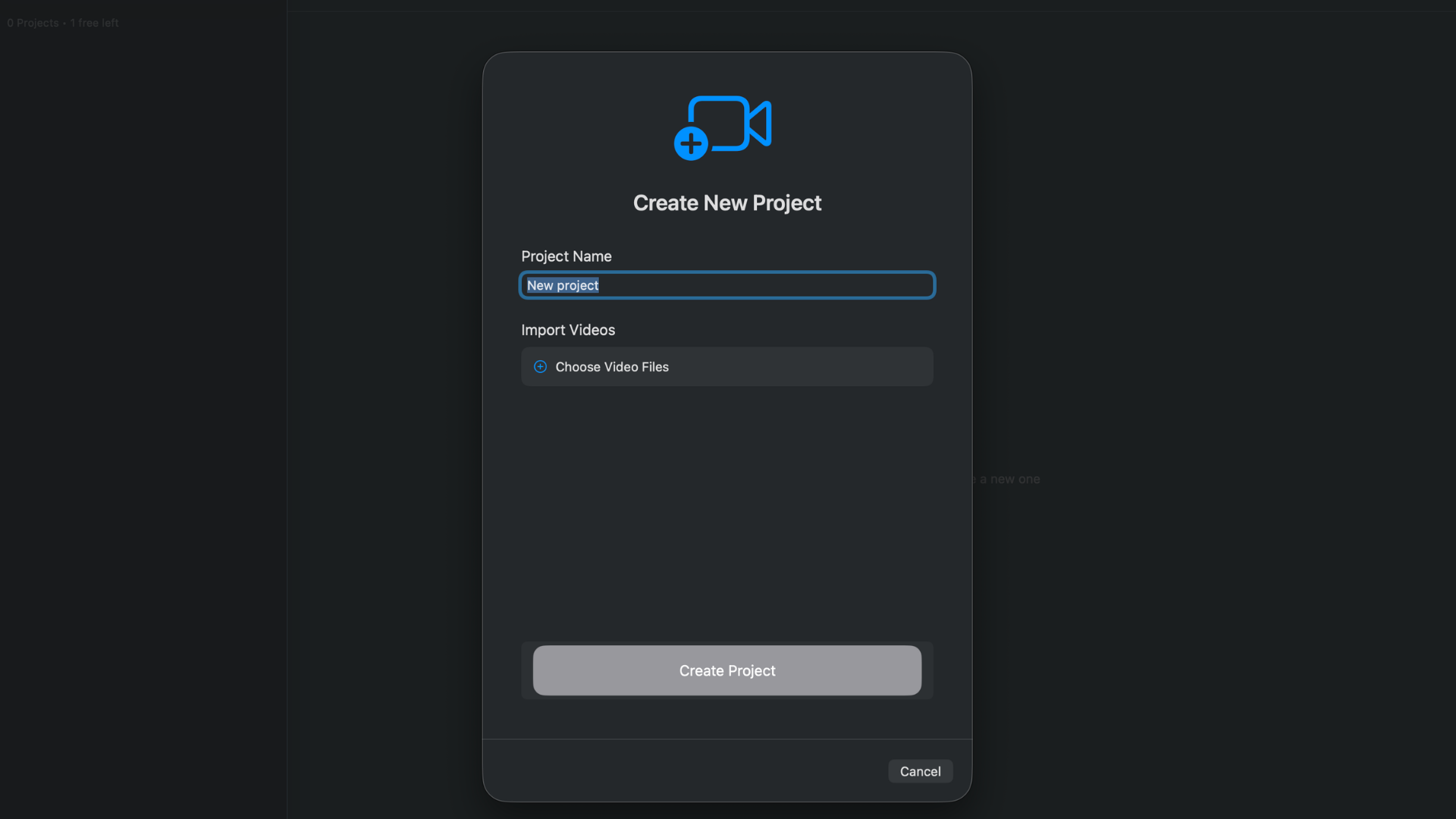
Import a recording, then let BlitzCut prepare it for silence removal and transcript editing.
Step 2: Let BlitzCut Remove Silence
BlitzCut starts by cleaning the pacing. The app detects pauses, dead air, and silent sections so your rough cut begins tighter than the raw file.
This matters because transcript editing works best when you are reviewing actual speech, not minutes of dead air.
Step 3: Open the Transcript
After processing, BlitzCut gives you a transcript of the spoken content. This is where the workflow becomes different from normal editing.
You are no longer asking, "Where is that moment on the timeline?"
You are asking, "Where is that sentence in the transcript?"
Step 4: Delete Text to Cut Video
Select the words, sentence, or paragraph you want to remove. Delete it. BlitzCut removes the matching video section automatically.
Examples:
| What You Delete | What Happens in the Video |
|---|---|
| "Okay, let me start again" | The false start is removed |
| A repeated sentence | The duplicate take is cut |
| A paragraph-long tangent | The tangent disappears |
| The first 20 seconds of setup chatter | The video starts at the useful point |
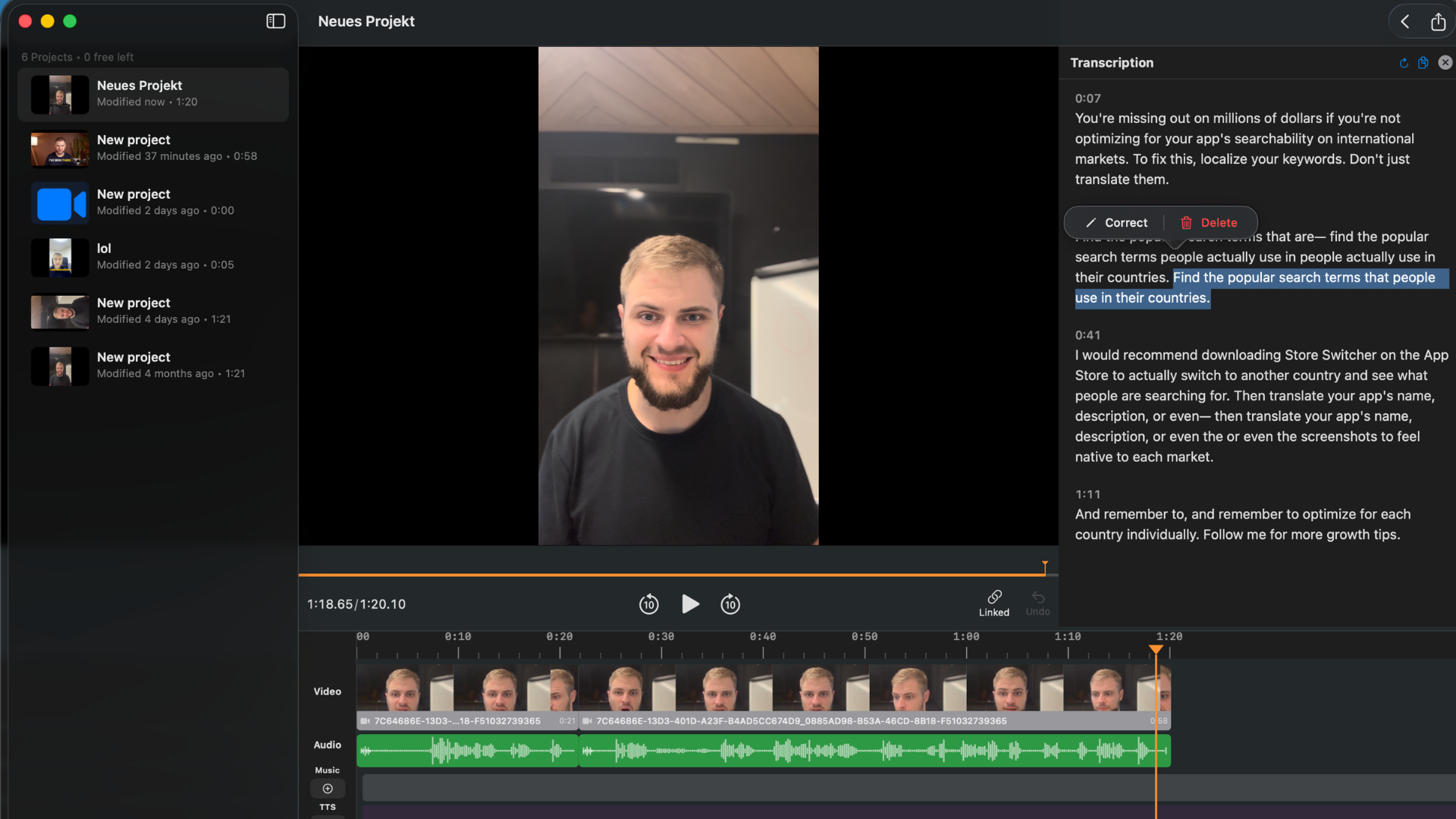
Delete from the transcript and the matching footage is removed from the edit.
Step 5: Add Captions and Export
Once the edit is tight, add captions. BlitzCut can generate standard captions, bold social captions, and word-by-word karaoke captions.
Then export in the format you need:
- 9:16 for TikTok, Reels, and Shorts
- 16:9 for YouTube
- 1:1 for LinkedIn or feed posts
BlitzCut vs Descript for This Specific Job
If the job is "edit a talking video by transcript on Mac," the comparison is straightforward.
| Feature | BlitzCut for Mac | Descript Creator |
|---|---|---|
| Text-based editing | Yes | Yes |
| Silence removal | On-device AI | Cloud-based workflow |
| Captions | Yes | Yes |
| Karaoke captions | Yes | No |
| Native Mac app | Yes | No, Electron |
| Best for | Solo creators | Teams and podcasts |
| Annual price | Lower-cost App Store plans | $24/month billed annually |
Descript is the more complete production platform. BlitzCut is the faster creator workflow.
That distinction matters. If you are editing a weekly team podcast with multiple microphones, Descript may be the right tool. If you are cutting your own talking videos, BlitzCut is usually the cleaner choice.
When Free Is Enough
The free trial is enough if you want to answer these questions:
- Does transcript editing feel faster than my current workflow?
- Does BlitzCut handle my microphone and speaking style well?
- Are the captions good enough for my content?
- Can I export in the aspect ratio I need?
- Does this replace Descript for my actual videos?
Do not test with a perfect 30-second demo clip. Test with a real messy recording: false starts, pauses, repeated takes, and a section you know you want to cut. That will tell you whether the workflow is worth keeping.
When You Should Pay for Descript Instead
Descript is still worth paying for when you need its heavier production features:
- Multiple speakers on separate tracks
- Studio Sound for rough audio
- Team review and comments
- Shared workspaces
- Brand and business workflows
- Long-form podcast production with multiple editors
If those are daily needs, Descript's price makes more sense. If not, paying $24/month for a large production platform just to delete transcript sections is overkill.
When BlitzCut Is the Better Deal
BlitzCut is the better fit when your workflow looks like this:
- Record a talking video
- Remove silence
- Delete mistakes from the transcript
- Add captions
- Export for social or YouTube
That is the workflow most solo creators repeat. It does not need a team workspace. It needs speed.
Frequently Asked Questions
Can I do text-based video editing on Mac for free? You can start for free by downloading BlitzCut and using the free trial. For ongoing unlimited professional use, expect to choose a paid plan or lifetime offer.
Is BlitzCut like Descript? For transcript editing, yes. BlitzCut lets you edit spoken video by editing text. It is more focused on creator videos, silence removal, captions, and export than Descript's broader team production platform.
Does BlitzCut require a Descript subscription? No. BlitzCut is a separate Mac, iPhone, and iPad app.
Can I delete words to cut video? Yes. In BlitzCut, deleting words or sections from the transcript removes the corresponding video.
Is Descript still better for podcasts? For complex multi-track team podcasts, yes. For solo podcast clips and talking videos, BlitzCut is usually faster and simpler.
Related: How Text-Based Editing Works in BlitzCut for Mac · Best Descript Alternatives for Mac With Text-Based Editing · How to Edit Podcasts on Mac Without Descript
Editing a talking-head video?
BlitzCut is available on Android, iPhone, iPad, and Mac. It is designed for recorded UGC-style videos, founder-led ads, tutorials, and testimonials and other talking-head content.
Try it for freeRelated Articles
Keep Reading

Best Auto Caption App for iPhone (2026): 8 Apps Compared
The best auto caption app for iPhone: BlitzCut, CapCut, Captions, Edits, InShot, VN, KineMaster, and Premiere compared on caption styles, editing, SRT export, and price.

Best CapCut Alternatives (2026): 10 Apps Like CapCut for iPhone, Android and PC
The best CapCut alternatives for iPhone, Android, Mac, and PC: free and paid apps like CapCut, compared on silence removal, captions, templates, watermarks, and price.

Best Free Video Editing App for iPhone (2026): 8 Apps, Most With No Watermark
The best free video editing app for iPhone: iMovie, Premiere mobile, Edits, VN, YouTube Create, CapCut, InShot, and KineMaster compared on watermarks, captions, 4K export, and what's actually free.