
How Text-Based Editing Works in BlitzCut for Mac
Delete words in a transcript, cut the video automatically on Mac. Here is exactly how BlitzCut's text-based editing works, step by step.


Text-based editing in BlitzCut for Mac means you edit spoken video by editing the transcript.
Instead of finding the right frame on a timeline, you find the sentence in the transcript. Delete the sentence, and BlitzCut removes the matching video section. It feels closer to editing a document than editing a traditional video timeline.
This guide walks through exactly how the workflow works.
What Text-Based Editing Does
Text-based editing connects three things:
- The video
- The audio
- The transcript
Every word in the transcript is linked to a moment in the video. When you select text, BlitzCut knows where that speech starts and ends. When you delete that text, the matching video section is cut.
That is why text-based editing is so useful for spoken content:
- Talking-head videos
- Podcasts
- Course lessons
- Interviews
- Webinars
- Product explainers
- Coaching videos
- YouTube videos
If speech carries the video, the transcript becomes the fastest editing surface.
Step 1: Import Your Recording
Start by importing the video into BlitzCut for Mac. You can use a file from Finder, a recording from your camera, an iPhone video sent through AirDrop, or a podcast recording exported from another app.
BlitzCut is built for common creator formats like MP4 and MOV. Once the file is imported, the app prepares the recording for silence removal, transcription, and editing.
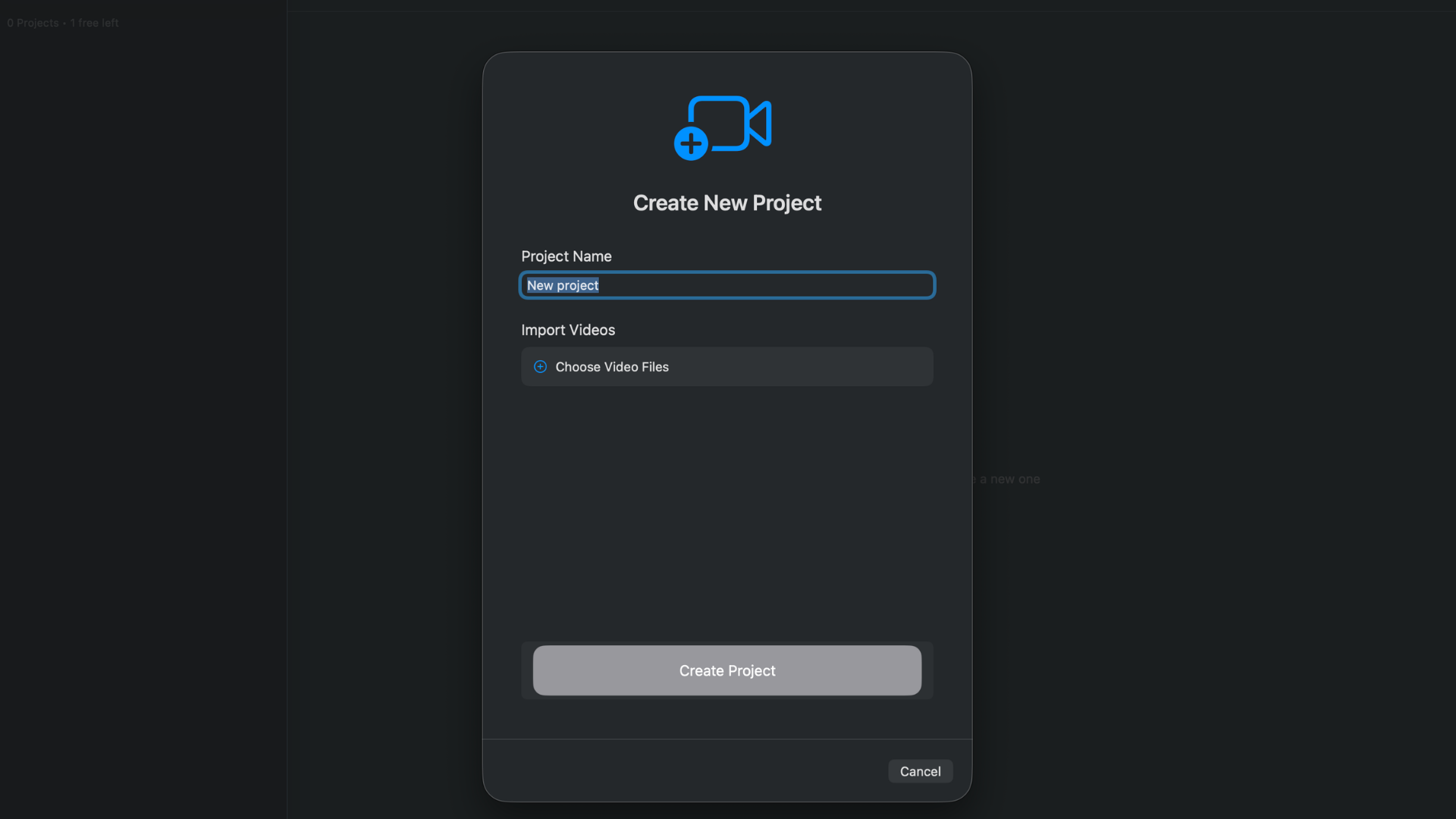
Start with the raw recording. BlitzCut prepares the clip for transcript-based editing.
Step 2: Silence Removal Creates a Cleaner First Cut
Before you begin transcript editing, BlitzCut removes silence. This trims dead air, long pauses, and gaps that slow down the video.
This step is important because it reduces the amount of material you need to review. A 30-minute raw recording might contain several minutes of silence, setup chatter, and pauses. Removing that first makes the transcript easier to scan.
BlitzCut's silence removal runs on-device. The app analyzes speech patterns and cuts silence without requiring you to upload the raw video just to start the rough cut.
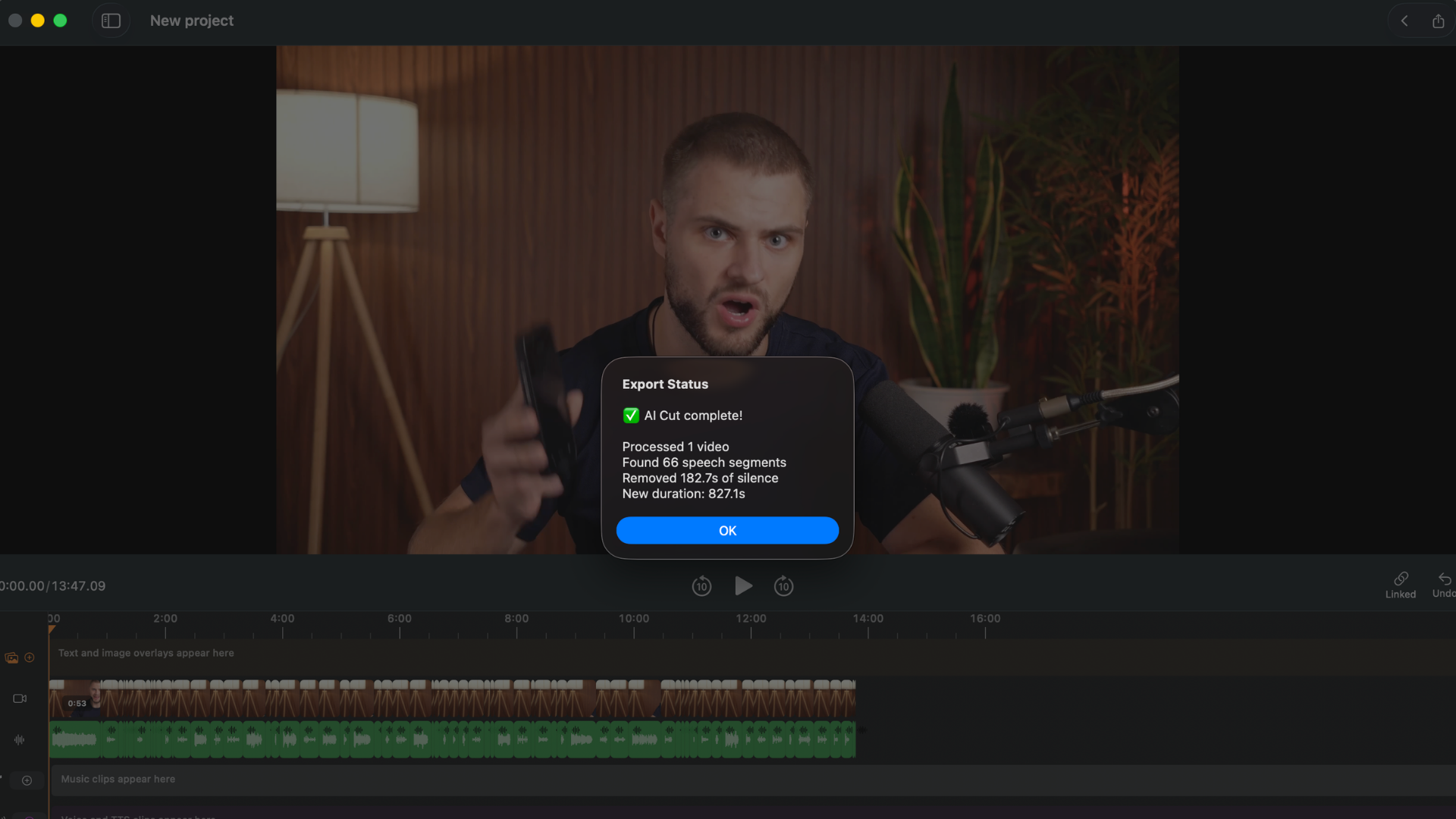
Silence removal gives the transcript edit a cleaner starting point.
Step 3: BlitzCut Builds the Transcript
Next, BlitzCut creates a transcript of the spoken content. The transcript is not just a text file. It is connected to the edit.
That means each word has timing information. BlitzCut knows when the word happens in the video, so the transcript can control the cut.
Once the transcript is ready, you can use it to:
- Search for a phrase
- Jump to a section
- Find a mistake
- Cut a sentence
- Remove a whole topic
- Generate captions
Step 4: Delete Words to Cut Video
This is the core text-based editing action.
Highlight the words you do not want, then delete them. BlitzCut removes that exact spoken section from the video.
Common edits:
| Transcript Edit | Video Result |
|---|---|
| Delete a filler phrase | The filler phrase is removed |
| Delete a repeated sentence | The duplicate take is cut |
| Delete setup chatter | The video starts faster |
| Delete a paragraph | The whole tangent is removed |
| Delete the ending ramble | The video finishes cleaner |
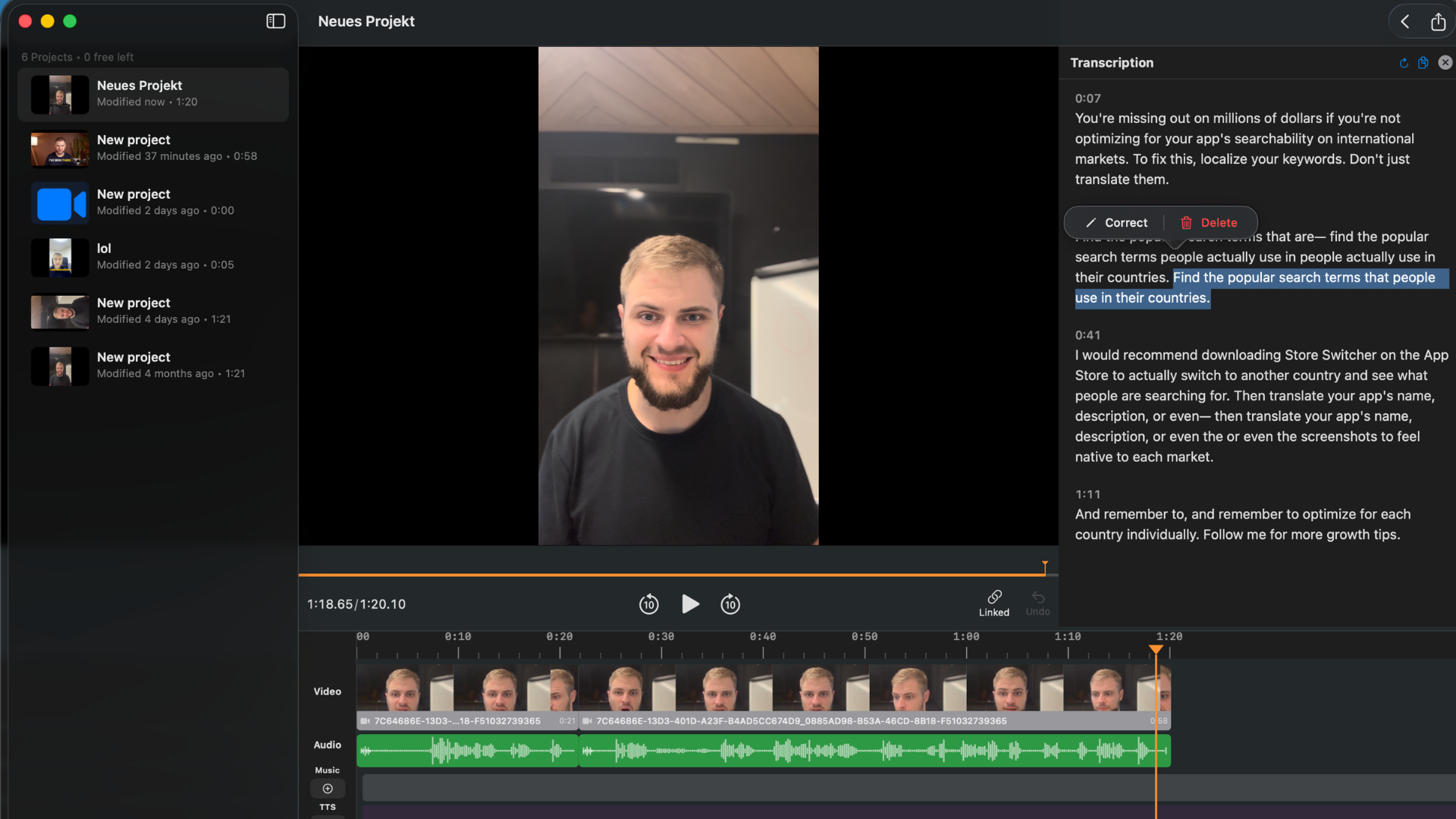
Select text, delete it, and the matching video section is removed automatically.
The result is a rough cut that matches the transcript. You are not guessing where the cut should happen. You are cutting the exact spoken words you selected.
Step 5: Review the Cut
After deleting text, play the surrounding section. You are checking for two things:
- The sentence still makes sense
- The cut sounds natural
Most transcript edits work immediately. Some need a small manual trim if the speaker breathes, laughs, or overlaps words around the cut.
The best workflow is:
- Make text edits quickly
- Play only the seams around each cut
- Adjust any cut that feels too tight or too loose
- Move on
That is much faster than watching the whole timeline from beginning to end after every change.
Step 6: Add Captions From the Same Transcript
After the edit is clean, the transcript becomes the caption source.
BlitzCut can generate:
- Standard subtitles
- Bold social captions
- Word-by-word karaoke captions
For TikTok, Reels, and Shorts, karaoke captions are often the best style because the active word highlights as the person speaks. For YouTube or course videos, standard captions may be more appropriate.
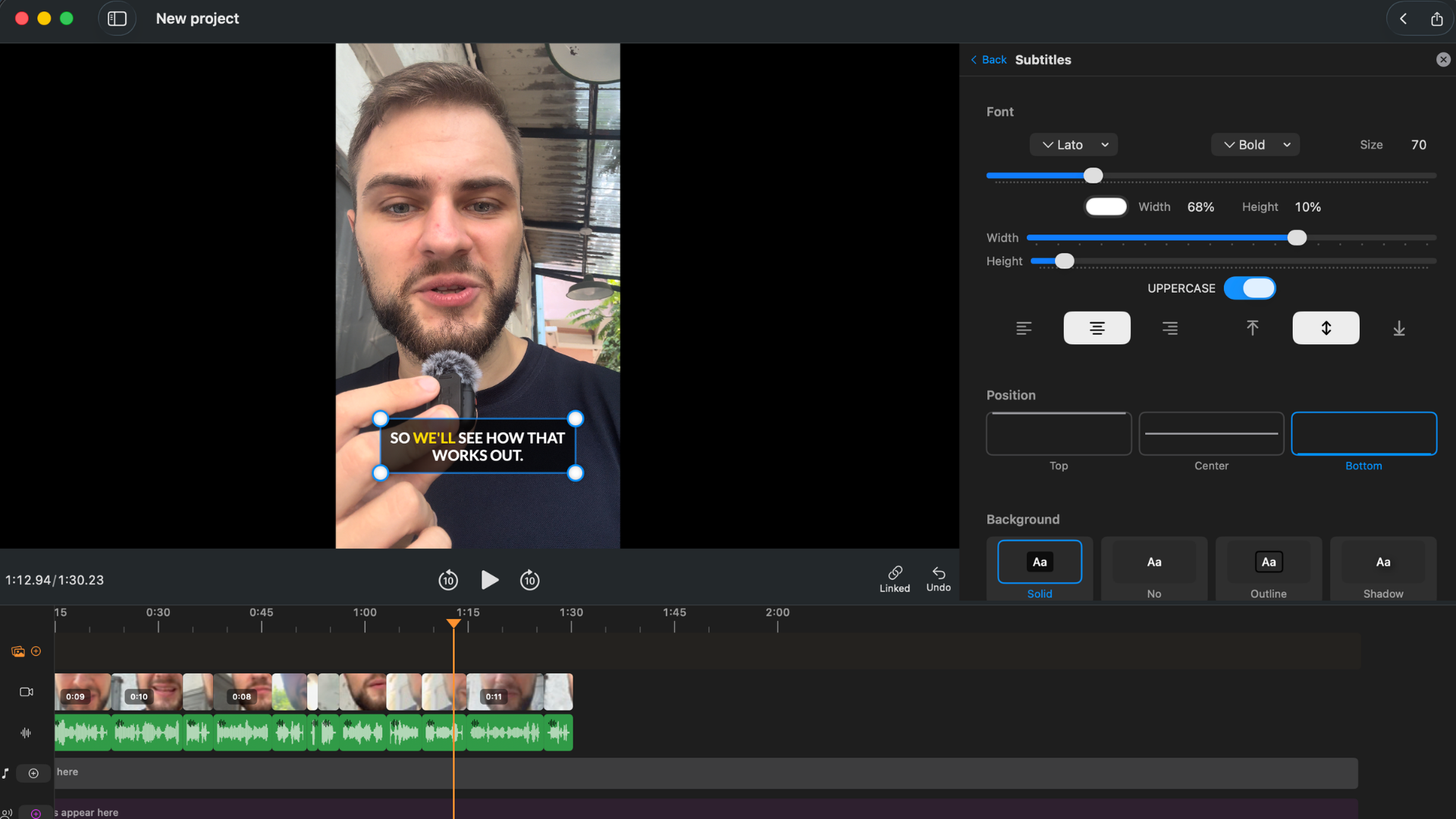
Captions are generated from the same transcript used for editing.
Step 7: Export the Final Video
Choose the format based on where the video is going:
- 9:16 for TikTok, Reels, and YouTube Shorts
- 16:9 for YouTube, courses, webinars, and podcasts
- 1:1 for feed posts and LinkedIn
Then export up to 4K with no watermark on paid plans.
A Real Example
Imagine you record a 12-minute talking-head video about a product update.
The raw recording includes:
- 20 seconds before you start
- Three false starts
- Two long pauses while you read notes
- One tangent that should be cut
- A cleaner second version of the outro
In a traditional editor, you would scrub the timeline, listen, cut, replay, and adjust. In BlitzCut, you scan the transcript:
- Delete everything before the real first sentence
- Delete the false starts
- Delete the tangent paragraph
- Delete the weaker outro
- Add captions
- Export
That is the point of text-based editing. You use reading speed instead of timeline hunting.
What Text-Based Editing Is Not
Text-based editing is not magic. It works best when speech is clear and the content is mostly dialogue.
It is less useful for:
- Music videos
- Montages
- Silent B-roll edits
- Heavy visual storytelling
- Videos where the best moments are not spoken
For those projects, a traditional timeline still matters. BlitzCut includes manual trimming, but the transcript workflow shines when spoken words drive the video.
Frequently Asked Questions
Does deleting text really delete the video? Yes. In BlitzCut, the transcript is linked to the video timing. Deleting text removes the matching section from the edit.
Can I undo a transcript edit? Yes. Use normal Mac editing habits such as undo while you work.
Does text-based editing replace manual trimming? Not completely. It replaces most rough-cut work for spoken videos. You may still use manual trimming for fine timing.
Does BlitzCut work for long videos? Yes. BlitzCut is built for both short clips and longer talking videos, including podcasts, courses, interviews, and YouTube recordings.
Do I need editing experience? No. If you can edit a document, you can understand the basic workflow.
Related: Text-Based Video Editing on Mac Without Paying $24/Month · Edit Video by Editing Text: Beginner's Guide · BlitzCut for Mac: Everything You Need to Know
Editing a talking-head video?
BlitzCut is available on Android, iPhone, iPad, and Mac. It is designed for recorded UGC-style videos, founder-led ads, tutorials, and testimonials and other talking-head content.
Try it for freeRelated Articles
Keep Reading

Best Auto Caption App for iPhone (2026): 8 Apps Compared
The best auto caption app for iPhone: BlitzCut, CapCut, Captions, Edits, InShot, VN, KineMaster, and Premiere compared on caption styles, editing, SRT export, and price.

Best CapCut Alternatives (2026): 10 Apps Like CapCut for iPhone, Android and PC
The best CapCut alternatives for iPhone, Android, Mac, and PC: free and paid apps like CapCut, compared on silence removal, captions, templates, watermarks, and price.

Best Free Video Editing App for iPhone (2026): 8 Apps, Most With No Watermark
The best free video editing app for iPhone: iMovie, Premiere mobile, Edits, VN, YouTube Create, CapCut, InShot, and KineMaster compared on watermarks, captions, 4K export, and what's actually free.