
How to Add Captions to Instagram Reels (Automatically)
How to add captions to Instagram Reels: use the Captions sticker for free auto captions, or burn in styled word-by-word captions with Edits, CapCut, or BlitzCut. Steps for each.


To add captions to an Instagram Reel, open the Reels editor, tap the sticker icon, choose the Captions sticker, and Instagram transcribes your speech automatically. Fix any wrong words, pick a style, drag the captions where you want them, and share. If you want animated word-by-word captions, your own fonts, or one captioned file you can also post to TikTok and Shorts, caption the video in an editing app like Edits, CapCut, or BlitzCut before you upload it.
Disclosure: BlitzCut is our app. Instagram steps were checked in the iPhone app in October 2026; menu names can shift between app versions and regions.
Two ways to caption a Reel
| Method | Best for | Style control | Cost |
|---|---|---|---|
| Captions sticker (inside Instagram) | Quick Reels you post only to Instagram | A few preset styles and colors | Free |
| Burned-in captions (made in an app, then uploaded) | Branded Reels, word-by-word captions, cross-posting | Full: font, color, highlight, position | Free to paid, by app |
Both put text on the video that every viewer sees. The difference is how much control you get and whether the captions survive outside Instagram.
How to add captions with the Instagram Captions sticker
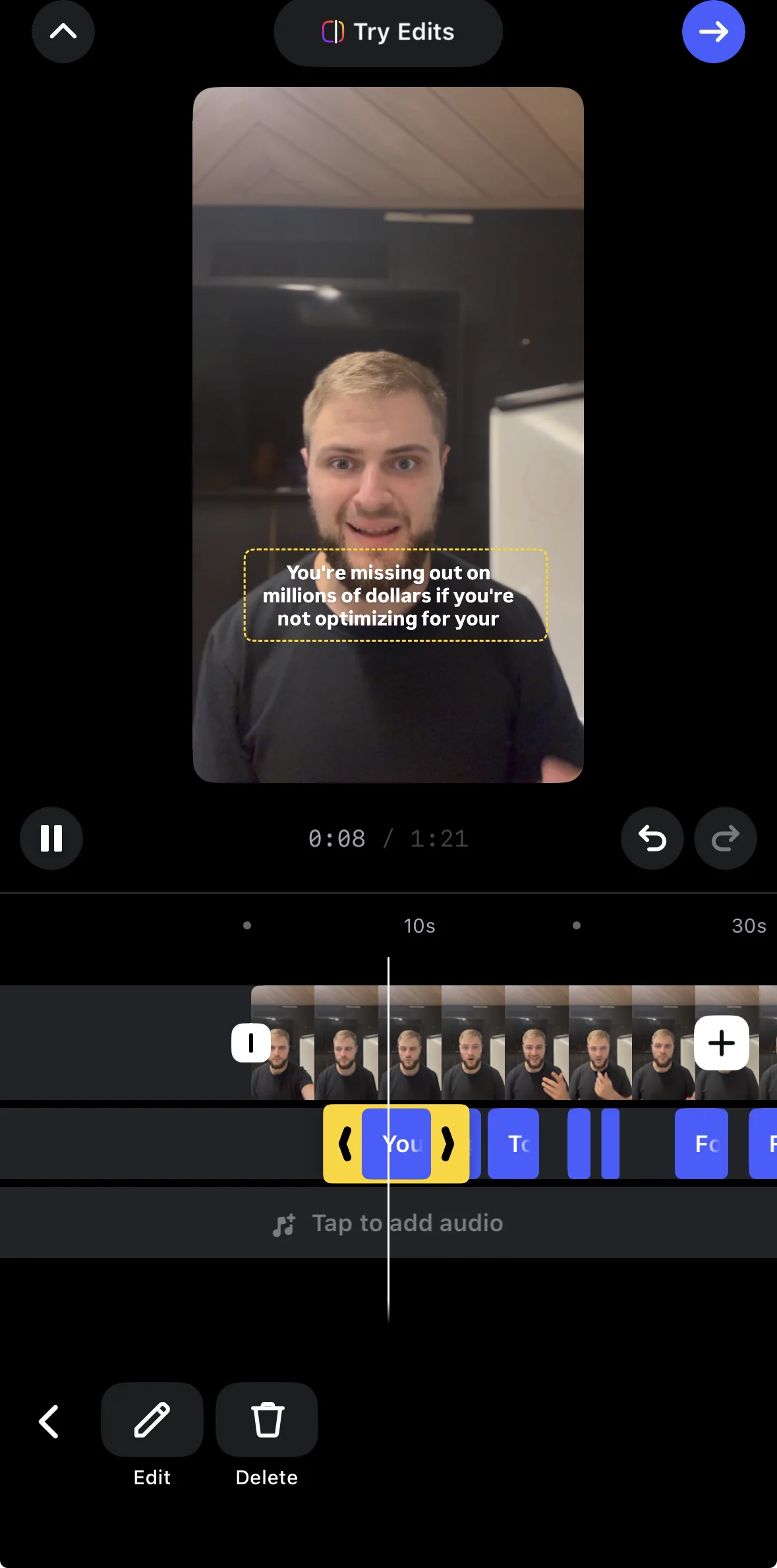
- Open Instagram, tap +, and choose Reel.
- Record or pick your video, then tap Next (or Edit video) to open the editor.
- Tap the sticker icon (the square smiley face).
- Tap Captions. If you don't see it, type "captions" in the sticker search bar.
- Wait a few seconds while Instagram transcribes the audio.
- Tap the captions to correct wrong words. Names, brands, and numbers are the usual mistakes.
- Use the buttons at the top to change the style and color, pinch to resize, and drag the captions into place.
- Tap Done, then Next, and share.
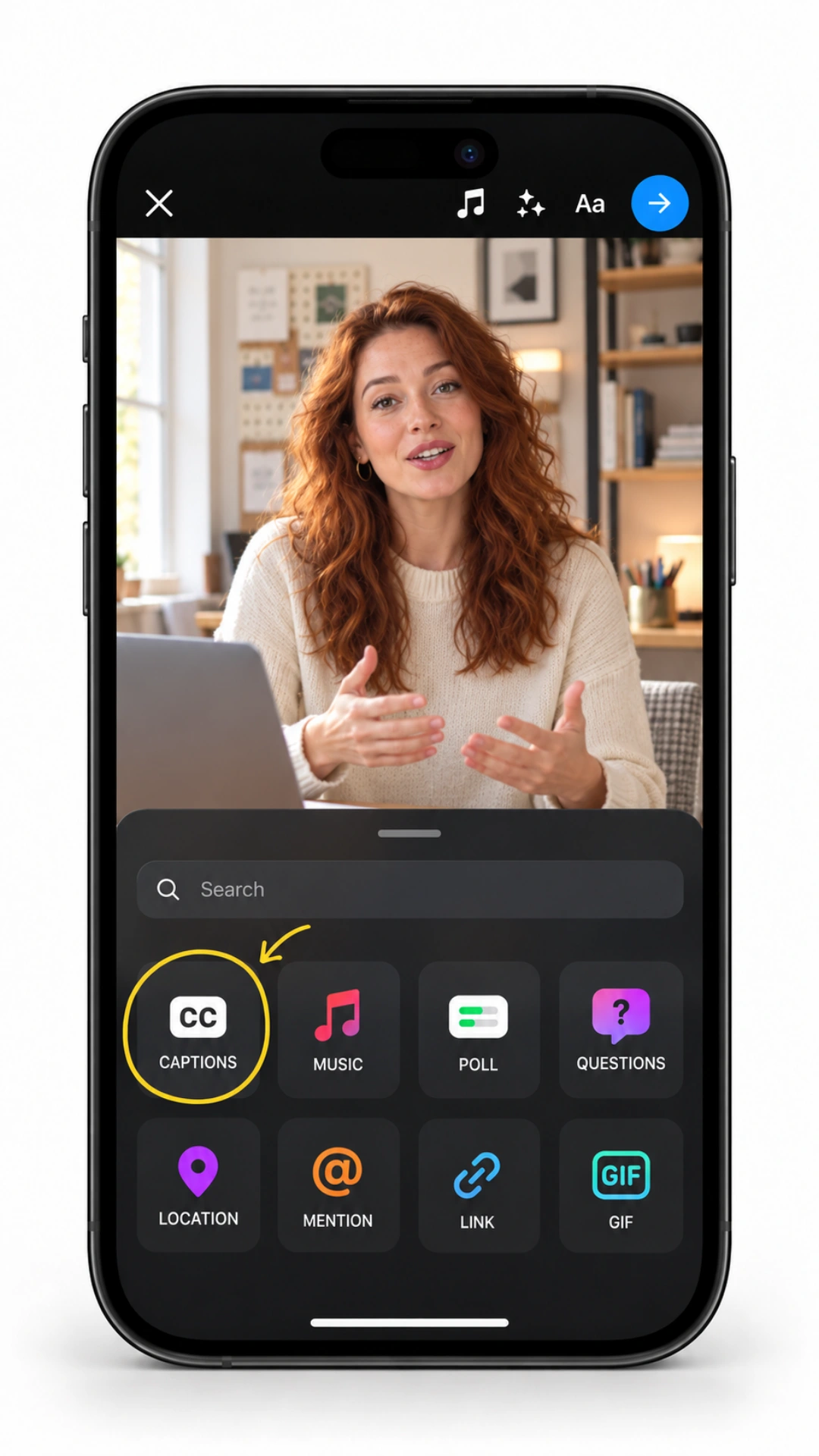
Keep the captions out of Instagram's buttons. The like, comment, and share buttons sit on the right edge, and your username and caption text cover the bottom. Place captions in the middle third of the screen. See where to put captions on short-form video.
What the Captions sticker can't do
- No word-by-word highlighting. You can't make each word light up as it's spoken, the style most talking-head creators use.
- Limited styling. A handful of preset looks and colors; no custom fonts or brand colors.
- No timing control. You can fix words but not change when lines appear.
- Instagram only. The sticker stays on Instagram. If you post the same clip to TikTok or YouTube Shorts, you have to caption it again there.
- Not after posting. You can't add a sticker to a Reel that's already live. You'd have to delete it and post it again.
Instagram Reels auto-subtitles: where to find them
The way to add subtitles automatically on Instagram Reels is the Captions sticker above. Instagram also has a second, separate feature: auto-generated captions, a subtitle layer Instagram makes from your audio that each viewer can show or hide. It isn't part of the video, and you can't style it. Here's where the settings live.
Before you share a Reel: on the final share screen, tap Advanced settings (on some versions it's under More options) and switch Show captions on or off. If captions are available for your Reel, they show by default unless you turn them off.
After the Reel is posted: tap the three dots on the Reel, then Edit > Advanced settings, and change Show captions. On Android the toggle may be labeled Enable closed captions.
As a viewer: tap the three dots on a Reel and choose Manage captions to switch them on or off for that video. To change it for every video, open your profile, tap the menu (three lines), then Accessibility > Captions.
A few limits to know:
- Auto-generated captions only appear in the Instagram mobile app, not on a computer.
- They aren't available in every language or region, so don't rely on them as your only captions.
- If you used the Captions sticker or burned captions in, turn Show captions off for that Reel. Otherwise viewers with captions on see two sets of text stacked on top of each other.
Menu names come from Instagram's Help Center and can shift between app versions.
How to add burned-in captions with an app
Burned-in captions are drawn into the video before you upload it. They look the same on every phone and every platform, and you get full control over style. Here are three apps that caption automatically.
Edits: free, made by Instagram
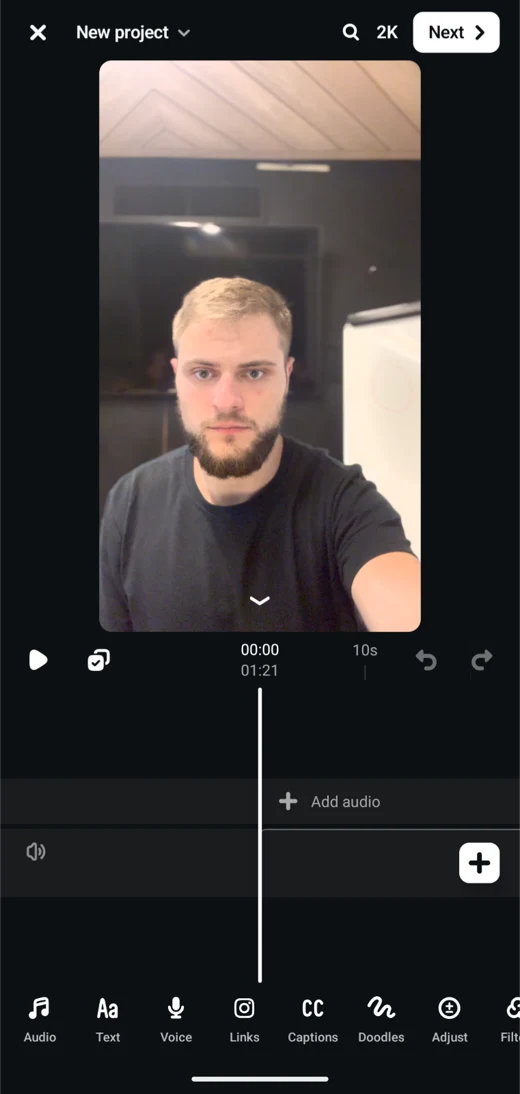
Meta's Edits app is free, has no watermark, and captions automatically:
- Open Edits and start a new project with your clip.
- Tap Captions in the toolbar and let it transcribe.
- Fix any wrong words and pick a style.
- Export, or share directly to Instagram.
It's the easiest step up from the sticker if you only post to Instagram and want more style options. Exported files work on any platform.
CapCut: free captions with templates
- Open CapCut, tap New project, and add your video.
- Tap Captions, then Auto captions, and choose the spoken language.
- Correct the text, then choose a caption template or style.
- Export and upload the file to Instagram.
CapCut's templates include animated, word-highlight styles. Some templates and AI tools need CapCut Pro, priced by region and device. A free export has no watermark as long as you delete the default ending clip. If you're weighing other options, see CapCut alternatives.
BlitzCut: cut the pauses, then caption
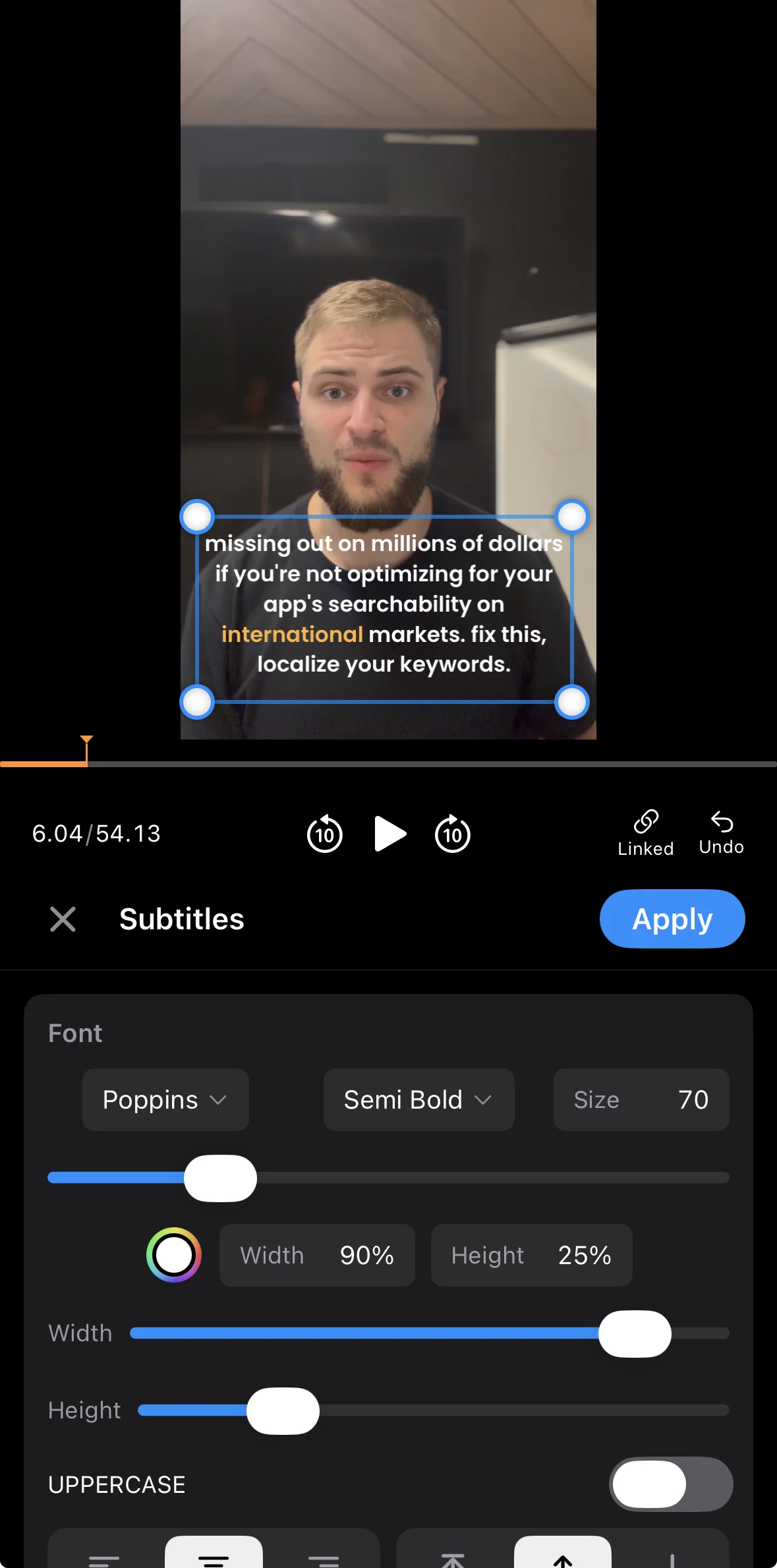
If your Reel is you talking to the camera, BlitzCut handles the edit and the captions in one go:
- Import your clip on iPhone, iPad, Mac, or Android.
- Run AI Cut to remove the silences and pauses.
- Read the transcript and delete any retakes. Deleting a word cuts it from the video.
- Tap Generate captions and choose a word-by-word or standard style. Adjust the font, colors, and position.
- Export in 9:16 and upload to Instagram.
Because the captions are made from the already-trimmed transcript, you never style a sentence you're about to cut. BlitzCut has a 3-day free trial with no watermark; after that, plans on the US App Store are $6.99/week, $69.99/year, or $129.99 lifetime.
US prices are shown for reference. BlitzCut is priced by region (in India, for example, weekly and monthly plans cost more than 60% less), so check the price in your region.
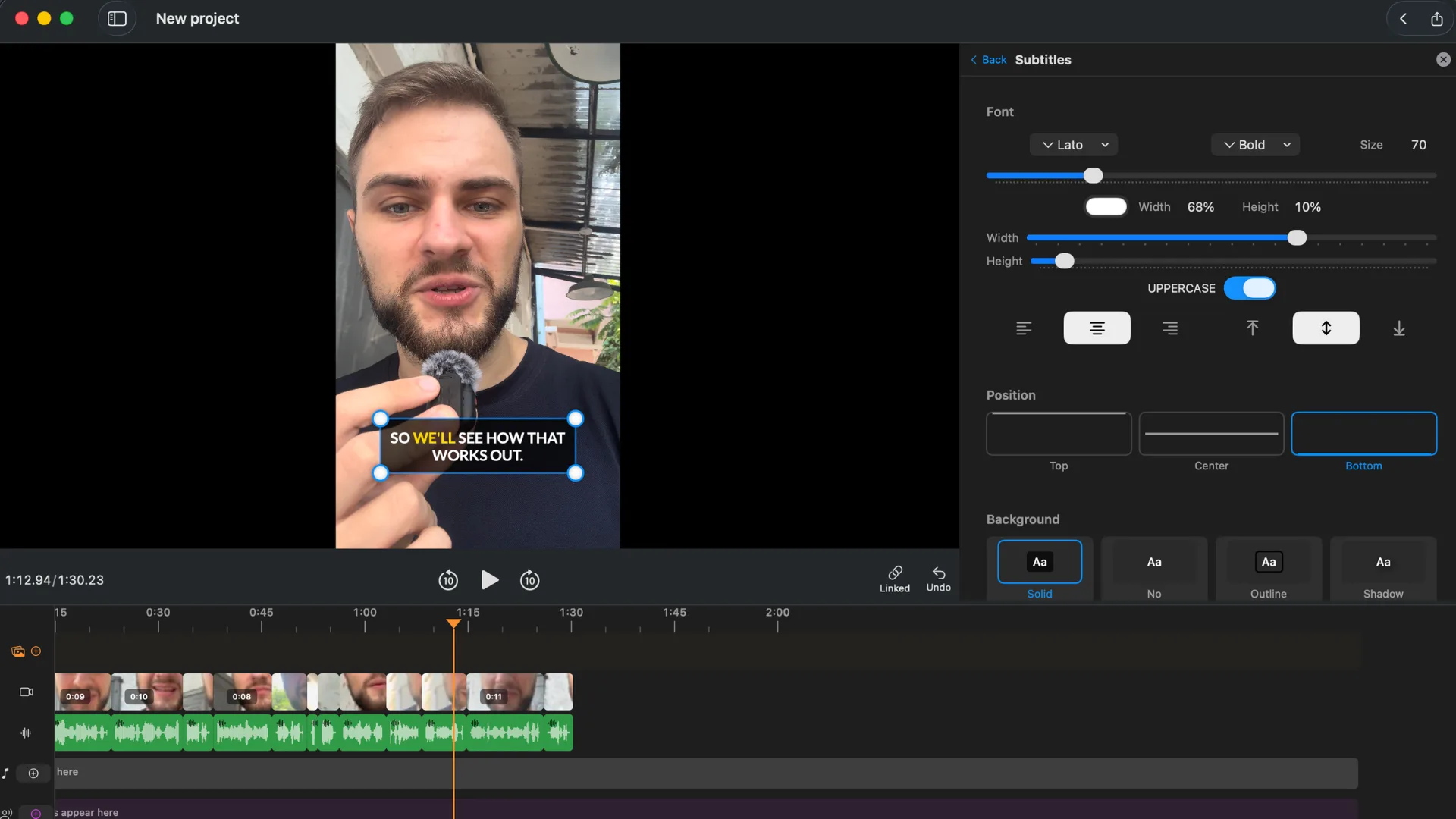
Other auto-caption tools work the same way: Captions on iPhone, and Submagic in the browser (its free plan is limited to a few short, watermarked videos a month; see Submagic's pricing).
For a Reel that also needs a shorter opening and a vertical crop, see the Reels editing workflow before finishing the captions.
Which method should you use?
| If you... | Use |
|---|---|
| Post casually and only to Instagram | The Captions sticker |
| Want more styles but still free, no watermark | Edits |
| Already edit in CapCut or want trend templates | CapCut |
| Film yourself talking and need pauses cut too | BlitzCut |
| Post the same video to Reels, TikTok, and Shorts | Any app that burns captions in |
| Need captions in another language | An app with translation (see below) |
Tips for Reels captions that people actually read
- Size: large enough to read on a phone at arm's length. See caption size for Reels.
- Contrast: white text with a dark outline or background box works on any footage. See caption colors for Reels.
- Line length: one or two short lines at a time. Long blocks of text get skipped.
- Check the first frame. Many people decide in the first second. Make sure the opening words are on screen from frame one.
- Proofread names and numbers. Auto captions get these wrong most often, and a misspelled brand name looks careless.
For a style guide with examples, see the best caption style for Instagram Reels.
Frequently asked questions
How do I turn on auto captions for Instagram Reels?
Add the Captions sticker in the Reels editor: tap the sticker icon, choose Captions, and Instagram transcribes the speech. Viewers can also turn on auto-generated captions themselves, if the creator hasn't switched them off.
Why can't I find the Captions sticker?
Search for "captions" in the sticker tray. If it still isn't there, update Instagram. The sticker isn't available in every language and region, so if it's missing, use an app like Edits or CapCut to burn captions in.
Can I add captions to a Reel after posting it?
Not with the sticker. You'd need to delete the Reel, add captions, and post it again, which resets its views and comments. Caption before you post.
What's the best free app to add captions to Instagram Reels?
Edits, Meta's own editor, is free and adds no watermark. CapCut is also free if you remove the ending clip before export. Both caption automatically.
Do captions help Reels get more views?
Captions let people follow your Reel with the sound off, which keeps more of them watching. Instagram hasn't said captions are a ranking factor by themselves, but watch time matters, and captions help with it.
Why does my Reel show two sets of captions?
Instagram's auto-generated captions are on as well as your sticker or burned-in captions. Edit the Reel, open Advanced settings, and turn Show captions off.
Should I add captions before or after editing?
After. Make your cuts and remove pauses first, then caption the final version, so the text stays in sync and you don't fix words you're about to cut.
Can I add captions in another language?
The sticker transcribes the language you speak. For a translated version, use an app with caption translation; see how to auto-translate subtitles for Reels and TikTok.
Related: How to add captions to Facebook Reels · Best auto caption app for iPhone · Animated vs static captions · Auto captions
Editing a talking-head video?
BlitzCut is available on Windows, Android, iPhone, iPad, and Mac. It is designed for recorded UGC-style videos, founder-led ads, tutorials, and testimonials and other talking-head content.
Download BlitzCutRelated Articles
Keep Reading

Best TikTok Hooks for 2026 (40 Templates That Still Work)
The TikTok hook structures that hold attention in 2026 — 40 fill-in templates by category, why each works, and the three-second rule that decides everything.

Hook Rate: What It Is, How to Calculate It, and What's Good
Hook rate is 3-second video plays divided by impressions. How to calculate it in Meta Ads Manager, what a good hook rate is, and how to raise it.

How to Grow on TikTok From Zero (2026 Guide)
How to grow on TikTok from zero followers: pick a niche, hook fast, keep videos tight, post 2 to 5 times a week, and turn views into followers.