
How to Add Captions to Facebook Reels (2026 Complete Guide)
How to add captions to Facebook Reels in 2026 — built-in auto-captions, third-party tools, and pre-burned subtitles. Step-by-step for each method.


Facebook Reels support three captioning methods in 2026:
Facebook's built-in automatic captions (toggled on during upload)
Third-party tools that generate styled captions as a separate file
Pre-burned captions baked into your video before you upload.
Pre-burned animated captions — generated in your editor before upload — give you the most control over style and accuracy.
All three methods work: which one to use depends on how much you care about caption style and accuracy. Facebook's built-in auto-captions are the fastest for a quick post.
This guide covers all three methods step by step, then covers best practices for Facebook Reels captions in 2026.
Why Captions Matter on Facebook Reels
Facebook Reels autoplay muted in the feed by default. Viewers tap to unmute — or they don't. Research consistently shows that 80–85% of social video is watched without sound for at least part of the view. Without captions, that audience sees moving lips and no context, and they scroll.
Beyond retention, captions in 2026 also:
- Improve accessibility for d/Deaf and hard-of-hearing viewers
- Help with SEO — Facebook indexes Reel captions in search
- Increase watch time — captioned Reels hold muted viewers through the full video
- Signal production effort — styled, clean captions correlate with higher engagement in platform studies
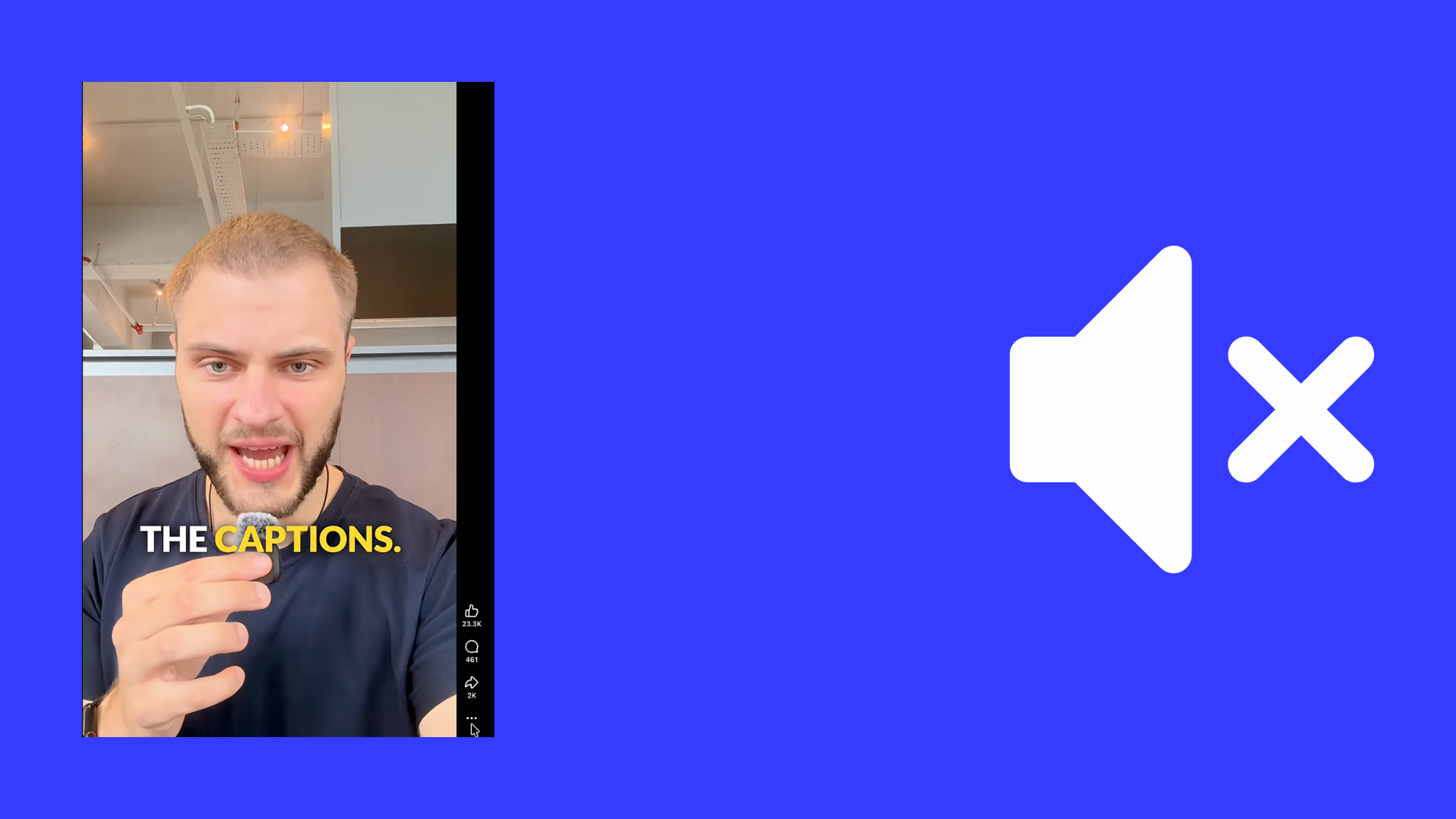
Facebook Reels autoplay muted. Captions are how your content communicates to the 80%+ of viewers who don't tap to unmute.
Method 1: Facebook's Built-In Auto-Captions (Fastest)
Facebook has had automatic captions for videos since 2016. In 2026, the feature works directly in the Reels creation flow on both mobile and desktop.
How to Enable on Mobile (iOS and Android)
- Open the Facebook app and tap Create → Reel
- Record a new video or tap the photo library icon to select an existing video
- On the editing screen, scroll through the options panel at the bottom and tap Captions
- Toggle Automatic captions on
- Review the generated captions — you can tap individual words to correct errors
- Tap Done, complete your Reel details (description, tags), and tap Share
How to Enable on Desktop / Facebook Web
- Go to facebook.com and click Create Reel from your feed or profile
- Upload your video file
- In the captions section on the right panel, select Auto-generate captions
- Review and correct any transcription errors
- Publish
Accuracy and Limitations
Facebook's auto-captions are accurate for clear speech, standard accents, and quiet recording environments. Accuracy drops noticeably with:
- Strong accents or non-native English
- Background noise or music
- Fast speech or overlapping speakers
- Technical jargon, brand names, or proper nouns
Always review generated captions before publishing. Facebook gives you an edit interface — tap any word to correct it. Plan 5–10 minutes for a 60-second Reel to review and fix errors.
Style limitations: Facebook's built-in captions appear as white text in a simple lower-third bar. You cannot change the font, color, size, or animation style. For styled, animated captions, use Method 3.
Method 2: Third-Party Caption Tools
Third-party tools generate captions outside Facebook and either provide a subtitle file (SRT) you upload with the video, or add styled captions directly into the video file.
Upload an SRT File
Facebook accepts SRT (SubRip) subtitle files uploaded alongside your video. The SRT file contains timed text that Facebook displays as closed captions — viewable by the user but not burned into the video.
Tools that generate SRT files:
- VEED.io — web-based, upload video, auto-transcribe, download SRT
- Zubtitle — built for social media, exports SRT and styled video
- CapCut — free auto-captions, export as SRT from the desktop app
- Descript — generates transcript, export as SRT
How to upload SRT with a Facebook Reel:
- Create your Reel video file
- Generate an SRT file from your tool of choice
- Upload the video via facebook.com (desktop)
- In the upload panel, find "Subtitles & captions" → Upload SRT file
- Match the language, review, publish
Note: SRT upload works on video posts but has inconsistent support specifically in the Reels creation flow on mobile. If you can't find the SRT option in mobile Reels creation, use the desktop uploader or switch to Method 3.
Tools Purpose-Built for Facebook Reels Captions
Several tools are specifically optimized for social caption generation with styled output:
Submagic — AI captions with animated word-by-word style, emoji overlays, and direct export for Facebook/Instagram/TikTok. Starts at $20/month.
OpusClip — auto-clips long video into Reels-ready shorts with captions included. Good for repurposing YouTube or podcast content.
Zubtitle — styled captions with font/color customization, branding support, exports as MP4 with captions burned in.
Method 3: Pre-Burned Captions (Best Quality and Style)
Pre-burned captions are baked directly into the video file before you upload to Facebook. The captions are permanent — they appear for all viewers, in any player, without toggles or closed-caption settings. This is the method used by most professional creators.
Why Pre-Burned Wins for Reels
- Consistent appearance across all devices — no platform rendering differences
- Full style control — animated, colored, sized exactly how you want
- No upload dependency — Facebook's CC system doesn't need to process anything
- Works in reposts — if someone shares your Reel, captions travel with the video
How to Generate Pre-Burned Captions
Using BlitzCut (Mac or iPhone):
BlitzCut generates animated word-by-word (karaoke) captions as part of its core workflow. Under $6/month billed annually.
- Import your video into BlitzCut
- Silence removal runs automatically
- Tap Captions — AI transcription runs in the cloud, without uploading your video file
- Select caption style (karaoke word-by-word, clean line, bold centered)
- Review and correct any errors in the transcript
- Export — captions are burned into the exported MP4
- Upload the MP4 to Facebook Reels
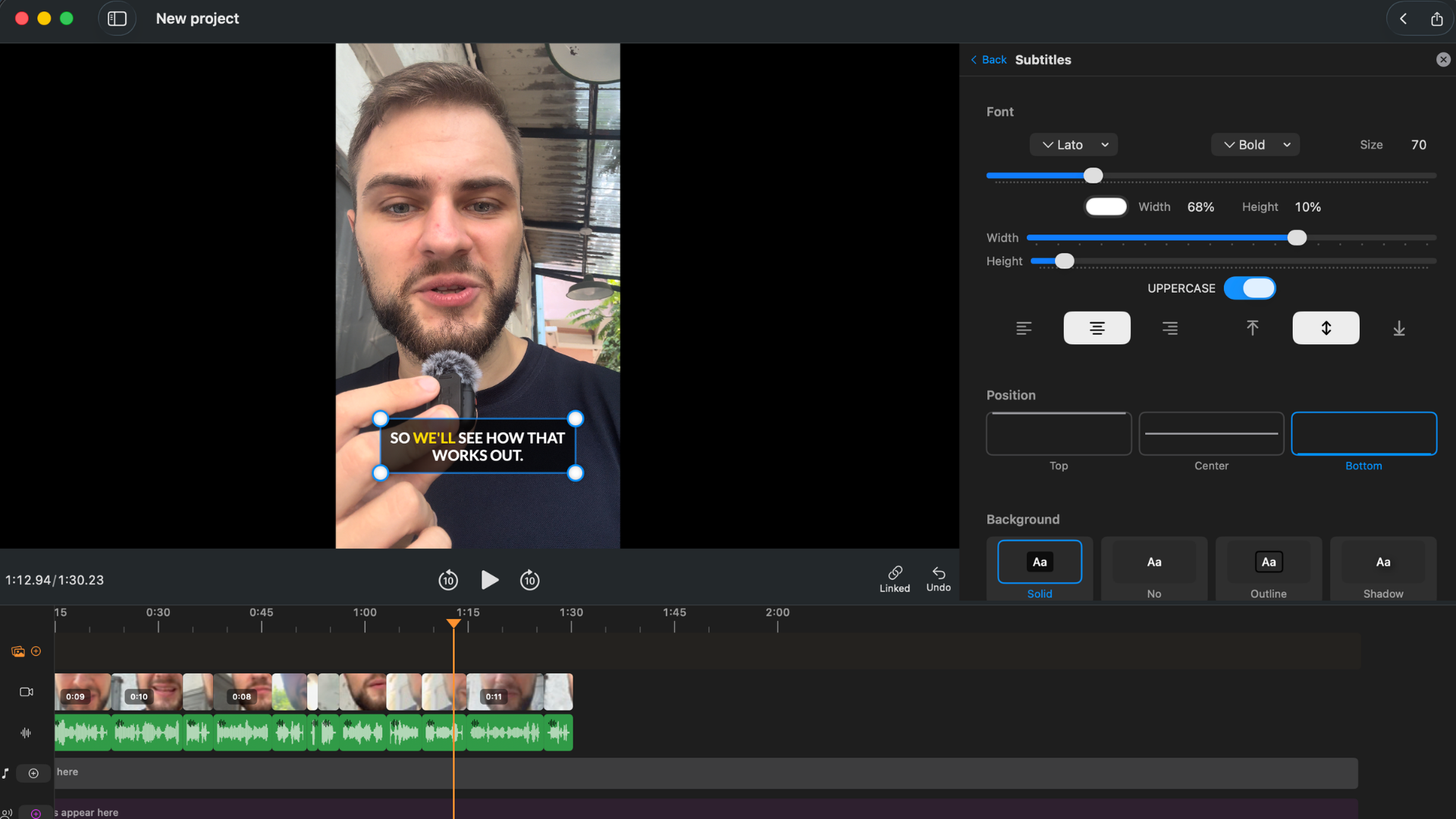
Word-by-word animated captions generated in BlitzCut and burned into the exported video. These travel with the file to Facebook, Instagram, TikTok — no platform captioning step needed.
Using CapCut:
- Import video into CapCut (mobile or desktop)
- Tap Text → Auto captions
- Review generated captions — tap to edit errors
- Customize font, color, size in the style panel
- Export as MP4 — captions are burned in
CapCut's caption styles are extensive and free on the base tier.
Using Descript:
- Import video into Descript
- Captions generate from the transcript automatically
- In the caption editor, style as needed
- Export with captions burned in (select "Subtitles on video" in export settings)
Descript starts at $24/month but has the most accurate transcription of the three tools.
Comparison: Three Methods
| Method | Style control | Accuracy | Setup time | Best for |
|---|---|---|---|---|
| Facebook built-in | None (white bar only) | Good | 2 min | Quick posts, no style needs |
| SRT file upload | Limited (platform-rendered) | Your tool's quality | 10 min | Accessibility focus |
| Pre-burned (editor) | Full — any font/color/animation | Your tool's quality | 5–15 min | Professional look, repurposing |
Caption Best Practices for Facebook Reels (2026)
Placement
Position captions in the lower third of the frame, but leave 15% margin from the bottom edge. Facebook's UI (like, comment, share buttons) covers the bottom 15–20% of the frame on most phones. Captions placed too low will be partially hidden by the action bar.
Don't place captions in the top 15% either — the username, follow button, and audio attribution bar occupy that zone.
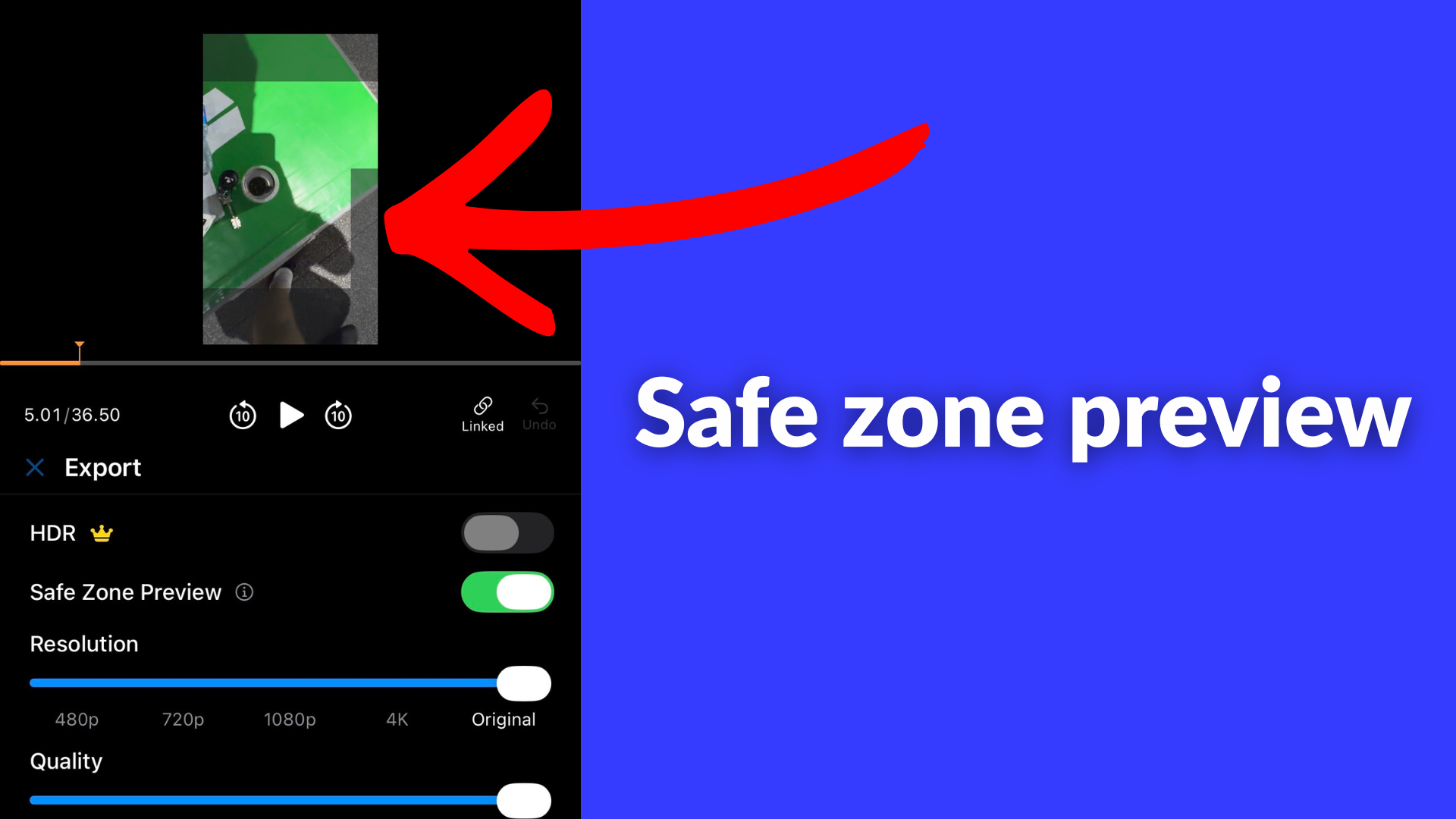
Facebook Reels UI covers the top and bottom 15–20% of the frame. Place captions between those zones — in the lower third but above the action bar. Blitzcut shows our safe zone overlay.
Reading Speed and Segment Length
Keep individual caption segments short: 3–7 words per line is the target. Longer captions require more reading time than the audio provides, causing viewers to fall behind and lose the thread.
For word-by-word animated captions, this is handled automatically — each word appears in time with speech. For static caption blocks, manually break long sentences at natural pause points.
Font Size
Minimum 24pt equivalent for mobile viewing. Captions that look fine on desktop are often unreadable on a 6-inch phone screen. Test your captions by watching on your own phone before publishing — if you can't read them comfortably while the video plays, they're too small.
Styling for Engagement
In 2026, plain white captions on a generic background are standard-but-invisible. Styling choices that increase engagement:
- High-contrast text — white with a dark stroke or shadow, or yellow/green on dark backgrounds
- Bold weight — thin fonts are hard to read quickly
- Word-by-word animation — more visually engaging than static blocks
- Consistent style — matching your brand colors builds recognition across posts
Frequently Asked Questions
Do Facebook Reels have auto-captions built in?
Yes. Facebook's auto-caption feature works in the Reels creation flow on iOS, Android, and desktop. Toggle "Automatic captions" during upload. Style options are limited (white text, standard lower third) but the feature works without any third-party tools.
Can I add styled animated captions to Facebook Reels?
Yes, via pre-burned captions. Generate animated captions in a video editor (BlitzCut, CapCut, Descript) and export the MP4 with captions baked in. Then upload that MP4 to Facebook Reels — the styled captions travel with the video.
Why are my Facebook Reels captions not showing?
Three common causes: (1) Facebook's auto-captions weren't enabled during upload — you can't add them after the fact without re-uploading; (2) the viewer has closed captions disabled in their Facebook settings; (3) if you uploaded an SRT file, it may not have been processed correctly. Pre-burning captions into the video file avoids all three issues.
Can I add captions to an already-published Facebook Reel?
Not reliably. You can edit the caption text (description) after publishing but not add video captions. Adding closed captions post-publish is inconsistently supported in the Facebook interface. If captions are missing, re-upload the Reel with captions enabled or burned in.
Do Facebook Reels captions help with reach?
Indirectly — but significantly. Facebook indexes captioned video content, which affects discoverability in search. More importantly, captions increase watch time (muted viewers stay longer), which is a direct ranking signal for Reels distribution.
What caption style performs best on Facebook Reels?
Word-by-word animated captions (each word highlights or appears as it's spoken) perform best for short-form content — they hold attention by giving viewers something to track visually. For longer tutorial content, clean static lower-third captions in a high-contrast color work well. Avoid thin fonts, small text, and captions that overlap with your face.
Related: Add Captions to Instagram Reels Automatically · How to Add Captions to YouTube Shorts · Auto Caption Generator for Mac (2026) · Best Caption Style for TikTok · Word-by-Word vs Full Sentence Captions
Last Updated: May 22, 2026 Category: Captions & Subtitles
Post every day without spending hours editing
BlitzCut is a native app for iPhone, iPad, and Mac. Get from raw footage to TikTok-ready in under 2 minutes, so editing is never the reason you didn't post.
Try it for freeRelated Articles
Keep Reading

Best AI Podcast Clip Makers in 2026 (Honest Comparison)
The best podcast clip makers compared: Opus Clip, Vizard, Riverside, Descript, and BlitzCut — ranked by how you actually clip, with real tradeoffs and pricing.

Beauty and Skincare Reel Hooks for 2026 (Creators, Estheticians and Brands)
Beauty and skincare Reels hooks for a saturated feed — transformation, myth-busting and routine templates, plus the claims that get you flagged.

Best AI Voiceover Apps for Mac Video Creators 2026
Best text-to-speech voiceover tools for Mac video editing in 2026 — ranked by voice quality, language support, and whether they need internet.