
Best Caption Apps for YouTube Shorts (2026): Free and Paid Options
The best caption apps for YouTube Shorts, free and paid: YouTube Create, YouTube Studio, CapCut, Edits, BlitzCut, Captions, Submagic, and Descript compared.


The best caption apps for YouTube Shorts are YouTube Create and CapCut if you want free, BlitzCut if your Shorts are you talking to the camera, and Submagic or Captions if you want a designed caption style on every clip. All of them generate captions from your audio automatically. The real differences are whether you can edit the words easily, how much control you get over the style, and whether the free version watermarks the export.
Disclosure: We make BlitzCut. Prices were checked on official pages and recent pricing trackers in October 2026.
Best caption apps for YouTube Shorts compared
| App | Platform | Free? | Best for | Watch for |
|---|---|---|---|---|
| YouTube Create | iPhone, Android | Free | Simple Shorts made on your phone | Auto captions limited to clips under 60 seconds |
| YouTube Studio | Web, app | Free | A subtitle track viewers can turn on | Not styled; review auto captions for errors |
| CapCut | Mobile, desktop, web | Free tier | Captions inside an effects-heavy edit | Some caption styles and AI tools need Pro |
| Edits | iPhone, Android | Free | Instagram-first creators who also post Shorts | Feature rollout varies by account |
| BlitzCut | iPhone, iPad, Mac, Android | 3-day trial | Talking-head Shorts: cut pauses, then caption | Paid after trial |
| Captions | iPhone, web | Limited | Designed styles plus AI editing | Credit-based plans |
| Submagic | Web | 3 videos/month, watermark | Batch-captioning clips with one look | Paid from about $12/month billed yearly |
| Descript | Mac, Windows, web | 1 media hour, watermark | Shorts cut from podcasts and interviews | Hobbyist $16/month billed yearly |
Best free caption apps for YouTube Shorts
If you don't want to pay anything, three options cover most Shorts:
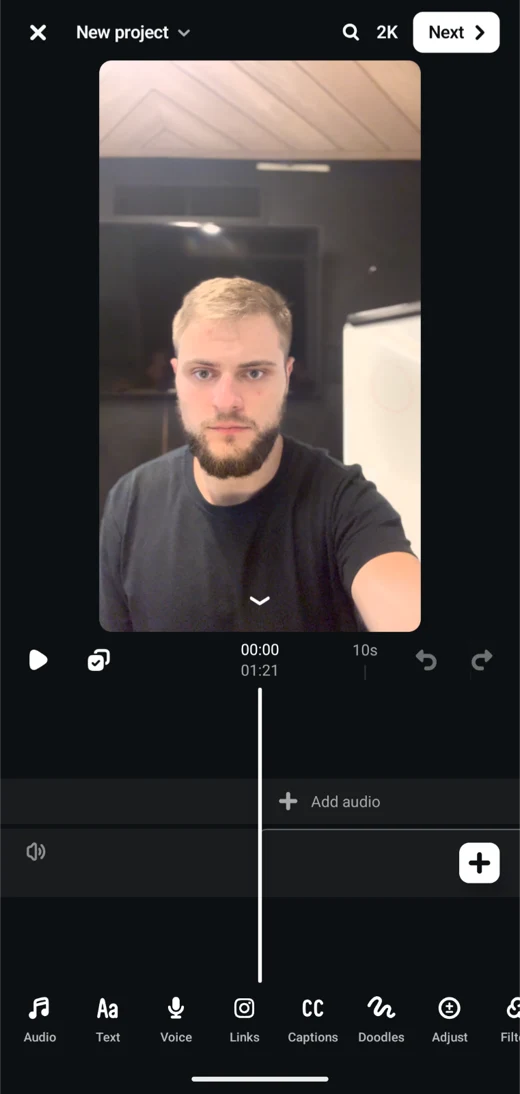
- YouTube Create generates captions in selected languages, lets you fix the words, and styles them. It's on Android and, since December 2025, iPhone (iPhone XR or later, iOS 17+) in selected regions. The catch, per Google's help page: it can't generate captions for clips longer than 60 seconds, even though Shorts can now run up to three minutes.
- YouTube Studio adds automatic captions as a separate subtitle track after you upload. Viewers can switch them on and off, and you can correct them. They aren't styled, and YouTube itself recommends reviewing them.
- CapCut includes auto captions in its free tier, though some styles and AI features are Pro-only, and the price of Pro depends on your region and device.
Edits, Meta's free editor, also captions and exports without a watermark, and you can post the file to YouTube even though it's built for Instagram.
Burned-in captions vs a subtitle track
Most Shorts creators use both, because they do different jobs:
- Burned-in captions are part of the video picture. They show on every platform, in every feed, with sound off, and you control the font, color, and animation. You can't fix a typo without exporting again.
- A subtitle track (YouTube Studio) is text the player displays on top. Viewers can turn it off, and you can correct it any time. It doesn't carry over when you repost the file elsewhere.
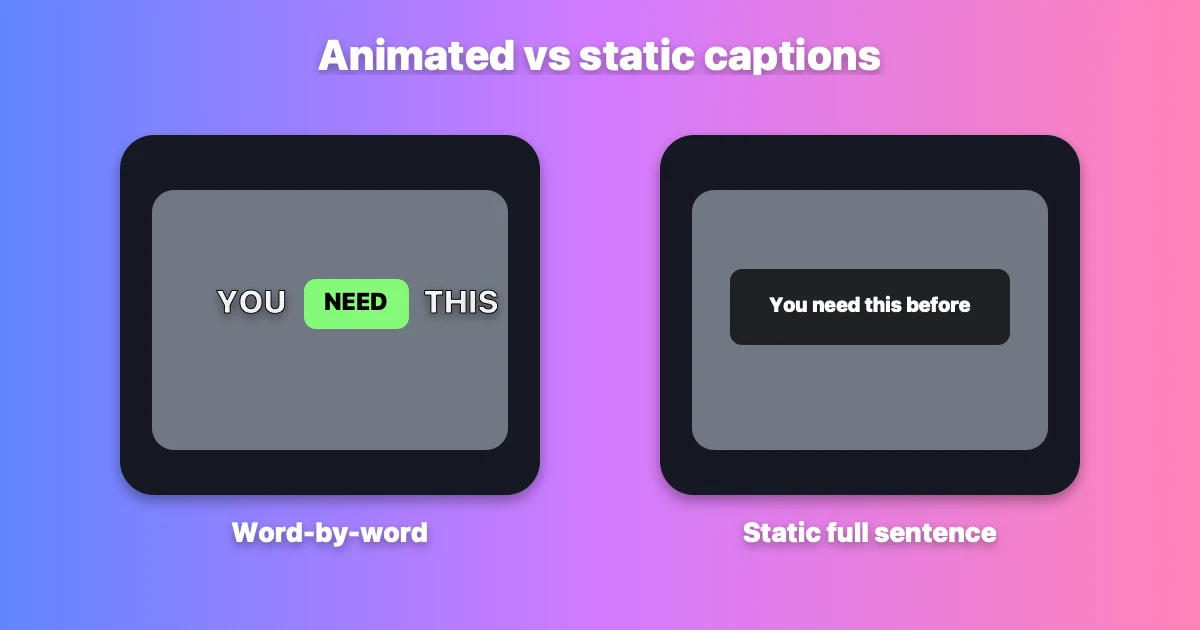
If you cross-post the same Short to TikTok and Reels, burn the captions in. Keep a clean version without captions too, in case you need another language or layout later.
BlitzCut: best for Shorts of you talking
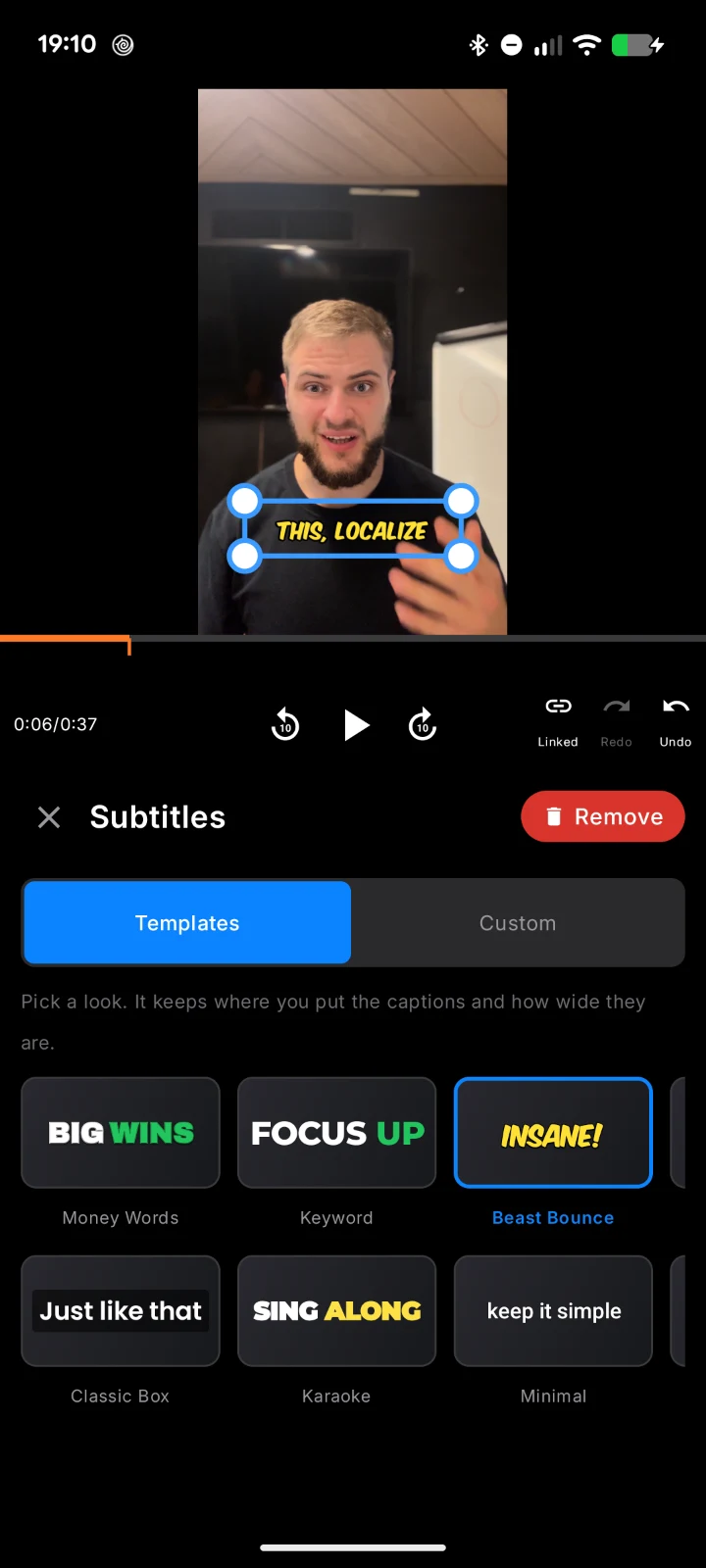
BlitzCut is built for talking-head Shorts. It removes the pauses first, lets you delete words and retakes from the transcript, and then adds word-by-word animated captions to the finished cut, so you don't style words you later delete.
Captions start from ready-made templates, including Money Words, Keyword, Beast Bounce, Classic Box, Karaoke, and Minimal: some highlight key words in color, some bounce each word in, and some keep a clean, simple line. Switching templates keeps the position and width you've set, so you can try several looks without placing the captions again. Drag the caption box on the preview to move or resize it and keep it clear of YouTube's buttons and title, or open Custom to set your own font, colors, outline, and shadow.
Because the captions come from the transcript, fixing a misheard word in the transcript fixes the caption too. You can also export an SRT file if you want a separate subtitle track on YouTube. BlitzCut runs on iPhone, iPad, Mac, and Android.
Price: 3-day trial, then $6.99/week, $69.99/year, or $129.99 lifetime on the US App Store. See auto captions.
CapCut: best for captions inside an effects edit
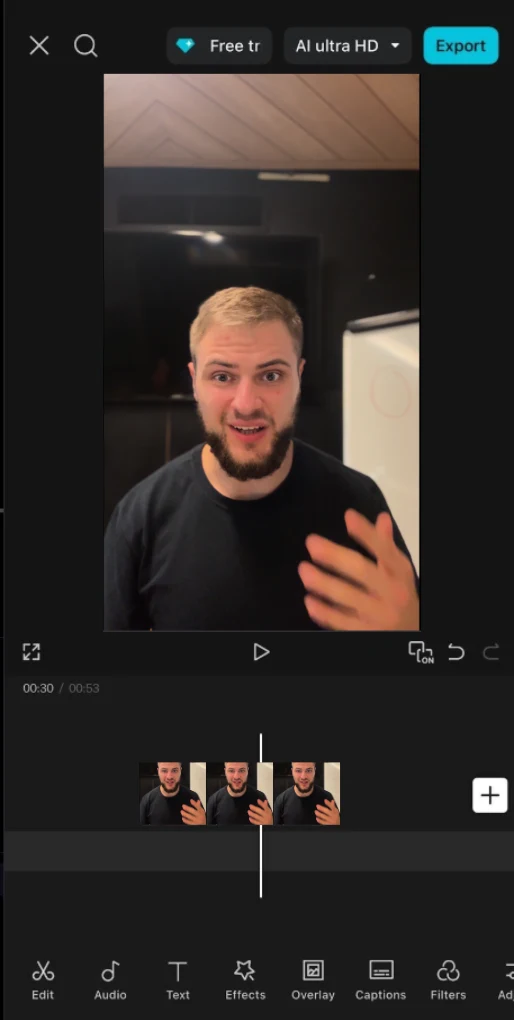
CapCut's auto captions sit next to its templates, effects, and transitions, so it's the natural choice if the rest of your Short is built there. Its transcript editor also removes filler words and speech gaps. CapCut remains available in the US, now operated by a US joint venture, though its dedicated iPad app isn't in the US App Store.
Watch for: check that the caption style you want is in your plan before you build the edit around it. See CapCut Pro pricing.
Captions and Submagic: best for a designed look on every clip
Captions offers styled subtitles, eye-contact correction, pause trimming, and translation, on iPhone and in the browser. Its iOS plans are credit-based; see Captions pricing.
Submagic is a browser tool for captioning a lot of clips with one consistent look, plus B-roll and silence removal. Pricing trackers list Starter at $19/month ($12/month billed yearly) and Pro at $39/month ($23/month billed yearly); the free plan covers three watermarked videos a month. Confirm on Submagic's pricing page.
Descript: best for Shorts cut from long recordings
If your Shorts come from a podcast or interview you already edit in Descript, correct the transcript once and every clip inherits the fixes. Free includes 1 media hour with watermarked 720p exports; Hobbyist costs $16/month billed yearly. See Descript pricing.
How to check captions before you post
- Listen without reading, then read without sound. The first pass catches awkward cuts; the second catches missing context.
- Check names, numbers, and negatives. "Can" becoming "can't" matters more than a missing comma.
- Keep lines short. Two to four words per line is easier to read on a phone.
- Keep captions out of the way. Stay clear of the speaker's face and YouTube's buttons and title at the bottom. See safe zones for Shorts, Reels, and TikTok.
- Watch the uploaded Short on your phone, not just in the editor.
For sizing, see the best caption size for YouTube Shorts.
Frequently asked questions
What is the best free caption app for YouTube Shorts?
YouTube Create, for Shorts under 60 seconds, and CapCut's free tier for longer ones. YouTube Studio's automatic captions are free too, but they're a plain subtitle track rather than styled text.
How do I add captions to YouTube Shorts?
Either burn them into the video with a caption app before uploading, or let YouTube Studio generate a subtitle track after uploading and correct it. See how to add captions to YouTube Shorts.
Does YouTube add captions to Shorts automatically?
Yes, YouTube generates automatic captions for many Shorts as a subtitle track, but availability and accuracy vary, so review them in YouTube Studio.
Which caption app is most accurate?
It depends on your voice, accent, microphone, and vocabulary. Test two apps on the same clip and count how many words you have to fix.
Related: How to add captions to YouTube Shorts · Caption accuracy comparison · Best YouTube Shorts editor · Submagic vs BlitzCut · Captions vs BlitzCut
Editing a talking-head video?
BlitzCut is available on Android, iPhone, iPad, and Mac. It is designed for recorded UGC-style videos, founder-led ads, tutorials, and testimonials and other talking-head content.
Try it for freeRelated Articles
Keep Reading

Best AI Clipping Tools (2026): Klap, OpusClip, Vizard and More Compared
Find the right AI clipping tool for podcasts, streams, and webinars. Klap, OpusClip, Vizard, Quso, and BlitzReels compared on price per clip, credits, and editing.

Best AI Video Editor for iPhone (2026): 8 Apps Compared
The best AI video editor for iPhone depends on your footage. BlitzCut, CapCut, Edits, Captions, Premiere, OpusClip, VN, and InShot compared on AI features and price.

Best AI Video Editor for Mac (2026): 6 Apps Compared
The best AI video editor for Mac: BlitzCut, Descript, CapCut, Final Cut Pro, Premiere Pro, and DaVinci Resolve compared on AI features, what runs on your Mac, and price.