
Best Caption Size for YouTube Shorts (2026) — px, em, % Reference
Best caption size for YouTube Shorts: 60–75px at 1080×1920. Safe zones, subscribe button dead zone, and exact px values for every caption style.


The best caption size for YouTube Shorts is 60–75px at 1080×1920 — the same optimal range as TikTok and Instagram Reels, since all three platforms use the same 9:16 vertical frame. The key Shorts-specific difference is the dead zone layout: the right edge is nearly clear (only ~48px), but the subscribe button expanded in late 2025 and now bites into the bottom-left corner. Place captions center-frame and keep them above 300px from the bottom.
YouTube Shorts is the youngest of the three major short-form platforms and the one with the most distinctive viewer behavior. Shorts viewers are more likely to watch with sound on than TikTok or Reels viewers (YouTube's overall audio-on culture carries over), the platform draws more desktop viewers than the other two, and the subscribe button is a more prominent UI element — because driving subscriptions is YouTube's primary goal for Shorts.
None of this changes the optimal font size. But it does change which caption placement rules matter most and how aggressively you need to style captions relative to the other platforms.
The Direct Answer: Best Caption Size for YouTube Shorts
At 1080×1920 (9:16 vertical):
| Use case | px | % of frame height | pt equivalent |
|---|---|---|---|
| Minimum readable | 48–55px | 2.5–2.9% | ~36–41pt |
| Standard (talking head, education, tutorials) | 60–75px | 3.1–3.9% | ~45–56pt |
| Bold / motivational / hype content | 75–95px | 3.9–4.9% | ~56–71pt |
| Hard maximum (before blocking footage) | 100px | 5.2% | ~75pt |
Use 65px as your starting point for most Shorts content. Adjust based on content energy and font weight. Never go below 55px for primary dialogue captions — Shorts is also watched on desktop browsers where small text is less of a problem, but mobile still accounts for the majority of Shorts views.
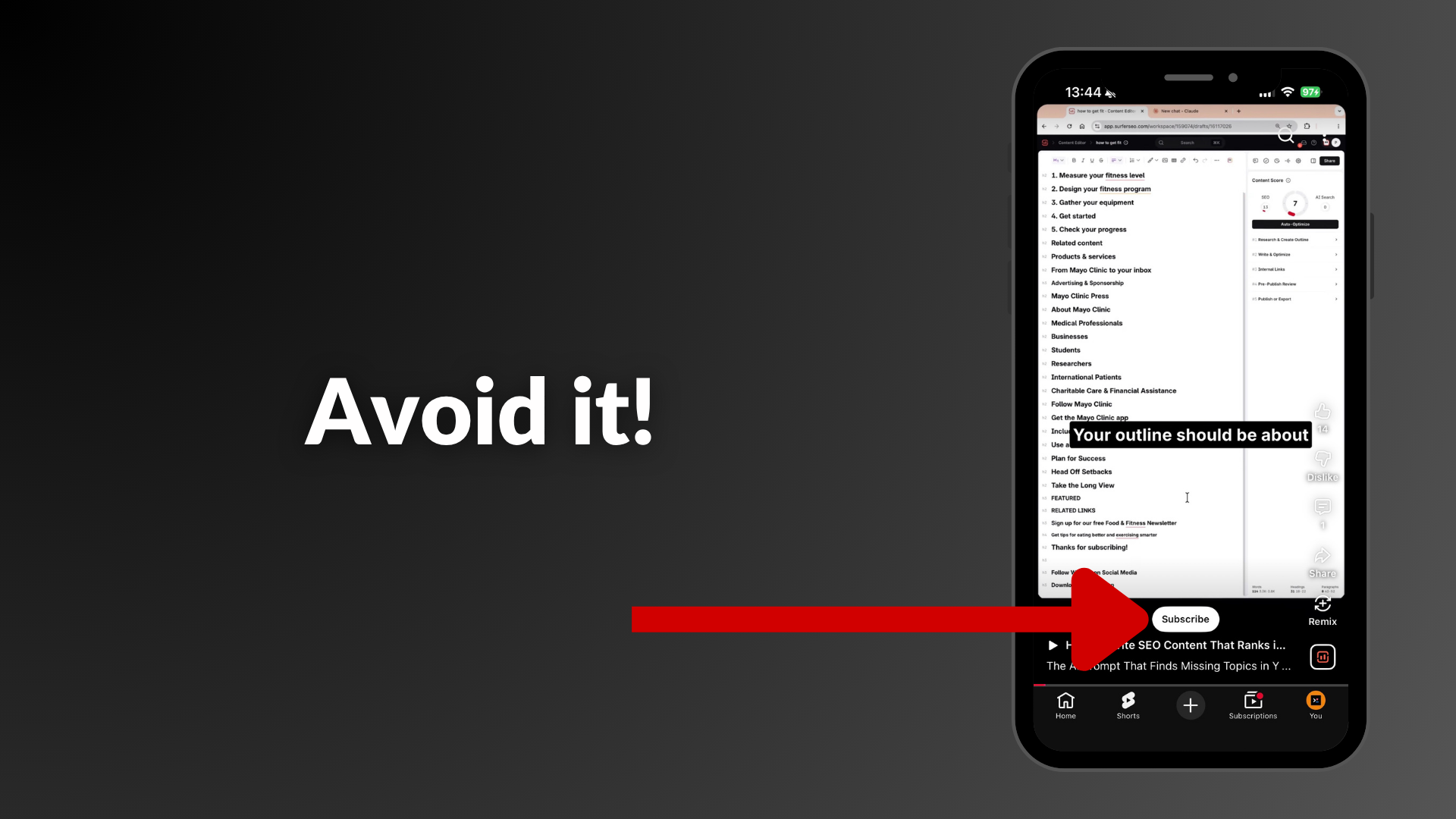
Caption size at 1080×1920 for YouTube Shorts. The right dead zone is narrow (48px) compared to TikTok, but the subscribe button at bottom-left must be avoided. Keep captions centered and above 300px from the bottom.
Why YouTube Shorts Is Different From TikTok and Reels
Same resolution. Different audience behavior. Different UI overlay.
Desktop viewers exist on Shorts
TikTok and Instagram Reels are almost entirely mobile products. YouTube has substantial desktop traffic — a significant portion of YouTube Shorts views happen in a browser on a desktop or tablet. On a desktop browser, a 48px caption in a 1080×1920 vertical player displayed at ~350px wide becomes approximately 8.75px tall — nearly invisible.
This makes the minimum caption size argument stronger on Shorts than on TikTok: the smallest percentage of Shorts viewers are on mobile, but the desktop viewers are watching at a fraction of the physical size. The 60px minimum is your floor across all devices.
Sound-on behavior
YouTube's platform culture skews toward sound-on. Shorts viewers are more likely to have audio enabled than TikTok or Reels viewers. This means captions on Shorts function slightly differently — they reinforce rather than substitute for audio.
This doesn't mean skip captions. It means your captions don't need to carry the entire viewing experience on their own. A slightly smaller size (60–65px) works fine on Shorts content where the audio is clear. The heavy-duty 80px+ sizing is less essential than on TikTok where a significant share of viewers is watching on mute.
The subscribe button and its dead zone
YouTube's subscribe button is the most prominent UI overlay specific to Shorts. In the current interface (2026), it sits in the bottom-right-ish area alongside the engagement buttons (like, dislike, comment, share). The subscribe button expanded slightly in late 2025.
Position captions in the horizontal center of the frame, not shifted right, to avoid overlap with the engage/subscribe column.
YouTube Shorts Safe Zone: Exact Measurements
YouTube Shorts has the smallest right-edge dead zone of the three major platforms — approximately 48px, compared to 120px on TikTok and Instagram Reels. This means captions can sit slightly more to the right on Shorts than on the other platforms if needed.
| Zone | Dead zone from edge | What covers it |
|---|---|---|
| Top | ~120px from top | YouTube logo, search, camera icon |
| Bottom | ~300px from bottom | Like/dislike, subscribe, channel info |
| Right edge | ~48px from right | Minimal overlap |
| Bottom-left | ~80px (expanded late 2025) | Subscribe button expansion |
| Usable safe zone | ~984×1500px centered | Clear of all major UI overlays |
Compared to TikTok's safe zone of ~960×1386px and Reels' ~900×1440px, Shorts has the most usable frame area. The right edge being nearly clear is the biggest practical difference — you can place text closer to the right edge on Shorts than you can on TikTok or Reels.
YouTube Shorts uses the same 1080×1920 frame as TikTok and Reels. The right dead zone is much narrower on Shorts, giving more usable width for caption placement.
px, em, and % — Full Conversion Reference
Video editors use different unit systems. Here are all three representations of the recommended sizes.
Pixel (px) Values
Pixels are the native unit for video editing. Every major app accepts px directly — Premiere Pro, Final Cut Pro, DaVinci Resolve, CapCut, and BlitzCut all use px for text size at the export resolution.
For YouTube Shorts at 1080×1920:
| Tier | px | Notes |
|---|---|---|
| Minimum | 48px | Avoid for primary captions |
| Comfortable minimum | 55px | Acceptable for dense content |
| Standard | 60–75px | Use for almost everything |
| Bold content | 75–95px | Energy/motivation/fitness |
| Maximum | 100px | Hard cap |
If your tool uses points (pt) rather than pixels: 1pt = 1.333px. So 60px ≈ 45pt, 75px ≈ 56pt.
Percentage of Frame Height (%)
Percentage of frame height is the resolution-independent way to specify text size. It produces consistent results at 1080p, 4K, and any other resolution.
| px at 1920 height | % of frame height |
|---|---|
| 48px | 2.5% |
| 55px | 2.86% |
| 60px | 3.1% |
| 65px | 3.4% |
| 70px | 3.6% |
| 75px | 3.9% |
| 80px | 4.2% |
| 90px | 4.7% |
| 100px | 5.2% |
Standard Shorts caption: 3.1–3.9% of frame height. For 4K Shorts (3840px tall), that's 119–150px — proportional to the frame, identical visual size on screen.
em Values
em is a relative unit — only meaningful when your tool has a defined base font size. For browser-based editors using web CSS conventions (CapCut Web, VEED, Kapwing), the base is typically 16px.
| px | em at 16px base |
|---|---|
| 48px | 3em |
| 60px | 3.75em |
| 65px | 4.06em |
| 70px | 4.375em |
| 75px | 4.69em |
| 80px | 5em |
| 90px | 5.625em |
| 100px | 6.25em |
For native desktop apps (Premiere, Final Cut, DaVinci, BlitzCut), em is not a concept — work in px or %. For browser-based tools, the em column above is your reference.
Caption Styles for YouTube Shorts and Their Size Implications
Word-by-Word (Karaoke) Captions
The most effective caption format on all short-form platforms, including Shorts. Each word appears in sync with speech — 1–3 words at a time. This format naturally works well at larger sizes because so little text is on screen at once.
At 70–80px, a 2–3 word phrase is clean, bold, and highly readable. YouTube Shorts viewers who are watching on a desktop browser benefit from the larger size. Mobile viewers benefit from the contrast and motion.
Recommended size for karaoke Shorts: 70–85px. The lower end works for tutorial/educational content; the higher end for entertainment and high-energy content.
Short-Phrase Captions
3–8 words per caption card, displayed for 1–2 seconds. At 65–70px, a 6-word phrase fits on one line within the ~984px safe zone width. At 75px, phrases over 6 words may require wrapping to a second line.
When to use: Interview-style content, long-form clips repurposed for Shorts, story-driven narration.
Full-Sentence Captions (Traditional Subtitles)
Full sentence displayed at once, typically 8–15 words. This style is more common on Shorts than on TikTok because of YouTube's more tutorial-oriented audience — viewers following along with complex instructions benefit from full sentences in context.
At 60–65px, a 10-word sentence takes two lines. At 65px, a two-line caption block is approximately 165px tall — comfortably within the 1,500px tall safe zone.
Recommended size for full-sentence Shorts: 55–65px. Larger sizes create multi-line wrapping that consumes significant frame area.
YouTube Shorts vs. TikTok vs. Reels: Caption Size Differences
All three platforms use 1080×1920. The size recommendation is the same. The context differs.
| Factor | YouTube Shorts | TikTok | Instagram Reels |
|---|---|---|---|
| Optimal caption size | 60–75px | 60–75px | 60–75px |
| Right dead zone | 48px | 120–164px | ~120px |
| Bottom dead zone | ~300px | 320–350px | 310–450px |
| Safe zone width | ~984px | ~960px | ~900px |
| Desktop viewers | Significant | Minimal | Minimal |
| Sound-on behavior | More common | Less common | Less common |
| Caption necessity | Strong | Critical | Strong |
| Bold caption aesthetic | Moderate | High | Moderate |
Practical difference: On TikTok, your captions need to carry the full viewing experience for the silent majority. On Shorts, captions reinforce a more frequently sound-on experience. This means Shorts can be slightly more forgiving of smaller caption sizes — but 60px remains the minimum for mobile viewers.
Setting Caption Size in Common Shorts Workflows
CapCut for YouTube Shorts
CapCut has a YouTube Shorts export preset that automatically sets the 9:16 frame.
- After importing, go to Text → Auto Captions
- Generate captions, then tap a caption block
- Style panel → Font Size: set to 65–75 for standard
- Enable word-by-word timing if available in your version
- Export → YouTube Shorts preset
BlitzCut (Mac and iPhone)
BlitzCut's captions generate from the edited transcript after silence removal. The three caption styles (standard, bold center, karaoke word-by-word) are pre-sized for the 9:16 format.
For Shorts: export in 16:9 or 9:16 depending on whether you're uploading a horizontal video to the standard YouTube channel or directly as a Short. For Shorts specifically, select 9:16 in the export panel. Caption sizing scales with the chosen aspect ratio.
At under $6/month billed annually, BlitzCut is a fast path for Mac creators who also use YouTube Shorts — the transcript-based editing is faster than manual timeline work, and captions generate from the same transcript in one step.
Adobe Premiere Pro (Captions Panel)
- Text → Captions → create new caption track
- Essential Graphics panel → select text layer
- Font Size in px: 65–75 for standard
- Export the captions as burned-in or as a separate .srt file for YouTube upload
YouTube accepts external .srt caption files. For Shorts, burned-in animated captions perform better visually than YouTube's default static subtitle rendering.
DaVinci Resolve
Font sizes in Resolve use points.
- 65px ÷ 1.33 = 49pt
- 75px ÷ 1.33 = 56pt
- 80px ÷ 1.33 = 60pt
Use the Fusion page for animated word-by-word captions; use the Edit page for static subtitle blocks.
Font Weight and Its Interaction With Size on Shorts
Font weight matters as much as pixel size for Shorts captions, especially given the desktop viewer segment who may be watching the video in a smaller browser player.
Bold fonts (weight 700–900) score 31% better on mobile readability tests than medium-weight fonts at the same size. At 60px Bold, readability is equal to or better than 75px Light.
For YouTube Shorts, the weight recommendation by content type:
| Content type | Weight | Size | Result |
|---|---|---|---|
| Tutorials, how-to, education | Semibold–Bold (600–700) | 60–70px | Clear, professional |
| Motivation, business | Bold–Black (700–900) | 70–85px | Authoritative, direct |
| Entertainment, comedy | Bold (700) | 65–75px | Readable, energetic |
| Storytelling, commentary | Regular–Semibold (400–600) | 65–70px | Narrative weight, not shout |
For Shorts specifically, avoid Thin and Light weights below 70px — the desktop viewer fraction makes thin text disproportionately hard to read at small player sizes.
The Mobile vs. Desktop Preview Problem
YouTube Shorts has a unique preview problem: it's one of the few short-form platforms where desktop preview actually resembles real viewing conditions for a meaningful portion of your audience.
A Shorts video plays in a narrow vertical player in the browser sidebar on desktop — approximately 350–400px wide. At that width:
- 60px at 1080px wide = 60 × (350/1080) ≈ 19.4px on a desktop browser player
That's small. It's readable at standard desk distance (~24 inches from monitor) but not comfortable. This reinforces the 60px minimum rather than relaxing it.
The two-device test for Shorts:
- Watch on your phone at arm's length with sound off (catches mobile problems)
- Open on a desktop browser in the Shorts player (catches desktop player problems)
If both look readable, you're good. If either fails, increase the font weight before increasing the size — weight typically helps more than size on the desktop player.
Captions in YouTube Shorts vs. YouTube's Auto-Generated Subtitles
YouTube auto-generates subtitles for all uploaded videos including Shorts. These appear as white text with a gray pill background at the bottom of the player when the viewer enables captions in settings.
Why burned-in animated captions outperform YouTube's default subtitles for Shorts:
- YouTube's auto-captions require the viewer to enable them — most don't
- The default position (very bottom of frame) often overlaps UI or gets cut off
- The default style is static full-sentence — not animated or word-by-word
- The accuracy is decent but not perfect — no opportunity for creator correction
Burned-in animated captions (baked into the video file itself) are always visible, always positioned where you specified, and styled how you intended. For Shorts performance, burned-in captions outperform relying on YouTube's automatic subtitle system.
Quick Reference Card
| Setting | Value |
|---|---|
| Standard caption size | 60–75px |
| As % of frame height | 3.1–3.9% |
| As em (16px base) | 3.75em–4.69em |
| As pt | 45–56pt |
| Minimum (any primary caption) | 55px / 2.86% / 3.44em |
| Bold content maximum | 95px / 4.9% / 5.94em |
| Hard cap (all use cases) | 100px / 5.2% / 6.25em |
| Safe zone | 984×1500px centered |
| Top dead zone | 120px from top |
| Bottom dead zone | 300px from bottom |
| Right dead zone | 48px from right |
| Font weight recommendation | Bold 700+ for most content |
Frequently Asked Questions
What is the best caption size for YouTube Shorts? 60–75px at 1080×1920 for most content. Use 65px as your default starting point. For bold or motivational content, 75–90px. The minimum for any primary caption is 55px.
Is caption size different for Shorts vs. TikTok? The pixel range is the same (60–75px at 1080×1920) because both use the same frame resolution. Shorts has a smaller right-edge dead zone (48px vs. 120–164px on TikTok), and its more mixed desktop/mobile audience means the floor (55px minimum) is important to maintain.
Does YouTube auto-generate captions for Shorts? Yes, but auto-generated captions require the viewer to enable them and use YouTube's default style (static, bottom-positioned). Burned-in animated captions baked into the video file are always visible and perform better for engagement.
What em value should I use for YouTube Shorts captions? At a 16px base (browser-based editors): 3.75em–4.69em corresponds to 60–75px. For native apps, use px or pt directly.
What font size in pt should I use in DaVinci Resolve for Shorts? 60px ÷ 1.33 ≈ 45pt. 75px ÷ 1.33 ≈ 56pt. Use 45–56pt in the Resolve Inspector panel for standard Shorts captions.
How do I keep captions from overlapping the subscribe button? Keep captions above 300px from the bottom of the 1920px frame, and in the horizontal center (not shifted left where the subscribe button sits). The horizontal center with a 900px or narrower text block width avoids the bottom-left subscribe expansion from late 2025.
Should I use bigger captions on Shorts than on TikTok? Not necessarily — the optimal range is the same. If anything, Shorts' more tutorial-oriented audience benefits from slightly smaller, denser captions (60–65px) to display more words per screen for complex topics. TikTok's scroll-heavy culture benefits from slightly bolder, larger captions (70–80px) for immediate impact.
Related: Best Caption Size for TikTok 2026 · Best Caption Size for Instagram Reels 2026 · Best Caption Placement for Short-Form Video · Best Apps to Edit YouTube Shorts 2026
Editing a talking-head video?
BlitzCut is available on Android, iPhone, iPad, and Mac. It is designed for recorded UGC-style videos, founder-led ads, tutorials, and testimonials and other talking-head content.
Try it for freeRelated Articles
Keep Reading

How to Add Music to a Video on iPhone: Soundtracks and Imports
Learn how to add music to a video on iPhone with soundtracks or imported audio, balance it beneath speech, and finish the edit in iMovie or BlitzCut.

How to Add Pictures to a Video: Clips, Cutaways, and Overlays
Learn how to add pictures to a video as clips, cutaways, or overlays in iMovie and BlitzCut, while keeping narration and image timing clear.

YouTube Studio Setup Under $200: A Home Studio for Content Creators (2026)
A YouTube studio setup under $200, built around your phone: two budget tiers, gear ranked by impact, and what to skip for YouTube, TikTok, and podcasts.