
How to Edit Videos on Android: Google Photos, Samsung Gallery, and Apps
How to edit videos on Android with the free editors already on your phone: Google Photos and Samsung Gallery. Trim, crop, speed, music, text, and a talking-video workflow.


How to edit videos on Android: open the video in Google Photos (or Gallery on a Samsung phone), tap Edit, then use the trim handles, Crop, Speed, Audio, Text, and Filters tools before tapping Save. Both editors come free with the phone, so you can trim, crop, rotate, change speed, add music, and add text without installing anything.
When a video needs more than that, such as several clips on one timeline, captions, or cutting out every pause in a talking video, move to a dedicated app. This guide covers both: what the built-in editors can do, the steps for each tool, and a full workflow for talking-head and short-form videos.
Disclosure: We make BlitzCut, a video editor for talking videos that runs on Android, iPhone, iPad, and Mac. The Google Photos and Samsung steps below come from Google's and Samsung's own help pages, checked in November 2026.
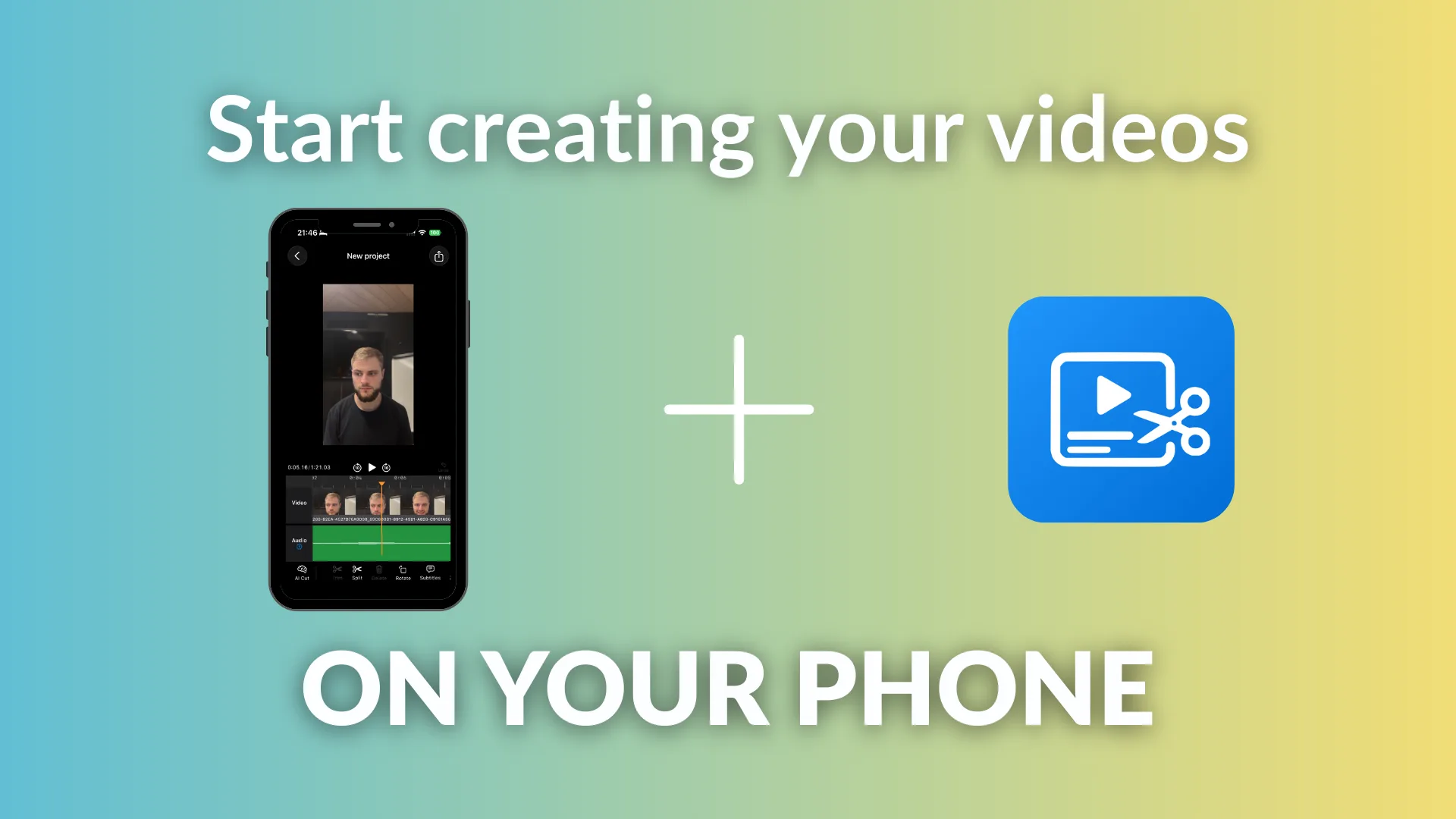
Which built-in editor does your Android phone have?
Android doesn't have one system-wide video editor. Which one you get depends on the phone:
- Google Pixel, Motorola, OnePlus, and most other Android phones: Google Photos is the default gallery, and its editor handles single videos.
- Samsung Galaxy phones: the Gallery app has its own editor (Samsung calls it Samsung Video editor), plus Studio, a multi-track project editor added in One UI 6.
- Any Android phone: you can install Google Photos from Google Play and use its editor even if your phone has a different gallery app.
| Tool | Google Photos | Samsung Gallery editor | Samsung Studio |
|---|---|---|---|
| Trim start and end | Yes | Yes | Yes |
| Cut out the middle | No | No | Yes (split the clip) |
| Combine several clips | Highlight video only | No | Yes |
| Crop, rotate, aspect ratio | Yes | Rotate and flip | Yes (16:9, 9:16, 1:1) |
| Speed | ¼x, ½x, 2x, 4x | Not listed | Yes |
| Text | Yes | Yes (Decorations) | Yes |
| Music | Yes | Yes (background music) | Yes, plus voice-over tracks |
| Filters and color | Yes | Yes | Yes |
| Stabilize | Yes | Not listed | Not listed |
| Captions from speech | No | No | No |
Sources: Google Photos Help, Samsung Video editor support page, Samsung Newsroom on Studio. Features vary by phone model and app version.
How to edit videos on Android with Google Photos
Google redesigned the Photos video editor in December 2025. It now has a timeline with trim handles and a row of tools along the bottom: Auto, Crop, Adjust, Filters, Audio, Speed, Music, and Text (9to5Google). The redesigned editor is the default on Android when you open a single video.
- Open Google Photos and tap the video.
- Tap Edit at the bottom.
- Make your changes with the tools below.
- Tap Save at the top. Google Photos saves a copy with your edits.
Trim
Touch and hold a trim handle, then drag it to choose the part to keep. The full trimming walkthrough, including how to remove a section from the middle, is in how to trim a video on Android.
Enhance and stabilize
Tap Auto, then Enhance to brighten and balance the color, or Stabilize to smooth out a shaky handheld shot.
Crop, rotate, and change aspect ratio
Tap Crop. From there:
- Aspect ratio switches to another shape, such as 9:16 for TikTok and Reels.
- Rotate turns the video 90° at a time, which fixes a clip recorded sideways.
- Auto straightens a tilted horizon.
- Mirror flips the video horizontally.
Adjust and filters
Tap Adjust, pick a setting such as brightness or contrast, and move the dial. Tap Done to keep it or Cancel to discard it. Tap Filters to pick a look, then move the dial to change its strength. None removes it.
Google notes that Adjust and Filters need at least 3 GB of RAM and Android 8.0, and that non-Pixel phones on Android 9 don't support video editing at all (Google Photos Help).
Speed
Tap Speed, choose 2x, 4x, ½x, or ¼x, and use the trim handles if you only want part of the video to change speed. That's useful for a fast-forwarded setup shot or a slow-motion moment.
Music and sound
Tap Audio to Mute the original sound. Pixel 8 and later phones also get Audio Eraser, which can turn down noise such as wind. To add a song, tap Audio, then Add Music, and choose On device for a track saved on your phone. Google Photos needs permission to read your music files; you can allow that in your phone's settings.
Text
Tap Text to type a title or label, then change the font and color. Custom text styles arrived on Android first with the 2025 redesign.
How to edit videos on a Samsung phone
Samsung's Gallery app has its own editor. Samsung says it's available on Galaxy S20 models and later, and features depend on the model and One UI version (Samsung).
- Open Gallery and select the video.
- Tap the Edit icon (the pencil).
- Choose a tool:
- Trim: drag the white slider bars at the bottom to set a new start and end.
- Transform: tap Rotate to turn the video, or Flip to mirror it.
- Decorations: add Draw, Stickers, or Text.
- Filter: swipe through the filters and tap Save to keep one.
- Audio: tap Add background music, choose a track, then balance the video and music volume.
- Save. Samsung's editor also offers a save-as-copy option that leaves the original video untouched (Samsung Newsroom).
Large or high-resolution videos can take a few minutes to save.
Samsung Studio for multi-clip projects
Studio is Samsung's built-in multi-track editor, included since One UI 6. Samsung describes it as more advanced than the Gallery editor: clips sit on a timeline, and you can add video layers, audio tracks, text, effects, color, and speed changes.
To open it: in Gallery, tap the three-line menu, choose Studio, then start a new project and pick your clips. Inside a project you can:
- Tap a clip and use the tools at the top to split it into parts, then delete the part you don't want
- Press and hold a clip to drag it to a new position
- Add transitions by tapping the small button between two clips
- Add text and stickers, and drag their length on the timeline
- Add music from the app's library or an audio file from your phone, such as a narration
- Set the aspect ratio to 16:9, 9:16, or 1:1
Menu names in Studio have changed between One UI versions, so the labels on your phone may differ slightly (Xataka Android).
The basic edits, and where each one lives
| Edit | Google Photos | Samsung Gallery |
|---|---|---|
| Shorten the start or end | Trim handles | Trim |
| Rotate a sideways video | Crop → Rotate | Transform → Rotate |
| Mirror a selfie video | Crop → Mirror | Transform → Flip |
| Vertical 9:16 for TikTok/Reels | Crop → Aspect ratio | Studio project, 9:16 |
| Slow motion or fast-forward | Speed | Studio |
| Background music | Audio → Add Music | Audio → Add background music |
| A title or label | Text | Decorations → Text |
| Fix shaky footage | Auto → Stabilize | Not available in the Gallery editor |
| Save a still from the video | Export frame (in the trim view) | Not covered in Samsung's guide |
When to use an editing app instead
The built-in editors are fine for one clip that needs a trim, a crop, and a song. You'll hit their limits when:
- You need captions. Neither Google Photos nor Samsung Gallery writes captions from speech, and most viewers watch short-form video with the sound off.
- You talked to the camera. Pauses, "um"s, and restarted sentences are spread throughout the video, and removing each one with trim handles takes longer than recording did.
- You have several clips. Google Photos can't remove a section from the middle of one clip, and only Studio on Samsung phones offers a real multi-clip timeline.
- You want templates, effects, or keyframes. That's what CapCut, VN, and similar apps are built for.
For a side-by-side of the apps worth installing, see best video editor for Android. If you're deciding between the two most popular ones, read CapCut vs InShot.
A full editing workflow for talking videos on Android
Talking-head videos (tips, tutorials, product explainers, coaching) are the most common thing people film on their phone, and the editing job is different from a vlog or a montage. Here's the order that saves the most time:
- Record with good audio. Phone mics pick up the room. A clip-on lavalier mic or simply filming closer to the phone makes the rest of the edit easier. See mobile video editing audio tips.
- Trim the start and end. Cut the reach toward the record button and the moment after you stop talking.
- Remove the pauses. This is where most time goes. Doing it by hand means splitting the clip before and after every gap. An automatic silence remover does it in one pass; see how to remove silence from video automatically.
- Remove retakes and filler words. Delete the sentence you said twice and the "so, um" at the start of each thought.
- Reframe to 9:16. Keep your face in the upper-middle of the frame, clear of the app buttons. See safe zones for Shorts, Reels, and TikTok.
- Add captions. Word-by-word animated captions keep people watching on mute. See how to add captions to any video.
- Add music last, quietly. Keep it well under your voice.
- Export at the platform's resolution, usually 1080×1920 for vertical video.
Steps 3, 4, and 6 are what the built-in Android editors can't do.
Edit talking videos faster with BlitzCut for Android
BlitzCut for Android is built for footage of people talking. Instead of starting from a timeline, it starts from what you said:
- AI Cut removes the silences in one pass, with adjustable padding around speech.
- Transcript editing lets you select words, filler, or a whole retake and delete them; the video follows the text.
- Animated captions are added word by word from the Subtitles tool, with styles, fonts, colors, outlines, and shadows.
- The AI editor takes plain-language instructions, can translate the transcript, and adds motion graphics.
- Export works vertically for TikTok, Reels, and Shorts, or horizontally for YouTube, with no watermark.
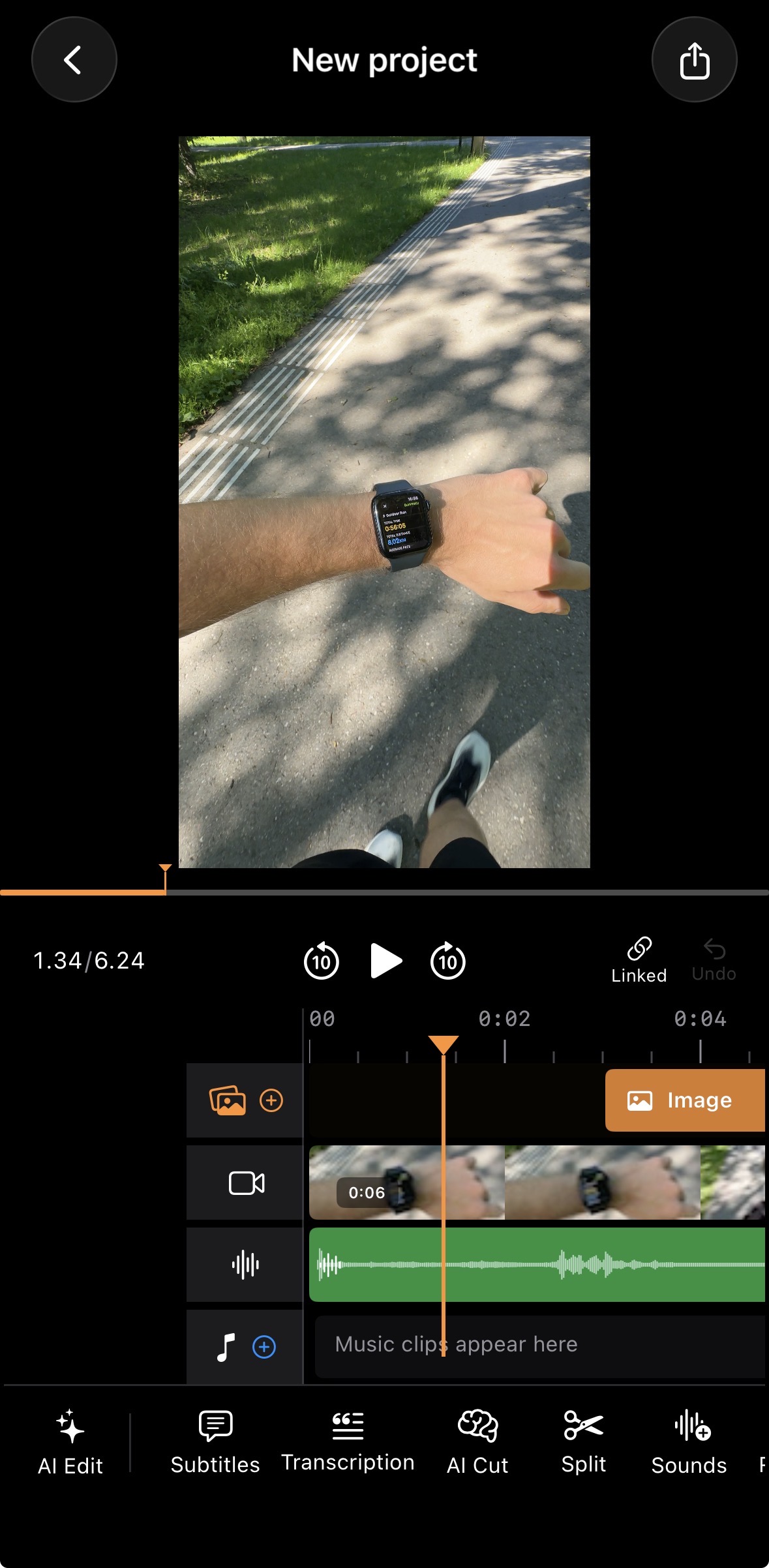
BlitzCut is free to download on Google Play. If you buy on blitzcutai.com/pricing, one subscription works on Android, iPhone, iPad, and Mac; a subscription bought through Google Play unlocks the Android app only.
Common problems when editing videos on Android
The Edit button is missing in Google Photos
Video editing needs Android 6.0 or later, and some tools need more memory and a newer Android version. Google says non-Pixel phones on Android 9 can't edit videos in Photos. Update the Google Photos app from Google Play first.
The video is sideways after recording
Use Crop → Rotate in Google Photos or Transform → Rotate on Samsung. Rotating keeps the whole frame, unlike cropping in.
Music won't show up in Google Photos
Google Photos needs permission to read your music and audio files. Allow it in your phone's app settings, then try Add Music → On device again.
Saving takes forever
Long 4K videos take a while to render on any phone. Keep the screen on, close other apps, and make sure you have free storage. See mobile video editing storage tips.
The edited video looks worse than the original
The edit is saved as a new file, so the phone encodes the video again. Edit from the original rather than from an already-edited copy, avoid cropping in further than you need, and don't save the same video over and over.
Frequently Asked Questions
Does Android have a built-in video editor?
Yes. Google Photos has a video editor on almost every Android phone, and Samsung phones also have the Gallery editor and Studio. They cover trimming, cropping, rotating, speed, music, text, and filters.
How do I edit videos on my Android phone for free?
Open the video in Google Photos or Samsung Gallery, tap Edit, and use the trim, crop, speed, audio, and text tools. Both are free and add no watermark.
How do I edit videos together on Android?
Google Photos can combine clips into a highlight video, and Samsung's Studio lets you put several clips on one timeline, reorder them, and add transitions. For more control, use a dedicated editing app.
How do I edit videos on a Samsung phone?
Open Gallery, select the video, and tap the pencil icon. Use Trim, Transform, Decorations, Filter, and Audio, then save. For multiple clips, open the Gallery menu and choose Studio.
Can I add captions to a video on Android without an app?
No. Neither Google Photos nor Samsung Gallery generates captions from speech. You can type text over the video, but for automatic word-by-word captions you need an app such as BlitzCut, CapCut, or VN.
Can I cut the middle out of a video on Android?
Not in Google Photos, which only trims the start and end. On a Samsung phone, use Studio to split the clip and delete the middle part. The full steps are in how to trim a video on Android.
What is the best app to edit videos on Android?
It depends on the video. CapCut and VN are strong for effects and templates, KineMaster and PowerDirector for multi-layer timelines, and BlitzCut for talking videos that need silence removal and captions. See our best video editor for Android comparison.
Related Guides
Editing a talking-head video?
BlitzCut is available on Android, iPhone, iPad, and Mac. It is designed for recorded UGC-style videos, founder-led ads, tutorials, and testimonials and other talking-head content.
Try it for freeRelated Articles
Keep Reading

How to Add Captions to Instagram Reels (Automatically)
How to add captions to Instagram Reels: use the Captions sticker for free auto captions, or burn in styled word-by-word captions with Edits, CapCut, or BlitzCut. Steps for each.

How to Add Captions to a Podcast Video on Mac
How to add captions to a podcast video on Mac: burned-in captions for TikTok, Reels, and Shorts clips, and SRT subtitles for full YouTube episodes. Steps for BlitzCut, Descript, and Final Cut Pro.

How to Add Subtitles to a Video on Mac (Automatically)
How to add subtitles to a video on Mac automatically with Final Cut Pro, Premiere Pro, CapCut, or BlitzCut, plus a free method using MacWhisper and HandBrake. iMovie can't do it.