
How to Make a YouTube Short (Phone and Computer)
How to make a YouTube Short in the YouTube app or by uploading an edited vertical video from your phone or computer, plus length, size, music rules, and editing tips.


To make a YouTube Short, open the YouTube app, tap Create (the plus button), choose Short, and tap the capture button to record. Add music, text, or effects, tap Next, write a title, and tap Upload Short. You can also upload a vertical or square video up to three minutes long that you've already edited, and YouTube makes it a Short automatically.
How to make a YouTube Short in the YouTube app
The YouTube app has a built-in camera and editor for Shorts. From YouTube's Shorts help page:
- Open the YouTube app and sign in.
- Tap Create (the plus button) and choose Short.
- Set the length in the top-right corner, then tap the capture button to start recording. Tap it again to stop. You can record several segments and they join together.
- Use the side tools to add music, a timer, effects, or filters. Undo removes the last segment.
- Tap Done (the checkmark) to preview. Add text, sounds, voiceover, or text-to-speech.
- Tap Next. Add a title (up to 100 characters), choose who can see it, and say whether it's made for kids.
- Tap Upload Short, or Save draft to finish later.
How to upload a YouTube Short you've already edited
Most creators edit in another app and upload the finished video. Any video that's square or vertical and up to three minutes long is treated as a Short automatically. There's no separate Shorts toggle.
On your phone:
- In the YouTube app, tap Create and choose Upload a video, or tap Short and pick a video from your gallery.
- Trim it if needed, add a title, and tap Upload Short.
On your computer: from YouTube's upload guide:
- Go to YouTube Studio and click Create → Upload videos.
- Choose your vertical or square video file.
- Add the title, description, and other details, then work through the Checks and Visibility pages.
- Click Save or Publish.
YouTube Shorts size, length, and format
| Setting | What to use |
|---|---|
| Shape | Vertical 9:16 (recommended) or square 1:1 |
| Resolution | 1080 × 1920 pixels for vertical |
| Length | Up to 3 minutes |
| File | MP4 or MOV |
Don't add black bars to fill out a horizontal video. YouTube advises against it, and the video looks small on a phone. Crop to vertical instead. See Shorts: vertical or horizontal? and how long a YouTube Short can be.
Music in YouTube Shorts: what's allowed
- Music from the Shorts library in the YouTube app is cleared for Shorts. On most channels you can use up to 90 seconds of a song in a three-minute Short, but some tracks are limited to 60 or 30 seconds.
- Your own copyrighted music is risky: any Short longer than one minute with an active copyright claim is blocked worldwide.
- Royalty-free music from the YouTube Audio Library or your editor's built-in library is the safe choice for longer Shorts.
If you edit in another app, add the song in the YouTube app after uploading, or use a track you know is cleared.
How to make a good YouTube Short
Getting the upload right is the easy part. What makes people watch to the end:
- Start with the point. The first one or two seconds decide whether people swipe. Lead with the result, the question, or the surprising part. See hooks for YouTube Shorts.
- Cut every pause. Dead air feels much longer on a phone. Remove silences, "um"s, and repeated takes. See how to remove silence from YouTube Shorts.
- Add captions. Many people watch with the sound off. Keep captions in the middle of the frame, clear of YouTube's buttons and title. See how to add captions to YouTube Shorts and Shorts safe zones.
- Show, don't just tell. Cut to a close-up, screen recording, or B-roll when you mention something viewers can see.
- Keep it as short as the idea needs. A tight 30-second Short beats a slow 90-second one.
- Watch it on your phone before posting. Check the captions aren't hidden and the audio is clear.
The fastest way to edit a talking-head Short
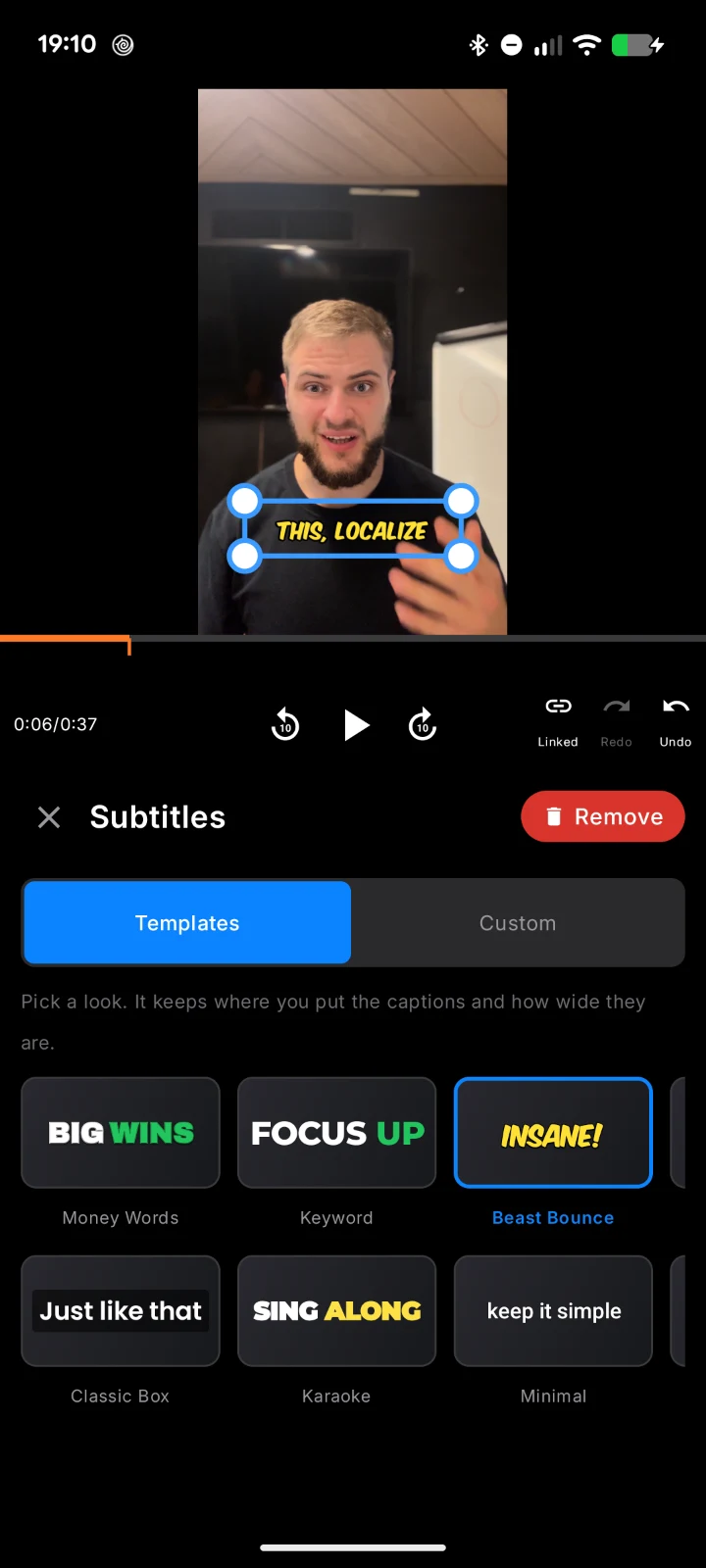
If your Shorts are you talking to the camera, most of the editing is cutting pauses and adding captions. BlitzCut does both automatically on iPhone, iPad, Mac, and Android: its AI Cut removes the silences, you delete retakes by deleting words from the transcript, and you pick an animated caption style. Export in 9:16 and upload it to YouTube as a Short.
For a comparison of the YouTube app's editor, YouTube Create, CapCut, and others, see the best YouTube Shorts editor apps.
Frequently Asked Questions
How do I make a YouTube Short on my phone?
Open the YouTube app, tap Create, then Short, and tap the capture button to record. Add music or text, tap Next, add a title, and tap Upload Short. To use a video you've already edited, choose it from your gallery instead of recording.
How do I make a YouTube Short on my computer?
Edit a vertical or square video up to three minutes long, then upload it in YouTube Studio with Create, then Upload videos. YouTube classifies it as a Short automatically.
How long can a YouTube Short be?
Up to three minutes, as long as the video is vertical or square.
What size should a YouTube Short be?
Vertical 9:16 at 1080 × 1920 pixels works best. Square 1:1 videos also count as Shorts.
Do I need #shorts in the title?
No. YouTube decides whether a video is a Short from its shape and length. The hashtag is optional.
Can I turn a long YouTube video into a Short?
Yes, by cutting a vertical clip of up to three minutes from it and uploading that as a separate video. See how to repurpose YouTube videos into Shorts.
Related: Best YouTube Shorts Editor Apps · YouTube Shorts Length · How to Add Captions to YouTube Shorts · YouTube Shorts Editing Tips
Editing a talking-head video?
BlitzCut is available on Android, iPhone, iPad, and Mac. It is designed for recorded UGC-style videos, founder-led ads, tutorials, and testimonials and other talking-head content.
Try it for freeRelated Articles
Keep Reading

Best Auto Caption App for iPhone (2026): 8 Apps Compared
The best auto caption app for iPhone: BlitzCut, CapCut, Captions, Edits, InShot, VN, KineMaster, and Premiere compared on caption styles, editing, SRT export, and price.

Best CapCut Alternatives (2026): 10 Apps Like CapCut for iPhone, Android and PC
The best CapCut alternatives for iPhone, Android, Mac, and PC: free and paid apps like CapCut, compared on silence removal, captions, templates, watermarks, and price.

Best Free Video Editing App for iPhone (2026): 8 Apps, Most With No Watermark
The best free video editing app for iPhone: iMovie, Premiere mobile, Edits, VN, YouTube Create, CapCut, InShot, and KineMaster compared on watermarks, captions, 4K export, and what's actually free.