
YouTube transcript: View, Copy, and Check the Text
Open a YouTube transcript with Show transcript, navigate timestamps, check available languages, and understand copying, creator downloads, and reuse permissions.


A YouTube transcript lets you read a video's available captions and jump to the corresponding moments using YouTube's native Show transcript control.
Start here when the video is already on YouTube and you want to locate an explanation, review a lesson, or check what someone said. For a recording stored on your own device, use the separate guide to turning a video into a transcript.
How to open a YouTube transcript
On a computer:
- Open the video's regular watch page on YouTube.
- Expand the description below the player if necessary.
- Find and click Show transcript in the description.
- Read the caption text in the transcript panel.
- Click a line to move playback to that passage.
YouTube's transcript instructions tie this feature to videos with captions and document clicking a line to jump through the video. You do not need a transcript downloader or an extension for this workflow.
Editorial illustration of a video-to-notes workflow, not a screenshot of YouTube or its transcript panel.
On a phone, open the video, expand its description, and look for the same Show transcript label. The arrangement can differ from desktop. If you cannot find it, try the regular watch page in a desktop browser to check availability; switching devices does not create missing captions.
Use timestamps to recover the context
Treat the transcript as a navigation aid. Click the relevant line, then listen from a few seconds earlier. A text fragment can omit a qualification from the previous sentence, while automatic punctuation can make two ideas look like one.
For useful notes, record the video title, channel, URL, selected caption language, and the time of the passage. Keep a distinction between a verified quotation and your own summary.
For example, a note reading “03:12 — speaker explains the return window” is easier to verify later than a pasted paragraph without a source. The time is an example of a note format, not a reference to a particular video.
If your panel offers a timestamp visibility control, use it for readability. Otherwise, remove time labels from your working notes after preserving the markers you need. A timestamped transcript is also different from creator-written YouTube chapters, which divide the video into named sections.
Why Show transcript may be missing
First check whether the player offers CC. YouTube's caption settings guide says that a missing CC control indicates captions are unavailable for that video. Words permanently drawn into the picture are not, by themselves, a selectable caption track.
YouTube lists several reasons automatic captions may not appear: processing is unfinished, the language is unsupported, audio is unclear, there is a long initial silence, or speech overlaps. See its automatic caption troubleshooting. A recent upload may need time; waiting cannot guarantee captions for every recording.
If you are a viewer, ask the creator for captions or an authorized text copy. If you own the channel, check the video's subtitle tracks in Studio and review the spoken language and audio. Repeatedly refreshing the description will not repair the source audio.
Check the language and automatic-caption label
Look at the language label before taking notes. If a transcript language selector is available, choose from the tracks it actually lists. Do not assume every video includes your preferred language or a human-reviewed translation.
YouTube documents choosing caption languages and Auto-translate in its caption settings. Player translation and the tracks exposed in a transcript panel should not be treated as interchangeable controls.
For a quotation, compare the original speech with the original-language captions. Label a translated passage as a translation. Check product names, numbers, negations, and technical terms carefully: YouTube warns that automatic captions can misrepresent speech because of accents, pronunciation, or background noise in its automatic caption guidance.
Copy notes or download your own caption track
In a desktop browser, try selecting the visible transcript text and copying it into your notes. Check the pasted result for omitted lines, timestamps, and interface labels. Text selection behavior can vary, so this is a manual note-taking method rather than a promised native download function.
For a video you manage, YouTube provides a separate caption download workflow: open YouTube Studio → Subtitles, choose the video and language, open the caption editor, then use Options → Download subtitles.
Keep the downloaded original before editing a copy. Timed subtitle files serve a different purpose from prose notes; see SRT, VTT, and SBV explained. If you change the video edit later, its old caption timing may no longer match.
Check permission before republishing text
Being able to read a transcript does not automatically authorize republishing the script or turning someone else's lesson into your own article. YouTube explains that its standard license is the default, while eligible videos can use a Creative Commons Attribution license with its own conditions. See its license and permission guidance.
Check the actual video's license and obtain permission for the intended reuse when needed. For Creative Commons material, follow the applicable terms and preserve attribution information such as the title, creator, source URL, and license. A credit line alone should not be treated as permission for every video.
When the next step is editing your own recording
A published video's transcript helps you inspect that upload. A local founder introduction, lesson, UGC recording, or testimonial needs a transcription and editing workflow for the supplied file.
For that stage, BlitzCut supports transcript editing, adjustable silence removal, and captions; its App Store listing and release history document these capabilities. Review the words against the recording, remove only unwanted passages, and check the resulting cuts.
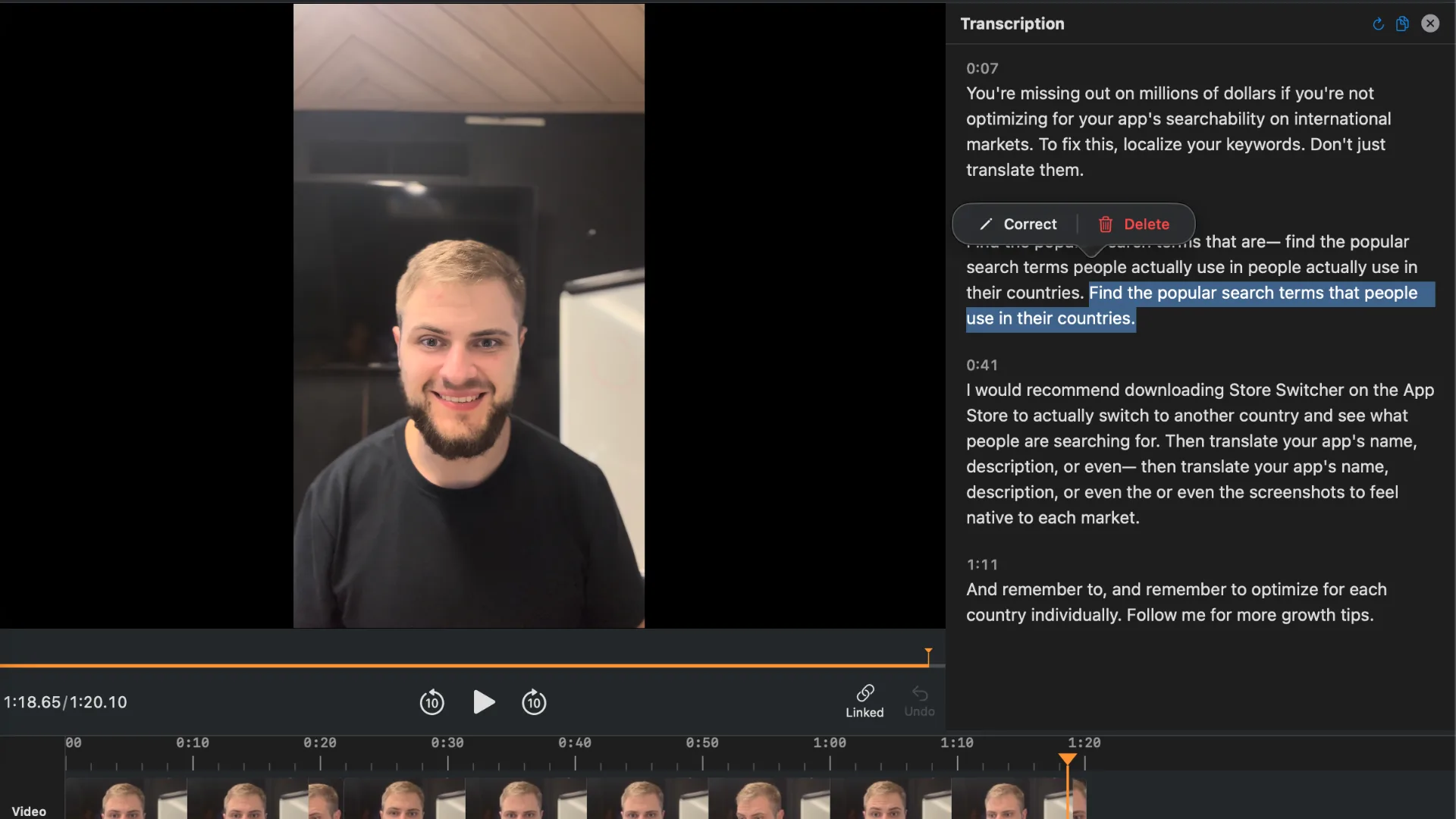
Actual BlitzCut transcript editor for the next stage: editing a recording you supply. This is not YouTube's transcript viewer.
Frequently Asked Questions
Can I see a YouTube transcript without paying?
The native Show transcript workflow does not require a separate paid transcription service. The video must have available captions and expose the transcript control.
Why is the transcript different from what I hear?
Automatic captions can misrecognize speech. Check the selected language and listen to the passage before quoting it.
Can I download another creator's transcript in Studio?
Studio's documented download workflow applies to videos you manage. Viewing another video's text does not give you channel access or reuse permission.
Can Show transcript transcribe a file on my phone?
No. It displays captions for a YouTube video. Use a local-file transcription workflow for a recording stored on your device.
Related Guides
Editing a talking-head video?
BlitzCut is available on Android, iPhone, iPad, and Mac. It is designed for recorded UGC-style videos, founder-led ads, tutorials, and testimonials and other talking-head content.
Try it for freeRelated Articles
Keep Reading

How to Rotate Video on iPhone: Fix a Sideways Recording
Learn how to rotate video on iPhone in Photos, undo a rotation, and share the upright result without accidentally cropping or mirroring the recording.

How to Screen Record on iPad With Microphone Audio
Learn how to screen record on iPad with Control Center, add microphone narration, find the recording in Photos, and troubleshoot missing audio or controls.

How to Send a Long Video on iPhone Without Cutting It
Learn how to send a long video on iPhone using AirDrop, iCloud sharing, or Mail Drop, keeping the original before compressing for a specific upload limit.