
Video flickering: Find the Cause and Prevent It
Diagnose video flickering, choose suitable shutter settings, check iPhone recording formats, and decide when an existing clip needs replacing or reshooting.


Diagnosing video flickering starts with checking whether the brightness changes are recorded in the original file, introduced during editing, or visible only during playback.
For a talking-head lesson, founder introduction, or testimonial, check a short recording before filming the full answer. Look at the face, a plain wall, and any screen in the background. A camera preview that seems acceptable is not enough; play the recorded file too.
What causes video flickering?
Artificial light can change brightness faster than your eyes notice. A camera can capture those changes as pulses, horizontal bands, or uneven color. Sony explains the relationship between flickering illumination and shutter timing in its movie-recording basics.
The visible symptom matters. Use these observations to choose an investigation, rather than treating every problem as an LED-light fault:
| What you observe | What to check first |
|---|---|
| Bands or repeated brightness pulses in the source file | Lighting and capture settings |
| Brightness changes when a hand or bright object enters | Whether automatic exposure is changing |
| Only a filmed monitor shows bands | The monitor and camera settings together |
| Movement looks uneven but brightness stays steady | Playback and frame-rate handling |
| Source looks clean, export looks wrong | Effects, project settings, and export |
These are diagnostic starting points, not definitive diagnoses. Compare the same passage in the original file, editor preview, and exported copy. A variable frame rate issue needs a different investigation from recorded light pulses.

Try a suitable shutter speed before recording
For cameras or recording apps with manual shutter control, Sony recommends these settings for reducing power-related flicker:
| Local power frequency | Shutter speeds to try |
|---|---|
| 50 Hz | 1/50 or 1/100 second |
| 60 Hz | 1/60 or 1/120 second |
These values come from Sony's flicker-reduction guidance. Use a shutter speed available at your selected recording frame rate, then inspect an actual recording. They are starting points, not a guarantee for every light.
Frame rate and shutter speed are different controls: frames per second describes capture frequency, while shutter speed describes exposure duration. See Sony's explanation of movie capture settings. Selecting 25 fps does not, by itself, confirm a 1/50-second shutter.
Write down the setting that works with your actual setup. Recheck it when you change rooms, lights, recording modes, or camera apps.
Check iPhone recording formats
On iPhone, open Settings → Camera → Record Video and inspect the formats and frame rates your model offers. Apple documents PAL options and model-dependent frame rates in its video recording guide.
In a 50 Hz lighting environment, try an available 25 fps option and compare the recorded result with your previous setting. This is a troubleshooting experiment, not a promise that changing frame rate will remove flicker. If it persists, change the lighting or use a recording app with suitable manual exposure controls.
Apple also documents that Auto FPS can reduce frame rate in low light. Keep track of that setting when comparing recordings so you know what changed between takes.
Isolate lights and screens one at a time
Start with the intended framing and background. Switch off a decorative lamp or room light, record again, and compare. Repeat with each suspect source. If the problem disappears after one change, you have a more useful clue than a collection of unrelated camera adjustments.
LED lighting can require finer shutter adjustments than ordinary steps provide. Sony's high-frequency flicker guide describes matching shutter timing more precisely on supported cameras. Availability depends on the model.
For a monitor behind the presenter, compare a take with the display off. If the screen itself is essential, capture that screen separately with an appropriate recording tool rather than assuming a camera setting will solve every display interaction.
Sony distinguishes Anti-flicker Shoot., for still images, from Var. Shutter, which supported models can use for movies. Check the model-specific limitations before enabling a similarly named setting.
Decide what an existing recording needs
Keep the original and work on a copy. First determine whether another take contains the same complete answer without the problem. Replacing a faulty passage or reshooting a short introduction may be more practical than attempting a repair.
For an important recording you cannot repeat, assess a short sample in software whose documentation specifically covers your type of flicker. Do not assume any control named “Flicker Removal” addresses changing room light. Adobe's Premiere field-options documentation uses that name for reducing thin horizontal-detail flicker in interlaced material.
Review any processed sample for faces, moving hands, and text before committing the whole recording. Do not promise a clean result from badly affected footage.
Edit the usable take after capture
BlitzCut's App Store listing and version history document transcript editing, silence removal, captions, and image overlays. Resolve lighting or capture issues first, then use those speech-editing tools to refine a usable lesson or testimonial.
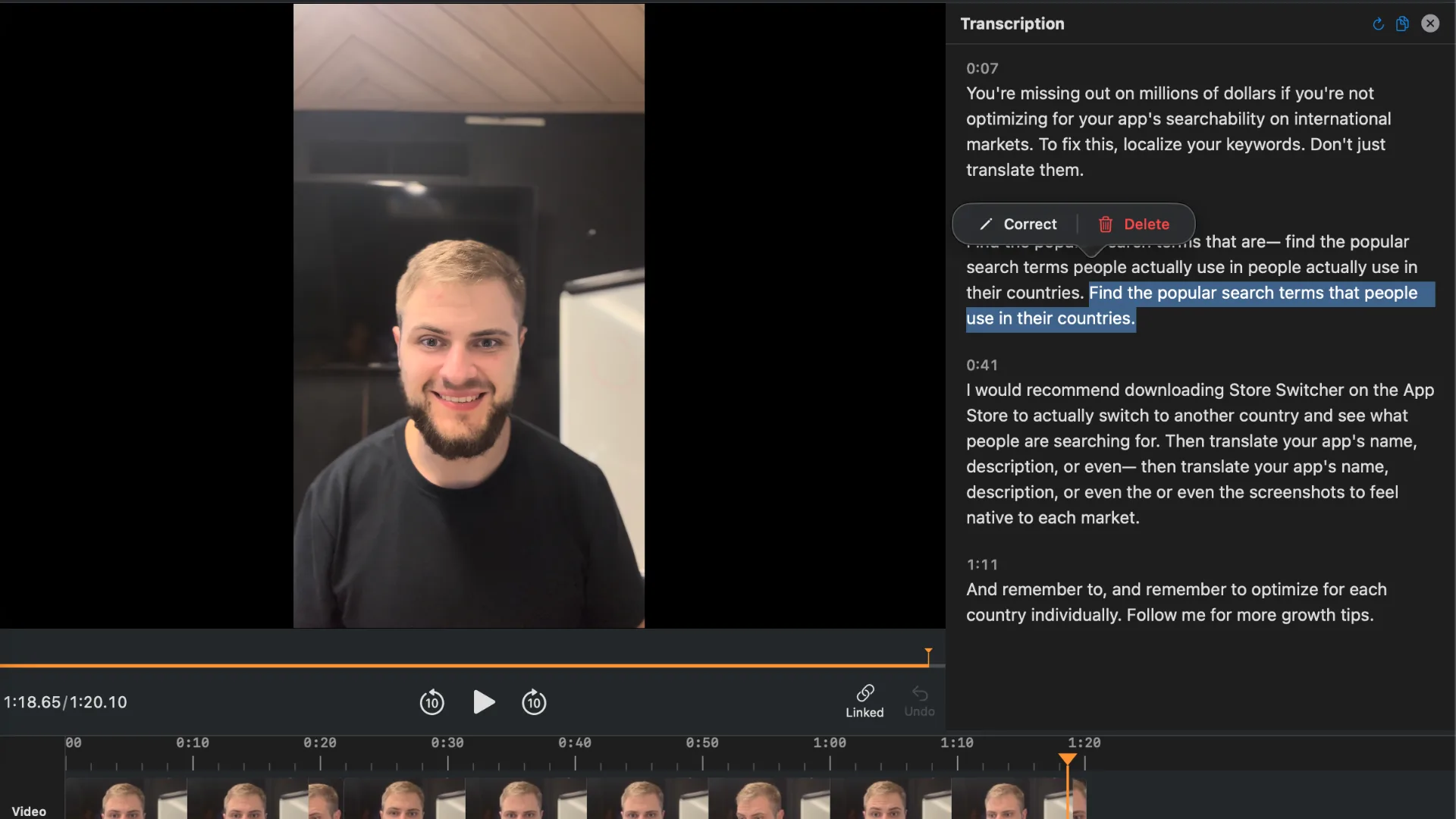
Review silence removals visually so you retain useful demonstrations. Use the video trimmer workflow to remove unwanted starts and endings, then watch the exported file for both pacing and picture consistency.
Frequently Asked Questions
Does changing export frame rate fix recorded flicker?
Do not count on it. Check whether brightness pulses already exist in the source. Changing delivery settings is not the same as correcting the capture problem.
Why does the light look steady to my eyes?
Rapid illumination changes can be unobtrusive to human vision but visible to the camera. Sony's movie-recording guide explains this timing mismatch.
Will a still-photo anti-flicker mode help video?
Only if your camera explicitly supports the function for movies. Check the manual; some similarly named controls work only for still photographs.
Can captions or image overlays repair flicker?
No. They add information to the picture. Choose a usable take, investigate suitable processing, or reshoot before polishing the edit.
Related Guides
Editing a talking-head video?
BlitzCut is available on Android, iPhone, iPad, and Mac. It is designed for recorded UGC-style videos, founder-led ads, tutorials, and testimonials and other talking-head content.
Try it for freeRelated Articles
Keep Reading

Best TikTok Caption Fonts: What Top Creators Use (2026)
The best TikTok caption fonts are Montserrat Bold, Poppins, and Bebas Neue. See 9 fonts top creators use, with exact sizes, colors, and animations.

Best Auto Caption App for iPhone (2026): 8 Apps Compared
The best auto caption app for iPhone: BlitzCut, CapCut, Captions, Edits, InShot, VN, KineMaster, and Premiere compared on caption styles, editing, SRT export, and price.

Best CapCut Alternatives (2026): 10 Apps Like CapCut for iPhone, Android and PC
The best CapCut alternatives for iPhone, Android, Mac, and PC: free and paid apps like CapCut, compared on silence removal, captions, templates, watermarks, and price.