
Cross cutting: How to Connect Two Scenes Clearly
Learn cross cutting with a worked lesson example, clear scene changes, readable timing, and a practical workflow for recorded lessons and founder videos.


In video editing, cross cutting means switching back and forth between separate scenes to show how their actions connect, often suggesting they happen at the same time.
A tutor explains an exercise while a learner attempts it elsewhere. A founder prepares an order while a customer waits for its arrival. Alternating those scenes can reveal a relationship that neither scene communicates alone. The useful question is what the viewer learns each time you switch.
How cross cutting connects two scenes
Adobe's cross-cutting guide describes alternating scenes, often in different locations, to suggest simultaneous action or connect storylines. Suspense is one application, but an instructional video can use the same structure to connect an explanation with someone's attempt.
First decide what the scenes mean together. Are these people responding to each other now? Are you comparing two approaches? Is one scene an earlier event? Give the viewer enough information to distinguish those relationships.
Changing from a wide shot to a close-up of one continuous action is a different decision. That is a continuity problem, covered in match on action. Likewise, a brief product detail under a presenter's explanation may simply be a cutaway. Adobe's guide to film cuts distinguishes cutaways from movement between separate events.

Conceptual illustration of cross cutting: separate scenes become one sequence through deliberate alternation. This is an editorial illustration, not an editing-app screenshot.
Work through a recorded lesson example
Imagine a lesson about folding a paper box. Scene A contains the tutor's demonstration; scene B contains a learner following the instructions at another table. This is a proposed editing exercise, not a report of a tested video.
Build the sequence around changes the audience can understand:
| Return to | Show this moment | Purpose |
|---|---|---|
| Tutor | Establish the finished box and the first fold | Explain the task |
| Learner | Position the paper and attempt that fold | Show the instruction being applied |
| Tutor | Explain which edges must meet | Supply the next useful detail |
| Learner | Correct the alignment and continue | Resolve the difficulty |
| Tutor, then learner | Show both finished results | Complete the lesson |
Do not interrupt the tutor halfway through identifying an edge, then return after the explanation has moved on. Keep each instruction understandable. If the learner's attempt was recorded later, introduce it as a later practice example rather than implying a live response.
For a product demonstration, the same planning question helps: which visible action proves the spoken explanation? A close-up alone may be enough; use separate scenes when their relationship adds something.
Plan footage that supports each return
Before recording, write one sentence describing each scene's progression. For the tutor: introduce, demonstrate, clarify, finish. For the learner: prepare, attempt, correct, finish. A video script outline can help organize the spoken material before you decide where to switch.
Record a recognizable view of each location and the full useful action. Leave material before and after the intended cut so you can adjust the join. Note which hand holds the paper and whether a fold has already happened.
Adobe recommends establishing locations and editing each scene into understandable beats before interweaving them in its cross-cutting workflow. For this exercise, make each scene intelligible on its own first.
Assemble the sequence in a timeline editor
Keep an untouched copy of the source footage, then:
- Build a rough version of scene A with its instructions in order.
- Build scene B with the attempt and correction in order.
- Choose a return point where scene B answers something raised by scene A.
- Alternate the selected sections using straight cuts.
- Watch the complete sequence without stopping.
- Adjust any return that repeats information or skips a necessary step.
There is no mandatory cut frequency. Hold a shot while viewers inspect a fold. Switch when another scene supplies the next useful piece of information. If the learner returns with a completed box before the final fold has been explained, restore the missing instruction or change the order.
Give dialogue and reactions enough space
Choose which voice the audience should follow at each moment. Avoid overlapping two explanations that both need attention. If a tutor's voice continues over a learner's image, check that the sentence still describes what the viewer sees.
For testimonials or UGC videos, preserve the speaker's context. A reaction recorded for a different question can imply agreement the person never expressed. Review the assembled meaning against the original answers, including qualifications and pauses that change their meaning.
Refine the spoken sections with visual review
BlitzCut supports transcript editing, silence removal, captions, and imported audio, documented in its App Store listing and version history. Those tools can help tighten a recorded introduction or founder explanation. Decide which scenes belong together yourself.
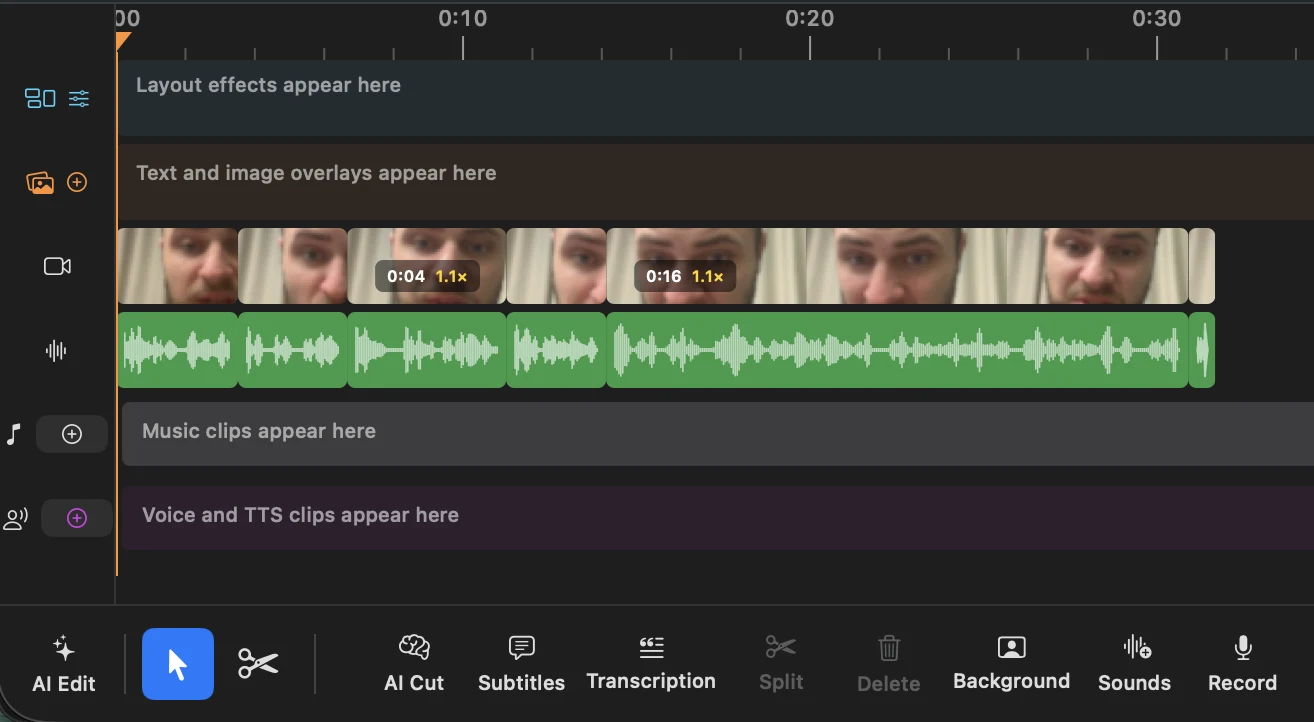
Actual BlitzCut Mac timeline. Review neighboring clips and their audio when assembling a sequence; this screenshot does not depict the lesson example above.
Keep quiet sections that contain a useful demonstration. After silence removal, inspect every affected action before exporting. Read captions across the scene changes and check that each sentence remains attached to the correct speaker.
Frequently Asked Questions
Is cross cutting the same as parallel editing?
The terms overlap in common usage. Adobe describes parallel editing as a form of cross cutting. For your sequence, make the timing relationship clear instead of relying on the label alone.
Do the scenes have to happen simultaneously?
No. You can connect different times, but establish that difference with narration, context, or an accurate label. Otherwise, viewers may infer simultaneity.
Does cross cutting require two cameras?
No. Record separate scenes with one camera when the actions are repeatable. Simultaneous, unrepeatable events require an appropriate capture plan.
Should every talking-head video use it?
No. A complete answer may work best uninterrupted. Add another scene when it supplies information, a meaningful response, or a useful comparison.
Related Guides
Editing a talking-head video?
BlitzCut is available on Android, iPhone, iPad, and Mac. It is designed for recorded UGC-style videos, founder-led ads, tutorials, and testimonials and other talking-head content.
Try it for freeRelated Articles
Keep Reading

Best Auto Caption App for iPhone (2026): 8 Apps Compared
The best auto caption app for iPhone: BlitzCut, CapCut, Captions, Edits, InShot, VN, KineMaster, and Premiere compared on caption styles, editing, SRT export, and price.

Best CapCut Alternatives (2026): 10 Apps Like CapCut for iPhone, Android and PC
The best CapCut alternatives for iPhone, Android, Mac, and PC: free and paid apps like CapCut, compared on silence removal, captions, templates, watermarks, and price.

Best Free Video Editing App for iPhone (2026): 8 Apps, Most With No Watermark
The best free video editing app for iPhone: iMovie, Premiere mobile, Edits, VN, YouTube Create, CapCut, InShot, and KineMaster compared on watermarks, captions, 4K export, and what's actually free.