
Video compressor for Discord: Settings That Fit
Choose a video compressor for Discord using current upload limits, a bitrate budget, HandBrake or iMovie steps, and checks for mobile and desktop sharing.


Choose a video compressor for Discord by checking your destination's upload allowance, setting a file-size budget, and exporting a copy that stays below it.
For a short clip, a lower-resolution export may be enough. For a longer video near a strict cap, use a compressor with average-bitrate controls and measure the finished file.
Video compressor for Discord: check the current limit
Checked October 20, 2026, Discord's published allowances are:
| Account or destination | Published file allowance |
|---|---|
| Free account, ordinary upload | 20 MB |
| Nitro Basic | 50 MB |
| Nitro | Up to 1 GB |
| Level 2 boosted server | 50 MB for members, within that server |
| Level 3 boosted server | 100 MB for members, within that server |
The account figures come from Discord's File Attachments FAQ and Nitro plan documentation. Server allowances come from the Server Boosting FAQ.
Server perks do not transfer to DMs or unrelated servers. Discord also documents upload-limit experiments, including a 250 MB server perk for selected servers. Check what the destination actually allows before encoding; neither a subscription nor a server perk is necessary if your smaller copy already fits.
Calculate the budget before choosing quality
Total bitrate in Mbps ≈ target size in decimal MB × 8 ÷ duration in seconds.
For a 60-second clip, choosing an 18 MB budget below a 20 MB allowance gives 2.4 Mbps for video, audio, and overhead. With 128 kbps audio, a video setting around 2,200 kbps leaves some margin: the streams total approximately 17.46 MB before container overhead. This is arithmetic, not a tested export or guaranteed final size.
Use the video file size calculator to estimate the budget. It is a calculator, not a compressor: it does not encode or shrink your file.
Units matter. NIST defines 1 MB as 1,000,000 bytes and 1 MiB as 1,048,576 bytes. An 18 MiB file is about 18.87 decimal MB. Use bytes when checking a borderline file; a rounded display can hide the difference. The example uses decimal units conservatively, without assuming Discord's undocumented byte threshold.
Compress on desktop with HandBrake
HandBrake's official presets include Fast 720p30, using MP4, H.264 video, and AAC audio. That is a practical starting point for a talking-head preview; preserve more detail when small screen text matters.
- Open the finished source in HandBrake and select Fast 720p30.
- Check dimensions, orientation, and cropping in the preview. Keep the speaker and captions visible.
- Under Video, select Average Bitrate (kbps) and enter the calculated video budget. Enable multipass encoding if available.
- Under Audio, retain the needed track, select AAC, and set its bitrate, such as 128 kbps.
- Choose an MP4 output filename, encode, then inspect the saved size and playback.
HandBrake explains the difference between constant quality and average bitrate. Constant quality lets size vary; average bitrate is useful when you have a size budget. Neither makes a preset name an exact-size guarantee.
Do not assume a preset labelled “25 MB” fits the current 20 MB free allowance. If the result looks poor, shorten the clip or share a permitted viewing link rather than making essential text unreadable.
Compress on a phone and upload the saved copy
On iPhone, Apple's documented iMovie method is:
- Start a Movie project, select the video, and tap Create Movie → Done.
- Choose Share → Save or Share Video → Options.
- Select a lower resolution, save the video, and check its size in Photos information or Files.
Apple's current instructions use iPhone 12 or later with iOS 26 or later; earlier versions can differ. Resolution presets require a save-and-check cycle, not a promised MB result. See the fuller iPhone compression guide.
On Android, export a smaller copy from your editor if it exposes resolution or bitrate controls. If it cannot meet the budget, transfer the source to desktop HandBrake. Check the new copy in your file manager before attaching it.
On mobile or desktop, use Discord's attachment plus → Upload a File flow and select the compressed copy. Discord's attachment FAQ says size is checked before its own compression. Mobile Data Saver may reduce upload data, but cannot be relied on to admit an oversized source.
Edit a talking-head recording before compression
For a supplied lesson, founder explanation, UGC recording, or testimonial, first remove content the recipient does not need. BlitzCut's transcript editing, adjustable silence removal, and captions support that editing stage. Keep meaningful pauses and complete answers; see how to shorten a video.
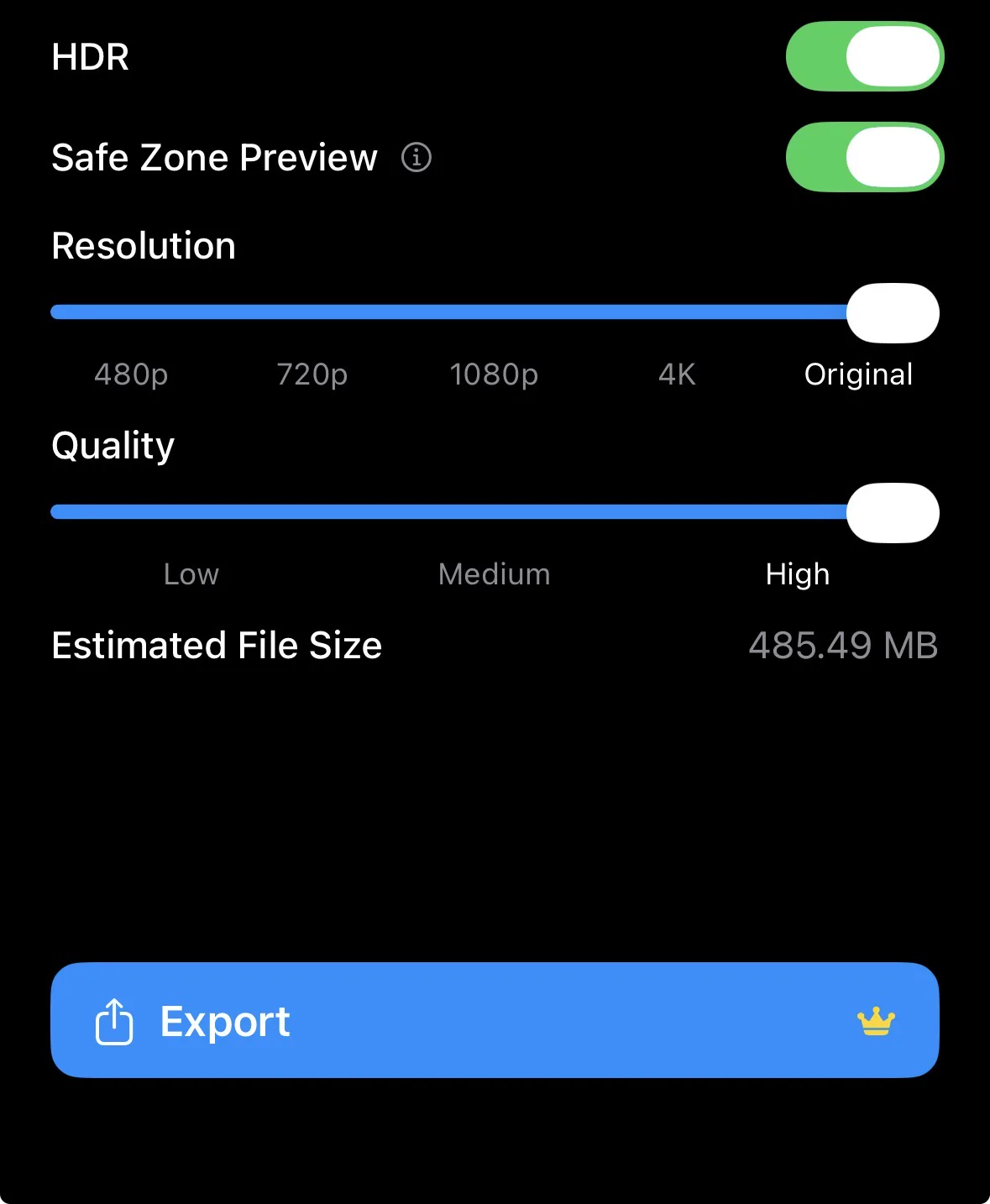
Then open export settings, try 720p if appropriate, adjust Quality, and inspect Estimated File Size. Export and measure the actual result. These controls do not provide an exact target-size guarantee or make BlitzCut an online compressor.
If the upload still fails
- Still too large: check that you selected the new file, confirm the destination allowance, and lower the budget further.
- Fits but will not play: try an H.264/AAC MP4 compatibility copy. Renaming MOV to MP4 does not convert its contents; see MOV-to-MP4 conversion.
- Tiny captions or blocky motion: retain more bitrate, reduce duration, or use a viewing link with appropriate access permissions.
- Upload stalls: distinguish a network or attachment-permission problem from a size rejection before compressing again.
Frequently Asked Questions
Is Discord's free upload limit still 25 MB?
No. Its current attachment FAQ states 20 MB. Confirm the allowance shown for your account and destination because experiments can differ.
Does 720p guarantee a file small enough for Discord?
No. Duration, bitrate, and audio also affect size. Measure the exported copy.
Can I use Discord Data Saver instead of a compressor?
Do not rely on it for an oversized file. Discord documents checking size before its own compression.
Should I compress the already compressed copy again?
Prefer returning to the original or finished editing project. Repeated lossy encodes can discard additional detail.
Related Guides
Editing a talking-head video?
BlitzCut is available on Windows, Android, iPhone, iPad, and Mac. It is designed for recorded UGC-style videos, founder-led ads, tutorials, and testimonials and other talking-head content.
Download BlitzCutRelated Articles
Keep Reading

Black Friday 2026 Video Editing Software Deals: CapCut, DaVinci, Final Cut, Descript and More
Every Black Friday 2026 video editing software deal we could verify: DaVinci Resolve, CapCut, Final Cut Pro, Adobe, Descript, Filmora, BlitzCut, plus what each did last year.

BlitzCut vs Kapwing: App and Browser Editing Compared
Compare BlitzCut and Kapwing for talking-head ads, tutorials, and team content, including Smart Cut, transcript editing, captions, and usage limits.

BlitzCut AI vs KineMaster: Captions and Editing (2026)
Compare KineMaster’s free on-device captions and layered editing with BlitzCut’s recorded talking-head workflow, including export and pricing checks.