
How to Record Google Meet: Permissions, Saving, and Editing
Learn how to record Google Meet with an eligible account, check host permissions, find the recording in Drive, and edit a permitted excerpt.


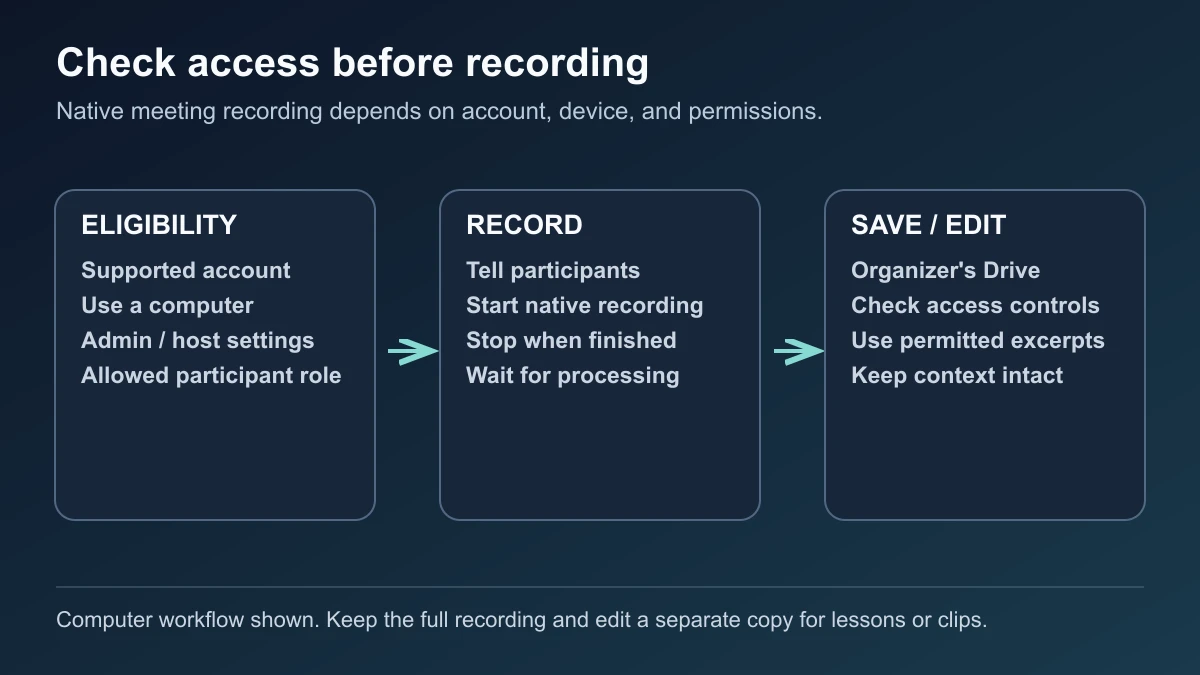
Here's how to record Google Meet: check that the host's account supports recording and your role allows it, then use the meeting's native Recording control on a computer.
The button depends on the account, administrator settings, and meeting permissions. Being able to join a call does not automatically let you record it. Arrange this before a lesson, interview, or customer conversation begins.
The main walkthrough below uses a computer. Google also documents native recording on Android; the account and permission requirements still apply.
How to record Google Meet: check eligibility first
Common eligible accounts include Workspace Business Standard and Business Plus, supported Enterprise and Education editions, Workspace Individual, and Google One subscriptions with at least 2 TB of storage. Education eligibility also depends on the assigned license. Check Google's current recording requirements against the account organizing the meeting.
For a managed work or school account, ask the administrator to verify that recording is enabled. The documented path is Apps → Google Workspace → Google Meet → Meet video settings → Recording → Let people record their meetings. The setting can apply to a department or group, and changes can take up to 24 hours. Google's administrator instructions.
Check your role separately:
| Meeting situation | Recording permission |
|---|---|
| Host Management is on | Main host and promoted co-hosts can record, subject to eligibility and administrator settings |
| Host Management is off | Participants inside the host's organization can record when eligible |
| Participant outside the host's organization | Needs promotion to co-host |
Google documents these distinctions in its co-host guide. An eligible participant cannot supply recording eligibility to an ineligible host.
Start and stop the native recording
Before starting, tell participants what you intend to record and how the replay will be used. Obtain any permission your organization or participants require, particularly if an excerpt may later be published.
On a computer:
- Join the meeting normally.
- At the bottom right, open Meeting tools → Recording.
- If you want recorded captions, select the caption language.
- Click Start recording, then Start in the confirmation.
- Wait for recording to begin before starting the material you need.
- To finish, return to Meeting tools → Recording → Stop recording and confirm.
Participants receive start and stop notifications. Recording also stops when everyone leaves, and Meet limits recorded meetings to eight hours. See Google's recording walkthrough.
If you are presenting, join the meeting before sharing. Joining only to present does not give you recording controls. For a demonstration, leave a brief opening that states the task and a closing that shows the result; both make the saved file easier to reuse.
Recording from Android
In the Meet app, join the meeting and open More → Tools → Record. Tap Start and confirm; return to the same control to stop. Google's Android recording instructions document this route. Do not assume the same control is available in the iPhone or iPad app.
Find the recording in the organizer's Drive
Look in the organizer's My Drive → Google Meet → meeting-specific folder. Google's July 2026 update introduced this structure and moved the older Meet Recordings folder inside it as Legacy Meet Recordings. Attendees with access receive shortcuts to meeting files; a shortcut does not change ownership. Google's folder announcement.
If the file is not ready, check the recording email and allow time for processing. Google's recording troubleshooting guide explains that recordings are not immediately available and that “Still processing” means the file is being prepared for viewing.
Avoid promising attendees an exact delivery time. Tell them where the replay will be shared once you have checked it.
Download a copy for editing
In Drive, select the recording, right-click, and choose Download. If downloading is unavailable, ask the owner to check the file's permissions. Google notes that owners can restrict downloads for viewers and commenters. Google Drive download instructions.
Keep the downloaded original separate from the edited version. For example, use one folder for the source recording and another for lesson excerpts. Confirm that the file plays with sound before importing it into an editor.
For sharing the replay, open Share, add the intended people, and choose an appropriate role. An external viewer may need explicit access; sending a URL alone does not establish permission. Google's Drive sharing guide explains the controls.
Turn a permitted excerpt into a useful lesson or testimonial
Choose one complete answer or demonstration. Preserve the question, necessary qualifications, and visible result. Meet records the active speaker and presented material; pinning a participant does not change the recording's view. Google's recording coverage. Plan a separate capture beforehand if you need another view.
For spoken excerpts, BlitzCut supports transcript editing, silence removal, and captions on iPhone, iPad, and Mac. Import the downloaded video, find the relevant passage in the transcript, and review each removal against the recording. These capabilities are documented in its App Store listing and version history.
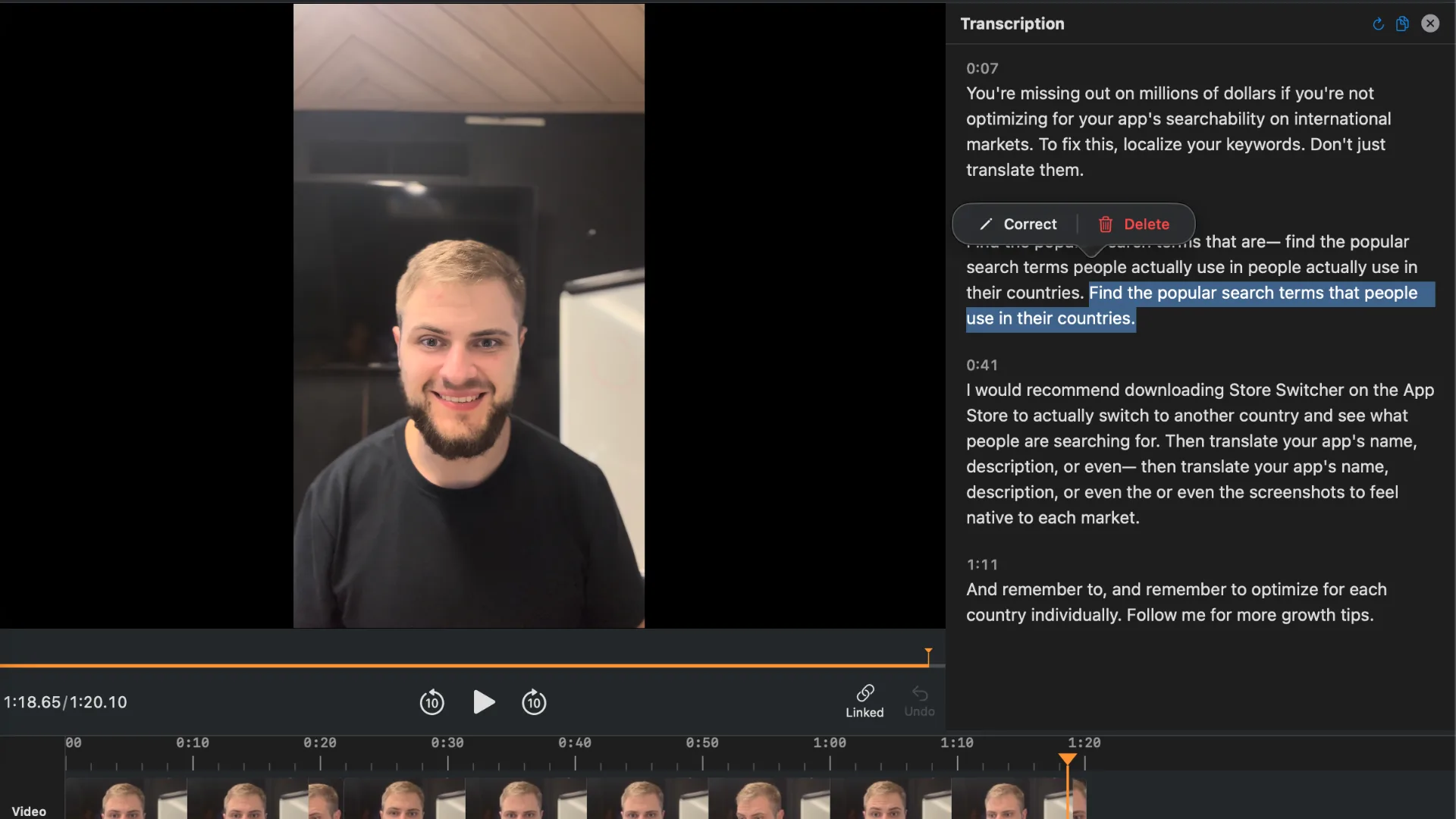
Keep quiet moments that contain useful screen actions or reading time. Review names and technical terms in captions after cutting. Watch the exported excerpt from start to finish before sharing it with its intended audience.
Troubleshoot a missing or disabled Recording control
Check the signed-in account, host's eligibility, your role, and administrator policy. Return to the main meeting if you are in a breakout room. Google also lists disabled Drive access and restrictions on creating Drive files as possible causes. Meet recording troubleshooting.
Storage matters too: the organization and the person starting the recording need available Drive space. Ask the administrator to check both quotas rather than assuming an empty personal folder is sufficient. Google's storage checks.
Frequently Asked Questions
Can a free personal Google account record a meeting natively?
A basic personal account alone does not provide recording eligibility. Check the current eligible subscriptions and the host's account; joining somebody else's meeting does not grant recording controls.
Can I record if I am not the organizer?
Potentially. Your role, the host's eligibility, and administrator settings determine access. Ask the organizer to arrange co-host status when needed before the session.
Where did the Meet Recordings folder go?
Google's July 2026 reorganization places new files in meeting folders under Google Meet. Older recordings move into Legacy Meet Recordings inside that folder, with existing links preserved.
Does editing an excerpt change the original Drive recording?
Editing a downloaded copy and exporting a separate file leaves the source recording in Drive intact. Give the excerpt a distinct name and check its sharing permissions separately.
Related Guides
Editing a talking-head video?
BlitzCut is available on Android, iPhone, iPad, and Mac. It is designed for recorded UGC-style videos, founder-led ads, tutorials, and testimonials and other talking-head content.
Try it for freeRelated Articles
Keep Reading

Best Auto Caption App for iPhone (2026): 8 Apps Compared
The best auto caption app for iPhone: BlitzCut, CapCut, Captions, Edits, InShot, VN, KineMaster, and Premiere compared on caption styles, editing, SRT export, and price.

Best CapCut Alternatives (2026): 10 Apps Like CapCut for iPhone, Android and PC
The best CapCut alternatives for iPhone, Android, Mac, and PC: free and paid apps like CapCut, compared on silence removal, captions, templates, watermarks, and price.

Best Free Video Editing App for iPhone (2026): 8 Apps, Most With No Watermark
The best free video editing app for iPhone: iMovie, Premiere mobile, Edits, VN, YouTube Create, CapCut, InShot, and KineMaster compared on watermarks, captions, 4K export, and what's actually free.