
What Is BlitzCut AI? Features, Workflow, and Supported Devices
Explore BlitzCut AI's video editor: silence removal, transcript editing, captions, AI chat, motion graphics, backgrounds, and workflows across five platforms.


BlitzCut AI is a video editor for footage of people talking. It brings together automatic silence removal, transcript-based cutting, styled captions, an AI chat editor, motion graphics, background replacement, and a timeline for finishing the edit. It is available on Windows, Android, iPhone, iPad, and Mac.
That could mean a 30-second product pitch, a founder explaining a new feature, a customer testimonial, or a much longer interview or lesson. The common thread is spoken content: you have a recording, and you want to turn it into a clear, well-paced video that is ready to publish.
We build BlitzCut around that process. You can read the transcript to decide what stays, let AI handle repetitive cleanup, and use the timeline to adjust the result. This guide walks through those tools with product images and recordings, so you can see what editing in BlitzCut actually involves.
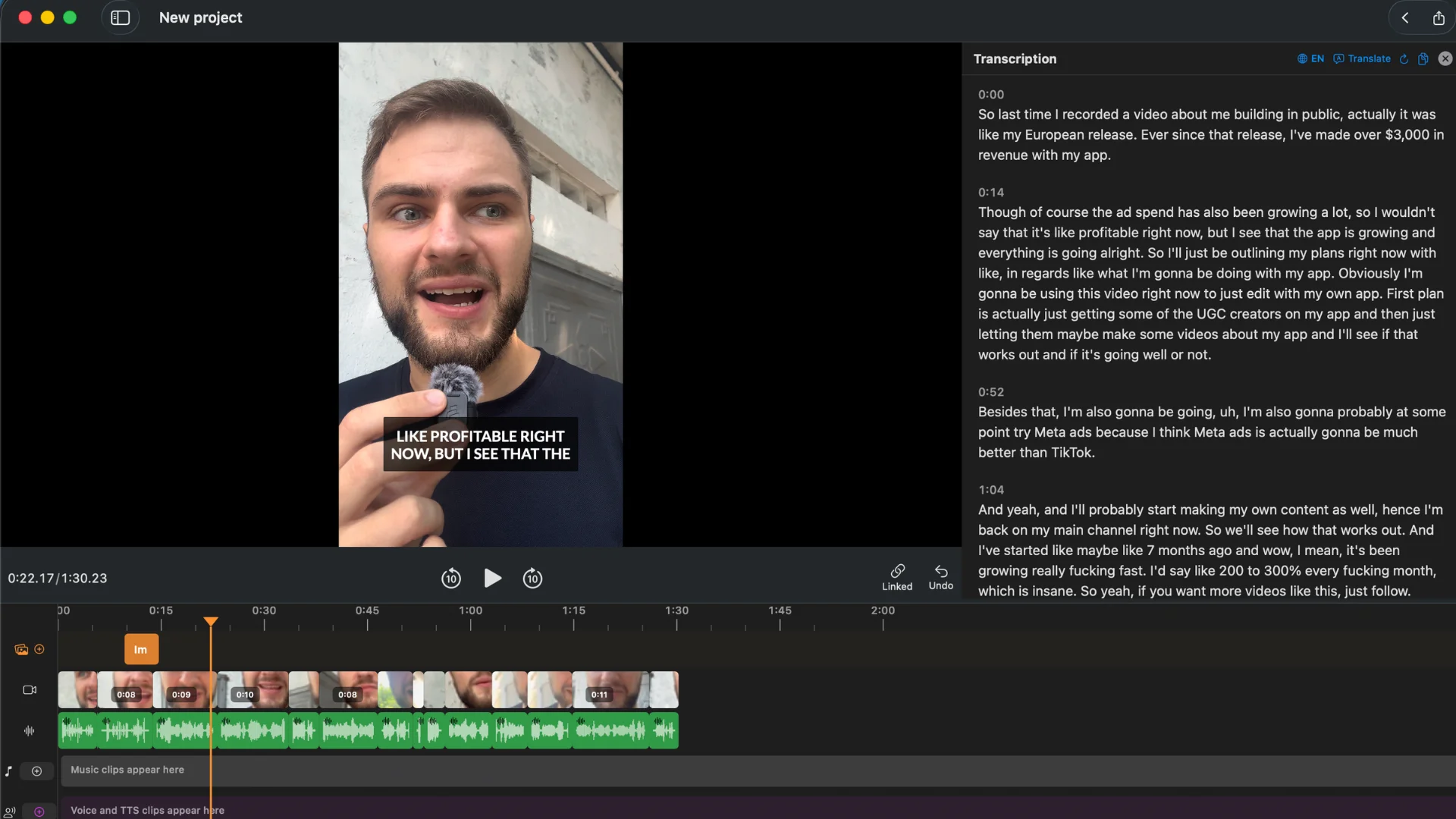
The Mac workspace brings the video preview, transcript, and timeline together. You can work through the spoken content while seeing the footage and its edit points.
What can you do with BlitzCut AI?
BlitzCut covers the work between importing a recording and exporting the finished video:
| Part of the edit | What you can do |
|---|---|
| Clean up pacing | Detect and remove silent gaps, then review the cuts |
| Edit the message | Select unwanted words or sentences in the transcript and delete the matching footage |
| Make speech readable | Generate captions, correct the text, and choose a template |
| Ask for edits | Describe an edit in the AI chat panel and review the result |
| Add supporting visuals | Use motion graphics, text, images, or a replacement background |
| Finish and deliver | Arrange clips, add audio, adjust the framing, and export |
A quick answer recorded on your phone may only need cleanup and captions. A product ad might also use an image overlay, a voiceover, and an animated graphic. The tools share the same project, so you can add the finishing steps your video needs.
Clean up the recording: silence removal and transcript editing
Two different things usually need attention in a spoken recording: the empty space between sentences, and the sentences themselves. BlitzCut gives you separate controls for both.
Remove silent gaps with AI Cut
Automatic silence removal finds pauses in your recording and cuts out the gaps. This is useful when you stop to think, look at your notes, or leave space between takes.
After the first pass, play the result back. A fast product pitch and a thoughtful explanation need different rhythms. Keep the pauses that make an idea land, and tighten the ones that simply delay the next sentence.
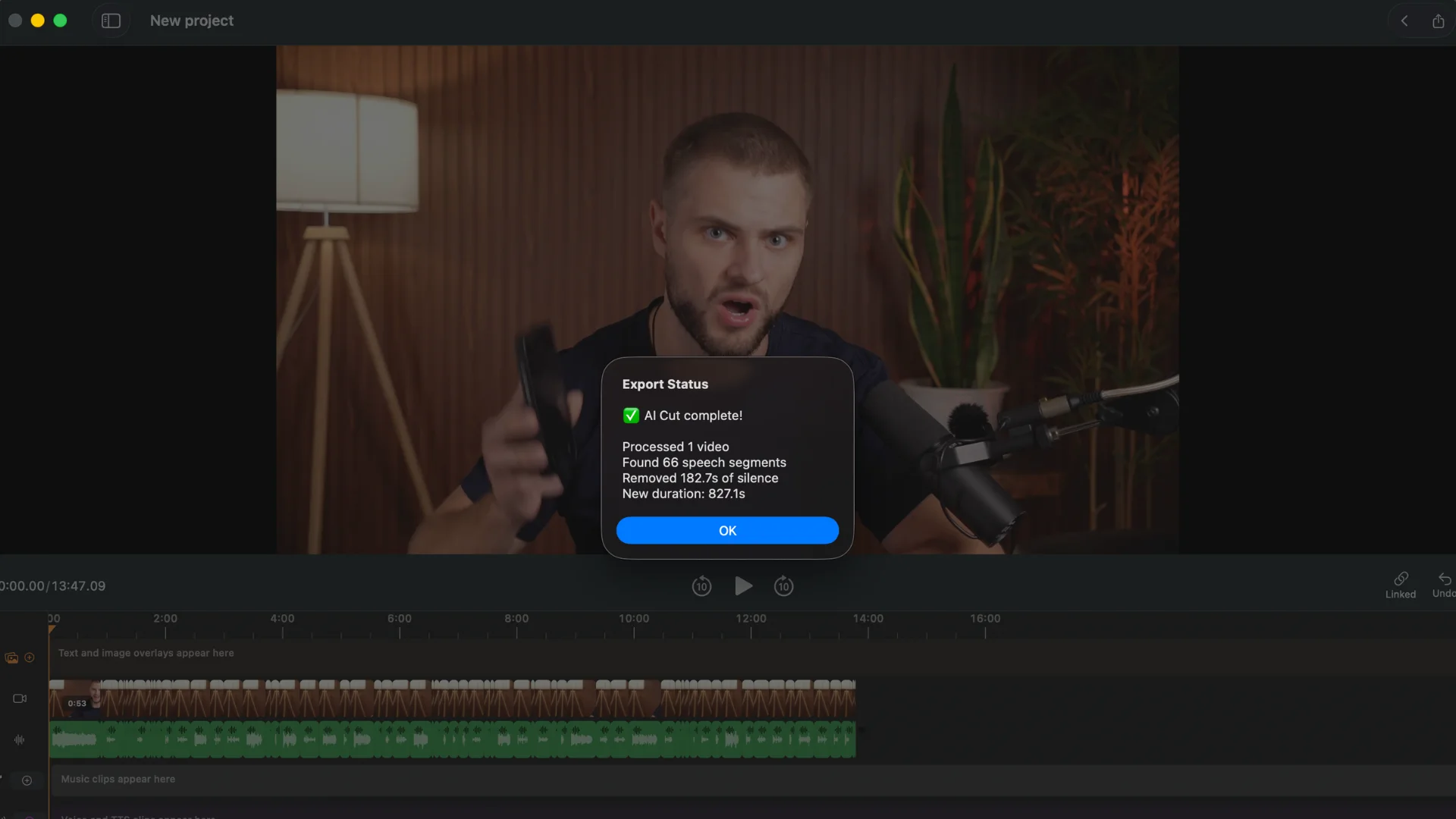
AI Cut reports the result of the silence-removal pass. The numbers shown belong to this recording; the amount removed depends on the pauses in your footage.
The advanced settings let you adjust speech-detection sensitivity and minimum speech and silence durations. These controls matter when a speaker is quiet, the room is noisy, or you want a gentler cut. There is no single pause length that suits every recording.
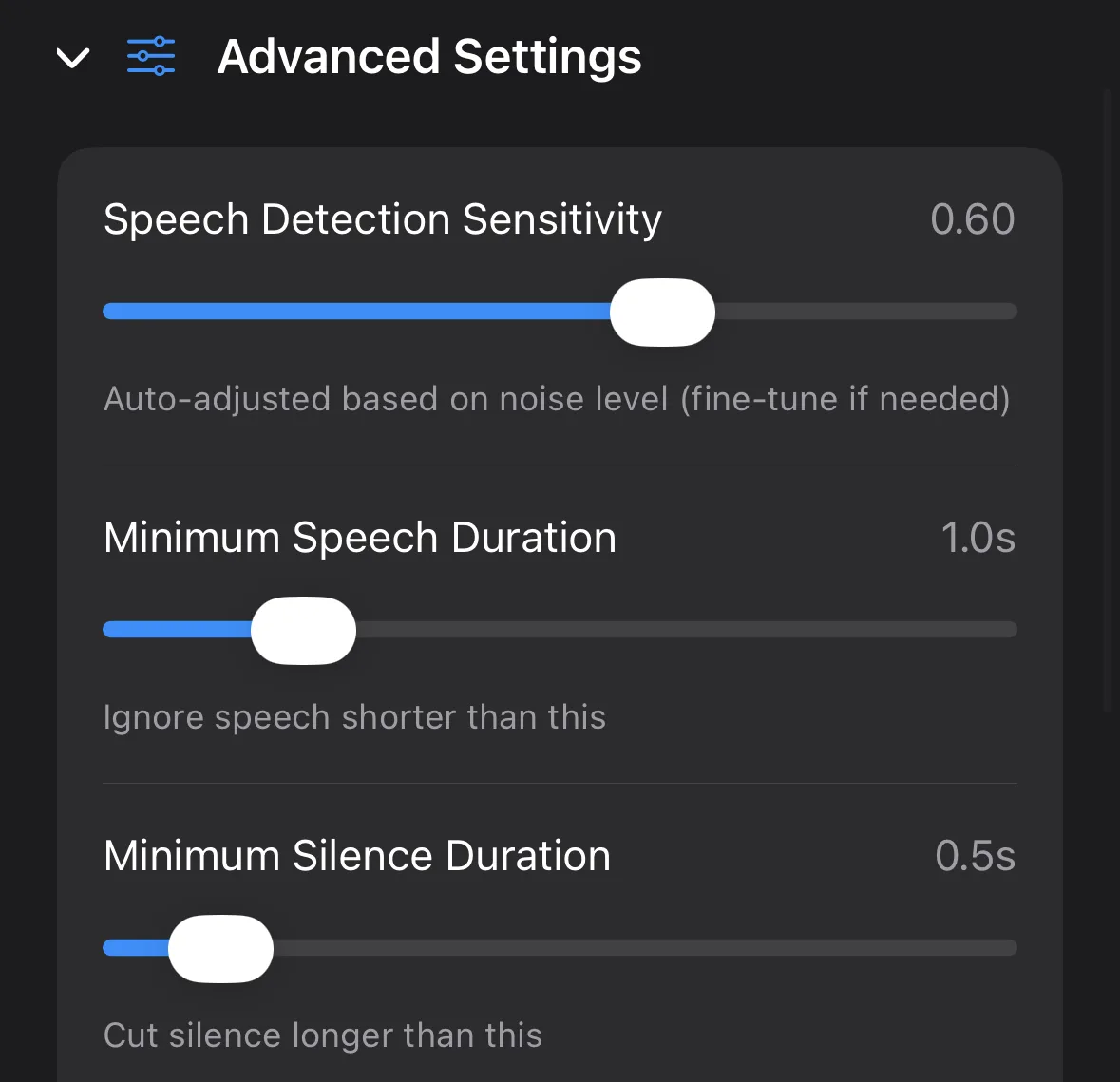
Adjust the detection settings to fit the recording, then listen to the joins between sentences.
Cut unwanted speech by editing the transcript
Text-based editing turns your recording into a transcript linked to the footage. Select a word, phrase, or sentence and delete it to remove that section from the video.
For example, you might record: “The main benefit is—let me start again—the main benefit is that you can edit on your phone.” Reading the transcript makes the false start easy to find. Select the unwanted phrase, delete it, and listen to the remaining sentence.
The transcript also distinguishes Correct from Delete. Correct a recognition mistake when the text does not match what you said. Delete when you want to remove the spoken material itself. Changing a caption's spelling does not mean you have recorded a replacement word.
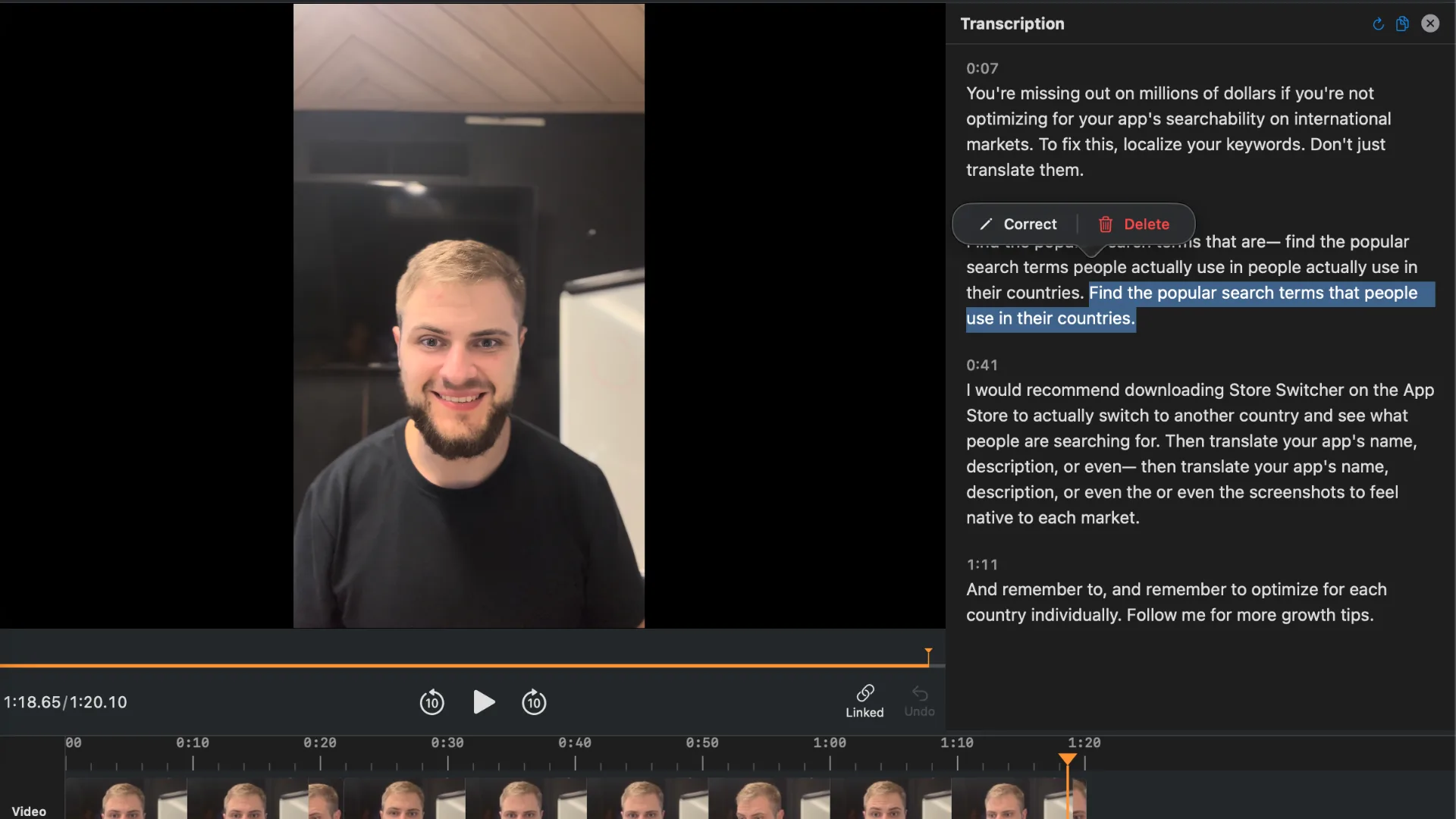
Select a passage in the transcript and choose whether to correct its text or delete its footage.
The transcript lets you find an unwanted phrase by reading. Silence removal tightens the spaces around the words you keep. Used together, they make the recording easier to work through.
Generate and style captions
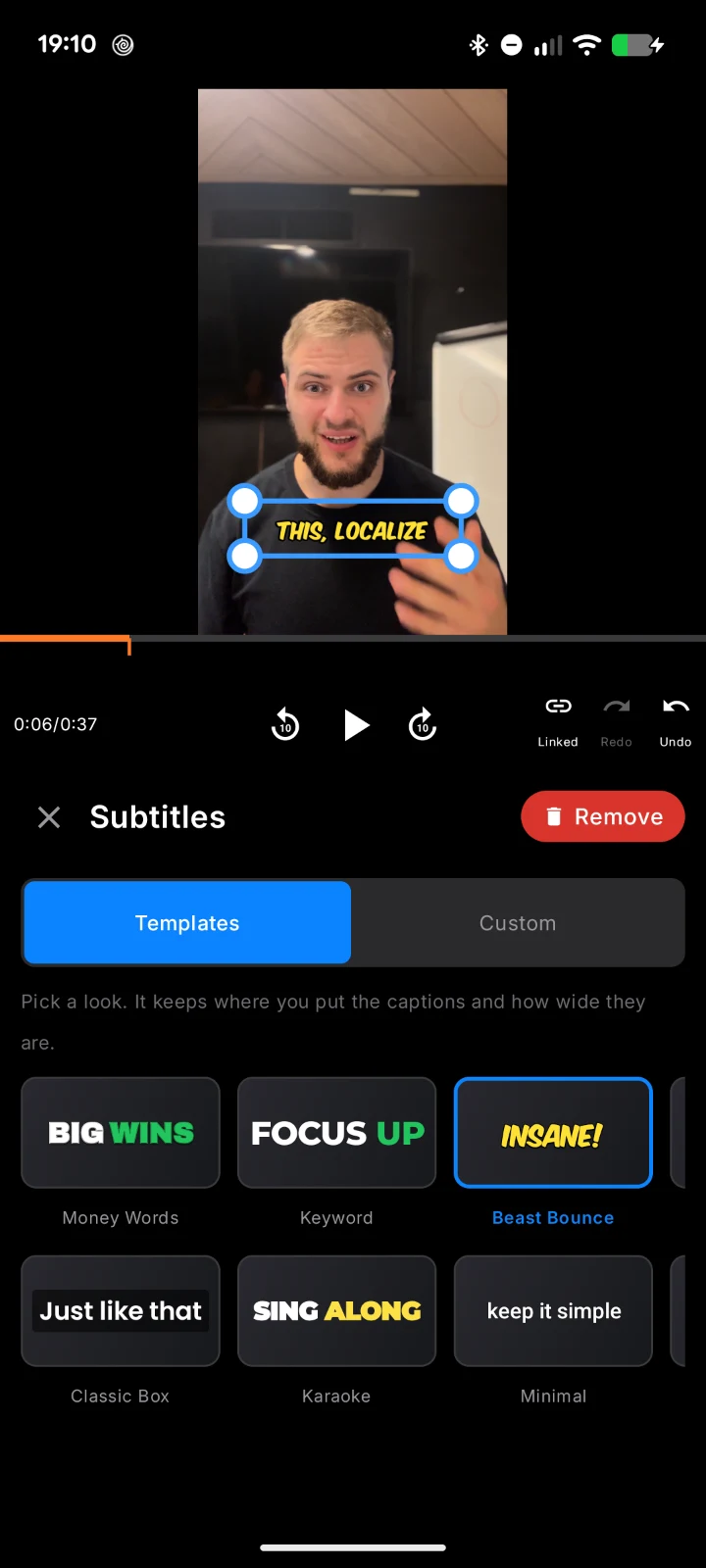
Auto captions turn the speech in your video into timed text. You can correct names and terminology, choose a template, and adjust the font, size, color, position, and background.
BlitzCut includes several caption treatments, including simple subtitles, bold highlighted words, boxed text, and karaoke highlighting. Choose the treatment that supports the recording: a restrained style for a detailed lesson, or a more prominent style for a short social clip.
Templates give you a starting point. Custom controls let you fit the captions to your footage and brand. Keep the words clear of the speaker's face and leave room for the buttons and description that a social platform places over the video.
Before export, read through the captions and watch the timing. Names, numbers, and specialist vocabulary deserve particular attention. Caption accuracy depends on the recording, so a quick review is part of the workflow.
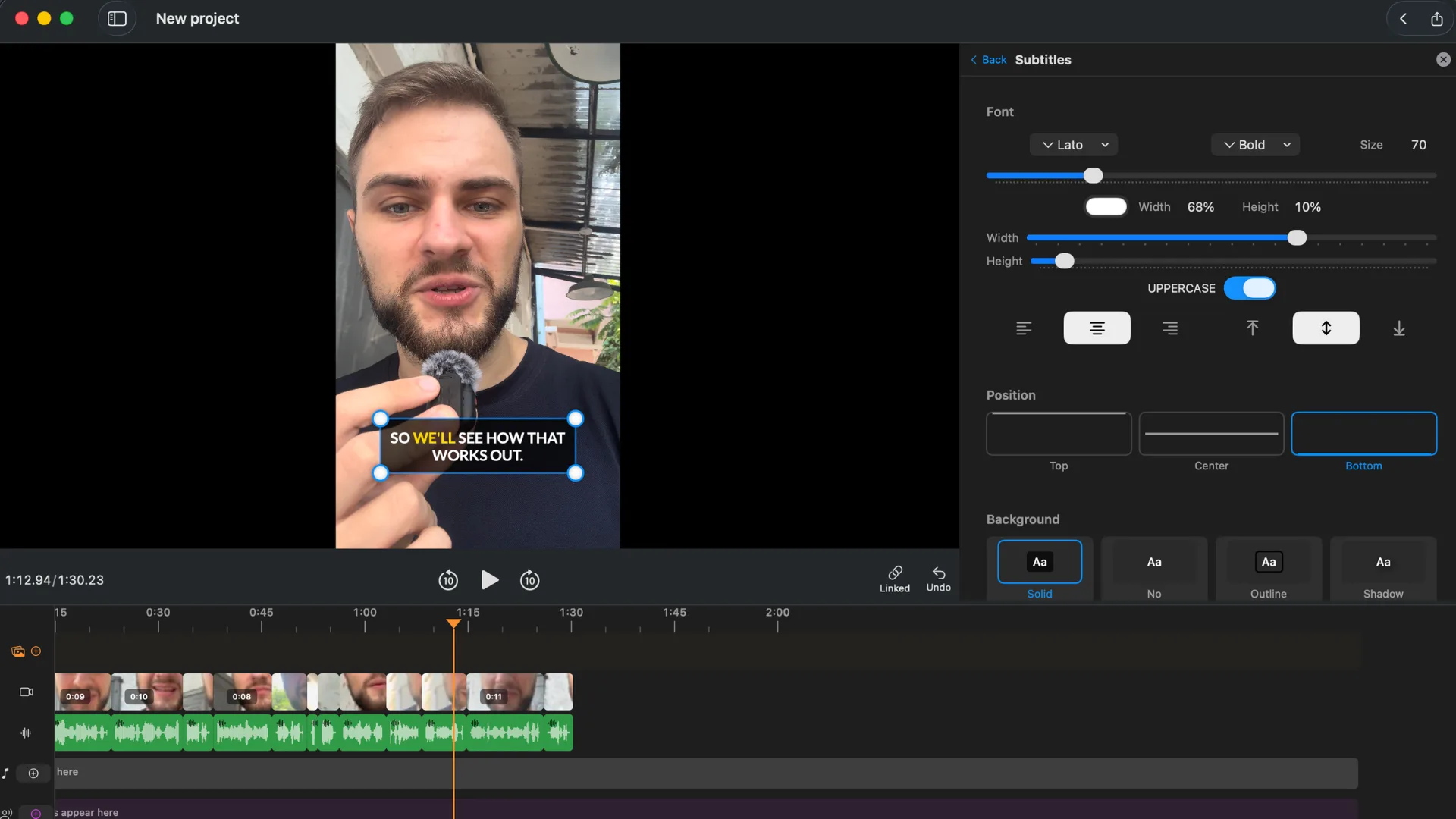
On Mac, the subtitle panel combines font, size, width, alignment, position, and background controls. The preview shows how the highlighted words sit over the recording.
Ask the AI Editor for changes in plain language
AI chat editing lets you describe an edit instead of finding every control yourself. You can ask for changes such as trimming pauses, adding captions, changing speed, or emphasizing selected moments.
Work in passes. For example, clean up the pauses first, watch the result, and ask for a few zoom-ins to emphasize the key points. The changes appear in the project so you can inspect them and continue editing manually.
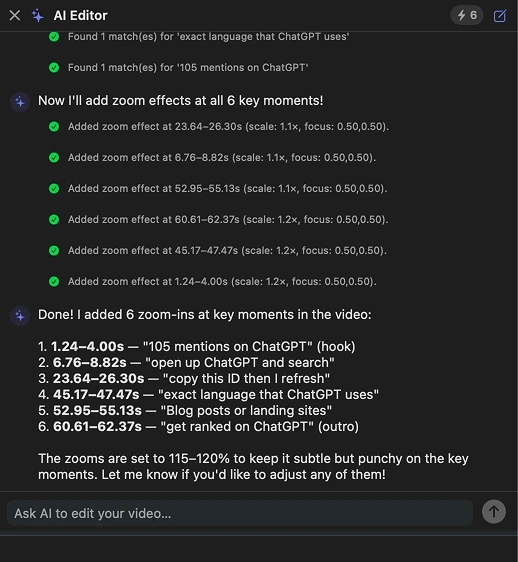
An AI Editor conversation about adding zoom-ins. Follow the request with playback to judge whether the emphasis feels right.
The chat panel is another way to operate the editor. You still decide which message the video should deliver, which take is convincing, and whether a visual change improves it. Specific instructions give you something concrete to review: “emphasize this sentence” is more useful than asking for an undefined improvement.
Add motion graphics and change the background
BlitzCut also has tools for adding visuals around your recorded footage. These are useful when the viewer needs to see an idea as well as hear it.
AI motion graphics
With AI motion graphics, you can ask the AI Editor for an animated chart, text, or graphic that fits what is being said. The animation appears alongside the speaker and can be reviewed in the video preview.
For example, a lesson about a change over time can use a chart next to the explanation. A short callout can emphasize a term without covering the whole frame. You choose the idea the graphic needs to communicate and review the generated result.
Image and video backgrounds
The background changer separates the speaker from the original background and places an image or looping video behind them. You can move and resize the person and apply the background to a clip or the whole project.
A video background loops with its audio muted, keeping the original speech in the foreground. Review the edges around hair and hands and choose a background that gives the person enough contrast.
These product recordings show an animated chart accompanying the speaker and a replacement video background with adjustable subject placement.
Finish the edit with a timeline, overlays, and audio
AI cleanup is often the beginning of an edit. BlitzCut also provides the controls for shaping the rest of the video.
Arrange clips and adjust pacing
The timeline lets you split, trim, reorder, and combine clips. Use it to place the strongest opening first, remove a section that does not need a transcript, or assemble several recordings into one sequence.
You can also change playback speed for individual clips. A setup shot may work well sped up, while an explanation needs enough time to follow. Listen to the complete sequence after changing speed so that the transitions between sections remain comfortable.
Add text, images, and layout overlays
Overlays let you add a title, logo, product image, or other graphic over the recording and control when it appears. This is useful for showing the item you are discussing, labeling a step, or adding a visible call to action.
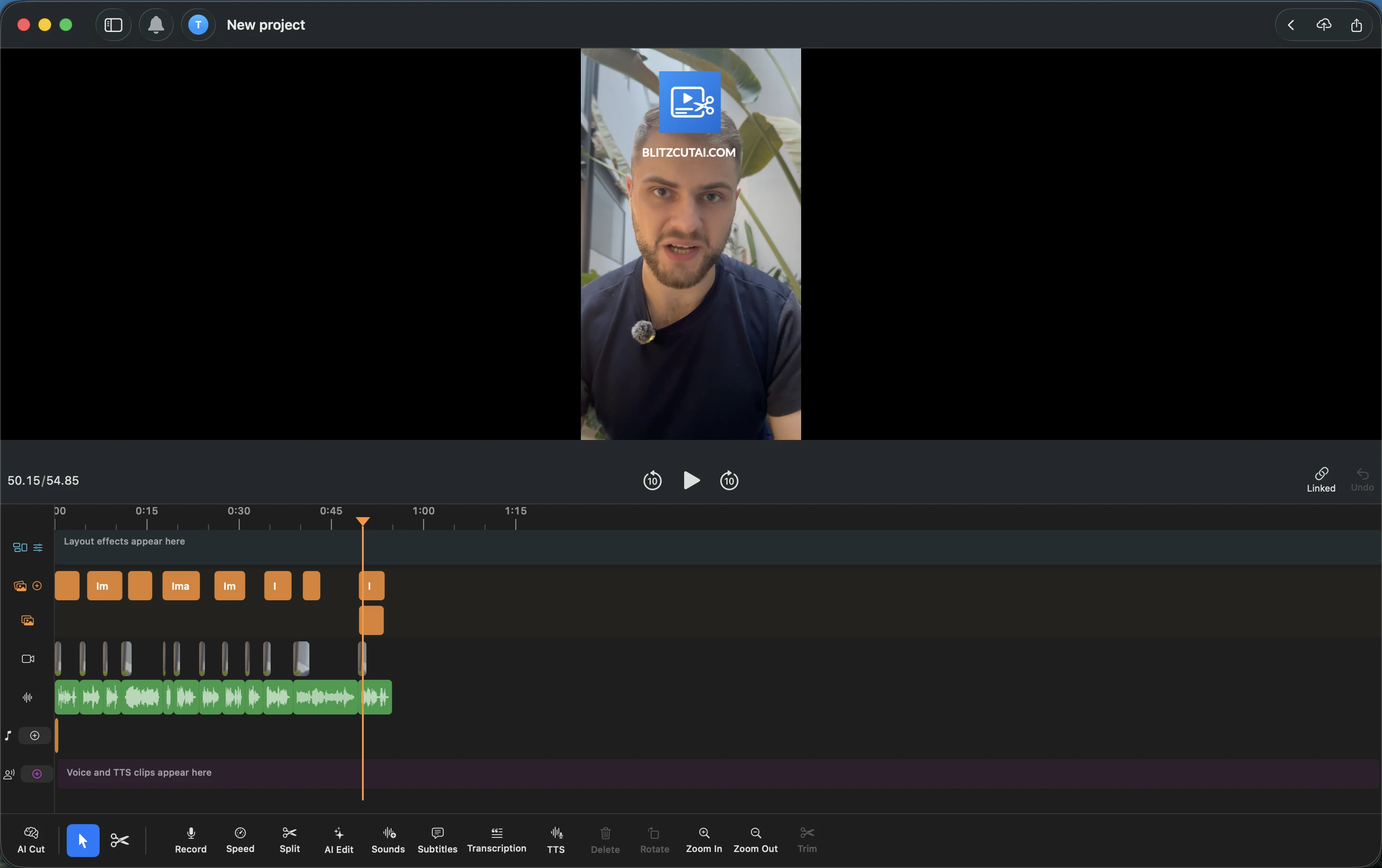
Overlay clips sit above the main recording. Their position on the timeline controls when the logo or text appears in the finished video.
Add music, recorded voiceover, or text-to-speech
BlitzCut supports imported music, voiceover, and text-to-speech. You can bring in an audio file, record narration, or write a script and generate a voice track.
This gives you options when an edit needs a spoken introduction over a product shot, a short explanation over a screen recording, or music underneath the main recording. Keep dialogue easy to hear, and listen through the transitions between original speech and added narration.
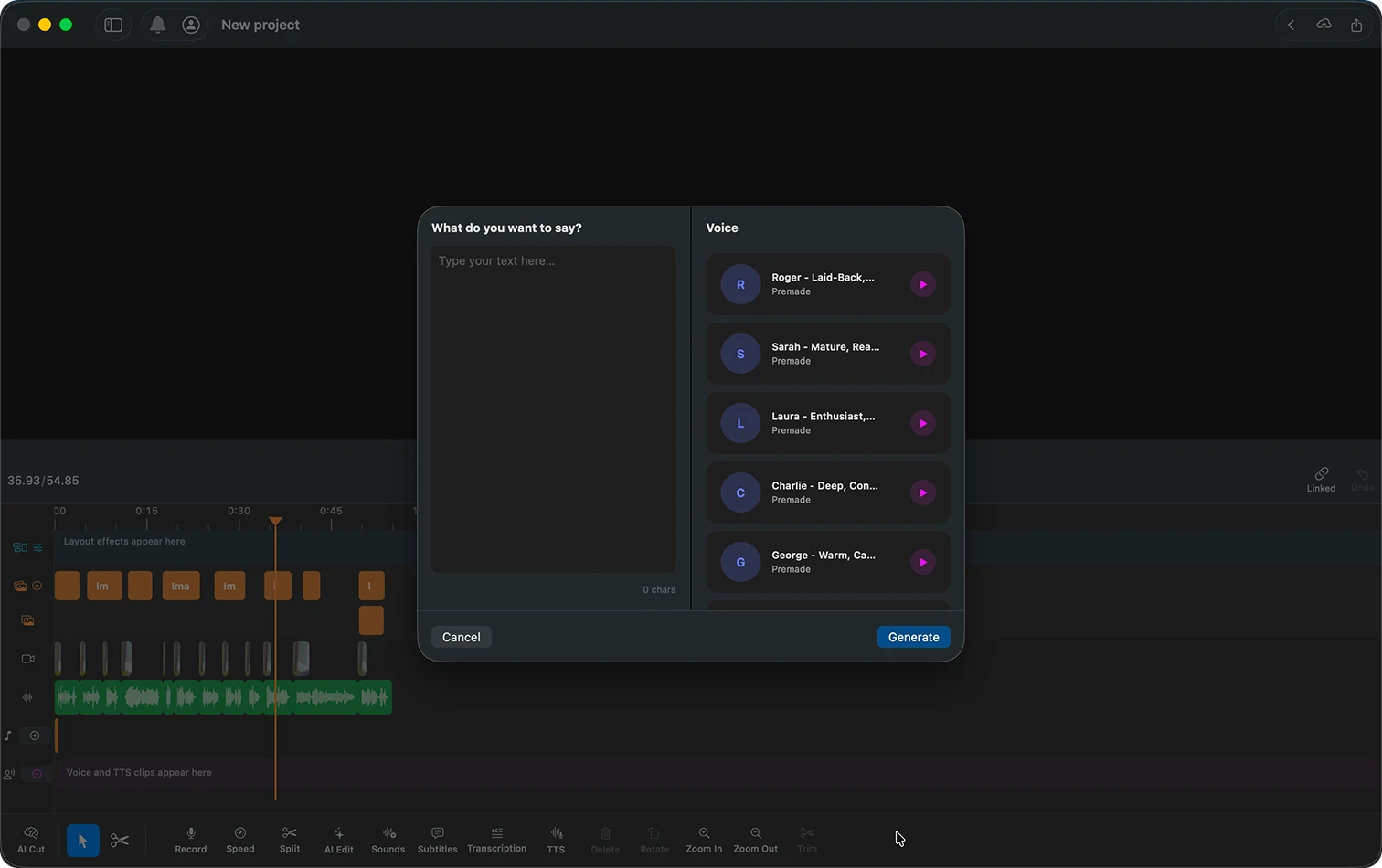
Write the voiceover script, preview a voice, and generate audio to use in your edit.
Reframe the video and export for your destination
Crop and reframe lets you adapt the composition for the place the video will be watched. Use a vertical 9:16 frame for TikTok, Reels, and Shorts; a horizontal 16:9 frame for a YouTube video or lesson; or a square layout when that suits your delivery.
Choose the shape, then adjust how the footage fills it. Keep the speaker and any product demonstration visible. The crop panel also includes speaker tracking, described in the controls as working best with one speaker.
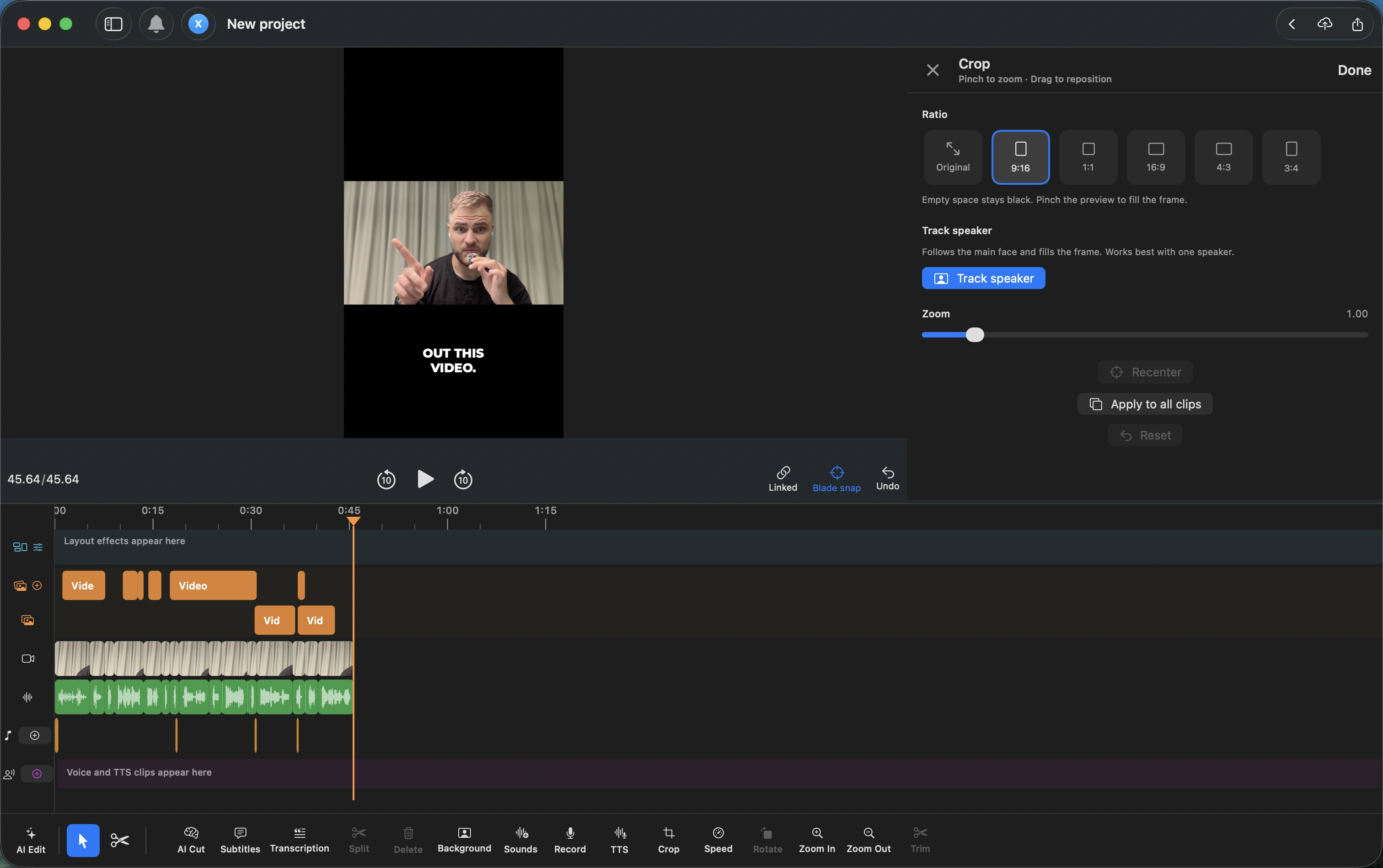
Select the output shape, then adjust how the source footage fills it. Check both the speaker and the captions in the preview before exporting.
BlitzCut offers export up to 4K. Choose an output that suits the source recording and delivery requirements: a larger export does not restore detail that the original video never captured. Watch the exported file once, including its first and last seconds, before uploading or sending it to a client.
A practical BlitzCut workflow, from recording to finished video
Here is how the tools fit together for a founder explaining a product in a short video:
- Import the recording. Start with the take that contains the explanation you want. Keep the original file so you can return to it later.
- Make the message clear. Read the transcript and remove the false start, repeated sentence, and tangent that distract from the main point.
- Tighten the pacing. Run silence removal and review the joins. Leave a little space where the viewer needs to absorb an idea.
- Add the supporting material. Put the product image over the relevant sentence, add a short title, or ask the AI Editor for an animated visual where it helps explain something.
- Style the captions. Correct product names, choose a template, and check the size and position on a phone-sized preview.
- Reframe and export. Prepare the vertical version for social media or the horizontal version for a longer publishing workflow. Listen and watch the final file.
For a longer lesson or interview, the same sequence applies, but the first decision is which explanations belong in the finished video. For a customer testimonial, keep the speaker's meaning intact as you remove pauses and repetition. For a quick answer recorded on your phone, you may finish after a simple cleanup and captions.
The time an edit takes depends on the recording, the device, the amount of review, and how much visual work you add. The practical benefit is that you can spend your attention on the message while the app handles repetitive cutting and caption timing.
Who is BlitzCut AI for?
BlitzCut is especially useful when the person speaking carries the video:
| Creator or team | Example project | Useful tools |
|---|---|---|
| Founders and small businesses | Product updates, demonstrations, founder-led ads | Transcript edits, captions, product overlays |
| UGC creators | Recorded product pitches and testimonials | Silence removal, caption templates, vertical framing |
| Coaches and educators | Lessons, explainers, answers to common questions | Transcript cleanup, callouts, motion graphics |
| Podcasters and interviewers | A selected conversation or a clip from it | Transcript editing, pacing, captions |
| Social media managers | Creator-led videos delivered in several formats | Caption styling, overlays, cropping |
| Professionals publishing advice | A recorded explanation for clients or an audience | Clear speech edits, readable captions, simple branding |
Short social videos are one use case. Longer talking videos, tutorials, interviews, webinars, and course recordings also benefit from the same speech-centered workflow.
For projects whose main challenge is multicamera switching, detailed color work, or complex visual effects, assess those requirements separately. The strongest reason to choose BlitzCut is that editing the spoken recording is a central part of the job.
Where can you use BlitzCut?
BlitzCut is available across five platforms. Start from the download page to get the right app for your device.
| Device | Where to get it | A useful way to work |
|---|---|---|
| iPhone | App Store | Film and edit on the phone you already have with you |
| iPad | The same App Store listing | Work on a larger touch screen |
| Mac | The same App Store listing | Read longer transcripts beside the video and timeline |
| Android | Google Play | Edit recordings on an Android phone |
| Windows | Windows installer | Use a Windows 10 22H2 or Windows 11 Intel/AMD x64 PC |
The screenshots in this guide show several versions of BlitzCut. Use the page for your device to check current compatibility and controls, especially when following a tutorial recorded on another platform.
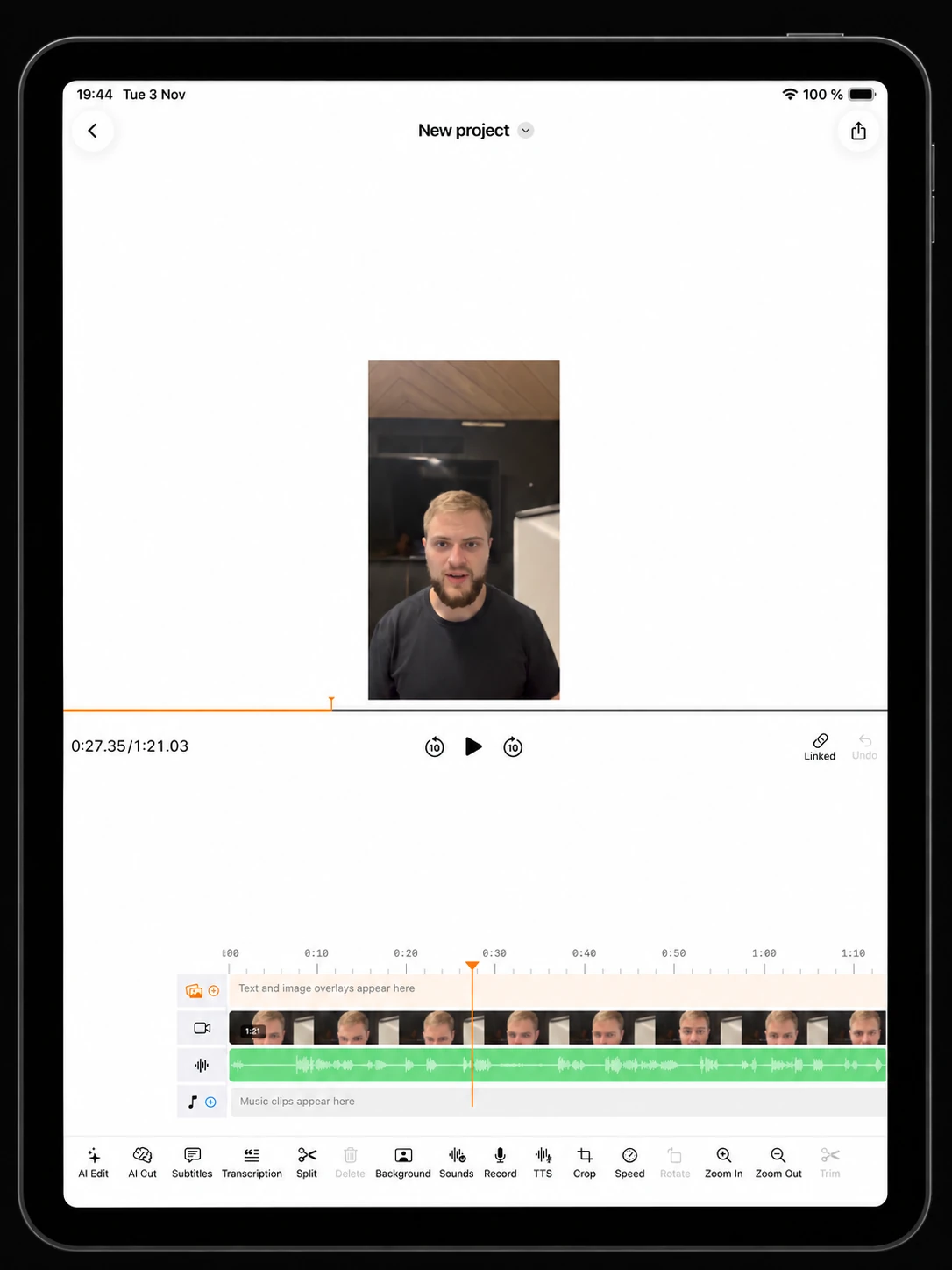
On iPad, the larger touch workspace gives the preview, timeline, and editing tools more room.
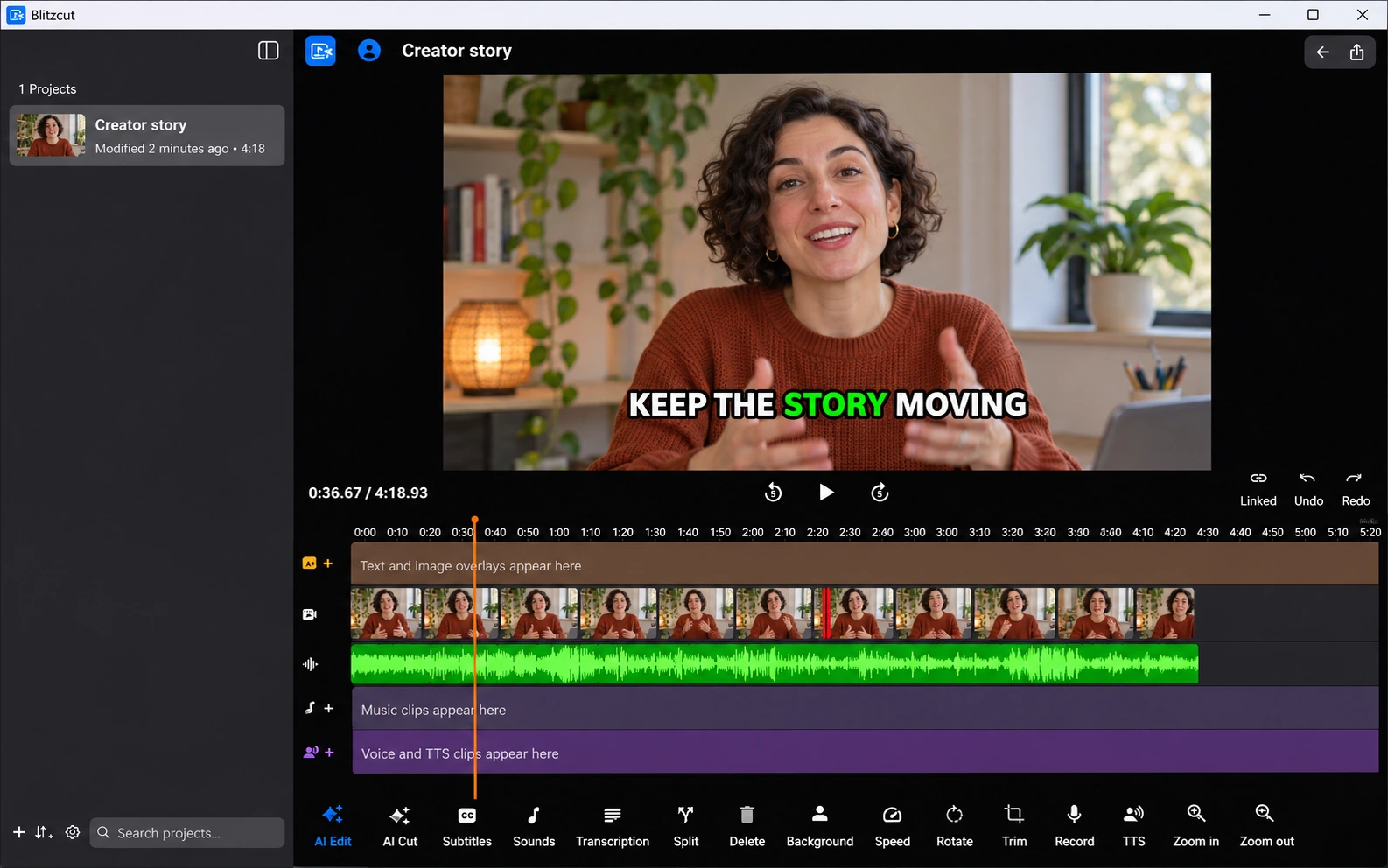
A Windows interface illustration showing the project list, preview, and editing timeline. See the Windows download page for the current release and system requirements.
Can you continue a project on another device?
BlitzCut's cross-device sync supports continuity across iPhone, iPad, and Mac. You can begin an edit on your phone and continue with more screen space on an Apple tablet or computer.
Project sync keeps the edit available to continue working on. Exporting a video gives you a finished media file to watch or publish. Those serve different purposes. The documented Apple sync workflow should not be taken as a promise of project sync between every combination of Windows, Android, and Apple devices.
Is BlitzCut free, and how do subscriptions work?
BlitzCut is free to download. Premium access and eligible trials unlock paid features and watermark-free exports. The pricing page shows the current regional offers and purchase terms.
As of November 19, 2026, the standard US web plans are:
| Web plan | US price | Included AI credits |
|---|---|---|
| Weekly | $6.99 per week | No credits included |
| Monthly | $16.99 per month | 20 each month |
| Yearly | $69.99 per year | 80 each year |
The yearly web plan offers a three-day free trial, followed by the annual charge unless canceled. Its 80 credits arrive with the first payment. AI credits and Premium access are separate: paid access does not mean unlimited AI usage.
Web subscriptions renew until canceled. To activate a web purchase, log in inside BlitzCut with the email used at checkout. App Store and Google Play offers can differ; manage an existing store subscription through the store where you bought it.
Which parts use the internet?
BlitzCut combines local editing with connected AI services. On iPhone and Mac, silence removal runs on the device. Transcription and connected AI features require an internet connection; the transcription workflow sends audio to a cloud service.
The privacy policy describes the use of third-party AI providers, including OpenAI. Local silence removal does not make every feature an offline feature. If you need to edit without a connection, prepare your media and transcript beforehand and check the operations you need in your installed version.
Frequently asked questions
Is BlitzCut only for short videos?
No. BlitzCut also supports editing longer talking videos, interviews, podcasts, tutorials, and lessons. Vertical social clips and horizontal videos use the same basic process: choose the spoken content, improve pacing, add the presentation elements you need, and export.
Can I edit a video by deleting words?
Yes. The transcript links words to the recording. Deleting a selected spoken section removes the matching footage. Use the correction action when you only need to fix the recognized text.
Does BlitzCut generate video with AI?
BlitzCut primarily edits recorded footage. Its AI Editor can generate motion graphics to accompany that footage, and text-to-speech can generate narration. The motion-graphics and background demos above show how those additions fit around the original speaker.
Can BlitzCut remove filler words and mistakes?
You can select unwanted words, repeated sentences, and mistakes in the transcript and delete the corresponding video. Silence removal handles pauses; reviewing the transcript lets you decide which spoken material to remove.
Can I edit manually after using AI?
Yes. You can review the project on the timeline, adjust cuts, change the composition, and refine captions. The AI tools and manual editing controls are part of the same workflow.
Does BlitzCut support other languages?
BlitzCut supports multilingual transcription and captions, and includes transcript translation. Check your spoken language and terminology with a short recording in the app, then proofread the result before publishing.
Who makes BlitzCut?
BlitzCut is developed by Tomas Radionovas. The service's privacy notice identifies MB Patikimas Kodas, doing business as BlitzCut. You can read more about BlitzCut or contact support.
Try it with a recording you already have
Download BlitzCut for your device, import a spoken recording, and start with the edit that matters most: remove a repeated sentence, tighten the pauses, or add readable captions. From there, use the transcript, AI Editor, and timeline to shape the finished video.
Explore the tools: Silence removal · Text-based editing · Auto captions · AI chat editing · AI motion graphics · Background changer
Editing a talking-head video?
BlitzCut is available on Windows, Android, iPhone, iPad, and Mac. It is designed for recorded UGC-style videos, founder-led ads, tutorials, and testimonials and other talking-head content.
Download BlitzCutRelated Articles
Keep Reading

How to Add Captions to a Video: Burned-In, Platform, and SRT (2026)
How to add captions to a video three ways: burned-in open captions, a platform's auto captions, or an SRT file. Steps for TikTok, Reels, YouTube, and more.

How to Record a Video on Mac (Photo Booth, QuickTime, iPhone)
How to record a video on Mac with Photo Booth or QuickTime Player, use your iPhone as a better camera, and record yourself with good light and sound.

What Font Does Instagram Use? (2026)
Instagram uses Instagram Sans in the app, Stories, and Reels captions; the logo is a custom script that looks like Billabong. The full breakdown, the Stories font list, free lookalikes, and why copy-and-paste Instagram fonts aren't fonts.