
How to Upload a Video to Instagram: Phone and Desktop
Learn how to upload a video to Instagram on mobile or desktop, distinguish Reels from Stories, and check the cover, audience, crop, and upload quality.


Here's how to upload a video to Instagram: choose the finished file in the mobile Reel flow or the desktop Create menu, review its presentation and sharing settings, then publish.
You can upload an existing recording without making it again inside Instagram. Start with the correct account and a local copy of the final video, especially when several similar exports are saved on your device.
How to upload a video to Instagram from your phone
Instagram's current Reel instructions document this route for iPhone and Android:
- Open your profile and tap Create new, then Reel.
- Select your finished video from the camera roll. If the recording camera opens, use the camera-roll control to choose an existing file.
- Continue with Next and review the preview. Add any native text or audio you actually need.
- Tap Next to reach the publishing details.
- Use Edit cover, write the caption, and review the available sharing settings.
- Tap Share when the preview and details are correct.
Menu placement can vary between app versions. The important choice is the Reel creation flow and your existing video, rather than accidentally starting a new recording.
Understand Reels, Feed, and Stories before sharing
For a standalone video, use the Reel workflow above. A Reel appearing in Feed does not make it a separate legacy feed-video upload. Likewise, the desktop menu label Post does not mean that a video selected there bypasses Reels: Instagram documents that desktop route in its Reel publishing guide.
A carousel containing several photos or videos is another publishing choice. If that is your intended format, check the multi-item composition rather than treating this single-file walkthrough as a carousel tutorial.
Stories are a separate destination. Choose Story in the mobile creation flow when you intend a Story upload, select the saved video, and check its preview and recipients before sharing. Do not assume publishing a Reel also publishes the full video as a Story. Instagram maintains separate Stories guidance; for preparation specific to that format, use our Instagram Stories editing guide.
Upload from a Mac or PC browser
Finish your edit first, then sign in to Instagram on the computer holding the file:
- Click Create → Post.
- Click Select from computer and choose the video.
- Click Next. Review the cover and any trimming.
- Continue to the caption and post settings.
- Check the details, then click Share.
Instagram's desktop instructions document choosing a cover frame with the slider or selecting a cover image from the computer. Use a frame that identifies the subject: a clear product view, a readable demonstration, or the presenter facing the camera.
Compare the selected file's opening and ending with your approved export. A filename ending in “final” is less reliable than watching the actual file.
Check the cover, crop, and text at phone size
The cover and the playing video serve different purposes. A cover should explain what the post contains; the playback frame needs room for faces, demonstrations, and captions. Check both before sharing.
For full-screen portrait playback, a 9:16 composition is a useful starting point. Instagram accepts Reel aspect ratios between 1.91:1 and 9:16 according to its size and aspect-ratio guidance. That acceptance range does not guarantee every composition will look equally clear.
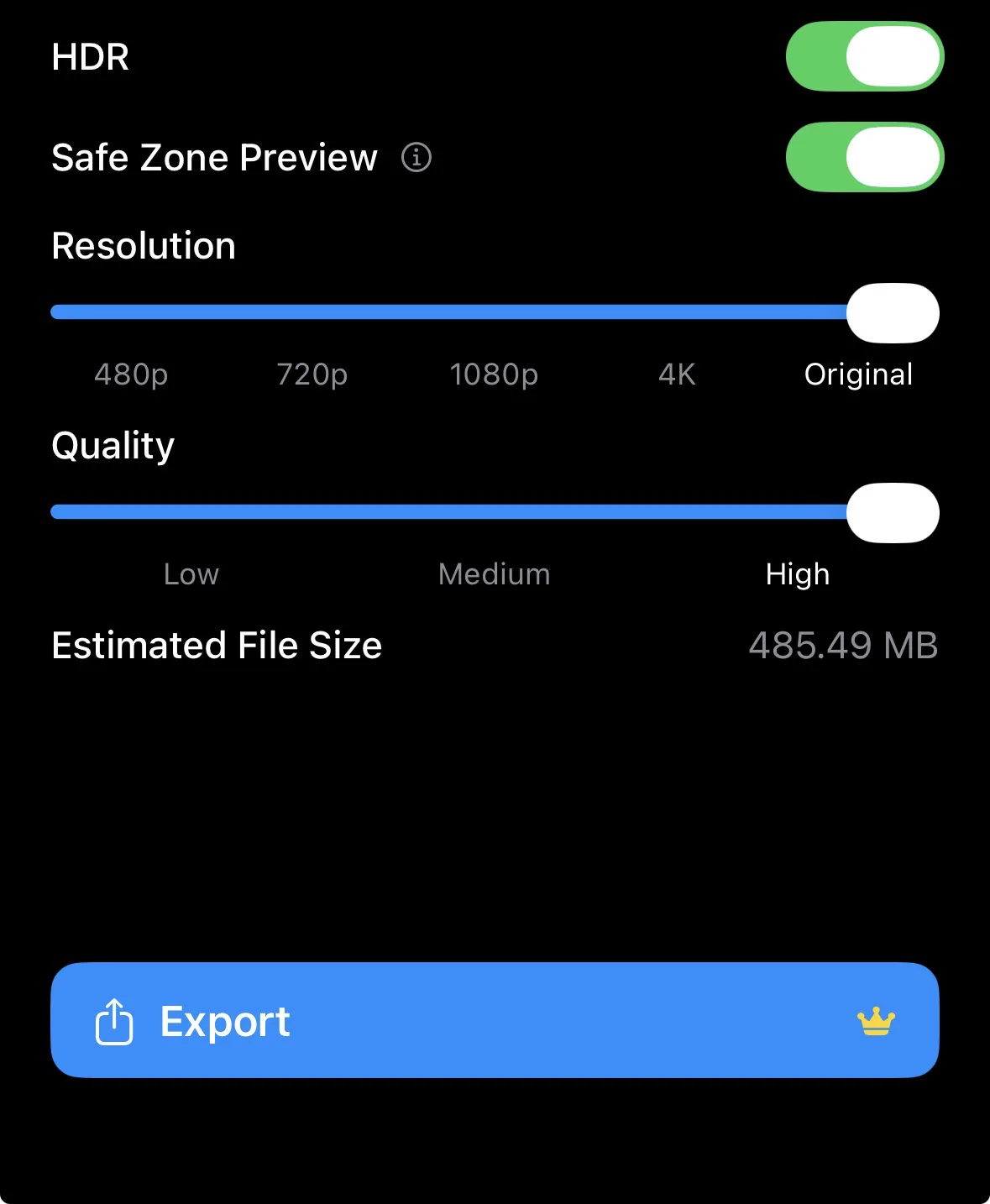
Use the aspect ratio calculator to compare dimensions, and the video safe zone checker to inspect text placement. These are planning aids; Instagram's actual preview is the final check. If a crop removes a hand demonstrating a step, reframe the source instead of stretching it. Our aspect-ratio guide explains that preparation.
Set upload quality and inspect the saved file
Instagram documents a mobile setting under Profile → Menu → Media quality, below Your app and media. Turn on Upload at highest quality if desired; Instagram notes that higher-quality uploads may take longer. See its Reels quality instructions.
That setting cannot repair an already blurry export. Play the saved video before uploading, listen to the opening sentence, and inspect any small labels or captions. Keep the original file so revisions do not depend on downloading a published copy.
If a supplied tutorial, UGC clip, founder explanation, or testimonial still needs editing, BlitzCut is an optional preparation step. The installed iPhone, iPad, and Mac app offers transcript editing, adjustable silence removal, a timeline, images, imported audio, and captions. It is free to download with paid features; see its App Store listing and release history.
BlitzCut is available for iPhone, iPad, Mac, and Android. Check Android features and purchase terms separately; Apple workflows and App Store prices in this article apply to the Apple apps.
Review the audience and published playback
Before sharing, check the selected account, its public or private status, any audience option offered, and whether Facebook sharing is enabled. Read the post caption separately from subtitles drawn into the video. Confirm names, mentions, and any location you chose to include.
After publishing, open the post and check its cover, sound, crop, and ending. If the wrong take appears, compare it with the local file before changing the edit. If an upload stalls, verify the file plays locally and check your connection before trying again. Look for an existing published copy first to avoid duplicating the post.
Frequently Asked Questions
Can I upload a video to Instagram from a computer?
Yes. Instagram documents Create → Post → Select from computer, followed by cover, caption, settings, and Share.
Why does my video appear as a Reel?
Instagram's standalone video publishing workflow uses Reels. Appearance in Feed or on your profile describes placement, not a separate upload format.
Do I need BlitzCut to upload a finished video?
No. Upload the finished file directly. An editor is useful only when you still need to change the recording, audio, images, or captions.
Does Upload at highest quality guarantee a sharp post?
No. Check the source file, export, crop, and published playback as well. The setting does not restore missing detail.
Editing a talking-head video?
BlitzCut is available on Android, iPhone, iPad, and Mac. It is designed for recorded UGC-style videos, founder-led ads, tutorials, and testimonials and other talking-head content.
Try it for freeRelated Articles
Keep Reading

Best TikTok Caption Fonts: What Top Creators Use (2026)
The best TikTok caption fonts are Montserrat Bold, Poppins, and Bebas Neue. See 9 fonts top creators use, with exact sizes, colors, and animations.

Best Auto Caption App for iPhone (2026): 8 Apps Compared
The best auto caption app for iPhone: BlitzCut, CapCut, Captions, Edits, InShot, VN, KineMaster, and Premiere compared on caption styles, editing, SRT export, and price.

Best CapCut Alternatives (2026): 10 Apps Like CapCut for iPhone, Android and PC
The best CapCut alternatives for iPhone, Android, Mac, and PC: free and paid apps like CapCut, compared on silence removal, captions, templates, watermarks, and price.