
BlitzCut vs DaVinci Resolve: Professional Power vs. Talking Head Speed
DaVinci Resolve is free and powerful, but auto captions and text-based editing require a $295 upgrade. Full BlitzCut vs DaVinci Resolve comparison.


DaVinci Resolve is free, genuinely powerful, and used on Hollywood productions. It handles color grading, multicam editing, professional audio mixing, VFX compositing, and more — in the same application, at no charge. For a free tool, it is extraordinary.
For a talking head creator who records to camera twice a week and needs to cut bad takes, remove dead air, add captions, and export in under 20 minutes — DaVinci Resolve creates a specific set of friction points that make it a poor match for the workflow, regardless of how technically impressive it is.
This comparison covers both tools accurately. DaVinci Resolve has clear advantages for complex productions. The honest assessment is that "powerful" and "right for your workflow" are not the same thing — and for the talking head creator use case specifically, the free version is missing exactly the two features that matter most.
What DaVinci Resolve Is
DaVinci Resolve is Blackmagic Design's professional non-linear video editor. It is available in two versions:
- Free version — no watermark, no time limit, no expiry, export up to 4K UHD
- Studio version — $295 one-time — adds AI editing features, neural engine tools, multi-GPU support, and more
DaVinci Resolve is not one tool. It is seven workspaces in a single interface: Media, Cut, Edit, Color, Fusion, Fairlight, and Deliver. Each has its own UI paradigm, its own keyboard shortcuts, and its own mental model. The application is designed to cover every role in a professional post-production pipeline — colorist, editor, audio engineer, VFX artist.
What it does extremely well:
- Professional color grading — color wheels, curves, LUT import, HDR scopes, node-based color flow
- Multicam editing with AI speaker detection (SmartSwitch)
- Fairlight — a full DAW with EQ, dynamics, noise reduction, and dialogue leveling
- Fusion — node-based VFX and motion graphics
- Non-destructive project-based workflow with professional media management
- ProRes RAW, BRAW, and virtually every professional codec

DaVinci Resolve's interface. Seven workspace tabs at the bottom — Media, Cut, Edit, Color, Fusion, Fairlight, Deliver — each with its own paradigm.
The Learning Curve: What It Actually Costs
DaVinci Resolve's learning curve is well-documented and substantial. Blackmagic's official beginner training material is approximately 13 hours before you've touched your own footage. Independent assessments from the creator community put it at:
- Functional basics: 1–2 weeks of consistent daily practice
- Job-ready competence: 2–3 months of focused learning
- Advanced mastery: 6–12 months
Real user reviews on G2 and Capterra are direct:
"The software is pretty complicated and takes a while to get used to, with a steep learning curve. It's really hard to get the hang of and it's definitely not beginner friendly."
"The basic editing functions, which should be very simple and intuitive, are unnecessarily convoluted and user hostile, with too many 'modes' and keystrokes, and a million things that must be selected or de-selected to perform simple functions."
"There are so many features that it can be overwhelming at first, even after quite some time of use."
One reviewer described the keyframe editor as "frankly, crap" and noted they ultimately defaulted to Final Cut Pro because it "gets in the way less."
The Cut Page: Simpler, But Not Simple
Blackmagic introduced the Cut page specifically to address the Edit page's complexity. It offers a dual-timeline view, fewer tools, and faster clip access — and for quick linear edits, it genuinely helps.
But the Cut page doesn't solve the discoverability problem: a beginner still needs to understand which of the seven pages they should be on at any given moment. Caption generation happens in a different workspace. Color grading in another. Audio mixing in another. The page-switching mental model persists regardless of where you start.

The Cut page is faster for simple edits — but auto captions and text-based editing are still locked in Studio.
For a talking head creator whose entire edit is "remove pauses, cut bad takes, add captions, export" — 90% of DaVinci Resolve's feature set is unused overhead. The workflow mismatch is structural.
The Paywall: What's Free vs. $295 for Talking Head Creators
This is the most important section for any creator evaluating DaVinci Resolve.
What the Free Version Has
- Full timeline editing — no watermark, no restriction
- Professional color grading — genuinely industry-standard tools
- Fairlight audio — compression, EQ, dialogue leveling
- Silence removal — added in Resolve 20.2 ("Ripple Delete Silence"), available in both free and Studio
- AI Multicam SmartSwitch — auto-switches between camera angles by speaker detection (Resolve 20, now free)
- AI Animated Subtitles — basic animated captions (Resolve 20, now free)
- AI Audio Assistant — automatic track balancing (Resolve 20, now free)
- Export up to 4K UHD at 60fps
What Requires Studio ($295 One-Time)
| Feature | Free | Studio |
|---|---|---|
| Auto captions / AI transcription | No | Yes |
| Text-based editing (transcript edit) | No | Yes |
| Voice Isolation (AI vocal cleanup) | No | Yes |
| Advanced noise reduction (UltraNR) | No | Yes |
| AI IntelliScript | No | Yes |
| Magic Mask v3 (advanced tracking) | No | Yes |
| Multi-GPU rendering | No | Yes |
The two features most critical to the talking head workflow — auto captions and text-based editing — are both Studio-only. Silence removal was added to the free version in Resolve 20.2, but the AI transcription that makes captions and transcript editing possible is paywalled.
A creator who wants to edit talking head video efficiently in DaVinci Resolve must either:
- Use the free version but generate captions externally (MacWhisper → import SRT → style manually), adding significant workflow overhead, or
- Pay the $295 Studio upgrade to get the full AI feature set
Neither option matches the integrated workflow of a purpose-built talking head tool.
Mac Performance: A Real Consideration
DaVinci Resolve's performance on Apple Silicon has ongoing documented issues that matter specifically for talking head creators:
M3 Pro: Random "media offline" errors during timeline editing. Export bugs causing 1-minute videos to take 10+ minutes to render.
M4 Pro: Magic Mask tracking at 2–3 fps vs. expected 12–15 fps. Smooth Cut transition preventing smooth playback on otherwise capable hardware.
H.264 and H.265 footage: The codecs most commonly used by iPhone, Sony, and Canon cameras — exactly the setup most talking head creators use — have documented stuttering and playback issues on Apple Silicon. The standard fix is proxy transcoding, which adds 10–20 minutes of setup before editing begins.
General RAM behavior: DaVinci Resolve runs as a background process and can slow down the entire Mac system even when not actively editing.
BlitzCut handles H.264 and H.265 natively as a Mac app with no proxy workflow required.
What BlitzCut Is
BlitzCut is a native macOS video editor built specifically for talking head content creators. Its workflow is organized around the transcript, not the timeline.
Price: $16.99/month · $69.99/year · $129.99 lifetime* · 3-day free trial (all features, no watermark).
*US prices. BlitzCut pricing varies by region; see the price in your country.
Core features:
- On-device silence removal — removes dead air and pauses automatically on import, no internet required
- AI transcription — spoken content appears as editable text; requires internet, no raw video upload
- Transcript-based editing — delete text, footage cuts with it
- Auto caption generation — standard, bold center, or word-by-word karaoke style
- AI TTS voiceover — generate or replace narration from text
- Multi-format export — 9:16, 16:9, 1:1 at up to 4K
BlitzCut is a native Mac app — not Electron, not browser-based. It accesses Apple Silicon's Neural Engine and GPU directly. No proxy workflows needed for H.264/H.265 footage.
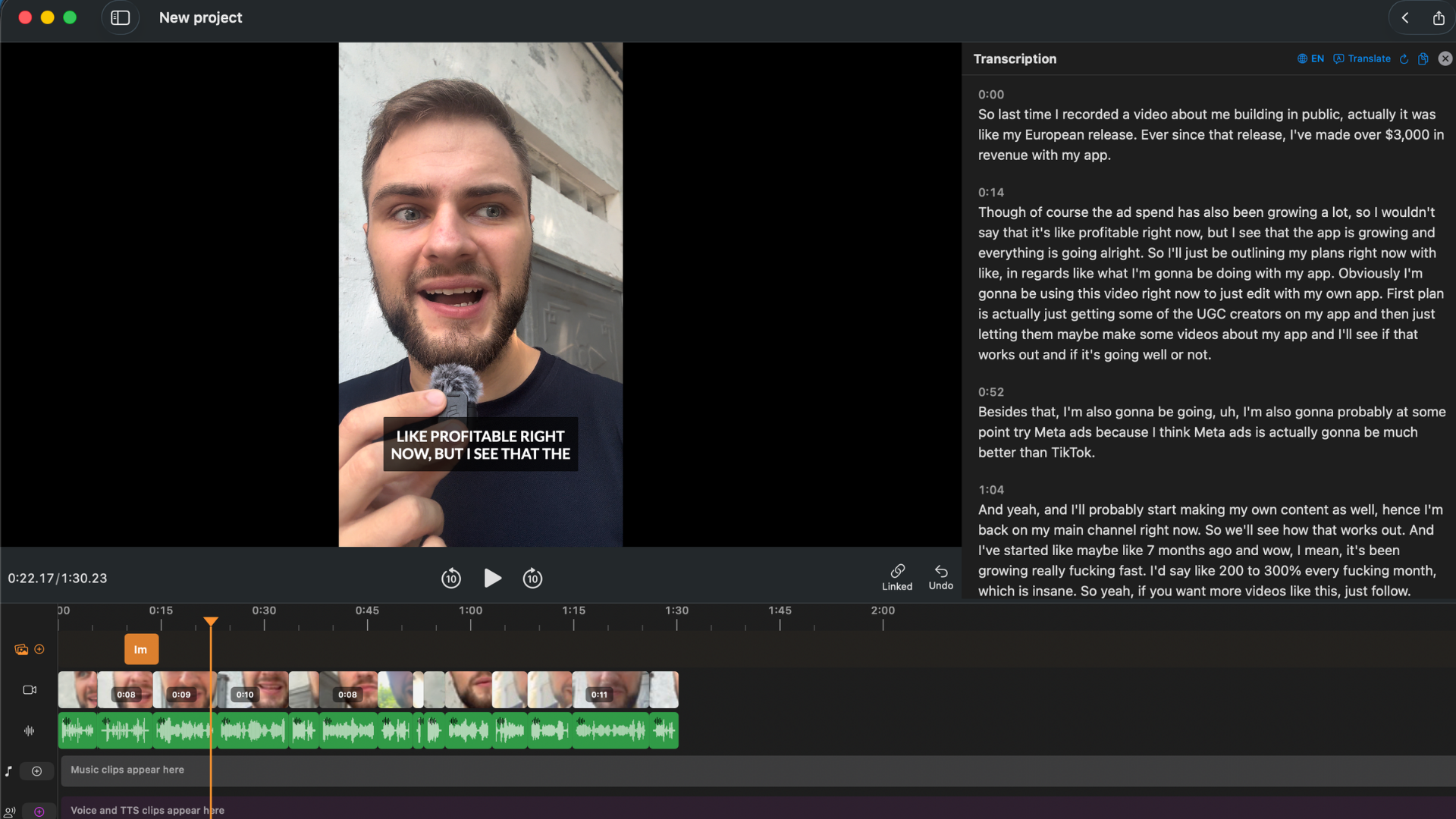
BlitzCut's transcript panel. Silence removed automatically. Edit the video by editing the text.
Direct Feature Comparison
| Feature | BlitzCut | DaVinci Resolve Free | DaVinci Resolve Studio ($295) |
|---|---|---|---|
| Price | $69.99/yr or $129.99 lifetime | Free | $295 one-time |
| Silence removal | Yes — on-device | Yes (v20.2+) | Yes |
| Auto captions / AI transcription | Yes — included | No | Yes |
| Text-based editing | Yes — included | No | Yes |
| Word-by-word karaoke captions | Yes | No | No |
| Filler word removal via transcript | Yes | No | Yes (Studio) |
| Color grading | Basic | Professional | Professional |
| Multicam editing | No | Yes (SmartSwitch) | Yes |
| Professional audio mixing (DAW) | Basic | Yes (Fairlight) | Yes |
| Native macOS app | Yes | Yes | Yes |
| Apple Silicon optimized | Yes | Partial* | Partial* |
| Learning curve | Low (hours) | High (weeks–months) | High (weeks–months) |
| iOS app | Yes | No | No |
*Documented performance issues on M3/M4 Macs with H.264/H.265 codecs.
Workflow Comparison: 10-Minute Talking Head Video
DaVinci Resolve Free
- Open DaVinci Resolve — significant startup time, GPU/RAM initialization
- Create new project, configure settings
- Import footage to Media Pool
- If H.264/H.265: create proxies to avoid playback stuttering (add 10–20 min)
- Switch to Cut or Edit page
- Use "Ripple Delete Silence" (Resolve 20.2+) to remove pauses
- Manually scrub for bad takes, cut them from the timeline
- Switch to Fairlight for audio adjustments
- Captions: export video → transcribe externally (MacWhisper) → import SRT → style in Edit page
- Switch to Deliver page, configure export settings, render
Active editing time: 50–80 minutes including external caption workflow.
BlitzCut
- Import footage — silence removal runs automatically in background
- Transcript ready in 1–2 minutes, silences already removed
- Read transcript, delete unwanted sections — footage cuts automatically
- Generate captions in one tap — karaoke, bold center, or standard
- Export in target aspect ratio
Active editing time: 10–20 minutes.
Where DaVinci Resolve Is Better
Professional Color Grading
DaVinci Resolve's color tools are used on major film and TV productions. Color wheels, curves, LUT import, waveform/vectorscope monitoring, HDR grading, per-node adjustments. If your content requires a specific cinematic look, or you shoot with a log-gamma camera and need to apply a technical LUT, Resolve's color tools are significantly beyond what BlitzCut provides.
Complex Multicam Productions
For a podcast or interview with two or more cameras on separate tracks, Resolve's AI SmartSwitch automatically cuts between angles based on speaker activity. In a tested 20-minute two-camera podcast, SmartSwitch achieved 91% accuracy and processed in 3 minutes vs. 1–2 hours manual. BlitzCut handles single-camera talking head; it has no multicam capability.
Professional Audio Post-Production
Fairlight is a professional DAW inside DaVinci Resolve — separate dialogue tracks, music, SFX, compression, EQ, stems. For productions requiring a real audio mix, Fairlight handles it. BlitzCut handles basic audio adjustments.
Long-Term Value of the Studio License
At $295 once, DaVinci Resolve Studio has no ongoing cost. Compared to subscription-based professional tools (Adobe Premiere at $660/year, Descript Creator at $400/year), the one-time price is extraordinary value for professional-grade features. For a creator willing to invest in learning it, Studio pays for itself.
Genuinely Free Base Version
DaVinci Resolve free has no watermark, no usage limits, and no subscription. For a creator who primarily needs timeline editing and color work without the AI features, it is the most capable free video editor available.
Where BlitzCut Is Better
Purpose-Built for Talking Head
BlitzCut's every feature serves the silence → transcript → captions → export pipeline. DaVinci Resolve is a general-purpose professional NLE where the talking head features are a small subset of a much larger tool designed for much more complex work.
Usable in Minutes, Not Weeks
BlitzCut's core workflow is learnable in under an hour. DaVinci Resolve's curve is measured in weeks. For a creator who wants to start editing their content today, this difference is real.
Karaoke Captions
DaVinci Resolve's "Animated Subtitles" (free in v20) generates basic animated captions. It does not generate word-by-word karaoke captions — where each word highlights as spoken. This is the dominant caption format on TikTok and Reels and consistently outperforms static captions on completion rate. BlitzCut generates word-by-word karaoke captions automatically from the transcript.
No Proxy Required for H.264/H.265
BlitzCut handles the codecs talking head creators actually use — iPhone H.264, H.265 — without proxy workflows. No setup overhead before editing begins.
iOS Included
The BlitzCut subscription includes both the Mac and iOS app on the same plan. DaVinci Resolve has no iOS version.
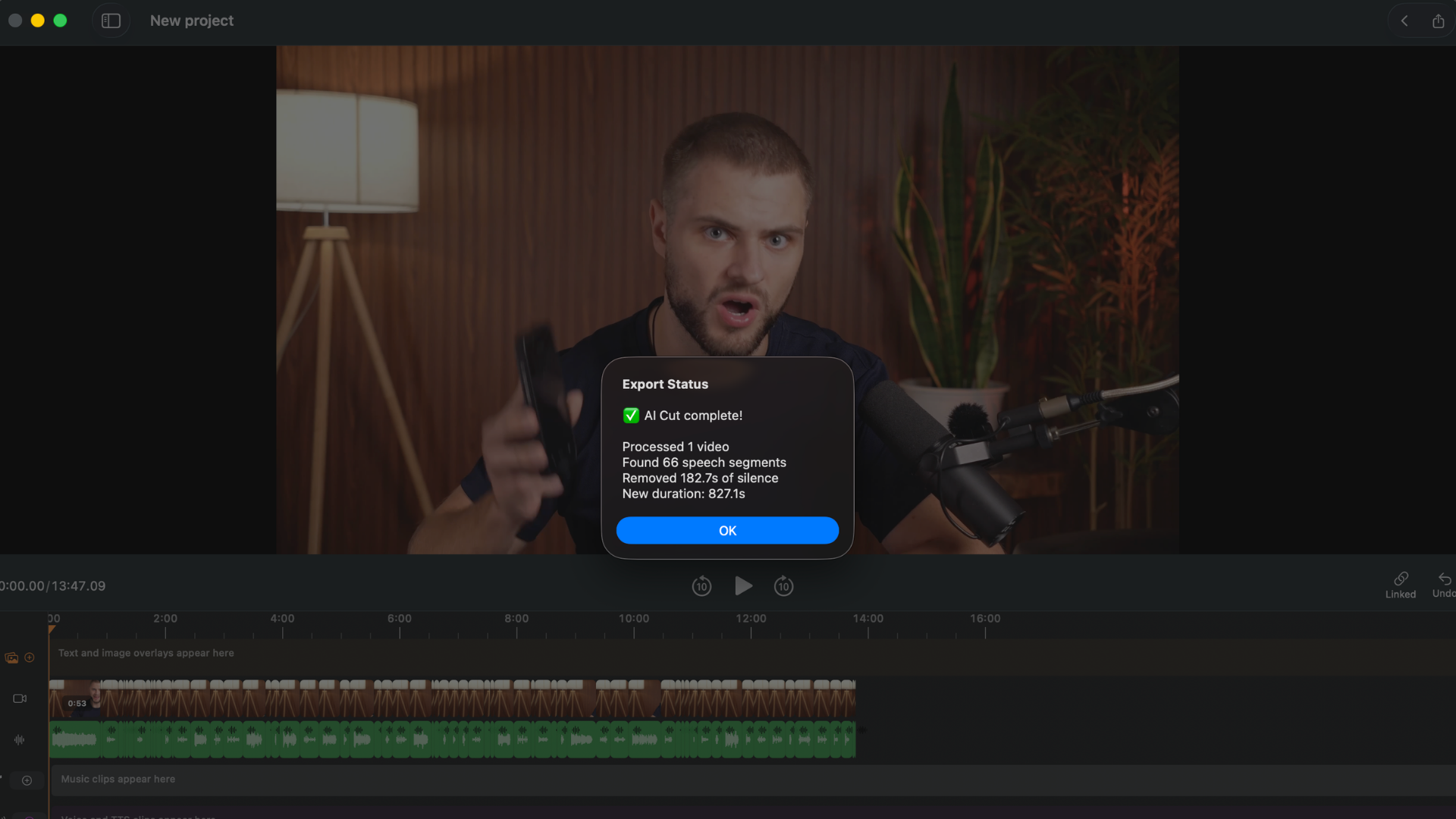
Silences removed automatically in BlitzCut. DaVinci Resolve requires manual cuts or the Ripple Delete Silence tool added in v20.2.
The Case for Using Both
Some creators genuinely need both. A creator who does client video work (needs Resolve's color grading and multicam) and also runs a social channel (needs BlitzCut's fast talking head workflow).
BlitzCut lifetime ($129.99) + DaVinci Resolve free = $129.99 total. Two tools, both covered, no ongoing subscription.
The creator who needs DaVinci Resolve Studio for professional work and BlitzCut for social clips: $295 + $129.99 = $424.99 one-time. Less than one year of Adobe Premiere Pro.
Frequently Asked Questions
Is DaVinci Resolve good for talking head YouTube videos? The free version handles basic timeline editing well but lacks auto captions and text-based editing — both Studio-only features. It works but requires more manual steps and external tools for captioning compared to a purpose-built talking head tool.
Does DaVinci Resolve have auto captions? Only in the Studio version ($295 one-time). The free version has no built-in auto caption generation. The common workaround is importing externally-generated SRT files from MacWhisper or Whisper CLI.
Does DaVinci Resolve have silence removal? Yes — added in version 20.2 to both free and Studio versions. The feature is "Ripple Delete Silence" under Clip → Audio Operations. Some users report the option appearing greyed out in certain project configurations.
Is DaVinci Resolve hard to learn? Relative to purpose-built social content tools, yes — substantially so. The community estimates 1–2 weeks for functional basics and 2–3 months for confident workflow fluency. The Cut page helps but doesn't eliminate seven-workspace navigation.
Is BlitzCut better than DaVinci Resolve? For talking head video, podcast clips, and social content: BlitzCut's workflow is faster and purpose-built for the use case. For complex multi-camera productions, professional color work, or broadcast deliverables: DaVinci Resolve is the more capable tool and the free version is unbeatable on price.
Can I use DaVinci Resolve on an M4 Mac? Yes, but documented performance issues on M3/M4 Macs — codec playback stuttering, rendering bugs, tracking slowdowns — may require proxy workflows for smooth editing with H.264/H.265 footage.
What's the difference between DaVinci Resolve free and Studio? Studio ($295 one-time) adds AI transcription, text-based editing, voice isolation, advanced noise reduction, and multi-GPU support. The free version is fully functional for traditional editing, color, and audio — but lacks the AI features most relevant to talking head creators.
Does DaVinci Resolve have a mobile app? No. DaVinci Resolve is Mac, Windows, and Linux desktop only. BlitzCut includes both Mac and iOS apps on the same subscription.
Related: BlitzCut vs Final Cut Pro · Best Mac Apps for Silence Removal in 2026 · Best Video Transcription Apps for Mac 2026
Editing a talking-head video?
BlitzCut is available on Android, iPhone, iPad, and Mac. It is designed for recorded UGC-style videos, founder-led ads, tutorials, and testimonials and other talking-head content.
Try it for freeRelated Articles
Keep Reading

How to Add Music to a Video on iPhone: Soundtracks and Imports
Learn how to add music to a video on iPhone with soundtracks or imported audio, balance it beneath speech, and finish the edit in iMovie or BlitzCut.

How to Add Pictures to a Video: Clips, Cutaways, and Overlays
Learn how to add pictures to a video as clips, cutaways, or overlays in iMovie and BlitzCut, while keeping narration and image timing clear.

YouTube Studio Setup Under $200: A Home Studio for Content Creators (2026)
A YouTube studio setup under $200, built around your phone: two budget tiers, gear ranked by impact, and what to skip for YouTube, TikTok, and podcasts.